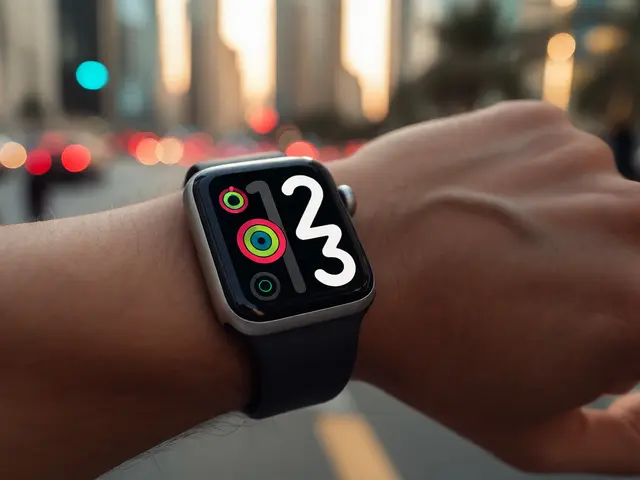
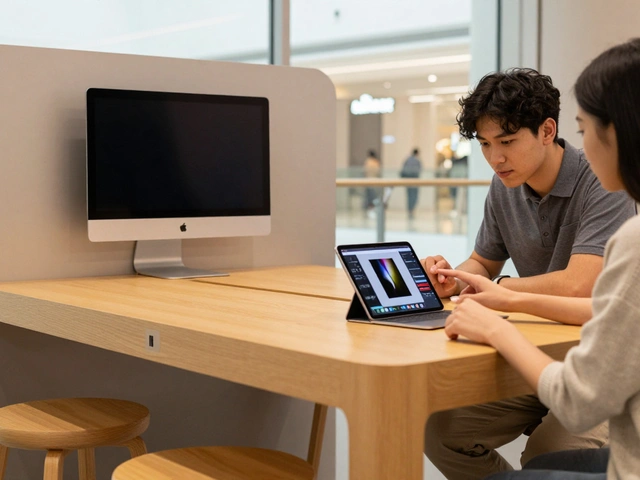
Apple doesn’t just make devices that work - it makes them work for you. Whether you have limited hand mobility, struggle to hear in noisy rooms, or need larger text to read comfortably, Apple’s interface personalization tools let you shape how your iPhone, iPad, Mac, or Apple Watch behaves. No more forcing yourself to adapt to the device. Instead, the device adapts to you.
Customize Input: How You Interact With Your Device
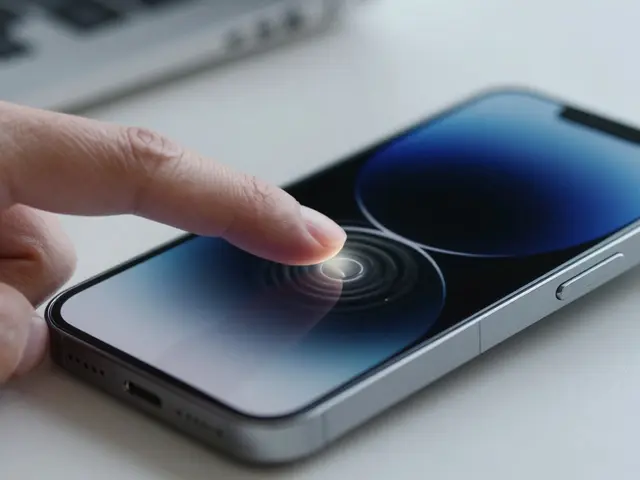
How you tap, swipe, or press buttons shouldn’t be one-size-fits-all. Apple gives you multiple ways to change how input works. If holding a phone with one hand is hard, Reachability pulls the screen down so you can reach the top without stretching. Just double-tap the bottom of the screen (on devices without a Home button) and everything shifts lower.For those who can’t use traditional touch controls, AssistiveTouch puts a floating circle on screen that acts like a remote control. Tap it once to simulate a Home button, twice to open Control Center, or assign it to trigger any action - even a custom gesture like a long press or shake.
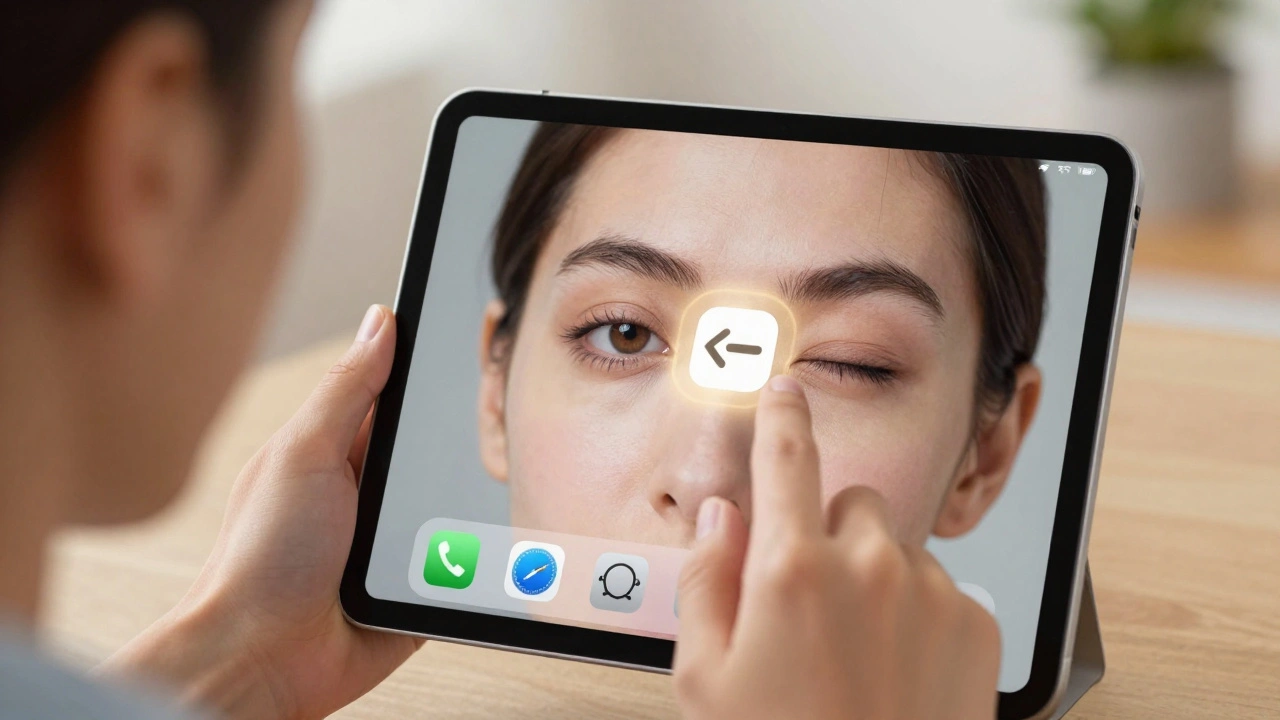
If even that’s too much, Switch Control lets you use external switches, head movements, or even eye tracking to navigate. You don’t need to touch the screen at all. In 2025, Apple took this further by adding support for Brain Computer Interfaces (BCIs), letting users control their devices with thought patterns. It’s still early, but it’s no longer science fiction.
And if you prefer voice? Vocal Shortcuts let you teach your iPhone to respond to your own sounds - a whistle, a cough, or even a hum - to turn on features like Voice Control or Magnifier. No need to say "Hey Siri" every time.
Audio That Fits Your Ears
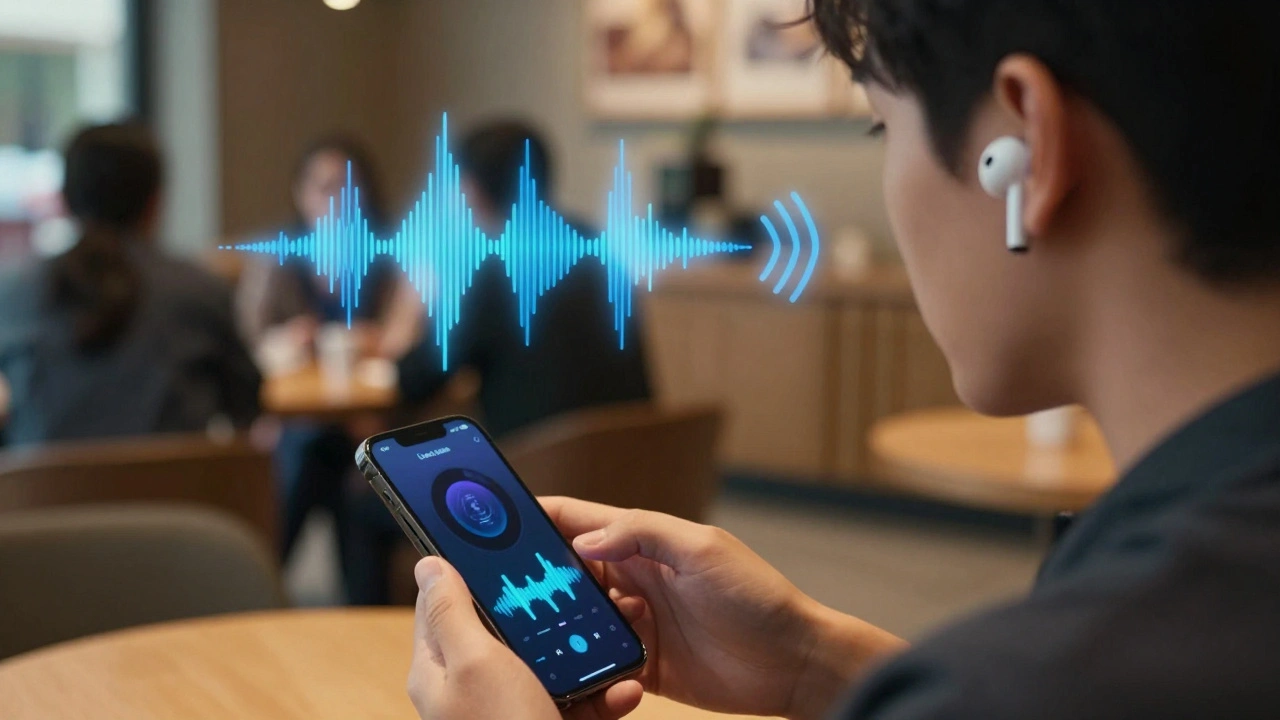
Sound isn’t just about volume. It’s about clarity, balance, and context. Apple’s audio personalization goes far beyond turning up the volume.Go to Settings > Accessibility > Audio & Visual and you’ll find options to adjust left-right balance, boost high frequencies, or reduce background noise. Live Listen, originally for hearing aids, now works with AirPods to turn your iPhone into a directional microphone. Point it toward a conversation, and the audio streams directly to your ears - perfect for crowded rooms or noisy cafes.
For people who need background sound to focus, Background Sounds now includes new tones like ocean waves, rain, and even white noise with adjustable pitch. You can set it to play automatically when you open a specific app - like your notes app or calendar - so you’re not constantly toggling settings.
And then there’s Music Haptics. On iPhone 13 and later, you don’t just hear music - you feel it. You can choose whether haptics respond to the whole song, just the vocals, or even the bassline. Adjust the intensity so it’s subtle or strong. It’s not just for fun - for users who are deaf or hard of hearing, it turns rhythm into physical feedback, making music accessible in a whole new way.
In 2025, Apple added Name Recognition to Sound Recognition. Now, when someone calls your name, your iPhone vibrates and displays a notification - even if you’re not looking at it. No more missing your name in a group chat or during a meeting.
Visuals That Work for Your Eyes
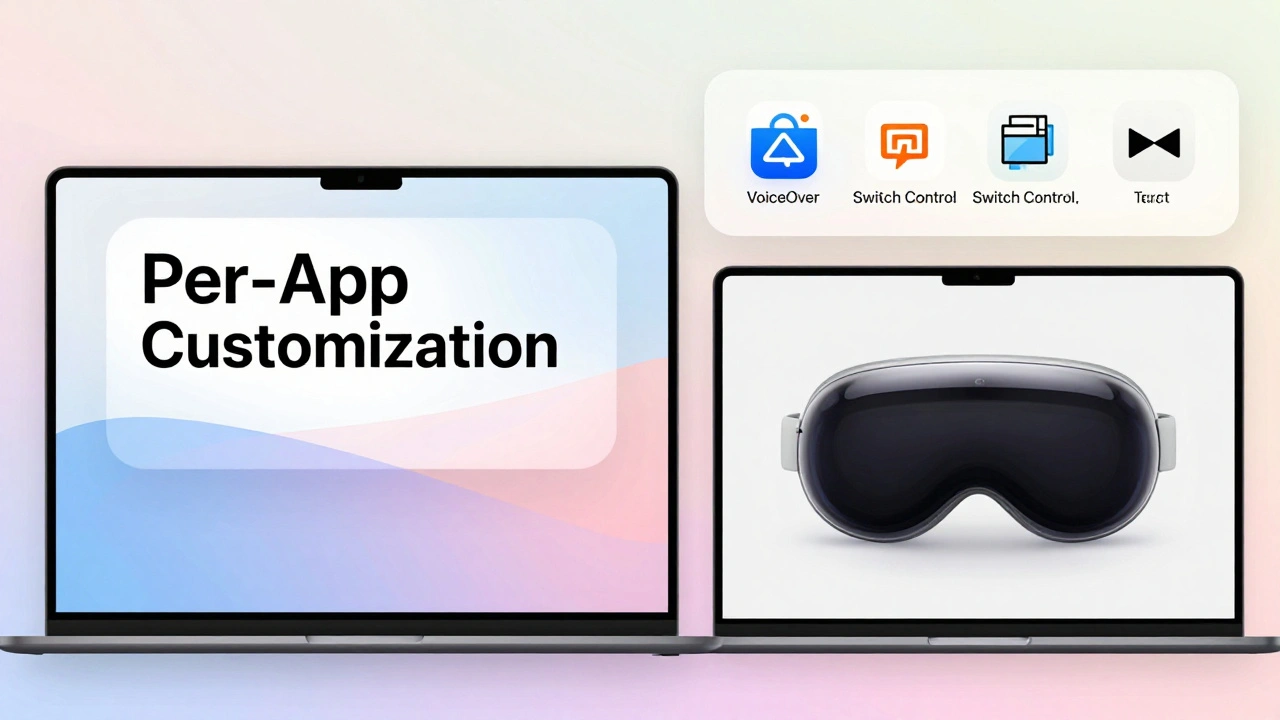
Text size? Check. Bold text? Check. But Apple goes deeper. You can increase contrast, reduce motion, invert colors, or dim the screen beyond the normal minimum. These aren’t just cosmetic tweaks - they’re essential for people with low vision, light sensitivity, or motion-triggered dizziness.The real power? Per-App Customization. You can set one app - say, your email - to use large text and high contrast, while keeping your games at default settings. Open Safari? Text gets bigger. Open Instagram? Text stays normal. It’s the first time Apple let you customize accessibility settings per app instead of system-wide. No more choosing between readability and aesthetics.
And on Mac, the new Magnifier lets you explore images, documents, or web pages with a live zoom lens that follows your cursor. You can adjust color filters, edge enhancement, and even freeze a section to study it closely. It’s like having a digital magnifying glass built into your screen.
On Apple Vision Pro, visual customization gets even smarter. You can adjust depth, brightness, and focus for each eye independently. If one eye sees better than the other, the system compensates - no headset adjustment needed.
Quick Access: Your Accessibility Shortcut
Why dig through six menus to turn on VoiceOver? Apple’s Accessibility Shortcut cuts that down to one triple-click.On iPhone with Face ID, triple-click the side button. On older iPhones, triple-click the Home button. On Apple Watch, press the Digital Crown twice. On Mac, press Option five times. You decide what happens when you trigger it.
Set it to toggle one feature - like Dark Mode or Zoom - and it flips on or off instantly. Or set it to show a menu with five options: VoiceOver, Magnifier, Color Filters, Reduce Motion, and Invert Colors. You pick what you need, right then and there. No menus. No delays.
You can even adjust how fast the triple-click must be. If your hand trembles, slow down the trigger speed so you don’t accidentally turn it on.
Control Center: Your Accessibility Hub
Control Center isn’t just for Wi-Fi and Bluetooth anymore. It’s now a full accessibility dashboard.Swipe down (or up, depending on your device) and tap the top-left corner to edit. Add controls for: VoiceOver, Zoom, Display Zoom, Reduce Transparency, and even Sound Recognition. You can rearrange them, resize them, or move them to the top for easier access.
For users with low vision, Apple lets you stretch the entire Control Center panel. Long-press any control with one finger, then drag to resize. Make the buttons bigger. Make the text larger. Make it easier to tap.
And if you use hearing aids, go to Settings > Accessibility > Hearing > Control Center and add your preferred audio controls. You can toggle between hearing aid modes, adjust balance, or activate Live Listen - all without opening Settings.
The Bigger Picture: Consistency Across Devices
What you set on your iPhone? It carries over to your iPad, Mac, Apple Watch, Apple TV, and Vision Pro. Change your text size on your phone? Your Mac’s menu bar updates too. Set up VoiceOver on your iPad? Your Apple TV will use the same settings. That’s not convenience - it’s coherence.This ecosystem-wide sync means you don’t have to relearn how to use your devices. Your custom setup becomes second nature, whether you’re watching a movie on Apple TV or writing a report on your Mac.
What’s New in 2025: Accessibility Nutrition Labels
Apple’s biggest leap in 2025? Accessibility Nutrition Labels on the App Store. Just like food packaging lists calories and sugar, app listings now show accessibility features: Does it support VoiceOver? Can you adjust text size? Is there a high-contrast mode? Is there keyboard navigation? Is it compatible with Switch Control?No more guessing. No more downloading an app only to find it’s unusable. Now, you can scan the label and know exactly what to expect - before you install anything.
And with Accessibility Reader, Apple introduced a system-wide reading mode. It strips away ads, pop-ups, and clutter. It reads aloud with natural-sounding voices. It highlights text as it speaks. And it works in Safari, Notes, Mail - anywhere text appears. It’s not just for people with reading difficulties. It’s for anyone who wants to consume content without distraction.
It’s Not About Disability - It’s About Choice
These features aren’t just for people with disabilities. They’re for anyone who wants control. Maybe you’re tired of squinting at your phone in sunlight. Maybe your hands are sore from typing all day. Maybe you’re in a quiet library and need to mute notifications without fumbling. Apple’s personalization tools let you solve those problems - without compromise.There’s no single "right" way to use a device. Apple gets that. And that’s why its interface personalization isn’t a feature list - it’s a philosophy. Your device should bend to you. Not the other way around.
How do I set up the Accessibility Shortcut on my iPhone?
Go to Settings > Accessibility > Accessibility Shortcut. Tap the features you want to include - like VoiceOver, Zoom, or Invert Colors. If you pick just one, triple-clicking the side button turns it on or off instantly. If you pick multiple, triple-clicking brings up a menu so you can choose which one to activate.
Can I customize accessibility settings for individual apps?
Yes. Go to Settings > Accessibility > Per App Settings. Tap "Add App" and choose the app you want to customize. Then adjust text size, contrast, motion, and more - all specific to that app. These settings only apply when you open that app, so your other apps stay unchanged.
What’s the difference between Live Listen and Background Sounds?
Live Listen turns your iPhone into a microphone that streams sound directly to your AirPods - useful in noisy places. Background Sounds plays ambient noise like rain or white noise to help you focus or relax. One helps you hear others; the other helps you tune out distractions.
Can I use Apple’s accessibility features without a touchscreen?
Yes. Switch Control lets you navigate using external switches, head movements, or eye tracking. With the 2025 update, it now supports Brain Computer Interfaces (BCIs), letting you control your device with brain signals. You don’t need to touch the screen at all.
Do accessibility settings sync across my Apple devices?
Yes. If you turn on VoiceOver or change text size on your iPhone, those settings automatically apply to your iPad, Mac, Apple Watch, and Apple TV - as long as you’re signed in with the same Apple ID. This creates a consistent experience no matter which device you’re using.
How do I know if an app supports accessibility features before downloading it?
Since 2025, the App Store shows Accessibility Nutrition Labels. Scroll down on any app’s page and you’ll see a section listing features like VoiceOver support, text resizing, keyboard navigation, and compatibility with Switch Control. This helps you choose apps that work for your needs before you install them.
Next time you’re stuck with a setting that doesn’t work for you, don’t accept it. Open Settings. Go to Accessibility. Try one change. You might be surprised how much better your device feels - not because it’s new, but because it finally fits you.