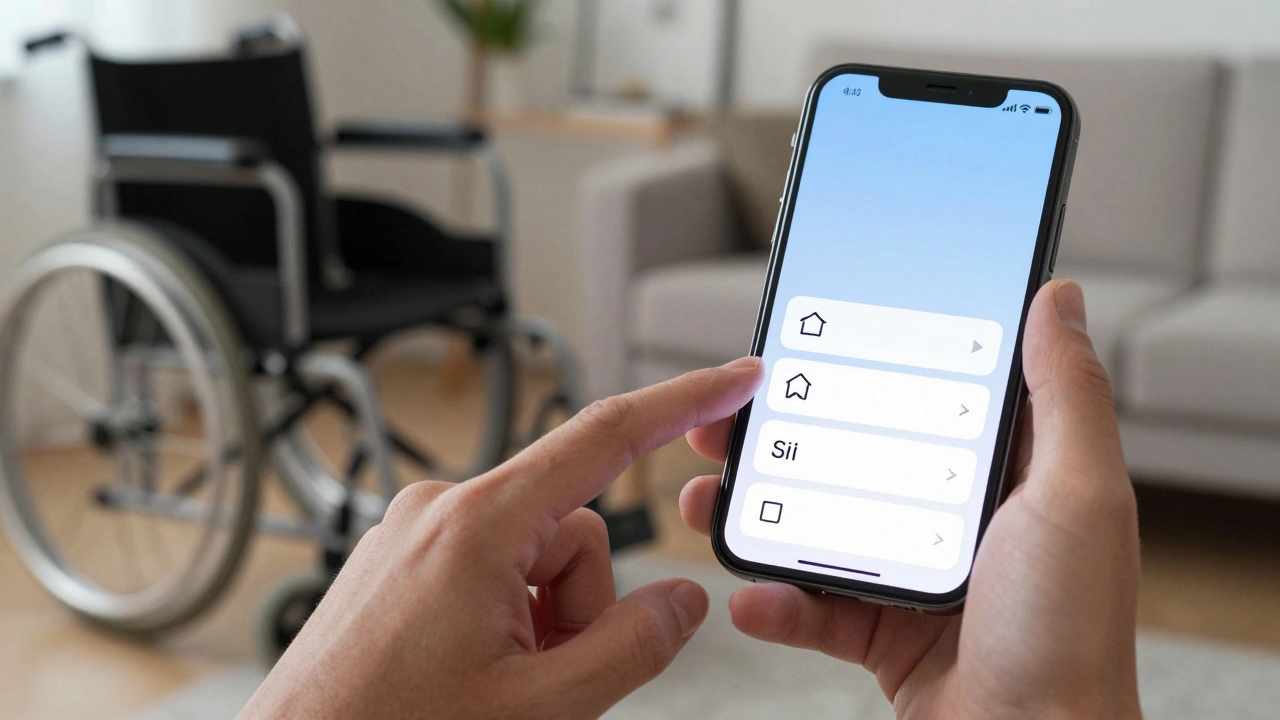

Most people think tapping and swiping are the only ways to use an iPhone. But for users with limited hand mobility, arthritis, paralysis, or other physical challenges, those simple gestures can be impossible. Apple doesn’t treat accessibility as an afterthought-it builds it into the core of every device. Two features, AssistiveTouch and Switch Control, let people interact with their iPhones and iPads in ways that fit their bodies, not the other way around.
AssistiveTouch: Your On-Screen Remote Control
AssistiveTouch turns your screen into a customizable control panel. Instead of pressing the side button to lock your phone or using three fingers to take a screenshot, you tap a small circular button that floats anywhere on your screen. This button opens a menu with shortcuts to nearly every function your device offers.You don’t need to be tech-savvy to set it up. Go to Settings > Accessibility > Touch > AssistiveTouch and flip the toggle on. The button appears immediately. Tap it once, and you’ll see options like Home, Lock Screen, Control Center, Siri, Volume Up/Down, and even custom gestures you create yourself.
What makes AssistiveTouch powerful isn’t just the menu-it’s how deep the customization goes. You can assign a double-tap or long press to any action. Need to scroll through a long page without lifting your finger? Set a long press to start scrolling. Want to take a screenshot without reaching for the buttons? Assign it to a double-tap. The system remembers your choices and applies them across all apps.
For users who need more precision, AssistiveTouch lets you simulate multi-touch gestures. Want to pinch to zoom with one hand? The menu includes a gesture simulator where you can draw a 2-finger, 3-finger, or even 5-finger pinch on-screen. The system tracks your movement and repeats it as if you had multiple fingers touching the screen. No more struggling to coordinate two hands.
There’s also Mouse Keys, which lets you control the cursor using your keyboard. If you’re using a Bluetooth keyboard with your iPad, you can move the cursor with arrow keys and click with spacebar. You can even change the pointer’s size, color, and transparency. Some users set it to auto-hide after 5 seconds to keep the screen clean, while others keep it always visible for constant access.
One underrated feature? Hot Corners. If you let the cursor linger in a corner of the screen for a few seconds, it triggers an action. You can set each corner to open Control Center, activate Siri, take a screenshot, or launch a custom gesture. For someone with limited arm movement, this means they can trigger actions just by moving their eyes or head slightly-no need to reach across the screen.
Switch Control: Control Your Device with One Move
If AssistiveTouch is like a remote, Switch Control is like a full-body interface. It’s built for people who can’t touch the screen at all-or can only use one part of their body to interact. You can use a single switch, like a button under your chin, a sip-and-puff device, or even your voice. Some users connect a Bluetooth switch to their iPhone and control everything with a single press.Setting up Switch Control is more involved than AssistiveTouch, but Apple guides you step by step. Go to Settings > Accessibility > Switch Control > Switches. Here, you add your switch and assign it a role. The most common setup uses two switches: one to move the cursor, another to select. But you can use up to four switches for more complex workflows.
Switch Control doesn’t just tap buttons-it scans. It highlights one item at a time, then waits for you to activate your switch. If you’re using one switch, it cycles through every button, link, and icon on the screen. You press your switch when the highlight lands on what you want. It’s slow at first, but with practice, users report they can navigate their entire phone without touching the screen.
There are three scanning styles: Item Scanning (moves from one item to the next), Gliding Cursor (the cursor glides across the screen like a mouse), and Eye Tracking (if you have an iPhone with Face ID, it tracks your gaze). Eye Tracking works surprisingly well. You don’t need to move your head-just look at the button you want to press. Apple calls this Face Guidance, and it’s powered by the TrueDepth camera.
Customization here is just as deep. You can set how long the system waits before moving to the next item. Too fast? Slow it down. Too slow? Speed it up. You can make it pause on the first item, or loop through the screen three times before hiding. There’s even a setting to confirm Apple Pay transactions using Switch Control instead of double-clicking the side button. That’s huge for users who can’t press buttons but still need to buy groceries or pay for transit.
Another powerful tool? Custom gestures. You can record a swipe, a pinch, or a rotation and assign it to a switch. One user in Portland uses a foot switch to trigger a custom gesture that opens Messages and types “I’m here” to her caregiver. Another uses a head movement sensor to trigger a long press on the volume button to mute his hearing aid during meetings.
How They Work Together
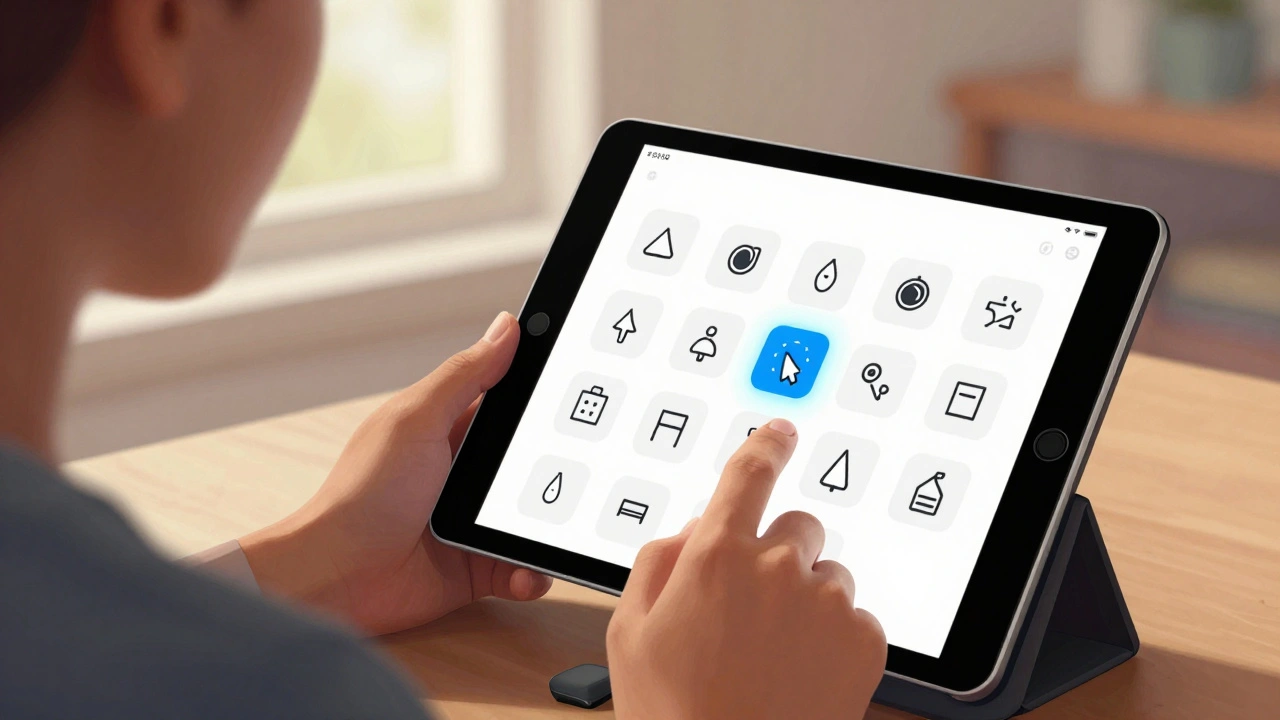
AssistiveTouch and Switch Control aren’t rivals-they’re teammates. You can use both at the same time. For example, you might use Switch Control to navigate your phone and then use AssistiveTouch to adjust volume or take a screenshot. Apple even lets you add both to your Accessibility Shortcut. Triple-click the side button, and you can toggle either one on or off instantly.They also share underlying technology. Both can simulate gestures, both support dwell control, and both let you create custom actions. The difference is in how you activate them. AssistiveTouch works best for people who can tap or swipe, even if they can’t do complex gestures. Switch Control is for those who need external switches, voice commands, or head tracking because direct touch isn’t possible.
One real-world example: A student with cerebral palsy uses Switch Control to browse the web and send emails. But when she wants to take a screenshot of her notes, she uses AssistiveTouch’s custom gesture-just a single switch press. She doesn’t need to navigate through menus. It’s one action, one click, one moment of independence.
Why This Matters
These aren’t gimmicks. They’re lifelines. For people with motor disabilities, a smartphone isn’t just a tool-it’s a way to stay connected, work, learn, and live independently. Apple’s approach isn’t about making devices “accessible.” It’s about making them usable for everyone, no matter how their body moves.When you look at the details-customizable cursor colors, dwell timeouts, gesture recording, eye tracking-you see something rare: a company that didn’t just add accessibility as a checkbox. They built it into the DNA of the product. No other platform offers this level of fine-tuned control across so many devices.
And it’s not just for people with disabilities. Many users without physical limitations use AssistiveTouch to reduce strain. One carpenter in Oregon uses it to take screenshots without dropping his phone. A musician uses it to control music playback with one hand while holding an instrument. These features aren’t niche-they’re smart design.
Setting Up Your Own System
If you’re thinking about trying one of these, here’s how to start:- Try AssistiveTouch first if you struggle with gestures, have stiff fingers, or just want to reduce button use. Enable it, play with the menu, and create one custom gesture. See how it feels.
- Try Switch Control if you can’t touch the screen or need to use a switch, voice, or head movement. Connect a simple Bluetooth button, set it to move and select, and give it 10 minutes. Don’t expect perfection-this takes practice.
- Use Accessibility Shortcut to toggle both with a triple-click of the side button. It’s the fastest way to turn them on or off.
- Record your own gestures in both features. The more you personalize, the more natural it becomes.
You don’t need to be an expert. Apple’s setup guides walk you through each step. If you get stuck, visit an Apple Store. Their accessibility specialists will sit with you for an hour, no appointment needed.
Can I use AssistiveTouch and Switch Control at the same time?
Yes. You can have both enabled simultaneously. Many users use Switch Control to navigate their device and AssistiveTouch to trigger quick actions like taking screenshots or adjusting volume. You can toggle each one on or off independently using the Accessibility Shortcut (triple-click the side button).
Do I need special hardware to use Switch Control?
Not necessarily. You can use your iPhone’s touchscreen as a switch by enabling the "On-Screen Switch" option. But for better control, you can connect Bluetooth switches, adaptive buttons, or even head-tracking devices. Apple recommends third-party switches like those from EnableMart or Attainment Company, but even a simple Bluetooth keyboard can work as a switch.
Can I use Switch Control to pay with Apple Pay?
Yes. Switch Control can be used to confirm Apple Pay transactions instead of double-clicking the side button. When you set up Apple Pay, you can enable Switch Control as an alternative method. The system will pause and wait for you to activate your switch to complete the payment.
Is AssistiveTouch available on iPads too?
Yes. AssistiveTouch works on all iPads running iPadOS, including iPad Pro, iPad Air, and iPad mini. The setup is identical to iPhone: go to Settings > Accessibility > Touch > AssistiveTouch. It’s especially helpful on iPads because the larger screen makes it easier to see and use the floating button.
Can I create my own gestures in Switch Control?
Yes. Under Switch Control settings, go to Menu Items > Saved Gestures. You can record a swipe, pinch, or rotation by dragging your finger across the screen. Once saved, you can assign it to a switch. This lets you perform complex actions with a single press-like opening an app, scrolling to the bottom of a page, or zooming in.
Next Steps
If you or someone you know struggles with touch-based interaction, don’t wait until it becomes a barrier. Try AssistiveTouch today. It takes less than a minute to turn on. If that’s not enough, explore Switch Control. The first time you use it, it might feel awkward. But after a few days, it becomes second nature.Apple doesn’t sell these features. They’re built in. No subscription. No extra cost. Just part of the device. That’s the real win-not the tech, but the philosophy behind it: everyone deserves to control their own technology.


Categories
Popular Articles