
When Apple designed the first iPhone, they didn’t just build a phone. They built a system that had to work for everyone - not just the able-bodied. That’s why accessibility isn’t an add-on on iOS. It’s the foundation. Every gesture, button press, and voice command you use today was shaped by the needs of people who interact with their devices differently. The iPhone doesn’t ask you to adapt to its design. It adapts to you.
Accessibility Isn’t a Feature - It’s the Framework
Think about how you unlock your iPhone. You press a button, swipe up, or glance at the screen. Now imagine you can’t see the screen, can’t press buttons, or can’t move your fingers at all. How would you interact with it? Apple didn’t wait for complaints. They started from scratch: what if the user can’t see, hear, or move like most people? The answer became the core of iOS design. The iPhone’s accessibility tools aren’t tucked away in a corner. They’re built into the system’s DNA. Every feature - from VoiceOver to Switch Control - was created to solve real problems for real people. And in solving those problems, Apple didn’t just help a small group. They redefined how everyone uses a touchscreen.Vision: Seeing Beyond the Screen
For users who are blind or have low vision, the iPhone doesn’t rely on sight. It relies on sound, vibration, and spatial awareness. VoiceOver reads everything aloud - buttons, messages, notifications. But it doesn’t just read. It maps the screen. Swipe left to hear the next item. Double-tap to select. Two-finger scrub to move around. It’s not a workaround. It’s a new language of interaction. Magnifier turns your camera into a live magnifying glass. You can adjust brightness, contrast, and color filters. No extra device needed. Just your iPhone. And Door Detection? That’s not a gimmick. It uses the rear camera to scan your environment and tell you when a door is ahead, what color it is, and whether it’s open. For someone navigating a building alone, that’s life-changing. These aren’t just tools. They’re interaction patterns that changed how Apple thinks about screens. If a blind user can navigate an app using sound and vibration, why can’t everyone? That’s why iOS now has richer audio cues, better haptics, and more consistent screen reading across apps.Interaction: Controlling Without Touch
AssistiveTouch is one of the most powerful innovations in mobile design. It replaces physical buttons with a floating menu you can tap anywhere. But it goes further. You can program it to do anything: take a screenshot, open Control Center, or activate VoiceOver - all with one tap. You can even create custom gestures, like a circular motion to lock the screen. For users who can’t tap at all, Switch Control takes over. It scans the screen one item at a time - a button, a text field, a menu. You connect a switch - a foot pedal, a head tracker, even a sip-and-puff device - and tap it when the item you want is highlighted. It’s slow. It’s deliberate. But it works. And because it’s built into iOS, it works in every app. No third-party software. No special hardware. Just your iPhone and a simple switch. And then there’s Touch Accommodations. Need to hold your finger down longer before a tap registers? Done. Want to ignore accidental swipes? Easy. The iPhone can now detect where your finger starts and where it ends, and decide which point was your real intent. That’s not a setting. That’s a redesign of how touch works.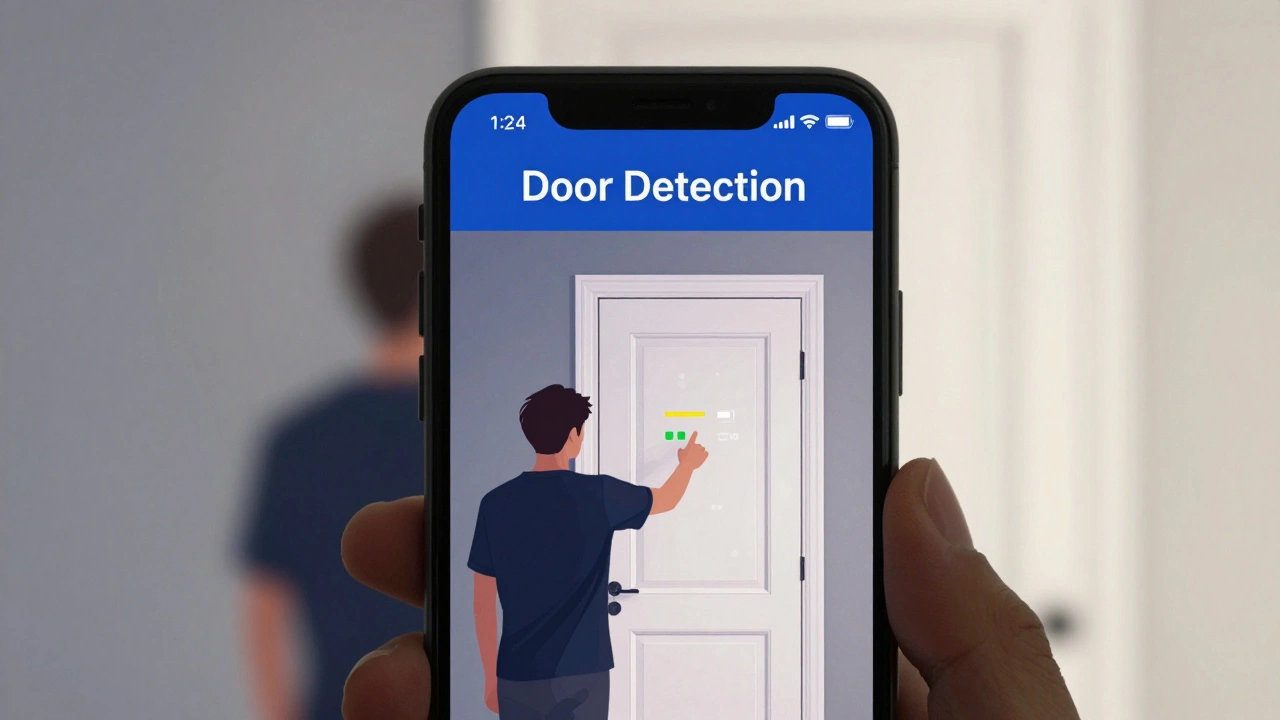
Hearing: Sound as a Signal, Not a Requirement
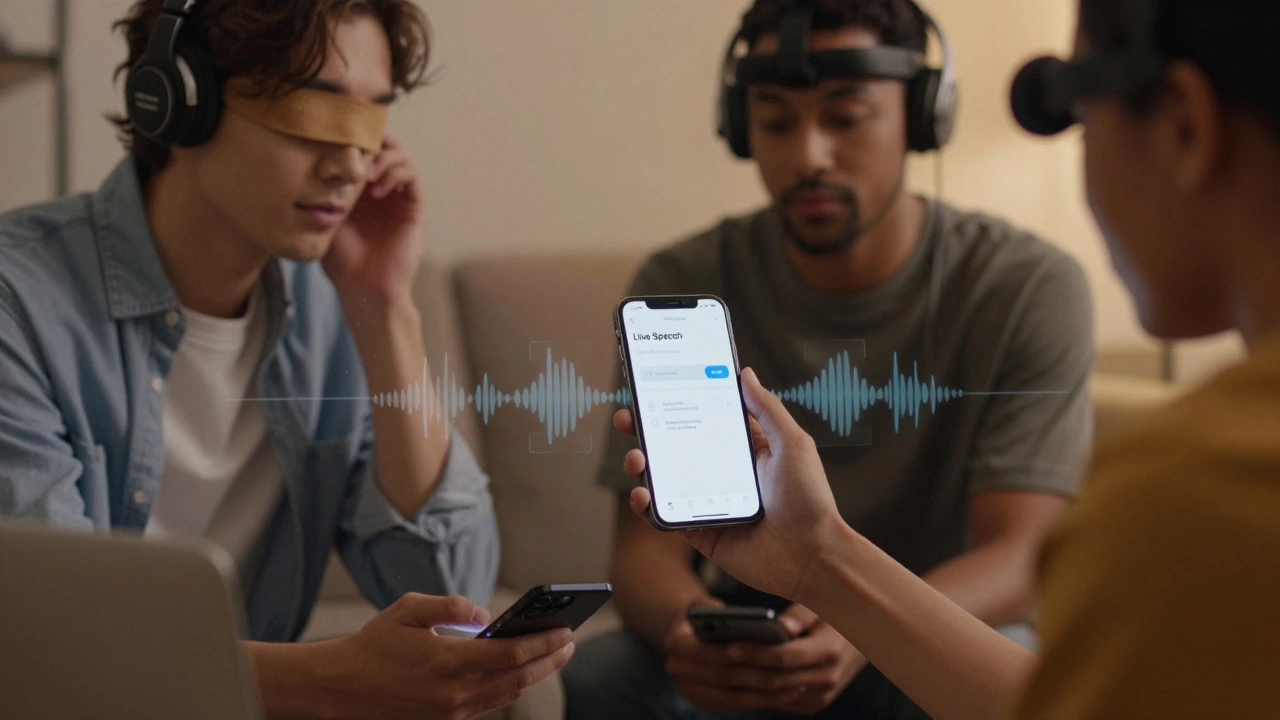
Live Speech is one of the most underappreciated features. If you can’t speak, you can type what you want to say - and your iPhone will say it out loud during a call or in person. No extra app. No setup. Just type and speak. It turns a communication barrier into a conversation. Visual alerts replace sounds. Flashing lights for notifications. Vibrations for incoming calls. The iPhone now shows caller ID as text on the screen during a call. You can even adjust the volume of each app independently so one notification doesn’t drown out another. These aren’t just convenience features. They’re essential. If a deaf person can’t hear their phone ring, they need another way to know someone is trying to reach them. Apple didn’t just add a visual alert. They rebuilt how alerts work across the entire system.Learning: Simplicity as a Design Principle
Not everyone processes information the same way. For users with cognitive disabilities, or for parents setting up a device for a child, iOS offers Simplified Mode. It strips away clutter. Apps show only what’s needed. Buttons are bigger. Text is clearer. You can lock the phone to a single app - like a game or video - so nothing else can be opened. Reduced Motion turns off animations. No fading, no sliding, no zooming. Just static screens. It’s not just for people with motion sensitivity. It’s for anyone who finds distractions overwhelming. And On/Off Labels? They turn every toggle into a clear label - “Do Not Disturb: ON” instead of just a sliding bar. These features weren’t created for a niche. They were created because Apple realized that simplicity benefits everyone. Less clutter. Less confusion. More control.The Triple-Click Shortcut: Your Personal Control Center
One of the most brilliant design decisions is the Accessibility Shortcut. Triple-click the side button (or home button on older models), and you can instantly turn on VoiceOver, Magnifier, Switch Control, or any combination you choose. No digging through menus. No guessing. Just three clicks. You can customize it. Want to turn on Live Speech and Reduce Motion with one click? Done. Want to skip the menu and activate your most-used feature directly? Set it up. This isn’t a convenience. It’s a lifeline. For someone who needs to activate a feature quickly, every second counts. Apple built that speed into the hardware itself.
Siri: The Hands-Free Interface
Siri isn’t just a voice assistant. It’s a bridge. Say, “Turn on VoiceOver,” and it happens. Say, “Open Magnifier,” and the camera activates. You don’t need to touch the screen. You don’t need to see it. You just speak. And Siri understands context. If you say, “Call Mom,” and your phone is in Do Not Disturb mode, Siri will ask if you want to override it. This is how accessibility shapes interaction. Siri didn’t start as a tool for disabled users. But because Apple built it to work with VoiceOver, Switch Control, and Live Speech, it became the most accessible interface on the planet. Now, everyone uses it - because it just works.Why This Matters Beyond Accessibility
The real genius isn’t that Apple made tools for people with disabilities. It’s that they made tools that make the phone better for everyone. - Reachability? That’s the feature that pulls the top of the screen down so you can reach it with one thumb. Who uses it? Everyone with large phones. Not just people with mobility issues. - Reduced Motion? That’s the setting that makes scrolling smoother. It’s turned on by default for many users who just find animations annoying. - Live Speech? It’s used by people in noisy rooms, on calls while driving, or when they’re holding a baby. It’s not just for non-speaking users. Apple didn’t design accessibility features for a small group. They designed them to redefine how all of us interact with technology. The iPhone’s core interaction patterns - tapping, swiping, speaking, scanning - were all shaped by the needs of people who use the device differently. And because of that, the iPhone doesn’t just work for people with disabilities. It works better for everyone.Can I turn on accessibility features during iPhone setup?
Yes. During the initial setup of your iPhone, iOS offers an Accessibility option right after you choose your language and region. You can turn on VoiceOver, Zoom, or AssistiveTouch before you even start using the phone. This ensures that accessibility isn’t an afterthought - it’s part of the first experience.
Do accessibility features slow down my iPhone?
No. Apple designs accessibility features to run efficiently in the background. VoiceOver, Switch Control, and Live Speech use the same processing power as other apps. You won’t notice a drop in performance. In fact, features like Reduced Motion can make your phone feel faster by removing unnecessary animations.
Can I use Switch Control with third-party hardware?
Yes. Switch Control works with Bluetooth switches from companies like AbleNet, Logitech, and even custom-built devices. You can pair them through Bluetooth settings, and iOS will recognize them instantly. No drivers. No apps. Just plug in and use.
Is Door Detection available on older iPhones?
Door Detection requires the A12 Bionic chip or later, so it’s available on iPhone XS and newer models. Older phones don’t have the processing power or camera quality needed for real-time environmental scanning.
How do I customize the triple-click shortcut?
Go to Settings > Accessibility > Accessibility Shortcut. Tap the features you want to include - like VoiceOver, Magnifier, or Switch Control. You can pick up to five. Then, triple-click the side button (or home button) to turn them on or off. You can also set it to activate one feature directly without opening a menu.