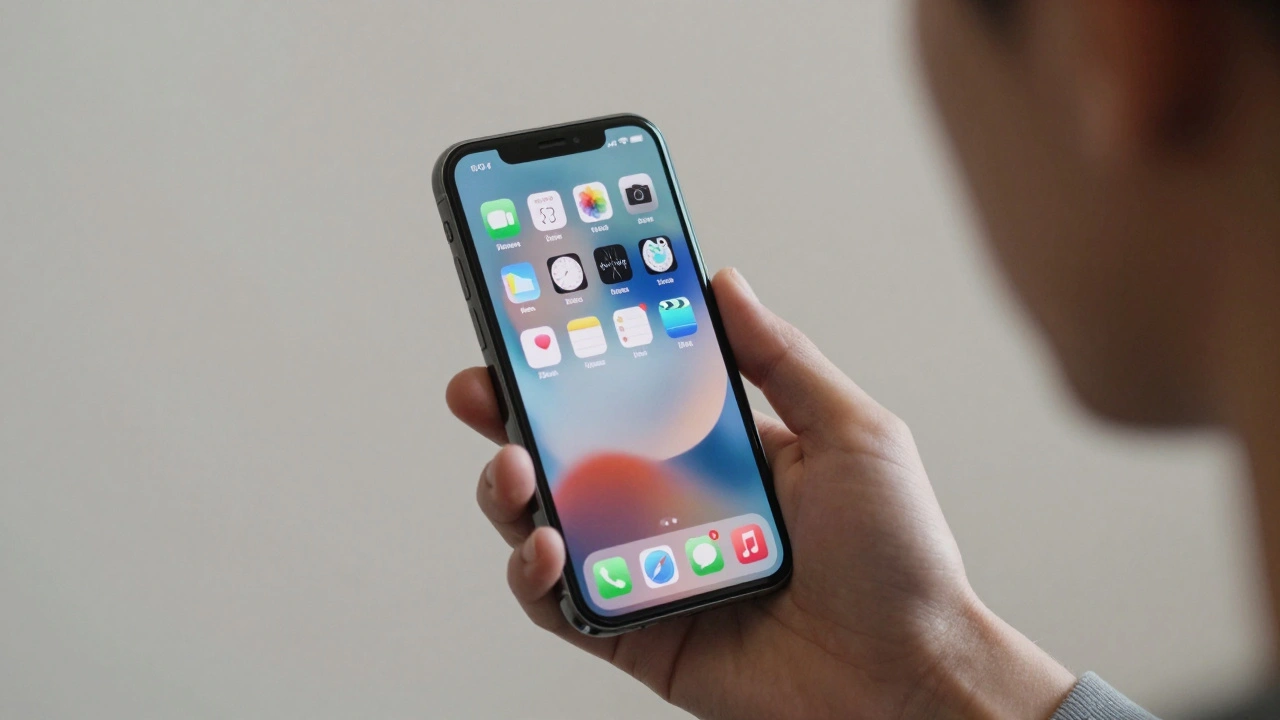

Most people don’t think about animations on their phones until they make them sick. For some, a simple zoom transition when opening an app, the parallax effect of wallpaper shifting as you tilt your device, or a spinning carousel in a news app can trigger nausea, dizziness, or headaches. These aren’t rare reactions-they’re common among people with vestibular disorders, migraines, autism, or even just high sensitivity to visual motion. Apple calls this problem motion sensitivity, and it has a built-in solution: Reduced Motion.
Reduced Motion isn’t just a toggle you check once and forget. It’s a system-wide accessibility setting that changes how every app on your iPhone, iPad, Mac, Apple Watch, or Vision Pro behaves. When turned on, it doesn’t just remove flashy effects-it rewrites how apps communicate information, ensuring that motion doesn’t get in the way of understanding.
What Reduced Motion Actually Changes
Turning on Reduced Motion doesn’t turn your device into a static slideshow. It makes smart, intentional changes based on what motion actually does. Apple’s own documentation breaks motion into four harmful categories:
- Depth simulation - Like the parallax effect where your wallpaper moves slightly as you tilt your phone, or the blur and depth effects that make icons pop off the screen.
- Multi-axis or spinning motion - Think of rotating cards, swirling menus, or apps that spin content in 3D space.
- Multi-speed motion - Animations that start slow, speed up, then slow down again, like a bouncing ball or a sliding panel that accelerates unpredictably.
- Auto-advancing motion - Carousels that scroll without input, videos that play automatically, or banners that jump around.
When Reduced Motion is enabled, these effects are replaced with simpler, more predictable transitions. Dissolve fades replace zooms. Static backgrounds replace parallax. Carousels stop moving unless you tap them. The goal isn’t to make everything boring-it’s to make sure motion doesn’t steal your focus or trigger physical discomfort.
How It Works Across Devices
Reduced Motion works the same way everywhere, but each device adds its own layer of control.
On iPhone and iPad, go to Settings > Accessibility > Motion and toggle on Reduce Motion. That’s it. No app-by-app settings needed. Every app that follows Apple’s guidelines will respond automatically. You’ll notice the home screen no longer shifts as you tilt your phone. App transitions become flat fades. The live wallpaper effect disappears. Even the notification pop-ups change-they don’t bounce anymore.
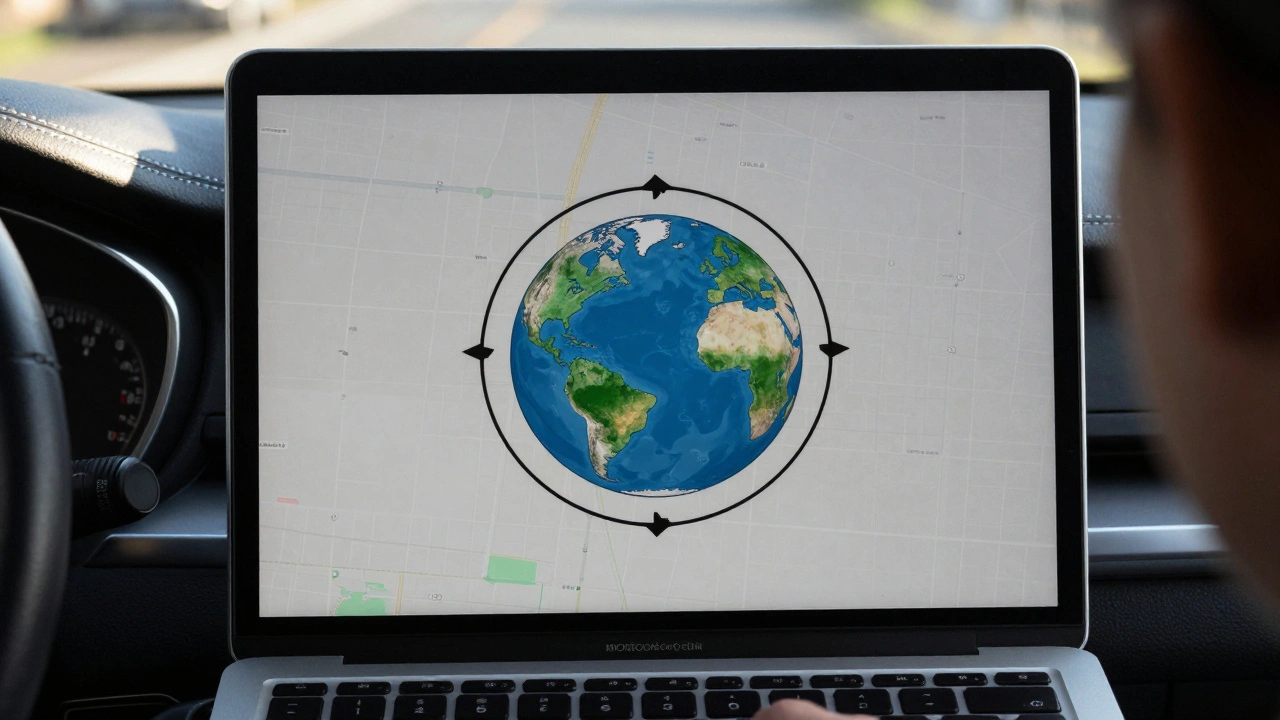
On Mac, the setting lives in System Settings > Accessibility > Motion. Here, you get extra options: you can turn off auto-play for animated GIFs in Messages and Safari, disable blinking cursors, and even enable Vehicle Motion Cues-a feature that reduces screen movement when you’re reading on a laptop while riding in a car. That last one isn’t just a convenience; it’s a necessity for people who get motion sickness from screen motion while in motion.
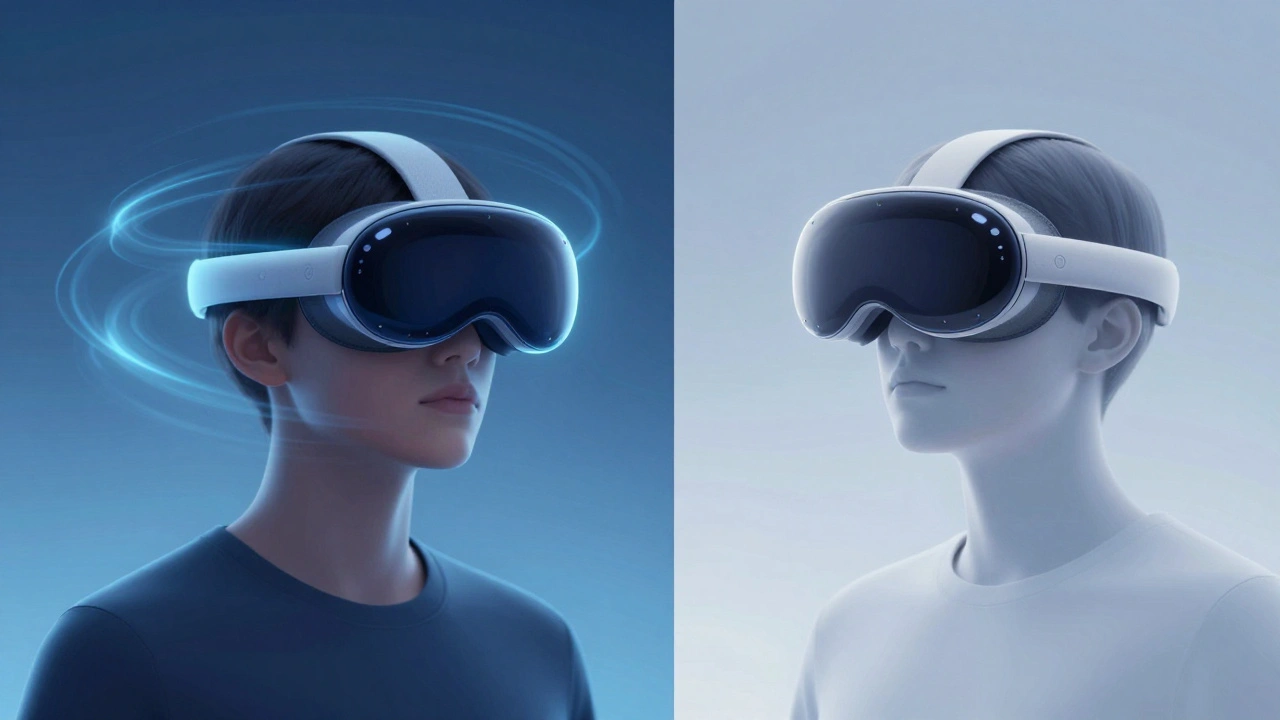
On Apple Vision Pro, Reduced Motion helps prevent disorientation in AR environments. Spatial animations that push content toward you or rotate around your head are softened or removed. On Apple Watch, the watch face transitions stop swirling, and app open animations become instant.
The consistency across devices matters. If you turn on Reduced Motion on your iPhone, your Mac and Apple Watch follow suit. You don’t have to reconfigure each device. That’s inclusive design in action.
What Developers Need to Do
Apple doesn’t force developers to use Reduced Motion-but it makes it easy for them to support it. Apps that use Apple’s built-in frameworks (like UIKit and SwiftUI) automatically respond to the system setting. But apps built with custom animations? They’re on the hook to check the user’s preference.
Apple’s guidelines are clear: don’t remove all motion. Animation isn’t the enemy. A well-placed fade can show a new screen is coming. A smooth slide can indicate a list has expanded. But motion that’s decorative, unpredictable, or automatic? That’s the problem.
Developers are told to ask three questions:
- Does this animation convey information?
- Is it necessary for the user to understand what’s happening?
- Can it be replaced with a static or simpler transition?
For example, a weather app that spins a globe to show wind patterns? That’s unnecessary. Replace it with a static map with arrows. A shopping app with a rotating product carousel? Auto-advance it off. Let users swipe manually. A navigation app that zooms in and out while you drive? That’s dangerous. Keep it steady.
Apple even provides tools for developers to test how their apps behave with Reduced Motion turned on. They’re encouraged to test with real users-not just in labs, but in cars, on trains, in bright sunlight, and in quiet rooms where even a flicker can be distracting.
Quick Access: Control Center and Back Tap
Turning on Reduced Motion shouldn’t mean digging through menus every time. That’s why Apple built shortcuts.
On iPhone, you can add Reduced Motion to Control Center. Swipe down from the top-right corner (or up from the bottom on older models), and you’ll see a motion icon. Tap it once to toggle it on or off. No need to go into Settings.
Even faster: use Back Tap. Go to Settings > Accessibility > Touch > Back Tap, and assign Triple Tap to open Reduced Motion. Now, just tap the back of your phone three times and it toggles instantly. No voice, no buttons, no menus.
On older iPhones with a Home button, you can triple-click the Home button to open Accessibility Shortcut. Set it to Reduced Motion, and you’re done. The same works with the Side Button on newer models.
And if you prefer voice? Say, “Hey Siri, turn on Reduced Motion.” Siri will do it. You can even train Siri to respond to a custom sound-like a whistle or a specific word-so you can toggle it without touching your phone at all.
Why This Isn’t Just for “Accessibility Users”
Apple doesn’t market Reduced Motion as a feature for “people with disabilities.” It’s positioned as a preference. And that’s intentional.
Everyone benefits. People with migraines avoid triggers. Parents with tired eyes find less visual noise. People using devices in bright sunlight appreciate static screens. Commuters on bumpy buses or trains don’t feel sick. Gamers who need focus in high-stress moments mute distracting animations.
Reduced Motion isn’t about removing fun. It’s about removing barriers. A spinning loading animation doesn’t make an app faster. A floating menu doesn’t make navigation easier. Sometimes, less motion means more clarity.
The Bigger Picture: Inclusive Design
Apple’s Reduced Motion setting is one of the cleanest examples of inclusive design in tech. It doesn’t isolate users into a separate “accessibility mode.” It doesn’t require extra apps or plugins. It doesn’t make the interface look broken. It just quietly adapts.
This is what true accessibility looks like: not an add-on, but a default consideration. When Apple built Reduced Motion, they didn’t ask, “How do we make this usable for people with motion sensitivity?” They asked, “How do we make this usable for everyone?”
And that’s the standard every app should meet. You don’t need to be disabled to need less motion. You just need to be human.
How do I turn on Reduced Motion on my iPhone?
Go to Settings > Accessibility > Motion, then toggle on Reduce Motion. You can also add it to Control Center for quick access or set it to trigger with a triple tap on the back of your phone.
Does Reduced Motion affect battery life?
Yes, slightly. Animations use processor power to render transitions. Turning off parallax, blur, and spinning effects reduces GPU load, which can extend battery life by 2-5% depending on usage. It’s a small gain, but it’s real.
Can I still use animations if I have Reduced Motion on?
Yes. Reduced Motion doesn’t remove all animation-it removes the ones that are distracting, unpredictable, or unnecessary. Simple transitions like fades and slides still work. App icons still animate when you open them. The goal is to preserve useful motion while removing harmful motion.
Do all apps support Reduced Motion?
Most do-if they use Apple’s built-in frameworks. Apps built with custom code might not respond unless the developer added support. Apple recommends developers check the system setting and adapt accordingly, but it’s not required. You can check how an app behaves by turning on Reduced Motion and testing it.
Is Reduced Motion the same as Dark Mode?
No. Dark Mode changes colors to reduce eye strain in low light. Reduced Motion changes how things move. They’re separate accessibility features and can be used together. Many people turn on both.