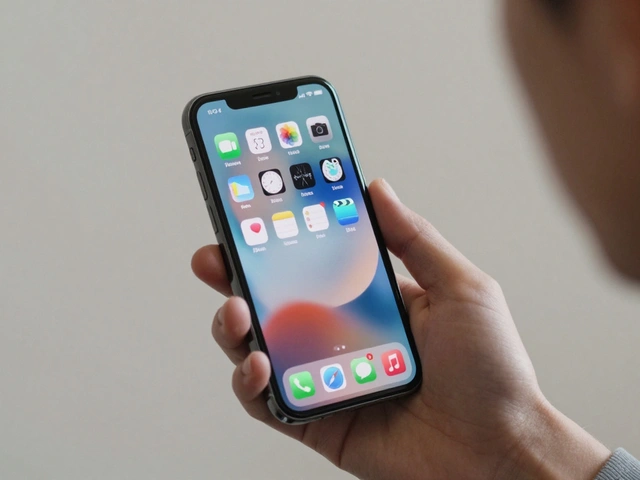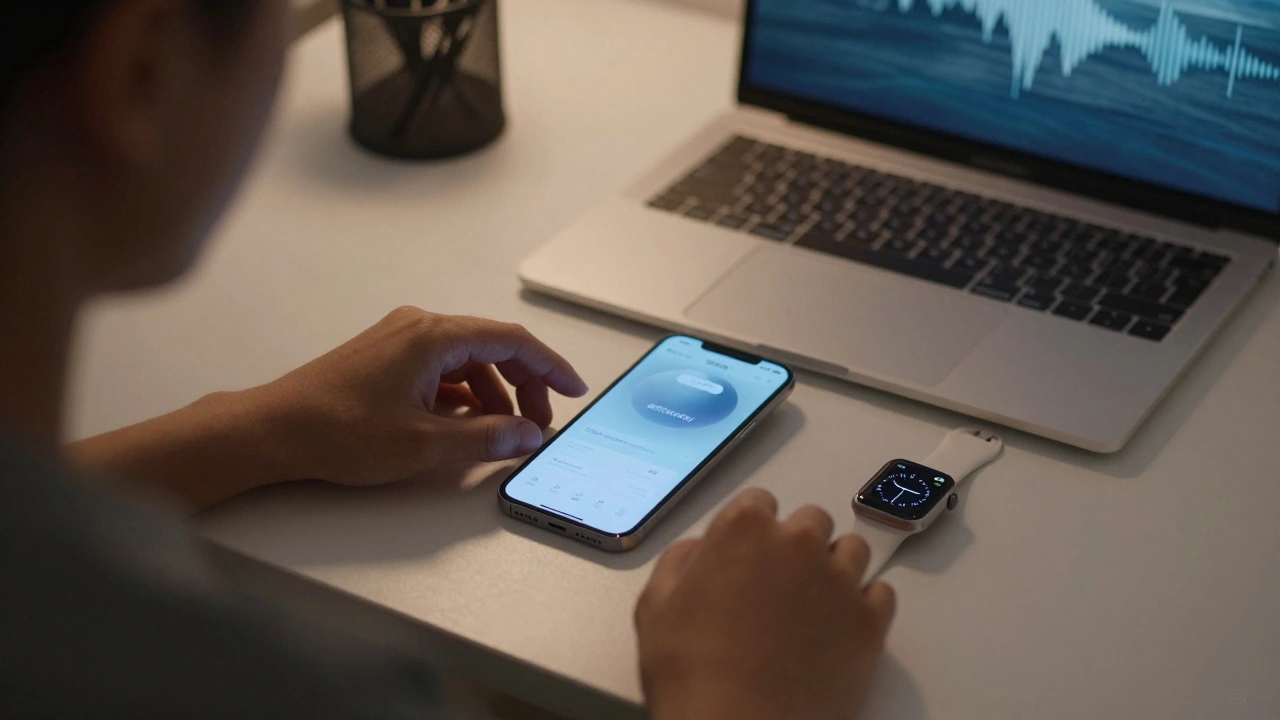

Most people don’t think about how a notification sound or vibration feels until it’s too loud, too sudden, or comes at the wrong moment. For neurodivergent users-those with autism, ADHD, sensory processing disorder, or other neurological differences-alerts aren’t just reminders. They’re potential triggers. A jarring chime, a flashing screen, or an unexpected tap can send stress levels soaring, break focus, or even cause physical discomfort. Apple didn’t design its alerts to be overwhelming. But for years, default settings assumed everyone experienced notifications the same way. That’s changing. Today, Apple’s alert system is one of the most thoughtful, customizable, and neuroinclusive platforms in tech-not because it’s trendy, but because it was built from the ground up with real neurological diversity in mind.
Control Over Sensory Input
The first thing you notice when you dig into Apple’s accessibility settings is how much control you have. It’s not one slider for volume or one toggle for vibration. It’s layers. You can choose how you want to be notified: visual (screen flash), haptic (Taptic Engine pulse), auditory (custom sound), or any mix of the three. This matters because sensory preferences aren’t universal. Someone with autism might need a soft, rhythmic vibration to register a message. Someone with ADHD might need a bright, steady light to catch their attention. Someone with hearing loss might rely entirely on haptics. Apple lets you set different alert types per app. A calendar reminder can be silent but vibrate gently. A text message can flash the screen and play a low-pitched tone. A phone call can show the caller’s photo and pulse twice. No two people need the same signal. Apple gives you the tools to build your own.Focus Mode: Silence That Works Across Devices
One of the biggest sources of stress for neurodivergent users isn’t the alert itself-it’s the unpredictability. You’re in the middle of a task, focused, and suddenly your Apple Watch buzzes, your iPhone rings, and your Mac pops up a notification. All at once. That’s not just distracting. For many, it’s paralyzing. That’s where Focus Mode becomes essential. Unlike simple do-not-disturb modes, Apple’s Focus profiles sync across every device. Turn on “Work” on your Mac? Your iPhone and Apple Watch stay quiet. No exceptions. No sneaky alerts slipping through. This isn’t just convenience-it’s cognitive safety. For people who struggle with attention regulation, the ability to lock out all noise except what you’ve chosen creates a rare kind of digital peace. And because Focus Mode adapts to your schedule, you can set it to activate automatically at certain times. No remembering. No effort. Just calm.Background Sounds and Calming Environments
In 2024, Apple quietly added something revolutionary: Calming Sounds in the Shortcuts app. It’s not a new feature you’ll find advertised on a keynote stage. It’s tucked into accessibility settings, designed for people who need quiet to think. You can play ocean waves, rainfall, or white noise-not to drown out the world, but to make it predictable. For someone with ADHD, a constant low hum can anchor attention. For someone with anxiety, a steady sound reduces the brain’s urge to scan for threats. And because these sounds play through your AirPods or speakers without interrupting other apps, they become a silent companion, not a distraction. You can even set them to trigger automatically when you enter Focus Mode. It’s not just about silencing alerts-it’s about replacing chaos with rhythm.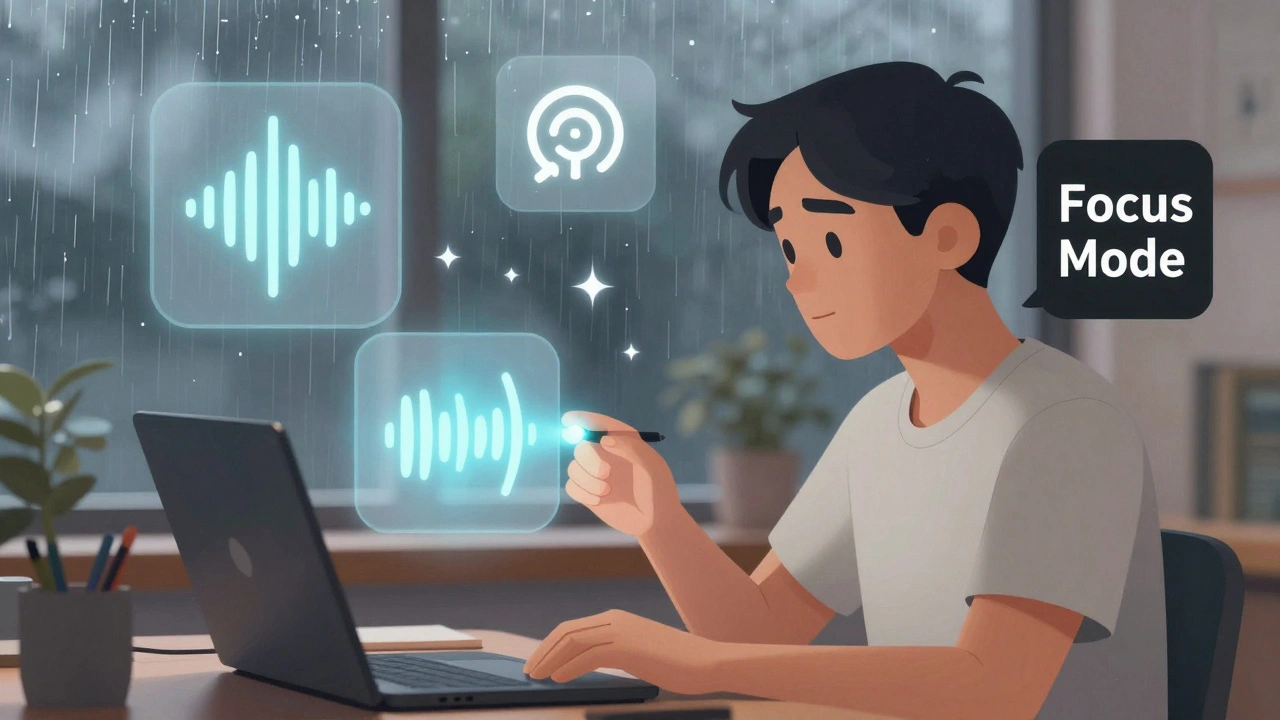
Haptic Feedback That Speaks Your Language
Apple’s Taptic Engine isn’t just a vibration motor. It’s a communication tool. In 2024, they expanded it with Music Haptics, letting users feel the beat of music through their wrist. That same precision applies to alerts. You can adjust vibration strength, duration, and pattern for every notification type. A gentle tap for a calendar alert. Two quick pulses for a message. A long, slow throb for an emergency call. This level of detail matters because haptics can be more reliable than sound or visuals. If you’re in a noisy room. If your screen is off. If you’re not looking at your phone. Your body still knows what’s happening. And for users with motor differences or those who use Switch Control, customizable haptics mean you can assign a specific pulse to acknowledge a notification-no tapping needed. The system learns your movement, not the other way around.Visual Adjustments for Every Way of Seeing
Alerts aren’t just sounds and vibrations. They’re colors, shapes, and motion. Apple’s Display & Text Size settings let you change contrast, reduce motion, and adjust color filters for each app. Someone with dyslexia might need a high-contrast white-on-black alert so text doesn’t blur. Someone with colorblindness might need a flashing icon instead of a red dot. Someone with light sensitivity might need to turn off all screen flashes entirely. These aren’t afterthoughts. They’re built into the system. You can set different display preferences for Messages, Mail, and Calendar independently. That means your work app can have sharp, clear text while your social app uses softer tones. No one-size-fits-all. No forced defaults. Just personalization that respects how your brain processes visual information.Guided Access and App Locking
For users with cognitive differences-especially those who struggle with impulse control or context switching-having multiple apps open is a minefield. A notification from Instagram while you’re filling out a form? That’s enough to derail hours of work. Guided Access, available on iPhone and iPad, solves this by locking the device into a single app. No notifications from other apps. No home button. No swiping away. It’s like putting your phone in a bubble. You can even disable touch in certain areas of the screen. A teacher can set it up for a student. A caregiver can use it for a family member. And because it syncs with Focus Mode, you can combine app locking with sound control. The result? A workspace that stays quiet, focused, and predictable. No distractions. No surprises.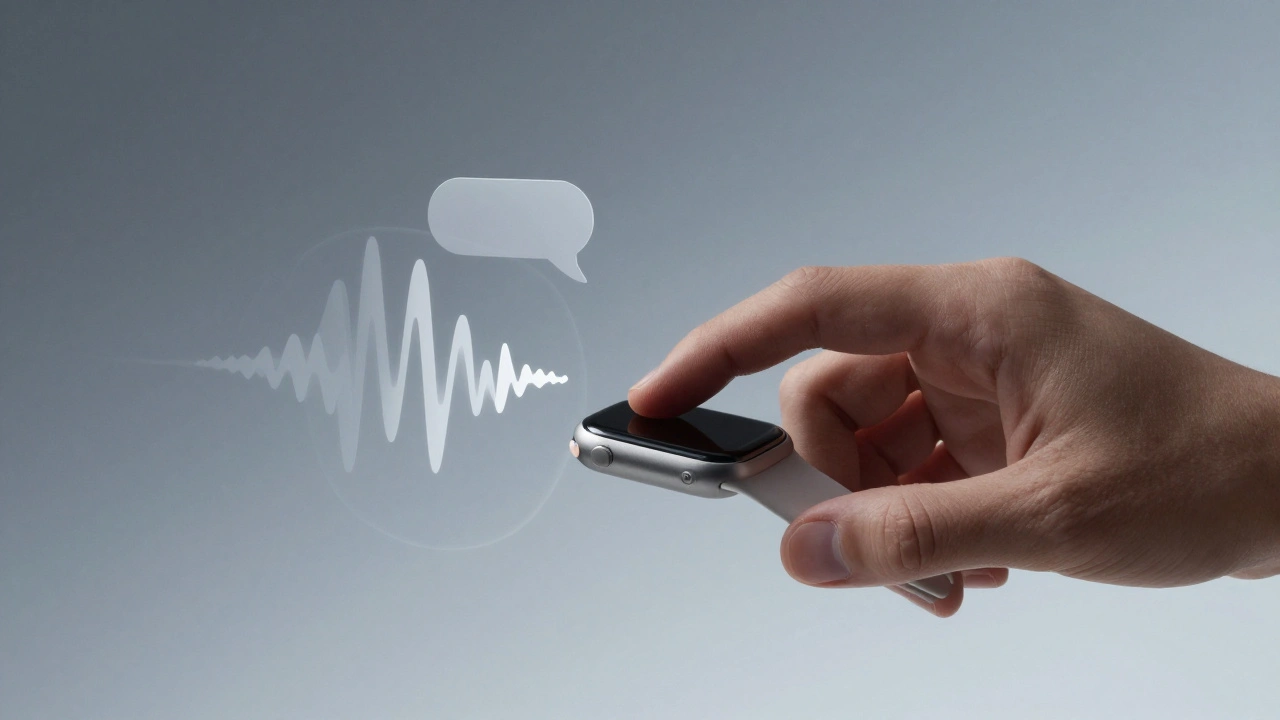
Speech, Captions, and Alternative Inputs
Not everyone speaks the same way. Not everyone hears the same way. Apple’s 2024 updates to Listen for Atypical Speech and Live Captions changed that. Now, if you have a speech pattern affected by cerebral palsy, apraxia, or another condition, your Siri can still understand you. If you can’t hear a notification, Live Captions turn it into text on-screen. And if you can’t tap or swipe, Switch Control lets you use eye movements, head tilts, or even a single finger tap to acknowledge alerts. These aren’t niche features. They’re core functions. And they work together. You can set up a custom voice command like “Acknowledge” to dismiss a notification. Or use your eyes to select a message and say “Read it aloud.” The system doesn’t force you to adapt. It adapts to you.Why This Matters Beyond Apple
Apple’s approach isn’t perfect. But it’s a blueprint. It shows that accessibility isn’t about adding a “disabled mode.” It’s about building systems that naturally accommodate variation. When you design for the extremes, you help everyone. A quiet notification? Useful for anyone working in a library. A predictable vibration? Helpful if you’re in a meeting. A screen that doesn’t flash? Good for anyone with migraines. Apple’s alert system proves that inclusive design doesn’t mean compromising. It means expanding. Every customization option-every tone, every pulse, every visual filter-is a door opened for someone who was once locked out.Where to Start
If you’re neurodivergent-or supporting someone who is-here’s where to begin:- Go to Settings > Accessibility > Audio & Visual.
- Turn on Flash Screen for Alerts if visual cues help.
- Adjust Vibration Pattern under Sounds & Haptics.
- Create a custom Focus Mode for work or rest.
- Try Calming Sounds in the Shortcuts app.
- Use Guided Access to lock into one app when focus is hard.
- Enable Live Captions if you rely on text to process sound.
You don’t need to change everything at once. Pick one setting. Test it for a day. Notice how it feels. Then try another. This isn’t about fixing a problem. It’s about building a system that works for your brain.
Can I customize alert sounds for individual apps on Apple devices?
Yes. Go to Settings > Sounds & Haptics > Ringtone and Notification Sounds, then tap on each app under Notifications. You can assign a unique sound, vibration pattern, and whether the app should flash the screen. This lets you distinguish between urgent messages, calendar alerts, or social notifications without relying on context or memory.
Does Focus Mode work across all Apple devices?
Yes. Focus Mode syncs automatically across iPhone, iPad, Mac, Apple Watch, and Apple Vision Pro using iCloud. If you turn on “Do Not Disturb” on your Mac, your iPhone won’t ring or vibrate unless you’ve specifically allowed exceptions. This cross-device silence is one of the most powerful tools for reducing alert overload.
How do I set up Calming Sounds on my iPhone or Mac?
Open the Shortcuts app, tap the Automation tab, then select “Create Personal Automation.” Choose “Time of Day” or “App” as the trigger. Add an action: “Play Sound,” then pick from the Calming Sounds library (rain, ocean, white noise). Save it. You can even set it to activate automatically when you enter a Focus Mode, creating a seamless, quiet environment.
Can people with speech differences use Siri to manage alerts?
Yes. With Listen for Atypical Speech enabled in Accessibility settings, Siri learns your unique speech patterns. You can say things like “Dismiss this alert” or “Mute notifications” and Siri will respond accurately-even if your speech is slower, softer, or differently structured. This feature uses on-device machine learning, so your data stays private.
Is there a way to prevent notifications from interrupting deep work?
Absolutely. Use Guided Access to lock your device into one app, then combine it with Focus Mode to silence all other alerts. You can also disable screen notifications for non-essential apps. For example, turn off notifications for social media while working in Notes or Pages. This layered approach removes distractions at the source, not just the surface.
Categories
Popular Articles