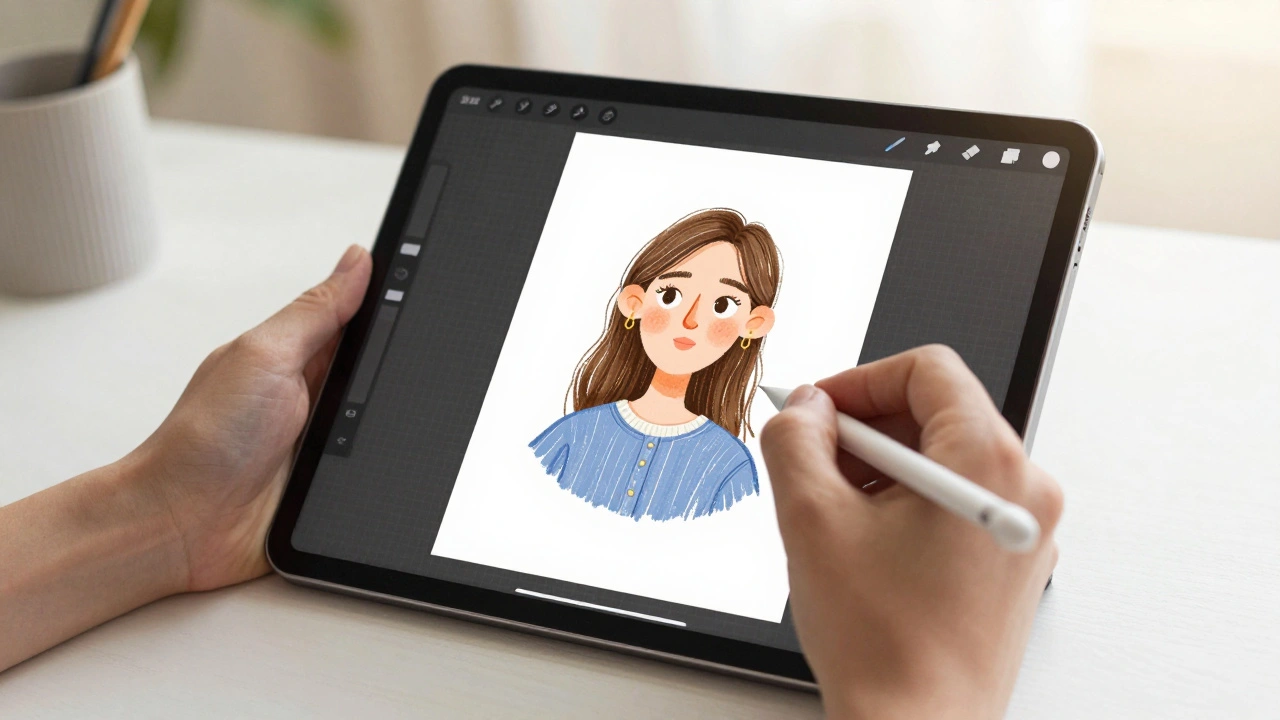

For years, people said the iPad Pro was just a fancy tablet - great for sketching, reading, or watching videos, but not for real work. That’s changing. More designers, illustrators, and even developers are ditching their laptops for the iPad Pro entirely. Not because it’s easier, but because it’s better - when the interface is built right.
It’s not about the hardware. The M4 chip, the Liquid Retina display, the Apple Pencil - they’re all impressive. But none of that matters if the apps don’t work the way you need them to. The real question isn’t whether you can do professional work on an iPad Pro. It’s: Can the interface handle it?
What Makes an iPad App Truly Professional?
Apple doesn’t just hand you a screen and call it a day. They give you guidelines - the Human Interface Guidelines (Apple’s official design framework for iOS and iPadOS) - and they’re not suggestions. They’re the foundation of every app that feels native, fast, and powerful.
Three principles keep showing up in every professional-grade iPad app:
- Hierarchy - What should you see first? Controls shouldn’t compete with your canvas. Top bars, side panels, and tool wheels are layered so your focus stays on the work.
- Harmony - The app doesn’t fight the device. Buttons are sized for fingers. Gestures feel natural, not forced. The interface bends to the iPad’s shape, not the other way around.
- Consistency - If you’ve used one Apple app, you should know how to use another. Tab bars at the bottom. Navigation bars at the top. Swipe gestures that behave the same everywhere.
Apps that ignore these rules? They feel broken. Like you’re using a desktop app that got shrunk down and slapped on a touchscreen. Professionals don’t tolerate that.
The Tools That Are Actually Used
Not every app on the App Store belongs in a professional workflow. Here are the ones that are.
Procreate (A raster-based digital painting app optimized for the Apple Pencil) is the go-to for illustrators. Why? Because it removes distractions. The interface hides controls until you need them. A swipe from the edge brings up your brush, color, or layer menu. No clutter. No menus within menus. You draw. That’s it.
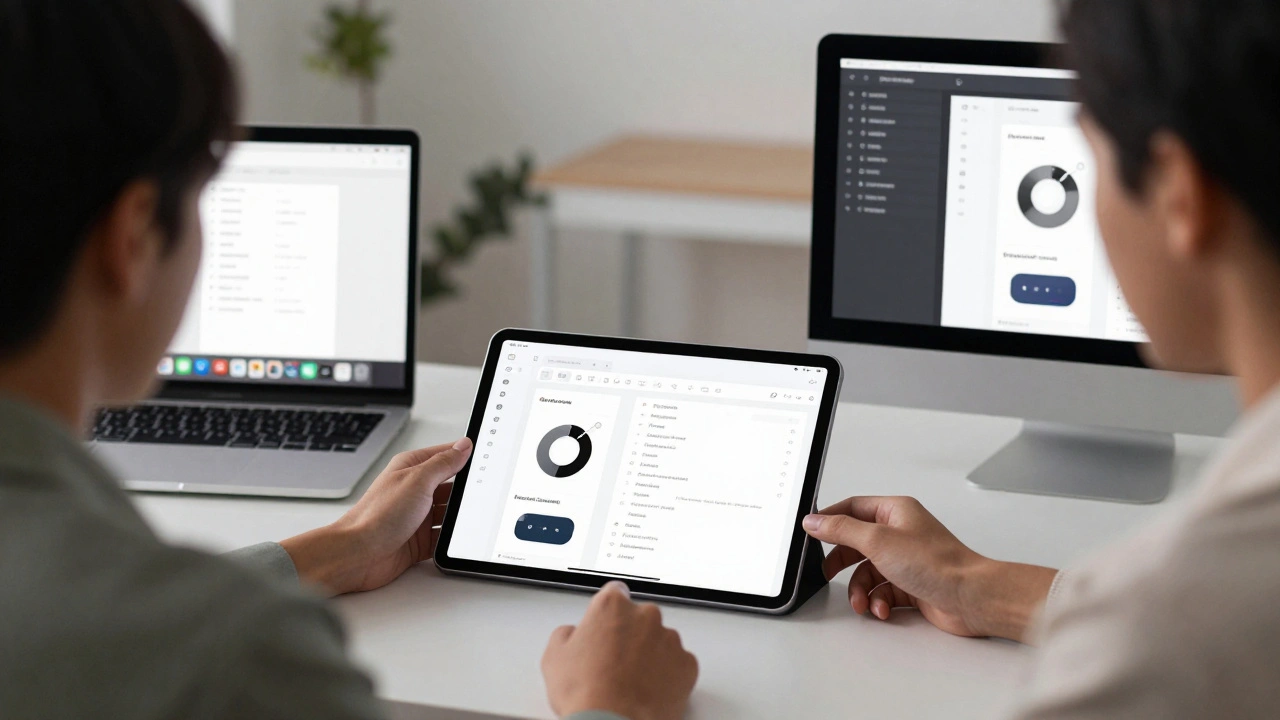
Figma (A collaborative interface design tool with full iPadOS support) works. Not perfectly - the zoom gestures are clunky, and the layer panel takes up too much space - but it works. And that’s the point. Design teams now use Figma on iPad to sketch ideas during client meetings, make live edits, and even do full UI reviews. The magic? Real-time collaboration. You can be on your iPad while your teammate is on a Mac, and you’re both editing the same file. No syncing. No exporting. Just change and see it happen.
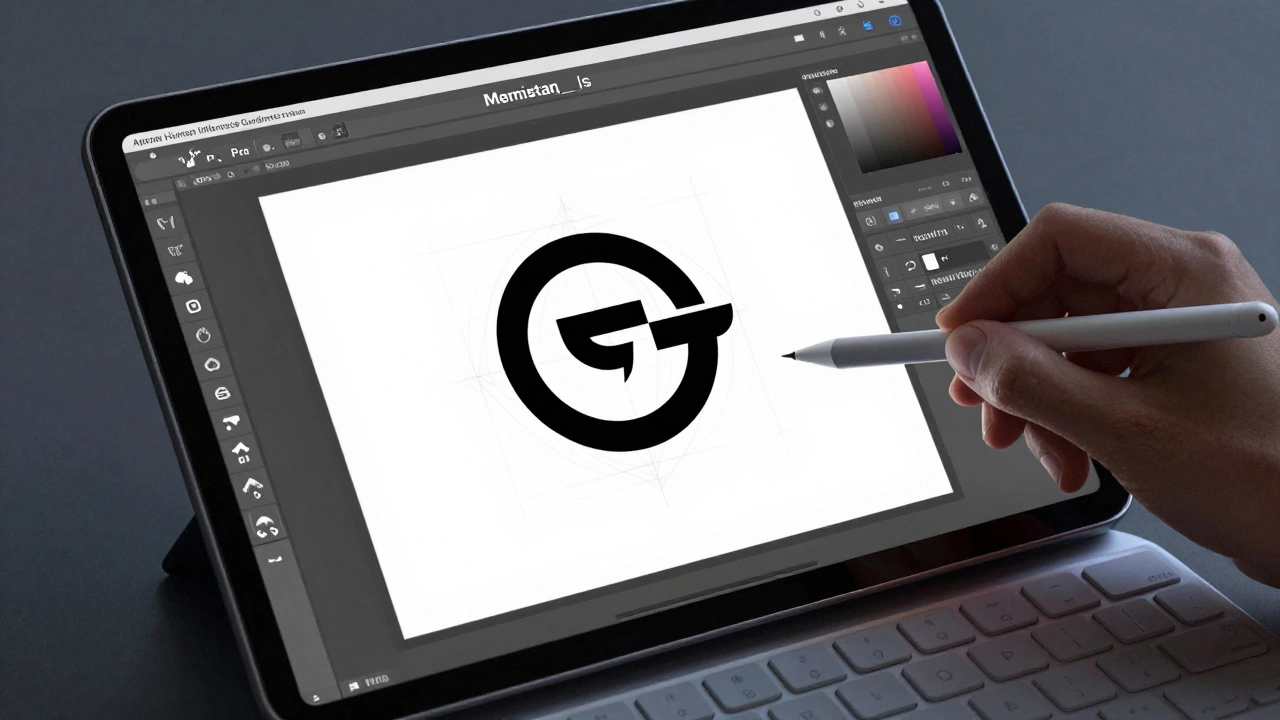
Affinity Designer (A vector design tool that rivals Adobe Illustrator on iPad) is the closest thing to a true desktop replacement. It handles complex vector paths, gradients, and raster brushes like a pro. What’s wild? You can switch between vector shapes and hand-drawn sketches in the same document. No switching apps. No exporting. Just draw a logo, tweak the curves, add a texture - all in one place.
Adobe Fresco? Great for natural media brushes. Canva? Fine for quick social graphics. But if you’re building a brand identity, designing a full app UI, or creating high-res illustrations for print - you’re using Procreate, Figma, or Affinity Designer.
How the Interface Actually Works
Professional apps on iPad don’t just look good. They’re built for motion.
Take navigation. You won’t find a hamburger menu in a serious app. Instead, you get:
- Tab bars - Fixed at the bottom. Easy to reach with one hand.
- Navigation bars - Top of the screen. Back buttons, titles, action items.
- Contextual gestures - Pinch to zoom, two-finger rotate, three-finger swipe to undo. These aren’t gimmicks. They’re muscle memory.
Typography? It scales. Dynamic Type (A system that lets text resize based on user preferences and screen size) means your interface adapts whether you’re using a 12.9-inch iPad Pro with 20/20 vision or someone with low vision who needs larger text. No broken layouts. No text cut off.
Icons? They’re not just cute pictures. They’re vector-based (Scalable graphics that remain sharp at any size), designed to be recognizable at 16 pixels. No pixelation. No blurry edges.
And accessibility? It’s not an afterthought. Every professional app now includes:
- Alternative text for images
- VoiceOver compatibility
- High-contrast mode
- Keyboard shortcuts for external keyboards
If your app doesn’t do this, it’s not professional. It’s just a demo.
Where the iPad Pro Still Falls Short
Let’s be honest: the iPad Pro isn’t your laptop.
You can’t run Photoshop full version. You can’t compile code in Xcode with a full project tree. You can’t have ten windows open at once. The operating system - iPadOS - still limits multitasking. Split View? Fine for two apps. Slide Over? Okay for quick reference. But try to juggle a design file, a reference PDF, a browser tab, and a messaging app? It gets messy.
And file management? Still clunky. No true folder hierarchy. No drag-and-drop between apps like on macOS. You’re stuck with Files app, iCloud, or third-party cloud services. It works - but it’s not seamless.
That’s why most professionals still use a laptop for final exports, client handoffs, and heavy file management. The iPad Pro? It’s the idea machine. The sketchpad. The first draft.
Real Workflows: What It Looks Like
Here’s how a designer in Portland uses the iPad Pro every day:
- Starts the morning with Figma on iPad, sketching a new app screen during a coffee break.
- Switches to Procreate to draw custom icons for the UI - no need to export, just drag and drop into Figma.
- Uses Affinity Designer to vectorize a hand-drawn logo, then exports the SVG directly to the client’s folder.
- Shares a live Figma link with the team. Three people are editing the same file - one on iPad, two on Macs.
- At the end of the day, exports the final assets and sends them from the iPad - no laptop needed.
This isn’t hypothetical. This is happening. And it’s not rare. It’s becoming the norm.
What’s Next?
Apple isn’t done. Every iOS update brings better multitasking, better file handling, and deeper integration with external displays. The next version of Figma? More gesture support. The next version of Affinity? Better layer blending. Procreate’s upcoming update? Full CMYK color support for print.
The tools are evolving. The interface patterns are getting smarter. The barrier to entry is dropping.
So if you’re still waiting for the iPad Pro to "be ready," you’re already behind. The tools are here. The interface is refined. The only thing left is you - and whether you’re willing to redesign your workflow around it.
Can I replace my MacBook with an iPad Pro for professional design work?
You can replace it for many tasks - sketching, illustration, UI design, and even logo creation - but not for everything. If you need to run complex code, manage large file systems, or use apps that don’t have iPad versions (like full Photoshop or After Effects), you’ll still need a laptop. The iPad Pro is a powerful primary tool for creative work, but not yet a full desktop replacement.
Is Figma on iPad Pro really usable for professional design?
Yes, but with caveats. Figma works well on iPad Pro for collaboration, quick edits, and client reviews. The interface isn’t as smooth as on desktop - zooming and layer selection can feel clunky. But if you’re part of a team that uses Figma daily, the iPad version lets you stay in the flow without being tied to a screen. Many designers now use it as their primary tool for on-the-go work.
Why is Affinity Designer better than Sketch on iPad?
Sketch doesn’t have a native iPad app. Affinity Designer does - and it’s built from the ground up for touch. It supports pressure-sensitive brushes, vector tools, and raster editing in one workspace. You can switch between drawing, designing, and editing gradients without leaving the app. Sketch users on iPad have to rely on web versions or third-party apps, which lack the depth and responsiveness of Affinity.
Do I need an Apple Pencil to use these apps professionally?
For illustration, hand-drawn elements, or precise vector work - absolutely. The Apple Pencil’s latency and pressure sensitivity are unmatched. For UI design in Figma or layout work in Affinity, you can get by with a touchscreen and keyboard. But if you want to create original art, sketch layouts, or make detailed edits, the Pencil isn’t optional - it’s essential.
Are there any good logo design apps for iPad Pro?
There are no dedicated logo apps that let you design from scratch like a pro. Tools like Logoscopio or Makr offer templates - not real design. The only way to create professional logos on iPad is with vector tools like Figma or Affinity Designer. You’ll have full control over shapes, paths, and typography - not just drag-and-drop icons. Templates won’t cut it for client work.
How do I improve my workflow on iPad Pro?
Start by using only apps built for iPad - not ported from desktop. Master the gestures: swipe up for multitasking, three-finger pinch to zoom, two-finger rotate. Use external keyboards for shortcuts. Keep your files organized in iCloud or Dropbox. And most importantly - don’t try to replicate your desktop setup. The iPad’s strength is speed, simplicity, and touch. Design around that.
Categories
Popular Articles