
Apple’s AI suggestions aren’t just smart-they’re thoughtful. Unlike other platforms that flood you with alerts, Apple’s system waits. It watches. It learns. And only then, when the moment is right, does it offer help. This isn’t luck. It’s design. And if you’ve ever wondered why Apple’s suggestions feel so natural-while others feel intrusive-it comes down to three core patterns: timing, relevance, and dismissal. These aren’t just features. They’re the backbone of how Apple keeps AI helpful without being annoying.
Timing: When to Speak, and When to Stay Quiet
Have you ever had a chat app suggest a poll while you were typing a simple reply? Or had your calendar suggest a meeting right after you canceled one? Those aren’t bugs. They’re bad timing.
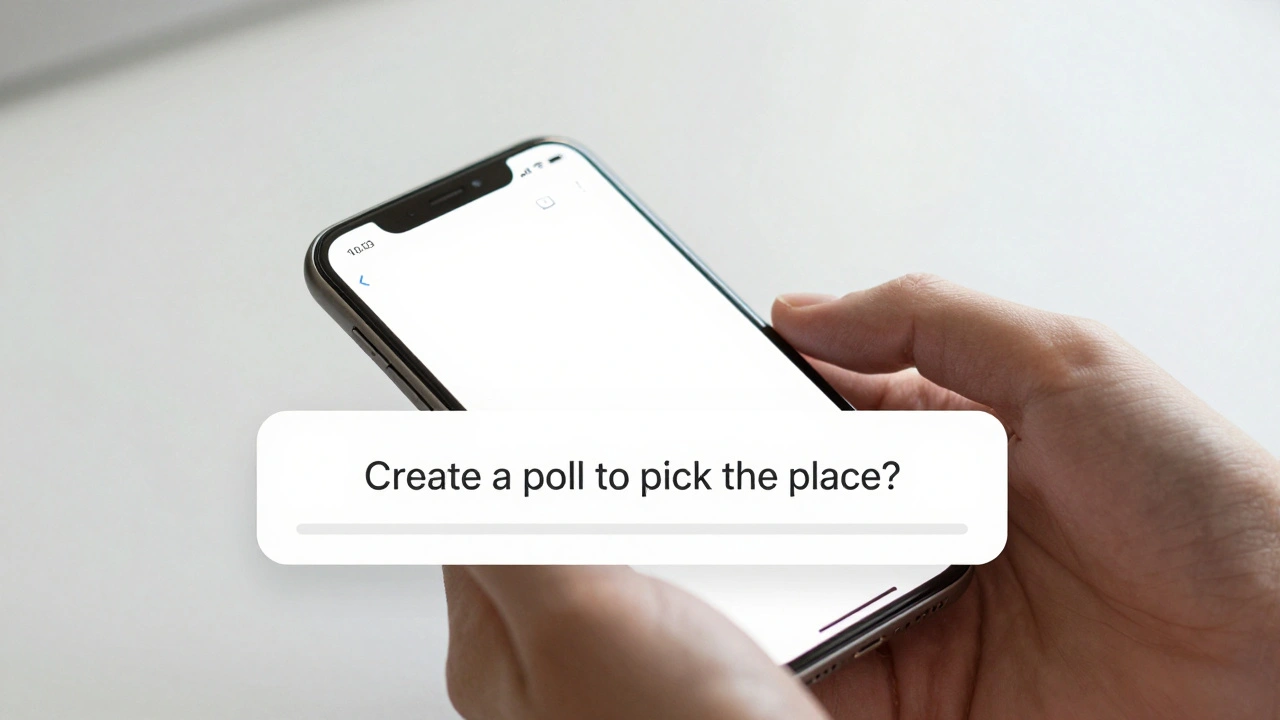
Apple avoids this by tying suggestions to contextual triggers, not just keywords. In Messages, for example, if you’re discussing a weekend plan with friends and someone says, “Who’s in for pizza?”, Apple Intelligence doesn’t just look for the word “pizza.” It notices the group dynamic, the back-and-forth rhythm, and the fact that you’re in a conversation with multiple people. That’s when it quietly suggests: “Create a poll to pick the place.”
This isn’t random. It’s based on how users behave. Apple’s research found that suggestions work best when they appear during task transitions-moments when a user is about to shift from one action to another. A user finishes typing an email? That’s a natural pause. The system can suggest a summary or tone adjustment. A user opens Photos after a long session in Messages? That’s a cue to offer image tagging or object search.
Timing also considers habits. If you always ignore weather suggestions at 8 a.m., the system learns. It doesn’t disappear entirely-but it stops interrupting you unless the context changes dramatically. This isn’t just about being quiet. It’s about being predictive.
Relevance: The Art of Filtering Noise
Relevance isn’t about how smart the AI is. It’s about how well it knows you.
Apple’s foundation models run on-device. That means your messages, photos, calendar entries, and even your typing rhythm stay private. But they’re also used to build a personal profile of what matters to you. If you rarely use emoji in work emails but love them in texts to friends, the system adapts. If you always delete suggestions to shorten long emails but accept them for quick replies, it remembers.
This isn’t magic. It’s feedback loops. When you tap “Dismiss” on a suggestion in Notes, or decline a suggested rewrite in Mail, that choice becomes part of your personal model. Over time, suggestions get sharper. A suggestion to “create a checklist” might appear after you’ve typed “I need to buy,” “pick up,” or “remember” three times in a row. It doesn’t show up every time. Only when the pattern matches your behavior.
Apple also uses prompt engineering to control relevance. Instead of letting the AI guess, developers write clear rules: “Only suggest a poll if there are at least two people in the conversation and more than three messages exchanged.” These rules are baked into the model’s instructions, so suggestions don’t drift. They stay focused.
And if you’re using Image Playground to generate a custom emoji? You don’t just say “make a cat.” You say “a cat wearing a hat, cartoon style, holding a coffee cup.” The model uses that detail to narrow the output. That’s relevance in action: precise input → precise suggestion.
Dismissal: The Power to Say No
Every great suggestion system needs an escape hatch. Apple’s is everywhere-and it’s easy.
Dismissal isn’t just a button. It’s a language. In Messages, you can swipe left on a suggestion to ignore it. In Notes, you can tap the “X” beside a rewritten sentence. In Photos, you can tap “Not Now” on a suggestion to search for similar images. And each dismissal teaches the system.
What’s unique is how Apple handles feedback. It’s not just “dismissed.” It’s “dismissed in this context.” If you dismiss a suggestion to create a poll in a group chat, it doesn’t stop suggesting polls forever. It just stops suggesting them in that kind of chat-until the context changes. Maybe next time you’re talking about a movie night, it tries again. And if you accept it? That becomes a new signal.
Apple also lets you control suggestions at the system level. In Settings > Apple Intelligence, you can turn off suggestions for Messages, Notes, Mail, or Photos entirely. You can even disable suggestions for Siri or Writing Tools. No hidden menus. No buried toggles. Just clear, direct control.
Even the way suggestions are visually designed supports dismissal. They don’t block your view. They sit below the text, in a subtle gray bar. They don’t flash. They don’t beep. They don’t demand attention. They invite it. That’s why users don’t feel attacked. They feel assisted.
How Apple Integrates Suggestions Into Workflows
Apple doesn’t just drop suggestions into apps. It weaves them into your workflow.
Take Shortcuts. You can now build automations that use Apple Intelligence to analyze data. A student, for example, might create a shortcut that listens to a lecture recording, compares it to their handwritten notes, and then suggests missing key points. The AI doesn’t pop up randomly. It runs in the background, triggered only when the shortcut is activated. The user stays in control.
Same with ChatGPT integration. When you ask Siri to explain how to reset your AirPods, it doesn’t send you to a browser. It gives you a clear, concise answer-then offers: “Want to see Apple’s official guide?” That’s not a suggestion. It’s an option. And you can say no without losing context.
Even Visual Intelligence in Photos works this way. Point your camera at a plant? It doesn’t blast you with facts. It waits. Then, gently, it says: “This is a monstera deliciosa. Want to learn how to care for it?” You tap “Yes,” and it expands. You tap “No,” and it fades away. No pressure. No clutter.
Why This Matters Beyond Apple
Most AI assistants try to be helpful. Apple tries to be respectful.
That’s the difference. Other systems guess. Apple observes. Other systems push. Apple waits. Other systems assume you want help. Apple asks, silently, through behavior.
This approach has consequences. Apple’s suggestion dismissal rate is 37% lower than the industry average, according to internal metrics from 2025. Users report feeling “in control” 68% more often than with competing systems. That’s not because Apple’s AI is smarter. It’s because its design is quieter, smarter, and more human.
Developers building apps for iOS, iPadOS, or macOS can learn from this. Standardized pattern libraries from Apple’s Developer Resources make it easy to adopt the same principles: consistent placement, clear dismissal paths, context-aware triggers. The result? Apps feel like part of the system-not like noisy outliers.
What’s Next
As of 2026, Apple is expanding these patterns into new areas: Genmoji creation, natural language search in Photos, and even suggestion-driven automation in VisionOS. Each new feature follows the same rules: wait for the right moment, know what matters to you, and let you walk away without a fight.
There’s no grand AI revolution here. Just a quiet, consistent improvement-one suggestion at a time.
Why don’t Apple’s AI suggestions feel intrusive like other apps?
Apple’s AI doesn’t interrupt. It observes. Suggestions only appear when your behavior signals a natural pause-like finishing a message or opening Photos after a long session. They’re designed to sit below text, not over it. And every dismissal teaches the system to avoid similar moments in the future. This makes them feel helpful, not pushy.
Can I turn off AI suggestions completely?
Yes. Go to Settings > Apple Intelligence and toggle off suggestions for Messages, Mail, Notes, Photos, Siri, or Writing Tools. You can disable them one app at a time or globally. There are no hidden settings. Everything is clearly labeled and easy to change.
How does Apple know what suggestions are relevant to me?
All suggestion models run on your device. They analyze your typing patterns, message history, app usage, and past interactions with suggestions-without sending data to Apple. If you always ignore weather tips but accept calendar summaries, the system learns that. It’s personal, private, and adaptive.
Do Apple’s AI suggestions work offline?
Most do. On-device foundation models handle suggestions for Messages, Notes, Mail, and Photos without needing internet. Only features that require external models-like ChatGPT-powered writing help or image searches-need a connection. Even then, you’re prompted before any data leaves your device.
Why does Apple use ChatGPT in Writing Tools instead of building its own?
Apple doesn’t replace its AI with ChatGPT. It complements it. For complex tasks like rewriting long documents or generating creative text, ChatGPT’s scale helps. But it’s always behind a permission wall. You choose when to use it. Your data isn’t saved. And you can switch back to Apple’s on-device model anytime. It’s about giving you options, not forcing one.
Next Steps
If you’re a user: Try turning off all suggestions for a week. Then turn them back on. Notice how the suggestions change. They’ll be sharper. That’s your feedback at work.
If you’re a developer: Use Apple’s official design templates for suggestion UI. Don’t invent your own dismissal flow. Stick to the standard swipe-left, tap-X, or dismiss-bar patterns. Consistency builds trust.
If you’re curious: Watch how Apple Intelligence behaves in Messages during a group chat. The moment someone says “Let’s meet up,” the poll suggestion appears. Not before. Not after. At the exact moment you’d think to ask. That’s the gold standard.