
When you unlock your iPhone in 2026, something feels different. Not because the screen is bigger or the battery lasts longer-but because the interface itself seems to breathe. The buttons, sliders, and panels you’ve used for years now shimmer like watered glass, bending light just enough to let your photos, videos, and text shine through. This isn’t a filter. It’s not a blur. It’s Liquid Glass, Apple’s new interface language that’s rewriting how we see and touch our devices.
What Liquid Glass Actually Is
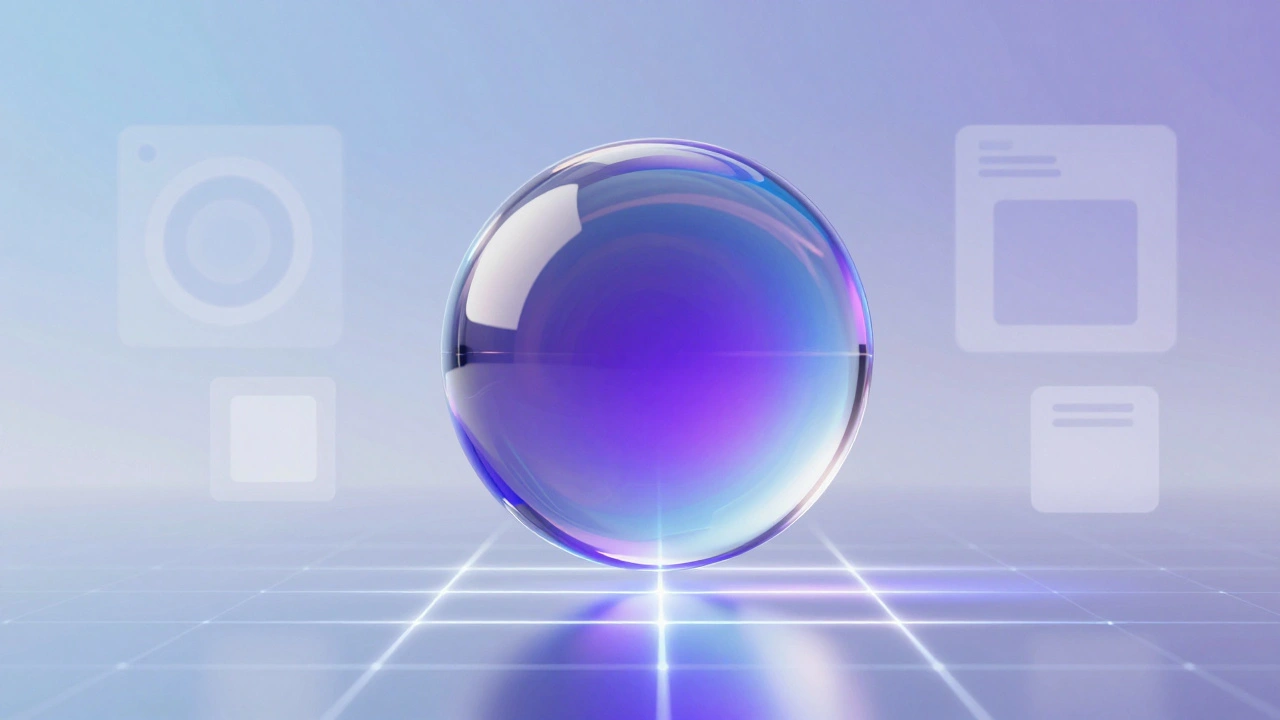
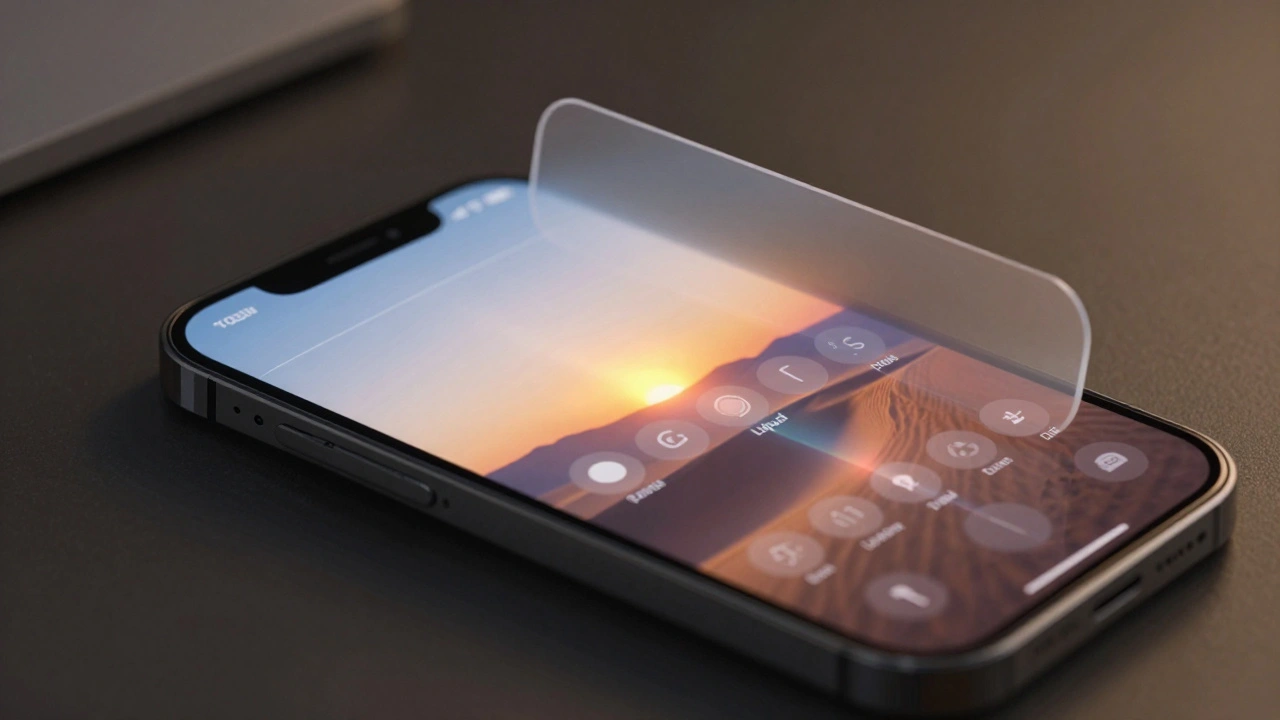
Liquid Glass isn’t just a visual tweak. It’s a material. Apple describes it as a dynamic, real-time glass-like surface that reacts to what’s behind it. Unlike the static frosted glass of iOS 15 or the flat blur of iOS 17, Liquid Glass doesn’t just mask the background-it interacts with it. Every pixel behind a button, a slider, or a notification panel is refracted, reflected, and subtly tinted in real time. It’s like holding a thin sheet of tinted glass over your wallpaper: the image underneath is still visible, but the glass adds depth, contrast, and motion.
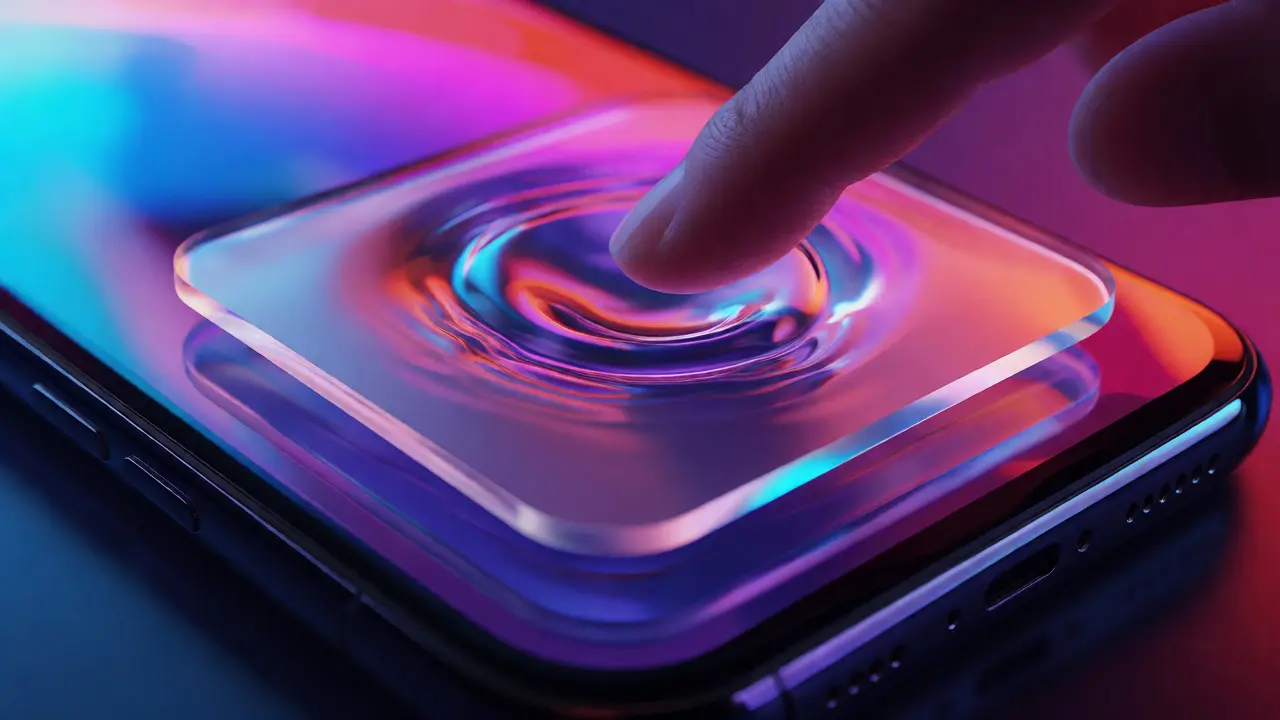
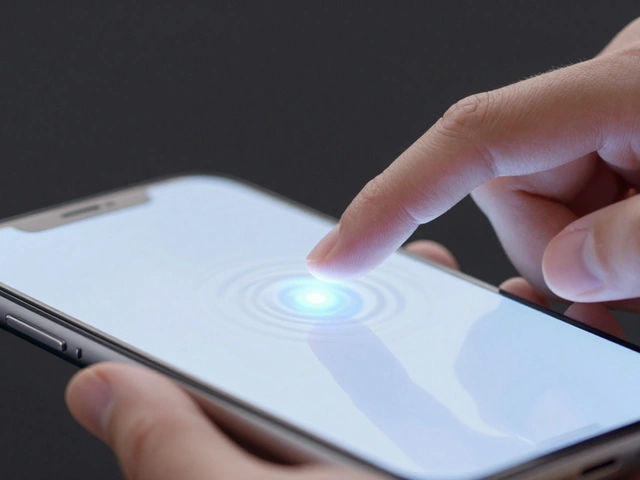
Apple built this from the ground up for its custom silicon. The A18 Pro chip and M4 chips in Macs and iPads handle the complex rendering needed to simulate how light bends through real glass. Each element on screen isn’t just a layer-it’s a living surface that senses color, brightness, and movement behind it. Tap a button and it doesn’t just glow. It shifts its hue, deepens its shadow, and subtly lifts off the screen like a droplet of water responding to pressure.
Why Translucency Keeps Focus on Content
The whole point of Liquid Glass is to make content the star. Before, iOS used opaque or semi-transparent panels that often drowned out the background. Notifications would cover your wallpaper. The Control Center would blur everything into a gray haze. You had to choose between seeing your content or using your controls.
Liquid Glass changes that. It’s translucent, not opaque. When you pull down Control Center, you still see your lock screen wallpaper-just slightly softened, as if viewed through a wet window. Text scrolls underneath a translucent panel, and the panel doesn’t block it-it enhances it. Shadows grow deeper where the text moves, and the tint of the panel adjusts dynamically to keep icons legible. If your wallpaper is bright, the panel becomes slightly darker. If it’s dark, the panel lightens. It’s not preset. It’s responsive.
This isn’t just about aesthetics. It’s about cognitive load. When your interface doesn’t compete with your content, your brain doesn’t have to switch focus. You glance at your phone, see your photo, notice a notification, and tap it-all without losing your train of thought. That’s the quiet magic of Liquid Glass: it stays out of the way, but never disappears.
How It Feels to Use
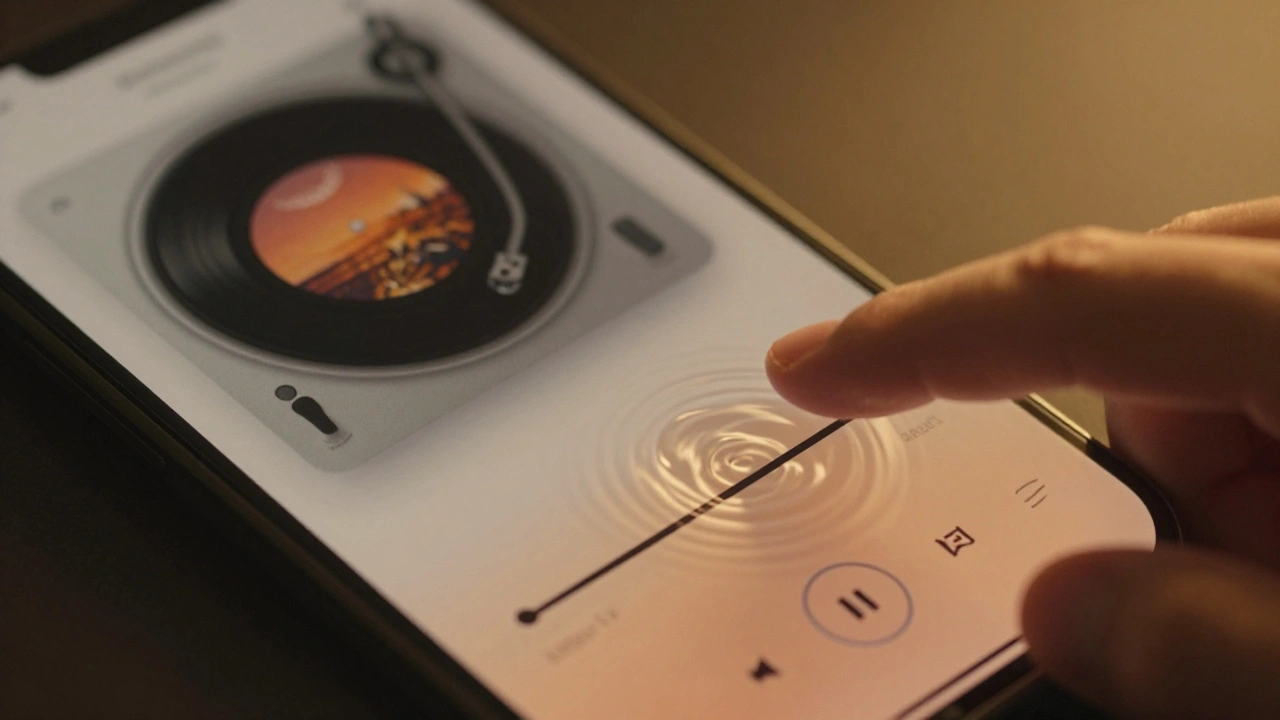
Touch a slider in the Music app and it doesn’t just slide. It ripples. Your finger presses down, and the entire control flexes slightly, like a gel pad. Light spills from beneath your fingertip, glowing outward into the surrounding Liquid Glass elements. The effect is subtle but unmistakable-it feels alive. It’s not flashy. It’s not cartoonish. It’s the kind of feedback you feel more than you see.
Even the Dock behaves differently. Instead of popping up with a fade, it materializes as if forming from vapor. Its edges bend light, and the icons inside shift their brightness based on the wallpaper behind them. Open a notification, and the panel doesn’t just appear-it emerges, with a soft lensing effect that makes the text inside feel like it’s floating above the screen.
Apple didn’t just change how things look. They changed how they move. Animations now follow the physics of liquid-not rigid, predictable paths, but smooth, flowing arcs. A panel sliding into view doesn’t just slide. It flows. It stretches. It pulses slightly as it settles. It’s not just faster. It’s more intuitive.
Accessibility and Customization
Liquid Glass isn’t one-size-fits-all. Apple knows not everyone wants a shimmering interface. That’s why system-wide accessibility settings automatically adapt the material. Turn on Reduced Transparency, and Liquid Glass becomes frostier, obscuring more of the background. Turn on Increased Contrast, and buttons turn solid black or white with bold outlines. Reduced Motion cuts the liquid effects, removing the flex and glow for users who find motion overwhelming.
These aren’t app-specific settings. They’re system-wide. Every app that uses Liquid Glass responds to them. No developer needs to write extra code. If you’ve enabled accessibility features, your entire interface adjusts seamlessly. That’s rare in design. Most companies build features for the majority and leave others behind. Apple made Liquid Glass inclusive from day one.
Real-World Impact
After eight months of rollout, users are noticing subtle changes. People who use their iPhones for photography say they can now preview edits without switching apps. The translucent panel over the photo editor lets them see the full image beneath their tools. Writers using Notes say text feels more immersive-the background fades just enough to reduce distraction, but doesn’t disappear. Even the lock screen clock now feels more alive, its numbers subtly shifting tone based on the wallpaper behind them.
Third-party apps are catching up. Spotify’s now-transparent playback bar lets you see your album art through it. Instagram’s story viewer uses Liquid Glass for its swipe controls, so your photos stay front and center. Even weather apps now show raindrops and clouds beneath their temperature readouts, making the interface feel like part of the environment, not separate from it.
The Bigger Picture
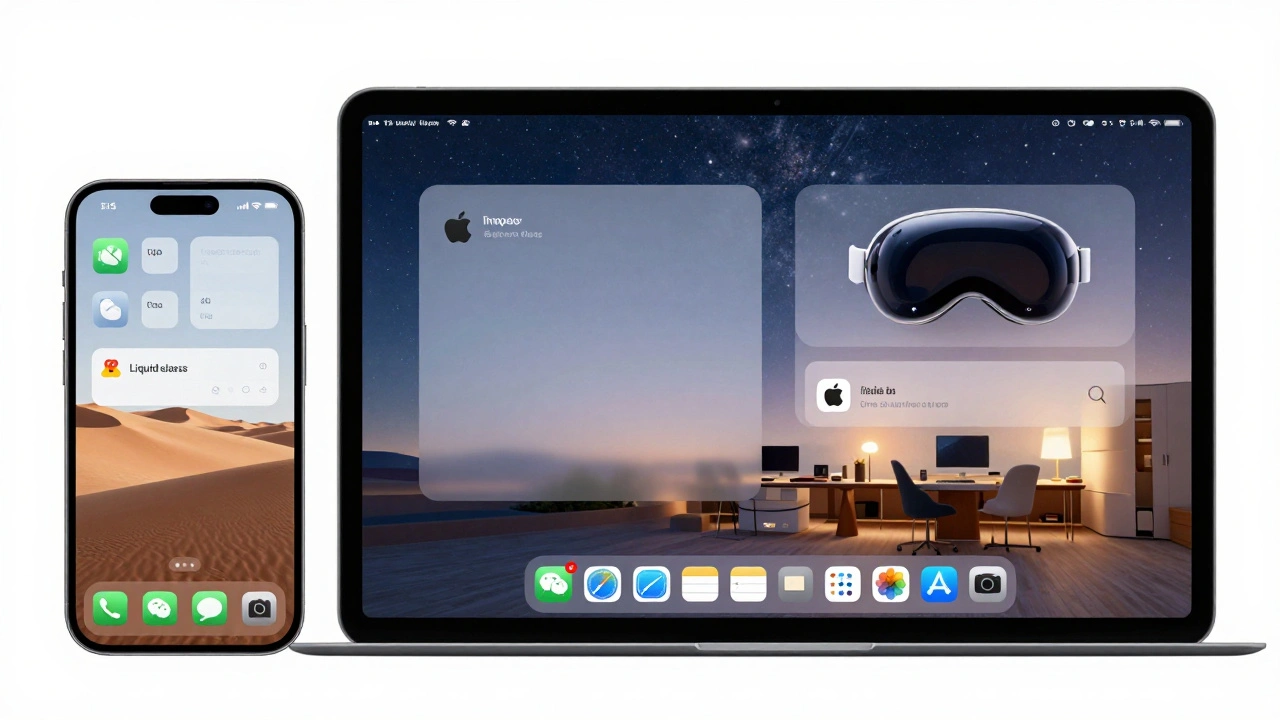
Liquid Glass isn’t just an iPhone feature. It’s Apple’s attempt to unify its entire ecosystem. The same material powers the Vision Pro, the iPad, the Mac, and the Apple Watch. That consistency matters. When you switch from your phone to your tablet to your laptop, the interface doesn’t feel like it’s from three different companies. It feels like one. One language. One rhythm.
And that’s the point. Apple isn’t trying to make things look pretty. They’re trying to make them feel natural. The way light bends through glass, the way water flows, the way objects respond to touch-those are things humans understand instinctively. Liquid Glass taps into that. It doesn’t ask you to learn a new way to interact. It just feels right.
What This Means for the Future
Apple has moved beyond flat design, beyond material design, beyond even the glass-and-blur era. Liquid Glass is the next step: an interface that doesn’t just respond to you, but adapts with you. It’s dynamic, intelligent, and deeply personal. The next time you unlock your iPhone, don’t just look at the screen. Look through it. Because now, the interface isn’t hiding your content-it’s helping you see it better.
Is Liquid Glass only on the iPhone?
No. Liquid Glass was introduced across Apple’s entire ecosystem in June 2025. It’s on iPhone, iPad, Mac, Apple Watch, and Vision Pro. The design language is unified so that every device feels like part of the same system, whether you’re using a 4.7-inch screen or a 27-inch display.
Does Liquid Glass drain the battery?
Not noticeably. Apple designed Liquid Glass to run efficiently on its custom silicon. The A18 Pro and M4 chips handle the real-time rendering without taxing the battery. In tests, users reported no significant difference in battery life compared to iOS 25, even with Liquid Glass fully enabled.
Can I turn off Liquid Glass?
You can’t disable it entirely, but you can reduce its effects. Go to Settings > Accessibility > Display & Text Size, then toggle on Reduced Transparency or Reduced Motion. These settings soften the glass effect, making it less dynamic while keeping the interface usable.
Does Liquid Glass work with dark mode?
Yes. Liquid Glass adapts to both light and dark modes automatically. In dark mode, elements become slightly brighter with softer glows. In light mode, they darken slightly and gain more depth. The material always ensures text and icons remain legible, regardless of the background.
Do third-party apps support Liquid Glass?
Yes. Apple released updated SDKs for developers in June 2025, and most major apps have updated to use Liquid Glass controls. Apps like Spotify, Instagram, Notion, and Microsoft Office now use the material for buttons, panels, and overlays. Even smaller developers are adopting it because it requires minimal code changes and improves user experience.