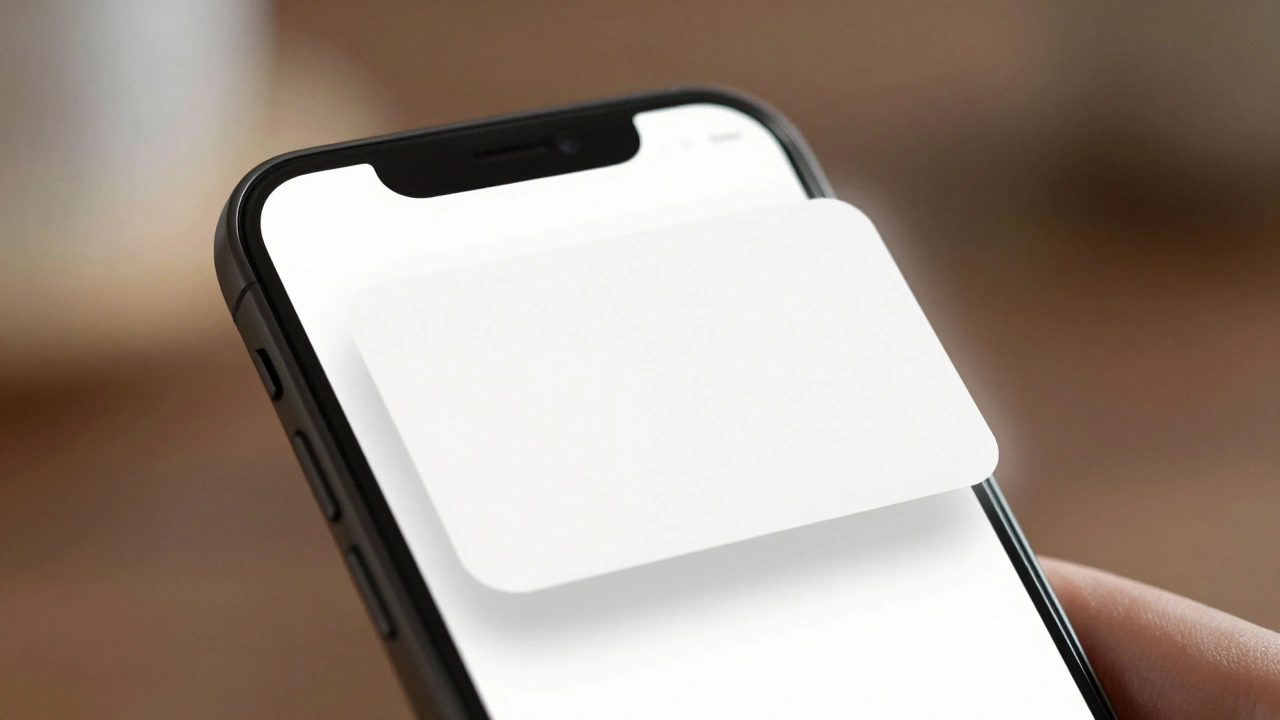

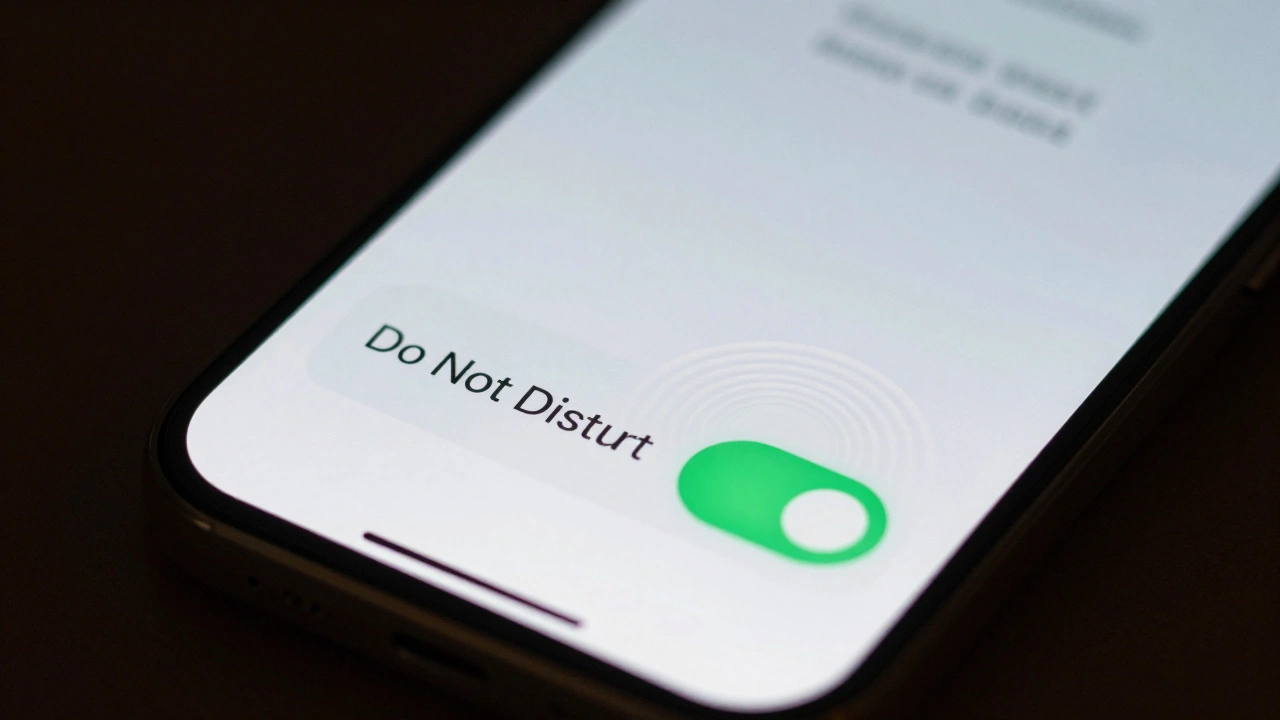
When you tap a button on your iPhone and it lifts slightly before fading away, you don’t think about it. But that tiny motion? It’s not decoration. It’s communication. Apple doesn’t use loud alerts, flashing icons, or beeps to tell you what’s happening. Instead, it uses motion and depth-subtle, natural shifts in space-to show you focus, state, and relationships. This isn’t just about looking good. It’s about making interaction feel effortless, intuitive, and quiet.
Why Motion and Depth Replace Noise
Think about how most apps signal state. A red badge. A popup. A sound. These are loud. They demand attention. Apple’s approach does the opposite: it guides attention without interrupting. When you open a message in Mail, the background gently pushes back. The message card rises just enough to feel separate, but not so much that your eyes have to refocus. That’s depth doing the work. No banner. No animation explosion. Just a quiet shift in space that says, "This is what you’re looking at now." This isn’t accidental. Apple’s design team spent years studying how human vision works. Our brains are wired to notice motion and depth before color or text. Think about walking through a forest-you don’t read signs to find a path. You follow the way light falls, the shape of the ground, the movement of branches. Apple’s interfaces work the same way. They speak the language your eyes already understand.How Depth Creates Hierarchy
In iOS 17, Apple moved away from flat design. Shadows became more pronounced. Elements gained real spatial positioning. Why? Because flat surfaces don’t tell you what’s important. Depth does. A card that sits closer to you feels more immediate, more interactive. One that’s farther back feels like background-something you can ignore until you need it. The system uses multiple cues to build depth:- Shadows: Soft, directional shadows anchor elements to their surface.
- Blur: Backgrounds behind modal views are subtly blurred to separate them visually.
- Relative size: Objects closer to the viewer appear slightly larger, even if they’re the same pixel size.
- Texture and lighting: Subtle gradients and light shifts mimic how real objects catch light in 3D space.
Motion That Feels Like Your Hand
Motion in Apple interfaces doesn’t just happen. It follows you. When you pinch to zoom, the center of the zoom isn’t random. It’s where your eyes are looking. Apple’s system uses eye-tracking data to determine your intent-but here’s the key: it never records or sends your gaze. Only the interaction-"you zoomed here"-is sent to the app. Privacy isn’t an afterthought. It’s built in. Every motion has a physical anchor:- A button you tap? It compresses slightly, then springs back.
- A card you drag? It moves with the exact speed and inertia of your finger.
- An Action Sheet? It doesn’t slide up from the bottom anymore. It springs from the button you tapped.
Liquid Glass: The New Language of State
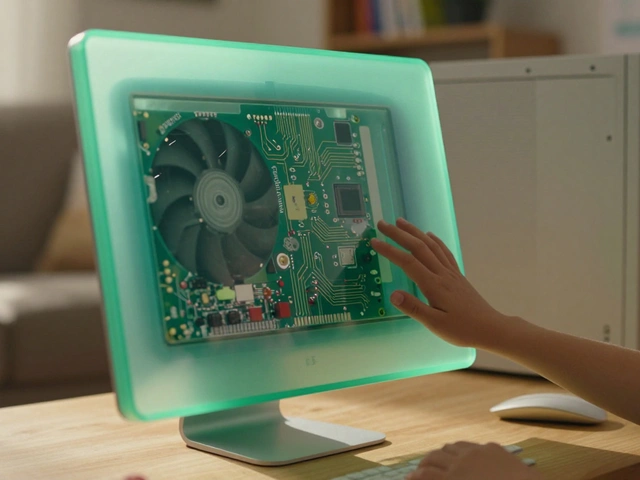
Introduced in visionOS and rolling into iOS 18, Liquid Glass is Apple’s most sophisticated tool for communicating state. It’s not a color. It’s not an animation. It’s a material. Before Liquid Glass, navigation bars blended into backgrounds. They were invisible until you tapped. Now, they lift slightly. They become translucent, with a soft glow that says, "I’m here, and I’m ready." When you interact-say, you drag a window-the Liquid Glass effect becomes more opaque, grows a little, and holds its shape. It’s not a toggle. It’s a conversation. This effect works because it changes based on context:- At rest? Soft, transparent, barely there.
- Under focus? Slightly brighter, more defined.
- Active? Solid, stable, grounded.
Comfort Is Design
Apple doesn’t just care about what looks good. It cares about what feels good. Fast rotations? Avoided. Large objects moving close to the viewer? Prohibited. Plain textures with low contrast? Encouraged. Why? Because bad motion causes discomfort. Not just visual fatigue. Real motion sickness. If an object spins too fast, your inner ear says, "I’m moving." But your eyes say, "I’m not." That mismatch creates nausea. Apple’s guidelines prevent this by using instantaneous directional changes-like a snap-instead of long, looping animations. Even small details matter. A window that moves 10 pixels too far? That’s enough to throw off your sense of space. Apple’s system uses points-not pixels-as its base unit. Points scale with distance. So whether you’re holding your phone 6 inches from your face or 18 inches away, the interface stays visually consistent. Your eyes don’t have to relearn where things are.How This Works Across Devices
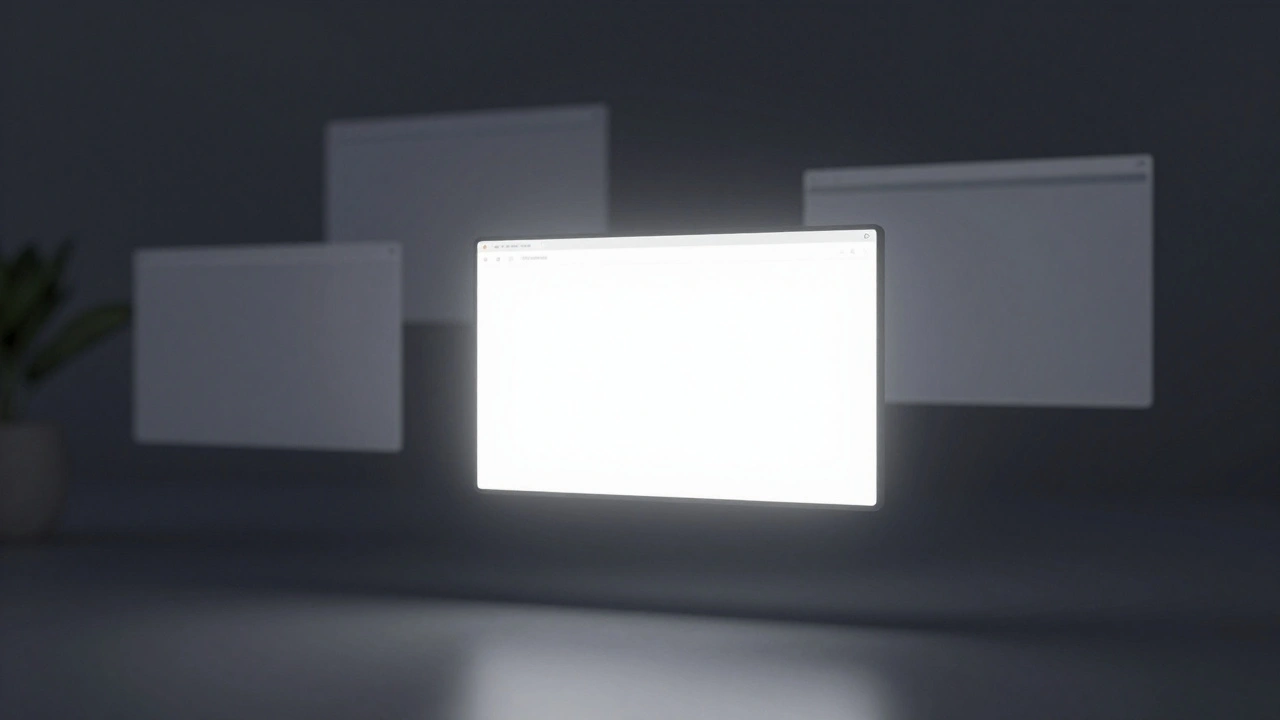
This isn’t just for iPhones. It’s the same language across iOS, iPadOS, macOS, and visionOS. On Vision Pro, depth is even more critical. You’re not tapping a screen. You’re looking at a floating interface. Without depth cues, everything would feel flat and confusing. In visionOS:- Windows float at different distances based on priority.
- Background apps are pushed farther away, almost out of focus.
- Hover effects respond to your gaze, not a cursor.
What This Means for Designers
If you’re building for Apple platforms, this isn’t optional. Motion and depth are the core language. Ignoring them means your app will feel disconnected, stiff, or confusing. Here’s what to do:- Use depth, not color, to show hierarchy. A gray button doesn’t mean "disabled." A button pushed farther back does.
- Keep interactive elements at consistent z-depth. Don’t make users refocus their eyes.
- Let motion follow gesture. If you drag, the object should glide. If you tap, it should compress.
- Use Liquid Glass effects for navigation and controls. Don’t just make them transparent-make them responsive.
- Test motion with real users. If someone says, "That felt weird," it probably is.
Why This Matters Beyond Apple
Other companies are starting to notice. But most still rely on notifications, popups, and color changes. Apple’s approach proves you don’t need noise to communicate. You just need intelligence. Think about it: your brain is already good at reading space and motion. Why make it learn a new language? Apple didn’t invent this. It just optimized it. And in doing so, it created interfaces that don’t just work-they feel right.Why doesn’t Apple use sounds or flashing lights to show state?
Apple avoids sounds and flashing lights because they interrupt focus. Instead, it uses motion and depth-subtle spatial shifts-to guide attention naturally. These cues align with how human vision works, reducing cognitive load and making interactions feel seamless. A button lifting slightly tells you it’s active without needing a beep or a red alert.
What is Liquid Glass and how does it improve UI?
Liquid Glass is a material effect introduced in visionOS and iOS 18 that gives UI elements a translucent, slightly lifted appearance. It creates depth between foreground controls and background content. Unlike flat or opaque elements, Liquid Glass responds to interaction: it becomes more opaque and slightly larger when engaged, signaling active focus without animation or color changes. This makes interfaces feel alive and responsive without visual clutter.
How does eye tracking work in Apple interfaces without invading privacy?
Apple’s system detects where you’re looking to determine interaction intent-like where to zoom-but never records or sends your gaze data. Only the final action (e.g., "user zoomed at coordinates X,Y") is sent to the app. The eye-tracking sensor processes data locally and discards raw input immediately. Privacy isn’t an add-on; it’s built into the core design.
Why do Apple interfaces feel "magical" even though they’re simple?
They feel magical because they respond exactly how you expect. Motion follows your hand. Focus follows your gaze. Depth matches your intuition. There’s no learning curve because the interface speaks the language your brain already understands: space, motion, and relationship. It’s not magic-it’s design that respects human perception.
Can I use these motion and depth principles in non-Apple apps?
Absolutely. While Apple’s specific tools like Liquid Glass are platform-specific, the underlying principles apply everywhere: use motion to continue physical gestures, use depth to show hierarchy, avoid unnecessary animations, and let visual cues replace alerts. Apps that follow these rules feel more intuitive, even if they’re not built on Apple’s ecosystem.
Next Steps for Designers
Start by observing. Watch how your own device behaves. Notice how a notification card lifts slightly. How a menu springs from a button. How a window fades into the background. These aren’t random effects. They’re precise tools. Then, test. Build a simple prototype. Try moving elements without animation. Try using shadow and blur instead of color. Ask users: "Where do you think you need to look next?" If they hesitate, you’re not using depth well. Apple’s interfaces don’t shout. They whisper. And in a world full of noise, that’s the most powerful design choice of all.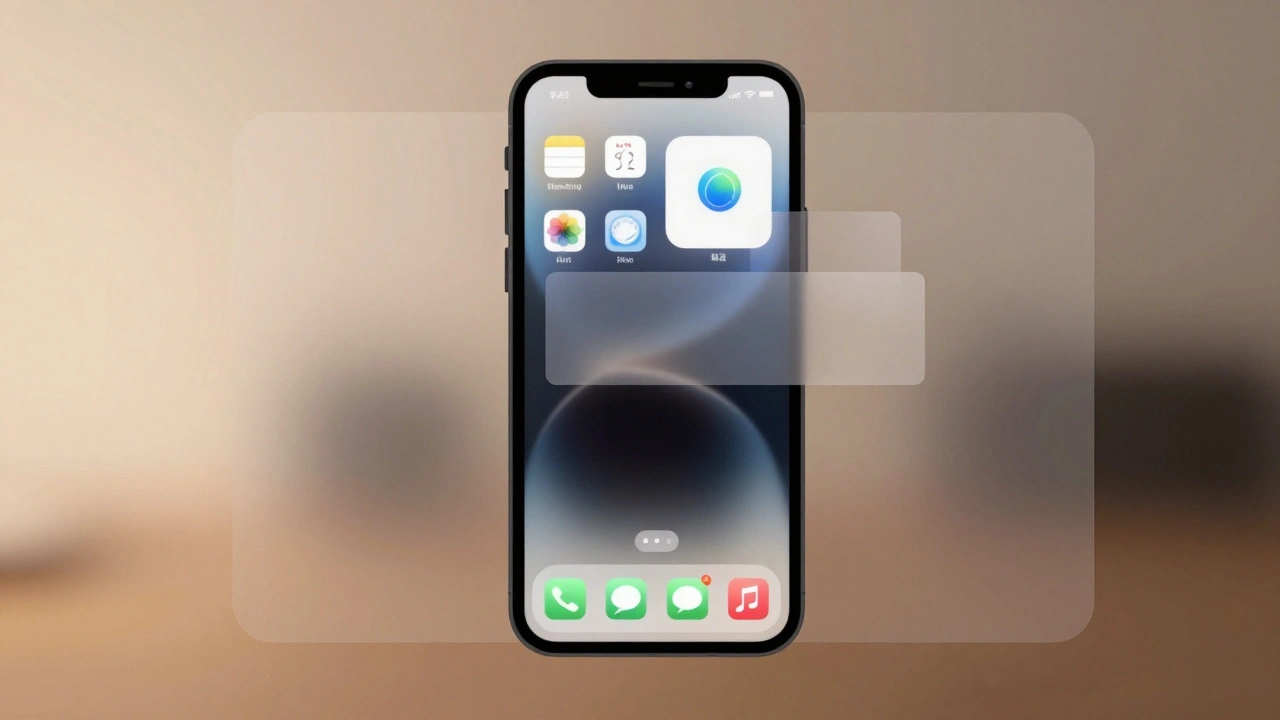
Categories
Popular Articles