
Why your iPad’s screen shape controls how you work
Ever wonder why your iPad won’t let you stack two apps on top of each other in portrait mode? Or why the windows in Stage Manager snap into fixed sizes instead of dragging freely like on a Mac? It all comes down to one thing: aspect ratio. The shape of your iPad’s screen isn’t just about watching videos or browsing photos-it’s the foundation of how multitasking works. Apple didn’t pick 4:3 or 3:2 for looks. It was a deliberate design choice that shapes every window, every snap, every app you try to run side by side.
Split View: The old way, built for two
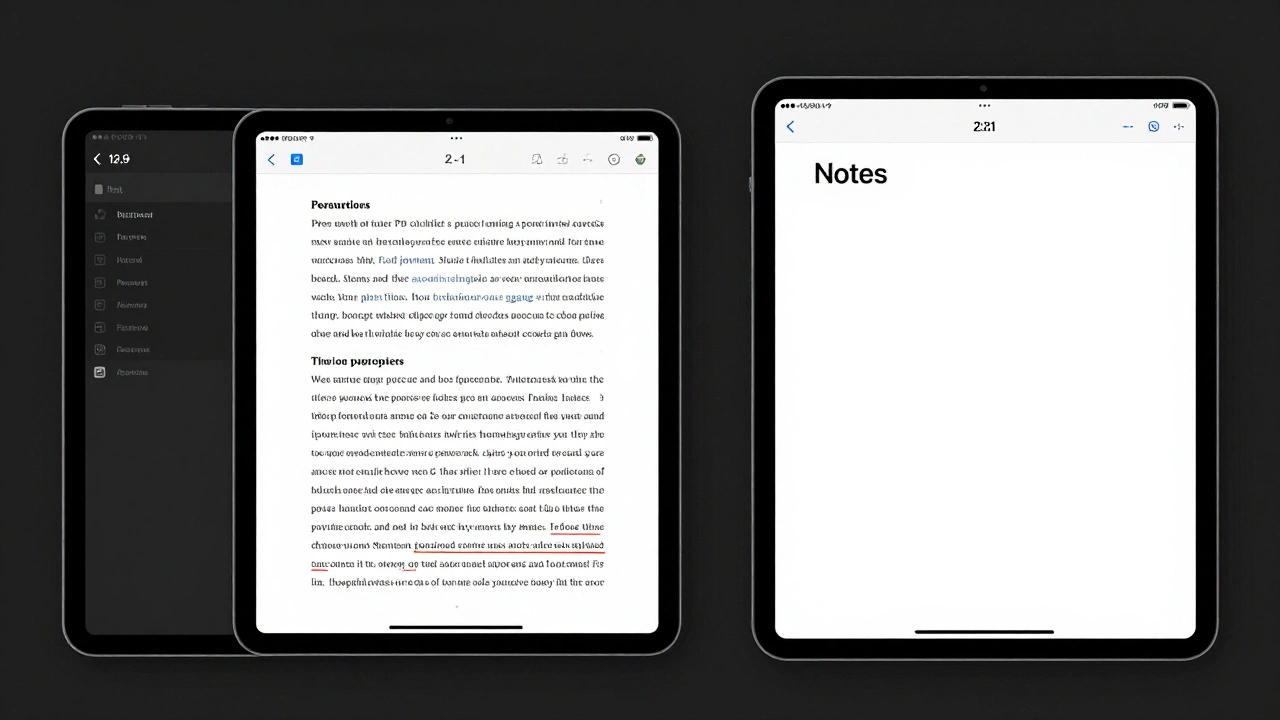
Before Stage Manager, Split View was the only way to run two apps at once. It was simple: drag an app from the dock, and it splits the screen in half. On a 12.9-inch iPad Pro, each app got nearly the full screen-close to a 9.7-inch iPad’s native size. That meant you could actually read a PDF, type in Notes, and scroll through Mail without squinting. But here’s the catch: it only worked in landscape. Portrait? No multitasking. Apple’s reasoning? Most apps weren’t built to shrink down and still function in portrait. Trying to scale a full-screen app vertically just creates a mess of tiny buttons and unreadable text. So even though your iPad can rotate, multitasking refuses to follow.
Stage Manager: More apps, but less freedom
Stage Manager came in with iPadOS 16, and it changed everything. Now you can have up to four apps visible at once, with others tucked into side stacks. But instead of letting you drag windows to any size, Apple locked them into preset aspect ratios. A window can be full-screen, half-screen, or an iPhone-sized box. You can’t make it 70% wide or 1.8:1. Why? Because Apple prioritizes app stability over flexibility. If a window could be any size, apps might break-buttons disappear, text wraps wrong, or buttons get buried. With preset ratios, every window is guaranteed to look and work as the developer intended.
And yes, it still only works in landscape. No matter how much you rotate your iPad, Stage Manager won’t activate unless it’s lying flat. Even if you connect an external monitor, the iPad’s own screen stays locked to landscape. The monitor can show up to four more apps, but only if you don’t mirror the display-mirroring forces a 4:3 aspect ratio, which defeats the whole point of Stage Manager’s clean, resizable windows.
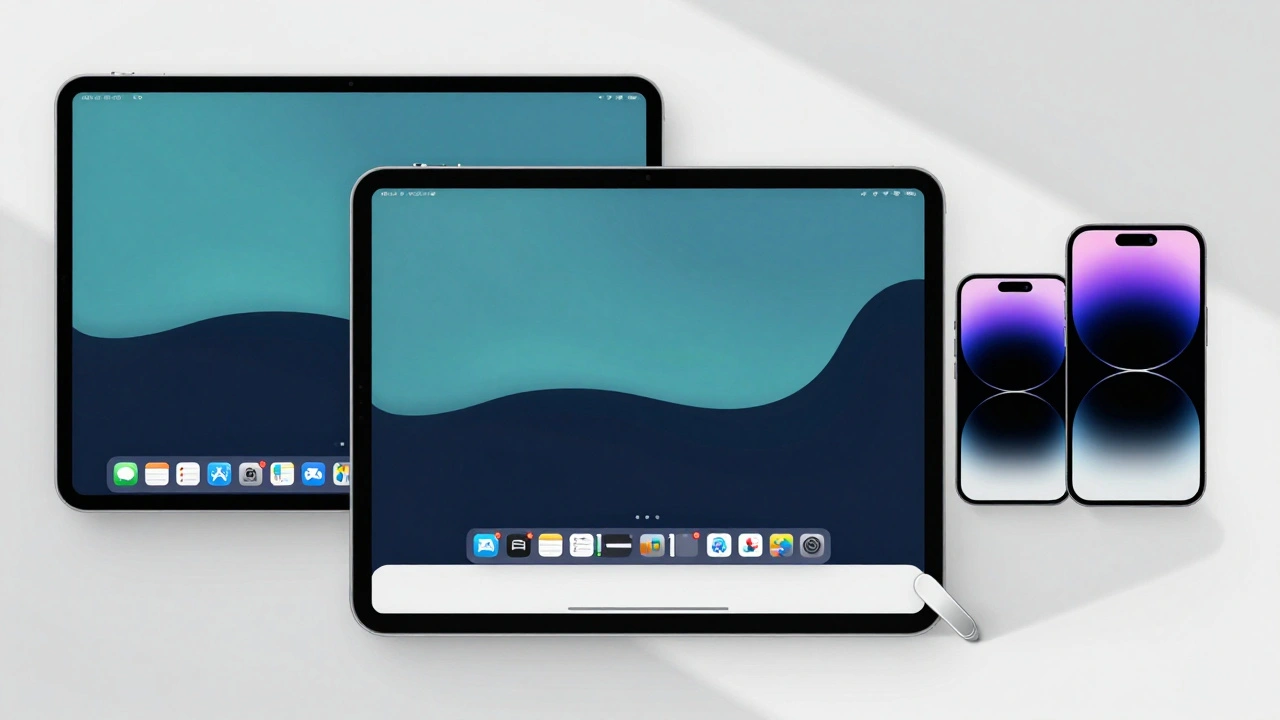
Screen size isn’t just about pixels-it’s about space
If you’re using an 11-inch iPad, you’ve probably noticed Stage Manager feels cramped. Four windows? Hard to manage. That’s where the Display Zoom setting comes in. Go to Settings > Display & Brightness > Display Zoom and switch from "Default" to "More Space." This doesn’t just shrink text-it changes how the interface scales. It effectively reduces pixel density, giving you more room for windows without changing the screen’s physical size. Users on smaller iPads swear by this. It’s not a fix, it’s a necessary adjustment. On a 12.9-inch iPad Pro? You might never need it. The screen is big enough to handle multiple windows at default zoom. But on an iPad mini? Forget Stage Manager unless you use More Space.
How window sizing really works
Every app window has a tiny quarter-circle handle in the bottom-right or bottom-left corner. Tap and drag it, and the window snaps to one of Apple’s preset sizes. These aren’t random-they’re based on real-world app usability. The smallest window? That’s the iPhone-sized frame. It’s not just a miniaturized version of the iPad app-it’s the exact same size as an iPhone app runs. That’s why you’ll sometimes see a PDF viewer in Stage Manager with huge margins: it’s locked into that 9:16 iPhone ratio. Want to make two apps side by side? Drag one window to the left or right edge, and it snaps into split mode. The system automatically sizes them to fit. No manual dragging. No guesswork. Just rules.
Why Apple won’t let you resize freely
On a Mac, you can drag a window to any size-1280x720, 1920x1080, whatever. But on iPad? You can’t. That’s not a bug. It’s intentional. Apple’s philosophy is simple: apps should look and work the same across all devices. If you let users stretch a Notes app into a 2:1 window, the text might not reflow properly. Buttons could overlap. Scrolling might glitch. Apple’s solution? Lock it to ratios that have been tested and proven to work. It’s less flexible, but far more reliable. Power users complain. But most people? They just want apps to work. And they do.
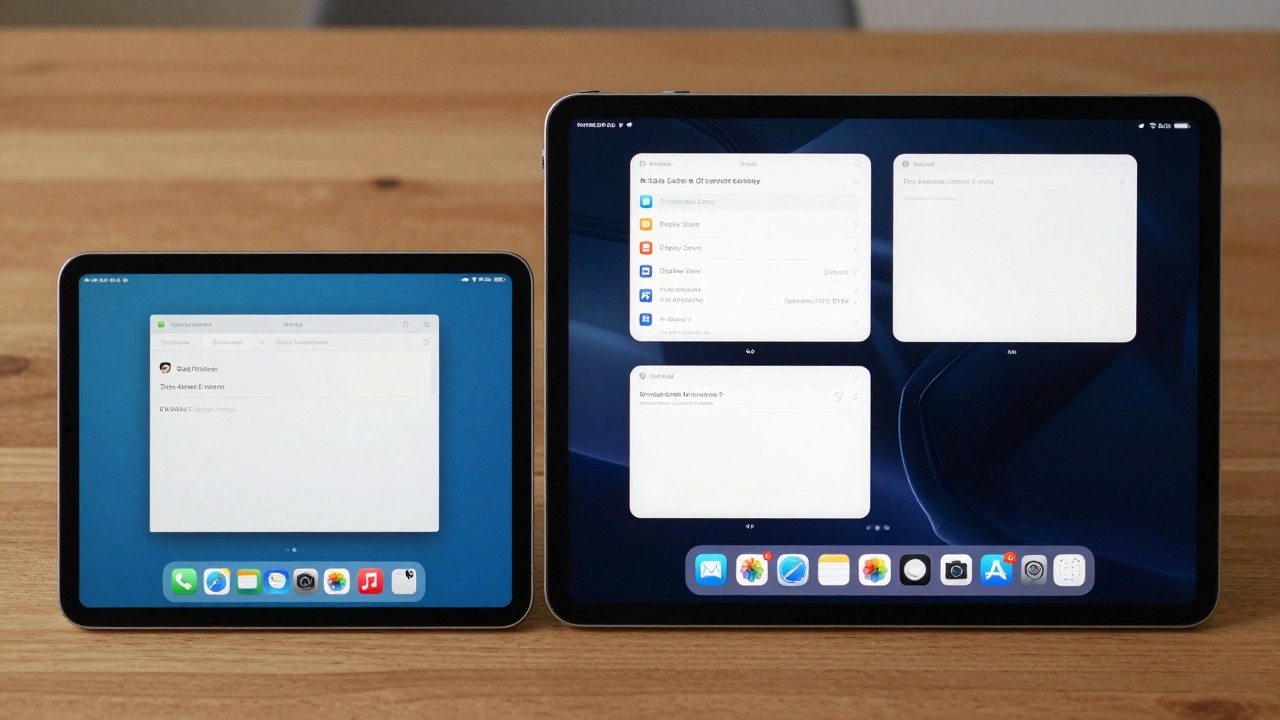
What this means for your workflow
If you use your iPad for work, your setup depends on two things: your iPad model and how you use Display Zoom. On a 12.9-inch iPad Pro, you can run four full windows without any tweaks. On an 11-inch model? Turn on More Space. On an iPad mini? Stage Manager is barely usable unless you’re okay with tiny windows. And no matter what, you’re locked to landscape. No portrait multitasking. Ever. That means if you’re working on the couch with your iPad propped up vertically, you’re stuck with one app at a time. It’s not a flaw-it’s the rule of the system.
The future of iPad multitasking
Apple keeps adding Stage Manager to newer iPads-iPad Air with M1, iPad Pro M2, and beyond. Split View is fading. That tells you where they’re headed. They’re not trying to make the iPad a laptop replacement. They’re trying to make it a tablet that does more, without breaking apps. Aspect ratio isn’t just a number. It’s the backbone of how Apple balances power and simplicity. Until apps get better at handling arbitrary window sizes, this is how it’ll stay.
What you can do today
- If you’re on an 11-inch or smaller iPad: go to Settings > Display & Brightness > Display Zoom and select "More Space."
- Always keep your iPad in landscape for multitasking-no exceptions.
- Use the quarter-circle handle to resize windows, not drag them freely.
- For maximum efficiency, keep your most-used apps in the side stacks and use the three-dot menu to snap them into split mode.
- If you connect an external display, disable mirroring to unlock Stage Manager’s full potential.
Can I use Split View and Stage Manager at the same time?
No. Stage Manager replaces Split View on compatible iPads. Once you turn on Stage Manager, Split View is no longer available. Older iPads without Stage Manager still use Split View, but they can’t upgrade to the newer system.
Why won’t my iPad let me multitask in portrait mode?
Most apps aren’t designed to work in portrait multitasking. Scaling a full-screen app vertically leads to unreadable text, hidden buttons, and broken layouts. Apple chose to block portrait multitasking entirely to avoid a poor user experience. It’s a limitation, but it keeps apps usable.
Does Display Zoom affect app performance?
No. Display Zoom only changes how much screen space is available for windows. It doesn’t slow down apps or change how they run. It simply reduces pixel density to give you more room to arrange windows. Think of it like zooming out on a map-you see more area, but everything still works the same.
Can I use Stage Manager on an iPad that doesn’t have an M1 chip?
No. Stage Manager requires an M1 chip or later. That means only iPad Pro (2021 and later), iPad Air (2022 and later), and iPad mini (2021 and later) support it. Older iPads are stuck with Split View or can’t multitask beyond two apps.
Why do some windows look stretched or have big borders?
That’s because the app is locked into an iPhone-sized aspect ratio (9:16). If the app wasn’t designed for iPad, Stage Manager forces it into a smaller, phone-sized window. It’s not stretched-it’s just the smallest possible size. You can’t make it bigger unless the app supports iPad-specific layouts.
Categories
Popular Articles