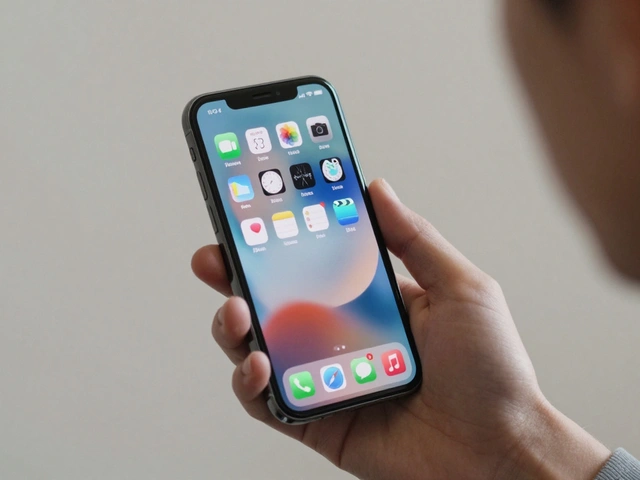

The iPhone lock screen is one of the most used interfaces on the planet. Every time you pick up your phone, it’s the first thing you see. But here’s the problem: it shows you useful info-time, weather, notifications-while also exposing your personal life to anyone nearby. How does Apple make sure you get what you need without giving away what you don’t? The answer isn’t just about design. It’s about privacy woven into every pixel.
What You See, What They See
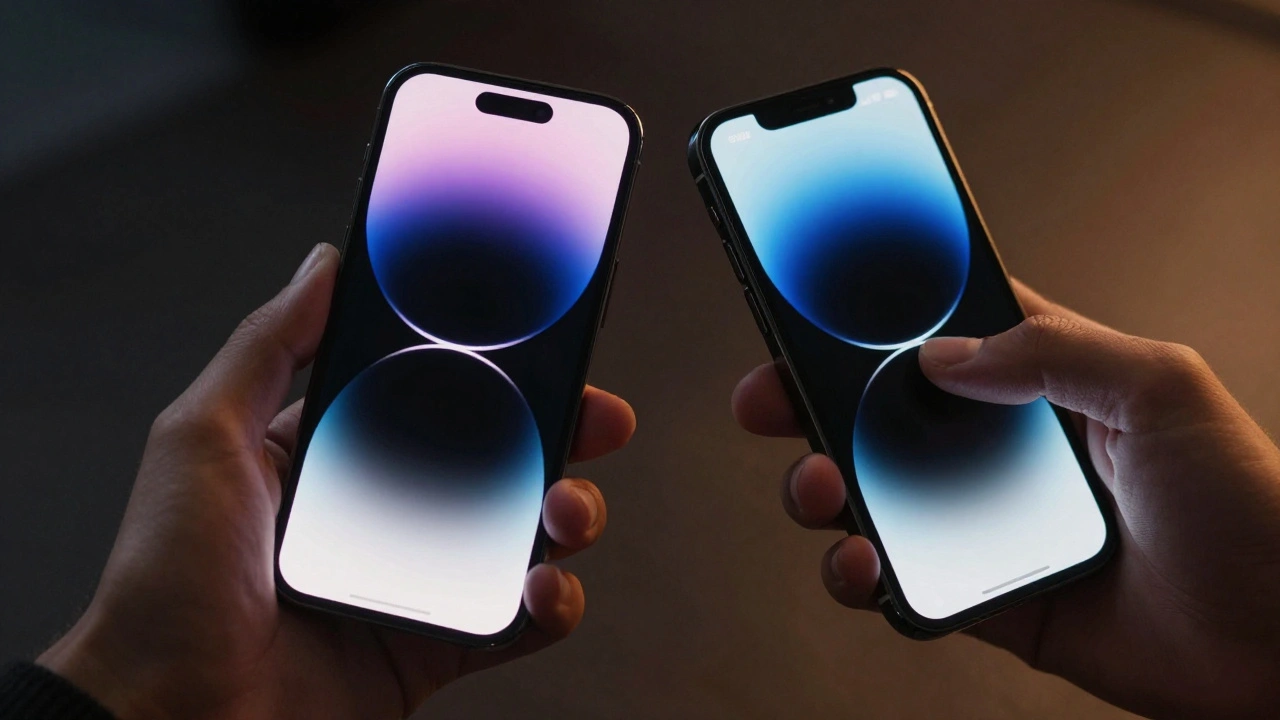
Before iOS 26, your lock screen was either a full wallpaper or a black screen. No middle ground. If your wallpaper had a photo of your kid, your partner’s name, or a vacation spot, anyone who picked up your phone could see it. Apple knew this wasn’t sustainable. People wanted personalization, but not public exposure.
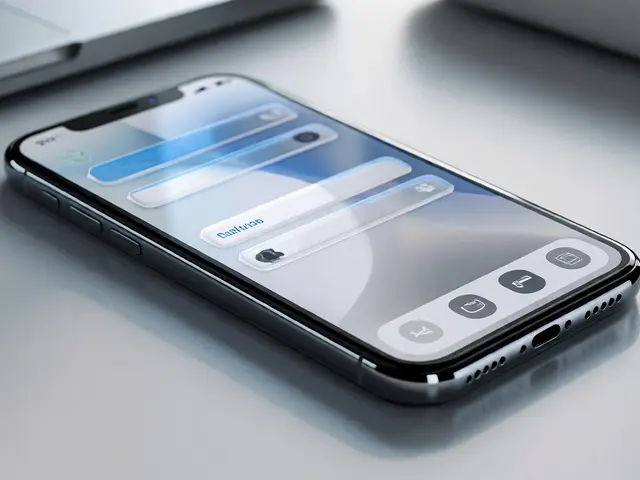
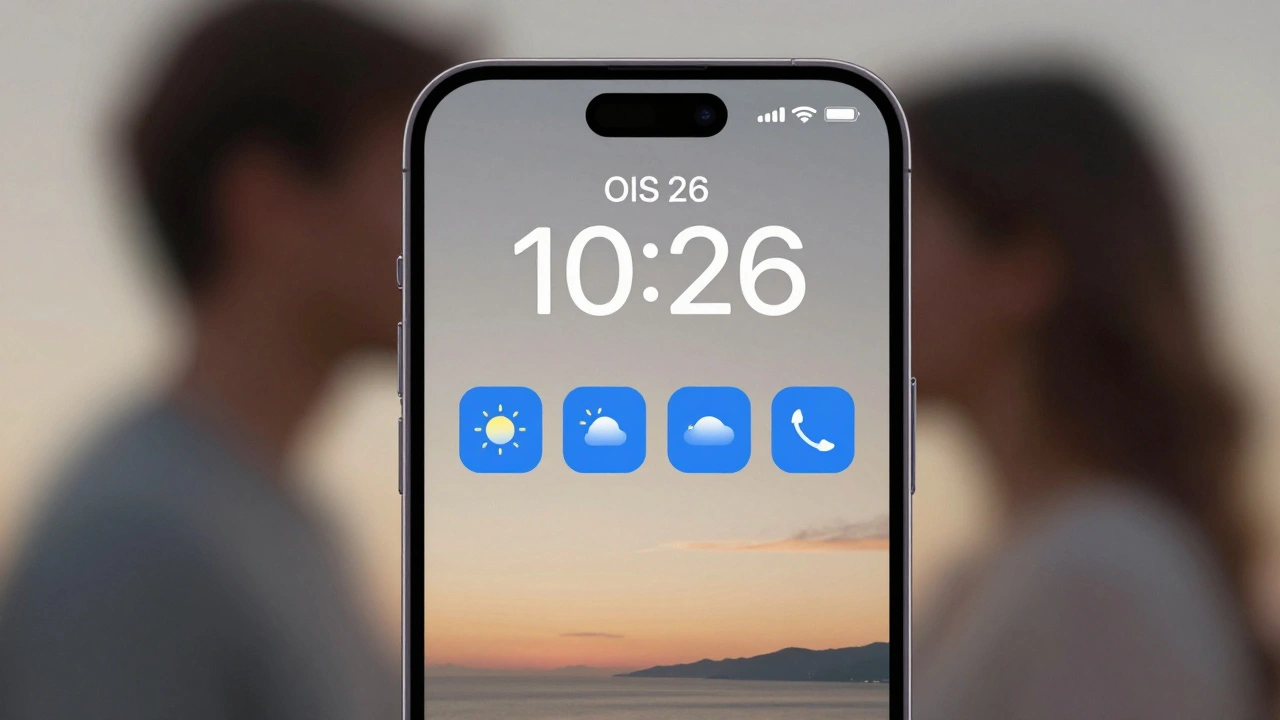
So iOS 26 introduced a blur option for the lock screen wallpaper. Now, instead of showing your photo in full clarity, the background softens into a gentle blur. The time, widgets, and notifications stay sharp and readable. But your personal images? Hidden. It’s not just a filter-it’s a privacy layer. You still feel connected to your favorite photo, but strangers see nothing more than a hazy glow.
And the time display? It moves. iOS 26’s clock doesn’t sit in one corner. It shifts dynamically based on where your wallpaper’s main subject is. If your photo has a person facing left, the time slides to the right. If the horizon is in the middle, the clock rises above it. This isn’t just fancy-it’s functional. You get clear, readable time without covering up what matters in your image.
When Your Phone Moves, So Does the Screen
Ever notice how your lock screen feels alive when you tilt your iPhone? That’s not an accident. iOS 26 uses motion sensors to trigger a subtle 3D effect on the wallpaper. The image doesn’t zoom or flip-it tilts slightly, like a photo in a frame. It’s quiet, elegant, and instantly noticeable. This isn’t just for looks. It turns a static screen into something that responds to you.
But here’s the twist: this effect only works if your phone is unlocked. When locked, the screen stays flat. No motion, no depth. Apple made sure the visual flair doesn’t compromise security. The 3D effect is a reward for ownership, not a vulnerability. If someone else picks up your phone, they get the same flat, blurred background as before. No tricks. No access.
Stolen Device Protection: The Silent Guardian
Thieves don’t just steal phones anymore. They steal identities. In 2023, reports showed criminals using social engineering to trick users into handing over passcodes. Then, they’d reset Apple IDs, wipe devices, and resell them. Apple didn’t wait for this to get worse.
Stolen Device Protection, first introduced in iOS 17, became automatic in iOS 26.4. If you have Find My turned on and Face ID or Touch ID enabled, this feature kicks in without you lifting a finger. If someone tries to erase your phone, change your Apple ID password, or disable Find My while you’re away from home-you’re locked out. They need your biometrics. And even if they get them, there’s a one-hour delay before they can make major changes.
This isn’t just a setting. It’s a safety net. You don’t need to remember to turn it on. You don’t need to read a manual. It just works. And it works because Apple tied it directly to the lock screen’s core function: authentication.
What You Plug In Matters
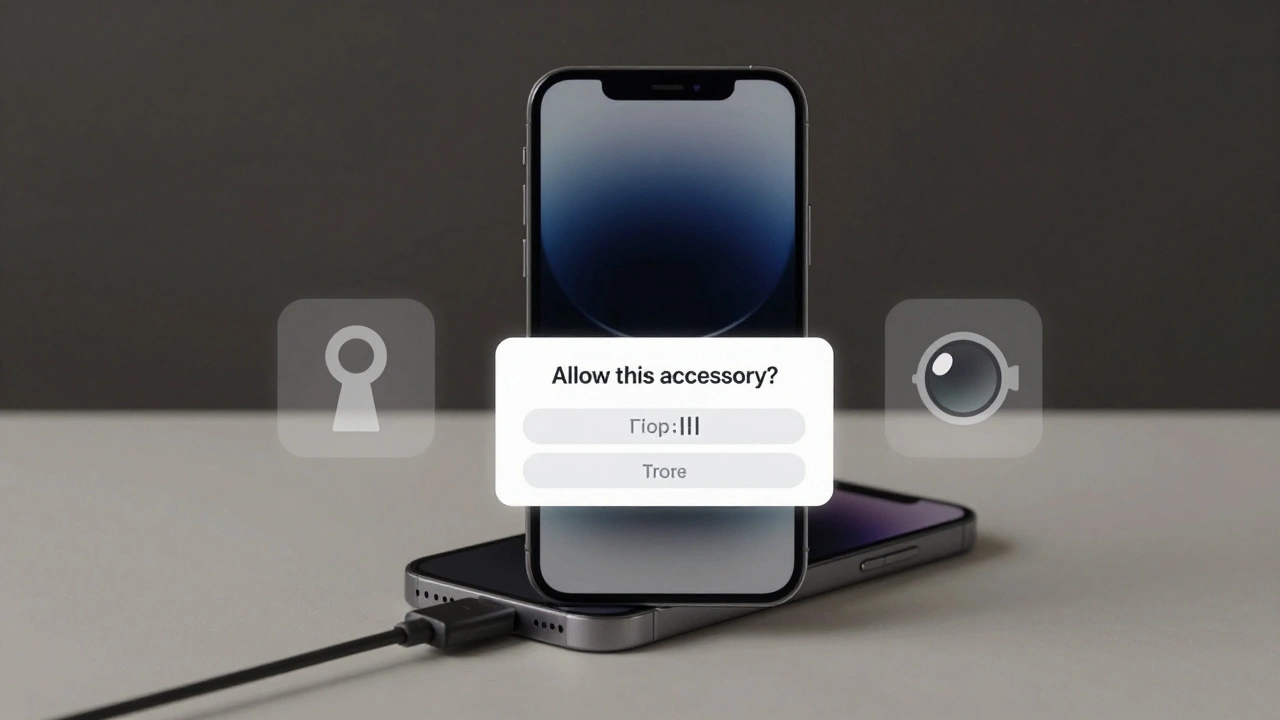
Connecting a USB cable to your phone used to be a silent transaction. Plug in. Charge. Done. But in iOS 26, that changed. Now, when you plug in a wired accessory while your phone is locked, a pop-up appears: “Allow this accessory?”
You can choose: Always Allow, Automatically Allow When Unlocked, or Never Allow. Why does this matter? Because malicious accessories can steal data, install malware, or even trigger remote commands. This prompt stops cold. No more silent data leaks. No more USB-based hacks.
And if you’re someone who uses headphones, chargers, or smart accessories daily? You can set it to “Automatically Allow When Unlocked.” That way, when you unlock your phone, your devices connect seamlessly. But when locked? No access. No risk.
Controlling What You Can Access
Apple didn’t stop at background blur or accessory prompts. They started asking: What else should be locked down?
One major change: you can now disable the camera swipe on the lock screen. For years, swiping left from the lock screen opened the camera instantly. It was fast. But it was also risky. Someone could grab your phone, swipe, and start recording. Or take a photo of your screen.
In iOS 26, Settings > Camera added a toggle: “Lock Screen Swipe to Open Camera.” Turn it off, and the camera stays locked. No swipe. No access. You still get quick camera access from the lock screen-just not by accident. If you need it, you unlock first. Simple. Safe.
Same goes for alarms. iOS 26.1 brought back the “Slide to Stop” gesture for alarms. After a brief experiment with giant buttons that led to accidental dismissals, Apple listened. Now, you slide to silence. But if you’re visually impaired or have motor issues, you can go to Settings > Accessibility > Touch and switch to “Prefer Single-Touch Actions.” One tap stops the alarm. No sliding needed. The system adapts to you-not the other way around.
The Hidden Rules of Privacy
Apple’s lock screen isn’t just about what’s visible. It’s about what’s hidden.
App tracking? You can block it entirely in Settings > Privacy and Security > Tracking. Location access? You can limit it to “While Using” instead of “Always.” Photo access? Choose “Selected Photos” instead of “All Photos.” Even the status bar now shows a tiny icon when an app is using your location-right there on the lock screen.
And then there’s the App Privacy Report. It doesn’t show up on the lock screen, but it’s powered by the same system. It tells you exactly which apps accessed your contacts, photos, or location in the last 24 hours. No guesswork. No hidden logs. Just clear, honest data.
These aren’t hidden settings. They’re part of a design philosophy: give users control, but make it easy to find. Apple moved privacy controls from buried menus into the lock screen’s ecosystem. You don’t need to dig. You just need to notice.
The Trade-Offs
Nothing’s perfect. And Apple’s approach has its limits.
Stolen Device Protection requires Find My and biometrics. If you turned off Find My to save battery-or if you don’t use Face ID-you might not even know it’s active. And if you’re not tech-savvy, that automatic enablement can feel like a surprise. Apple didn’t ask. They just did it. Some users are frustrated. Others are relieved.
But here’s the thing: Apple doesn’t offer a “privacy mode” toggle. They don’t say, “Turn this on if you want to be safe.” Instead, they build safety into every interaction. Blur the wallpaper. Block USB access. Delay password changes. Disable camera swipes. These aren’t features you enable. They’re behaviors you live.
And that’s why the iPhone lock screen works. It doesn’t ask you to be careful. It makes care automatic.
What’s Next?
Apple’s lock screen isn’t done evolving. Rumors suggest future iOS versions will add more granular widget controls, AI-powered notification filtering, and even adaptive blur levels based on ambient light. But the core idea stays the same: show enough to be useful. Hide enough to be safe.
It’s not about having the fanciest display. It’s about respecting your space. Your data. Your privacy. And that’s why, after all these years, the iPhone lock screen still feels like the most thoughtful interface on any smartphone.
Can I turn off the lock screen blur in iOS 26?
Yes. Go to Settings > Lock Screen > Wallpaper. Tap your current wallpaper, then toggle off "Blur Background." You can also choose a solid color or black background if you prefer no visual elements at all.
Why did Apple make Stolen Device Protection automatic?
Apple made it automatic because manual activation rates were low. Studies showed most users didn’t enable it, even after theft reports rose. By making it default, Apple protects users who don’t know they’re at risk-especially those who don’t use Find My or biometrics regularly.
Does the lock screen blur affect notification readability?
No. The blur only applies to the wallpaper background. Notifications, time, and widgets remain fully sharp and legible. Apple tested multiple blur levels and settled on one that preserves contrast without obscuring text.
Can I still use third-party widgets on the lock screen?
Yes. iOS 26 supports all third-party widgets, including weather, calendar, and fitness apps. You can rearrange them, resize them, and choose which ones appear. But Apple limits what data they can show when locked-no full messages, no passwords, no sensitive details.
What happens if I disable the camera swipe?
Disabling the swipe means you can’t open the camera from the lock screen without unlocking your phone first. You’ll still be able to open the camera from the Home Screen or App Library. It’s a small trade-off for added security, especially in public places.
Is the 3D effect on the lock screen a privacy risk?
No. The 3D effect only activates when the device is unlocked. When locked, the wallpaper remains flat and blurred. Even if someone picks up your phone, they won’t see any depth or movement-just a static, obscured background.
How does iOS 26 handle notifications on the lock screen?
You control notification visibility per app. Go to Settings > Notifications > [App Name]. You can choose to show previews, hide content, or turn off lock screen notifications entirely. Sensitive apps like Messages and Mail default to hiding content until unlocked.
Can I see who’s been trying to unlock my phone?
iOS 26 doesn’t show failed unlock attempts on the lock screen itself. But if you have Find My enabled, you can check activity logs in the Find My app. It shows location history and device access attempts. For detailed logs, you’d need to connect to a computer and use Apple’s diagnostic tools.
Does the lock screen use more battery with all these features?
The always-on display with blur and motion effects uses slightly more power, but Apple optimized it heavily. On iPhone 15 Pro and newer models, battery drain is minimal-less than 2% per day. Older models can disable the always-on display in Settings > Display & Brightness to save power.
What if I don’t want any personalization on my lock screen?
You can set a solid black or gray background. Go to Settings > Lock Screen > Wallpaper > Add New Wallpaper > Solid Color. You can also disable all widgets and notifications. The result? A clean, minimalist lock screen that shows only the time and date-nothing else.
Categories
Popular Articles