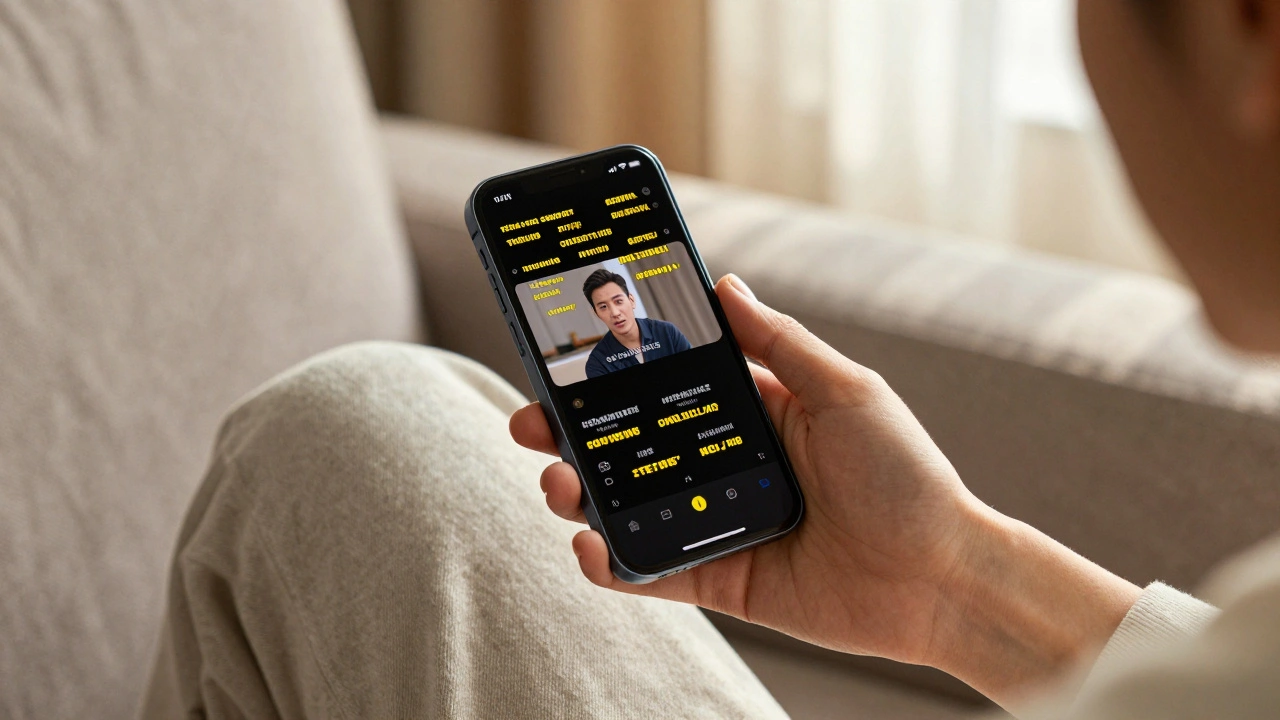

When you watch a video on your iPhone and suddenly see words appear on screen - words you didn’t ask for, but instantly make sense of what’s being said - that’s not magic. It’s design. Apple’s approach to captions and transcripts isn’t an afterthought. It’s built into the system from the ground up, meant for anyone who needs it, whether they’re deaf, hard of hearing, learning a new language, or just watching in a noisy coffee shop. This isn’t about checking a box. It’s about making technology work for real people, in real moments.
Live Captions: Your Voice, on Screen
Apple’s Live Captions, introduced in iOS 16 and expanded through macOS and iPadOS, transcribes speech in real time using on-device processing. That means your conversations, video calls, even podcasts playing in the background - all get turned into text right there on your screen. No internet needed. No data sent to servers. Everything stays on your device. Privacy isn’t an add-on here; it’s part of the architecture.
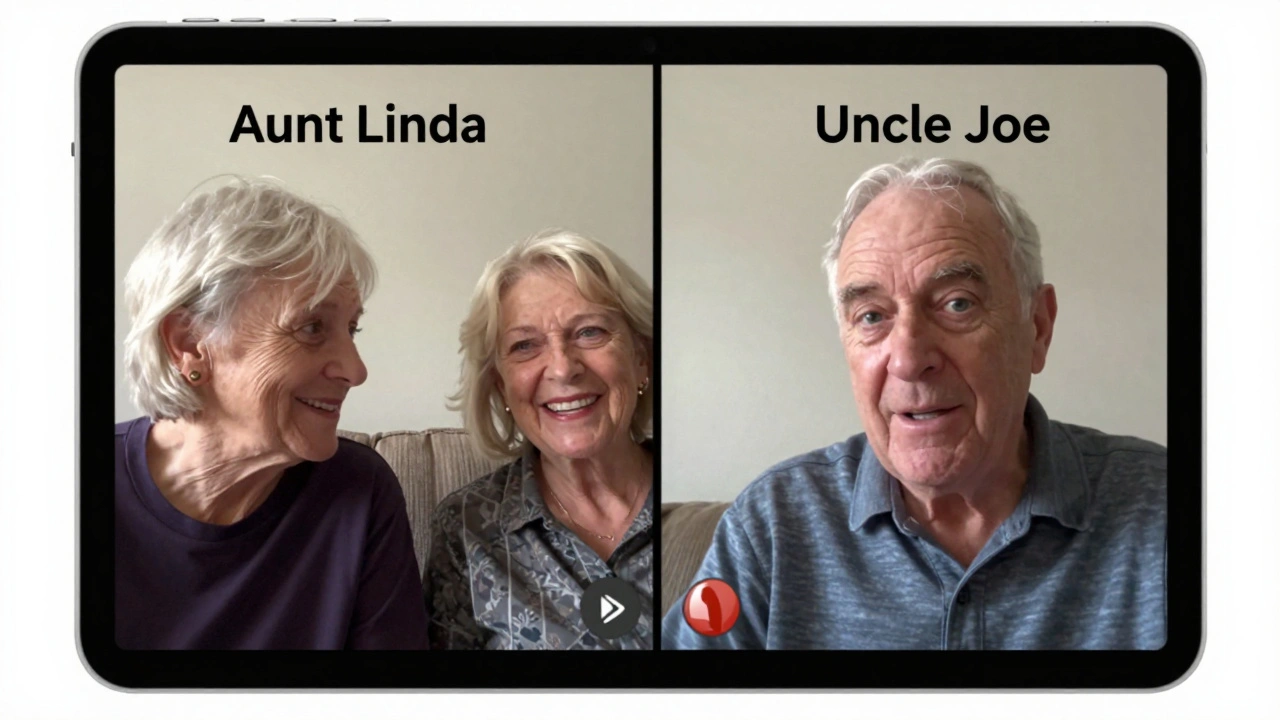
What makes this powerful is how flexible it is. You can change the text size, color, and background contrast in Settings > Accessibility > Live Captions. Need bigger letters? Done. Prefer yellow text on black? You got it. It adapts to you, not the other way around. And when you’re on a FaceTime call, it even labels who’s speaking - so if Aunt Linda’s talking over Uncle Joe, you know exactly who said what.
But here’s the catch: it doesn’t work perfectly every time. If someone has a strong accent, or the room’s too echoey, or your mic is blocked by a case - accuracy drops. Some users report YouTube’s auto-captions actually doing a better job with non-native speakers. Apple admits it’s still in beta. That’s not a failure. It’s honesty. They’re building this live, learning from real use.
More Than Just Words: Sound, Alerts, and Shortcuts
Captions aren’t the whole story. Apple also listens for sounds you might miss. Sound Recognition alerts you when a doorbell rings, a baby cries, or a smoke alarm goes off. Name Recognition tells your iPhone to notify you when someone says your name - even if you’re not looking at the screen. These aren’t gimmicks. For someone who can’t hear, these features replace what others take for granted: awareness of their environment.
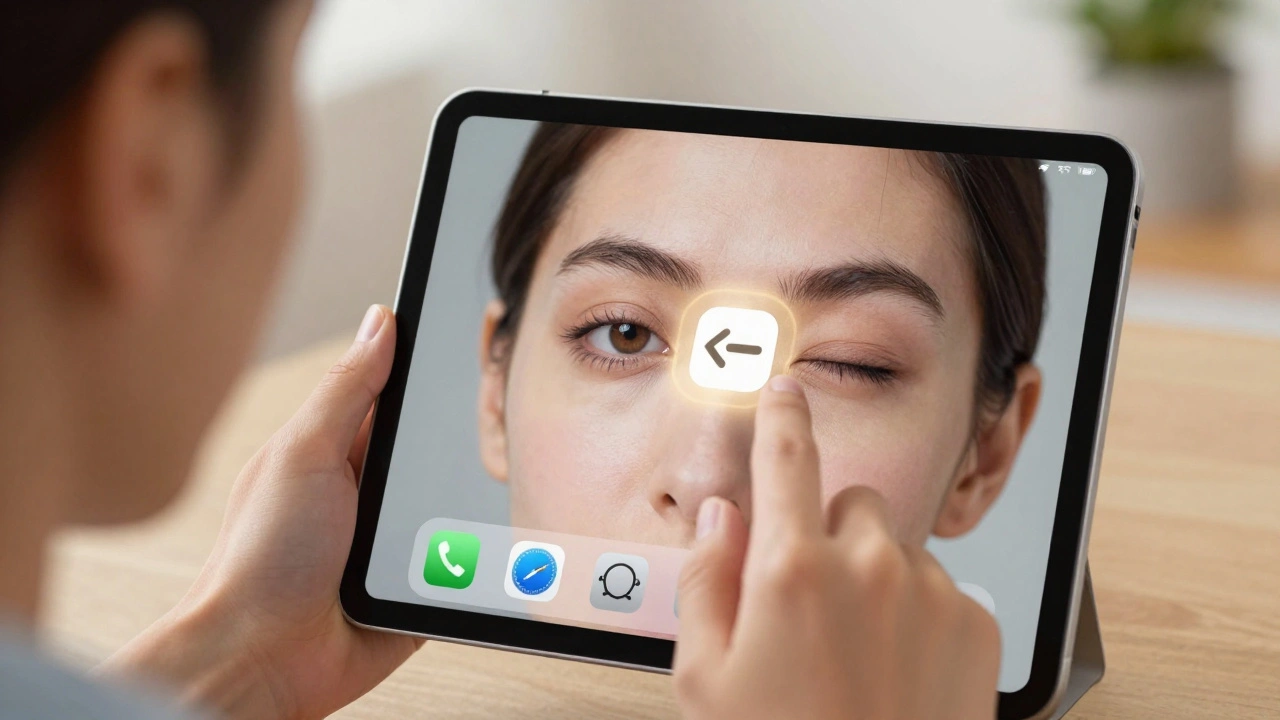
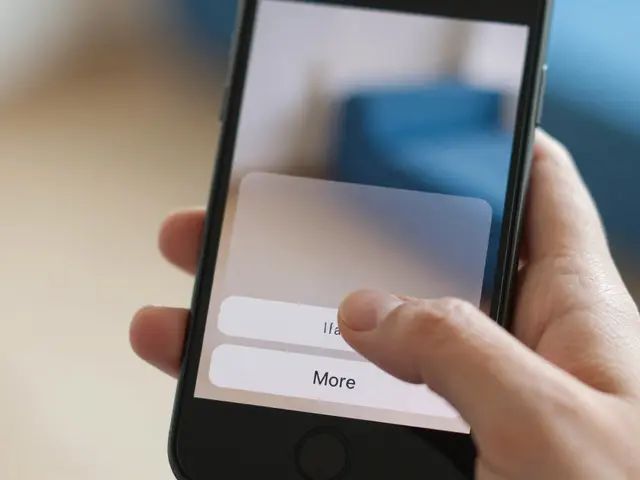
And then there’s Back Tap. Double or triple tap the back of your iPhone, and Live Captions turn on instantly. No digging through menus. No fumbling with settings. Just a tap. It’s the kind of detail that only comes from designing for daily use, not just for accessibility guidelines. People with mobility challenges, fatigue, or cognitive overload benefit just as much as those with hearing loss.
Even the Phone app got smarter. Real-time Text (RTT) lets you type during a call while the other person speaks - and Live Translation turns those words into captions in another language. So if you’re talking to someone in Spanish and you don’t speak it, you still understand. This isn’t just accessibility. It’s inclusion.
What Apple Doesn’t Do - And Why That Matters
Here’s where things get interesting. Apple’s Live Captions won’t help you produce a TV show. It won’t generate a broadcast-ready SRT file. It won’t time captions to the frame. It doesn’t check for compliance with FCC rules or ATSC standards. Why? Because that’s not its job.
Apple’s system is personal. It’s for one user, on one device, in real time. Broadcast captioning? That’s a whole other world. It needs to work across hundreds of platforms - cable boxes, streaming apps, smart TVs - with perfect timing, full accuracy, and legal compliance. That’s where companies like Digital Nirvana come in. Apple doesn’t compete with them. It complements them.
Think of it like this: Apple gives you a pen and paper to take notes while watching a movie. A professional captioning service gives you a printing press to distribute those notes to millions. One helps you understand. The other helps the world understand. Both matter.
Behind the Scenes: How Developers Are Required to Help
Apple doesn’t just build tools - it sets expectations. If you’re publishing an app on the App Store that plays audio or video with spoken content, you must provide captions or a full text transcript. That’s not optional. It’s part of the review process. For apps without video - like Apple Watch - you can submit lyrics or a transcript instead. No need for perfect syncing. Just clear, accessible text.
This policy forces developers to think about accessibility early. Not as a feature. Not as a bonus. As a requirement. And that’s how change happens: not through charity, but through system design.
Who Really Uses This? It’s Not Just the Deaf
Here’s the surprising truth: most people using captions aren’t deaf. A 2017 EDUCAUSE study found over half of students use captions in educational videos - even if they have perfect hearing. Why? Because captions help with focus. With language learning. With understanding complex topics. With watching videos in a library, on a train, or during a Zoom call while someone else is talking.
One user shared how turning off Bluetooth on their iPhone - yes, turning off their cochlear implant connection - let Live Captions finally work. "For the first time, I can HEAR on my iPhone and now SEE captions! I’m overjoyed," they wrote. That moment? That’s the goal. Not perfection. Not compliance. Just the quiet joy of understanding.
The Hidden Flaws: Settings That Fight Each Other
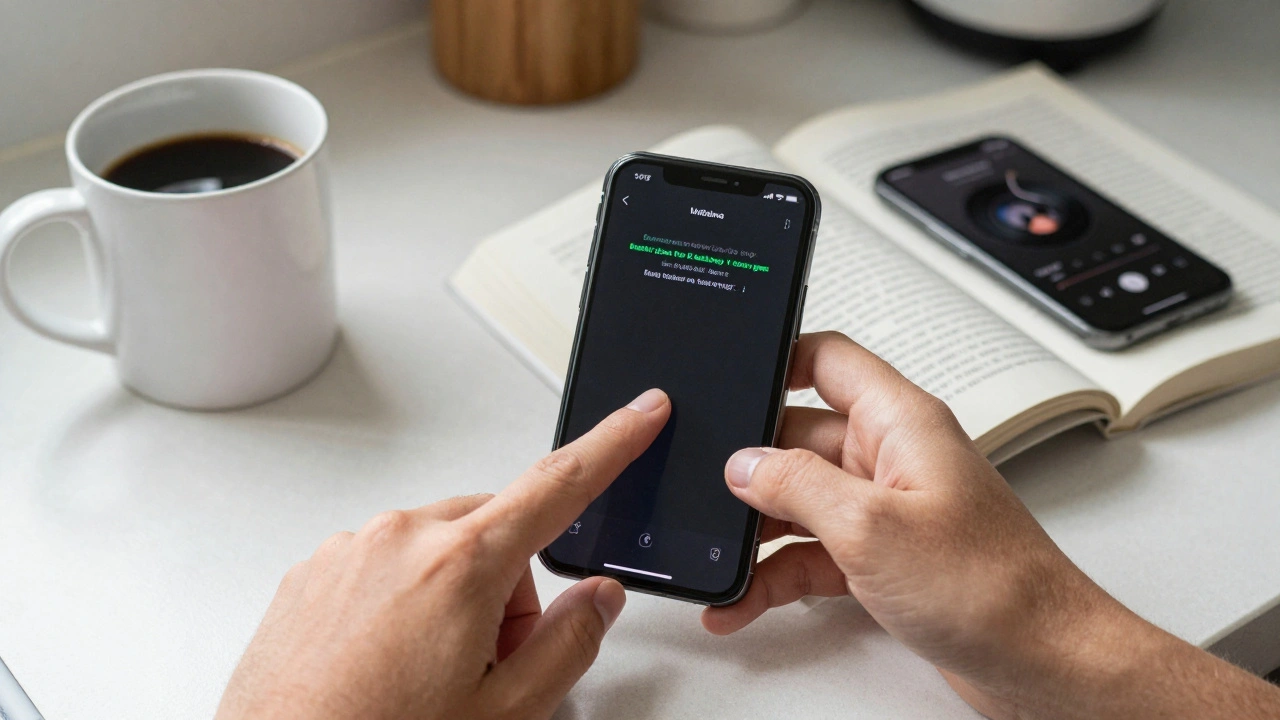
But it’s not all smooth. There are contradictions in the system. Enable Live Captions in FaceTime? Fine. Enable it in Settings? Also fine. But if you turn on FaceTime’s built-in captions, suddenly the system-wide Live Captions stop working in videos. You have to go back, disable the in-app option, and then the global captions come back. Why? No one at Apple seems to have tested this flow. It’s a bug. A design flaw. And it’s frustrating.
Some users report Live Captions freezing during long videos. Others say it doesn’t capture music lyrics. It doesn’t handle overlapping voices well. These aren’t deal-breakers - they’re opportunities. Apple’s team is clearly listening. They’ve been refining this since iOS 16. And they’re not done.
Why This Design Matters
Apple didn’t invent captions. But they rethought them. They didn’t build a feature for a niche group. They built a system for everyone. One that works offline. One that protects privacy. One that adapts to your needs - not the other way around.
Equal access by design doesn’t mean giving everyone the same thing. It means giving everyone what they need - whether that’s a louder tone, a bigger font, a spoken name, or a silent alert. It means trusting users to shape their own experience. And it means accepting that good design isn’t perfect - it’s evolving.
When you look at Apple’s captions, don’t ask if they’re flawless. Ask if they’re thoughtful. If they’re personal. If they’re there when you need them - even if you didn’t know you needed them until now.
Can Live Captions work during phone calls?
Yes. Live Captions works with Real-Time Text (RTT) in the Phone app, turning spoken words into captions during calls. It also supports Live Translation, so if someone speaks another language, you’ll see captions in your preferred language. This feature is available on iPhone and iPad with iOS 16 or later.
Do Live Captions work with Bluetooth hearing aids?
Sometimes, but not always. When a device is connected to a Bluetooth hearing aid or cochlear implant, the microphone may not pick up ambient sound, which breaks Live Captions. Some users solve this by temporarily turning off Bluetooth, letting the iPhone’s mic capture audio directly. Apple hasn’t fixed this fully yet - it’s a known limitation.
Can I use Live Captions for YouTube videos?
Yes - but not directly. Live Captions transcribes audio playing through your device’s speaker or headphones, so if you’re watching YouTube on your iPhone, Live Captions will transcribe the audio in real time. It doesn’t replace YouTube’s own captions, but it adds another layer, especially if YouTube’s captions are missing or inaccurate.
Are Live Captions available on Apple Watch?
No. Apple Watch doesn’t support Live Captions because it lacks a built-in microphone for ambient audio capture. However, if you receive a FaceTime call on your Watch, you can still view captions generated from the paired iPhone.
Do Live Captions save or store my conversations?
No. All transcription happens on-device and is never uploaded to Apple’s servers. The text disappears when you turn off Live Captions. Even screenshots and video recordings don’t include the captions - Apple intentionally blocks them from being saved to protect privacy.
Can developers use Live Captions to build apps with transcripts?
Not directly. Live Captions is a user-facing accessibility tool. Developers can’t access its output programmatically. However, Apple Intelligence and Shortcuts can generate transcripts from audio files on Mac - useful for editors. But these are for internal use only, not for public distribution or app integration.
Why doesn’t Apple offer broadcast-ready caption files?
Because Apple’s focus is on personal, real-time accessibility - not professional media production. Broadcast captions require precise timing, regulatory compliance, and multi-platform delivery. Apple leaves that to specialized services like Digital Nirvana. Their goal is to enhance user experience, not replace professional tools.
Is Live Captions available on all Apple devices?
Live Captions is available on iPhone, iPad, and Mac running iOS 16, iPadOS 16, or macOS Sonoma (or later). It’s not available on Apple TV, Apple Watch, or older devices. The feature requires an A12 Bionic chip or newer for on-device AI processing.
Can I use Live Captions for music or podcasts?
Yes - but with limits. Live Captions works best with spoken audio. It can transcribe podcast hosts, audiobook narrators, or YouTube commentary. But it doesn’t reliably capture lyrics, background music, or non-speech sounds like laughter or applause. For music, Apple recommends using lyrics or transcripts instead.
How do I turn on Live Captions?
Go to Settings > Accessibility > Live Captions and toggle it on. You can also set up a Back Tap gesture (Settings > Accessibility > Touch > Back Tap) to turn it on with a double or triple tap. For FaceTime and Phone calls, captions appear automatically if enabled. You can customize appearance under the same menu.
Apple didn’t set out to fix every accessibility problem. But they built something that works - not for the perfect case, but for the messy, real one. And that’s how inclusion grows.