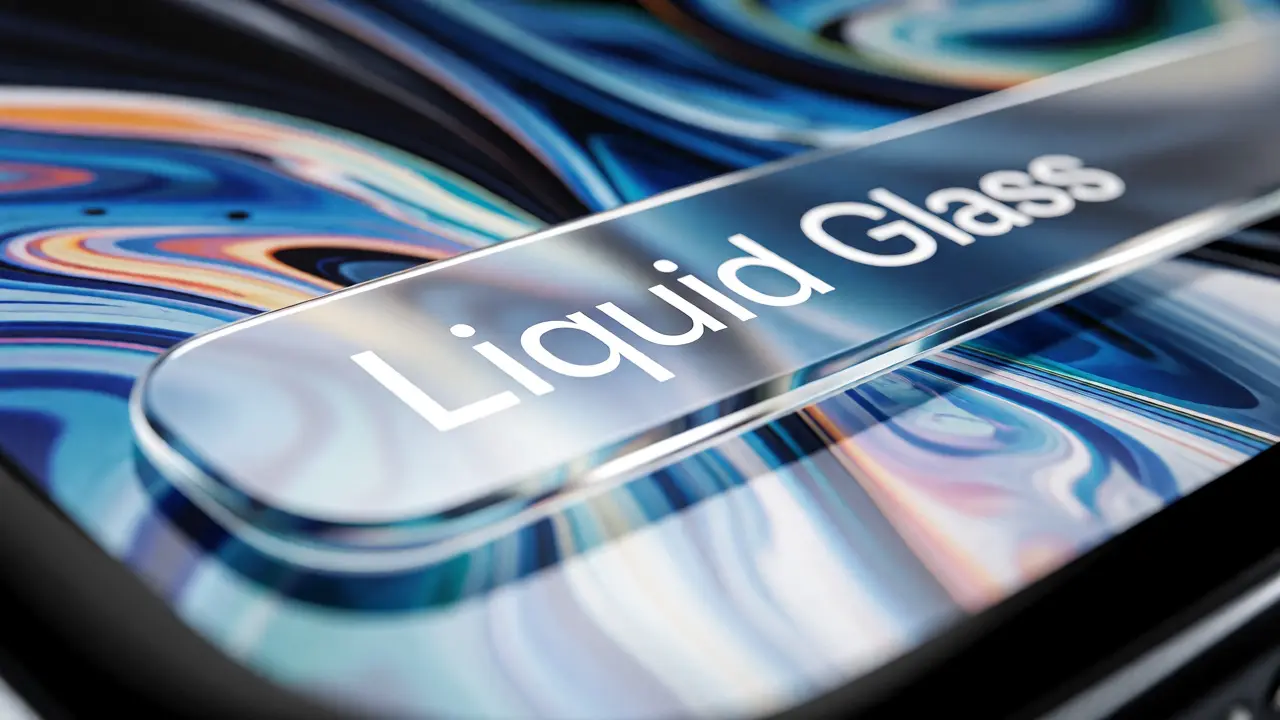

Imagine looking through a window that doesn’t just show you what’s behind it, but subtly bends the light to tell you how far away it is. That’s the core promise of Liquid Glass, the new unified design language introduced across Apple’s ecosystem in late 2025. It’s not just a visual skin; it’s a functional shift in how users perceive depth, hierarchy, and interactivity on their devices.
If you’ve been using an iPhone or Mac recently, you’ve likely noticed the subtle shifts. The hard edges are softening. Backgrounds aren’t just blurred; they’re refracting. This article breaks down exactly what Liquid Glass is, why Apple pushed this update across iOS 26, iPadOS 26, and macOS Tahoe 26, and how designers can leverage this material without making their apps look like frosted glass from 2013.
What Is Liquid Glass?
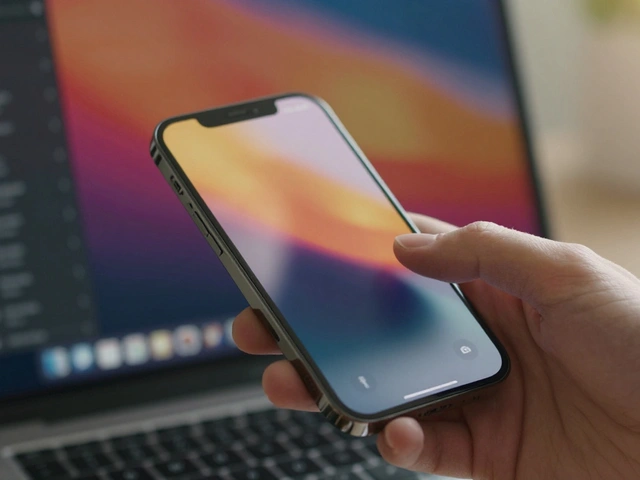
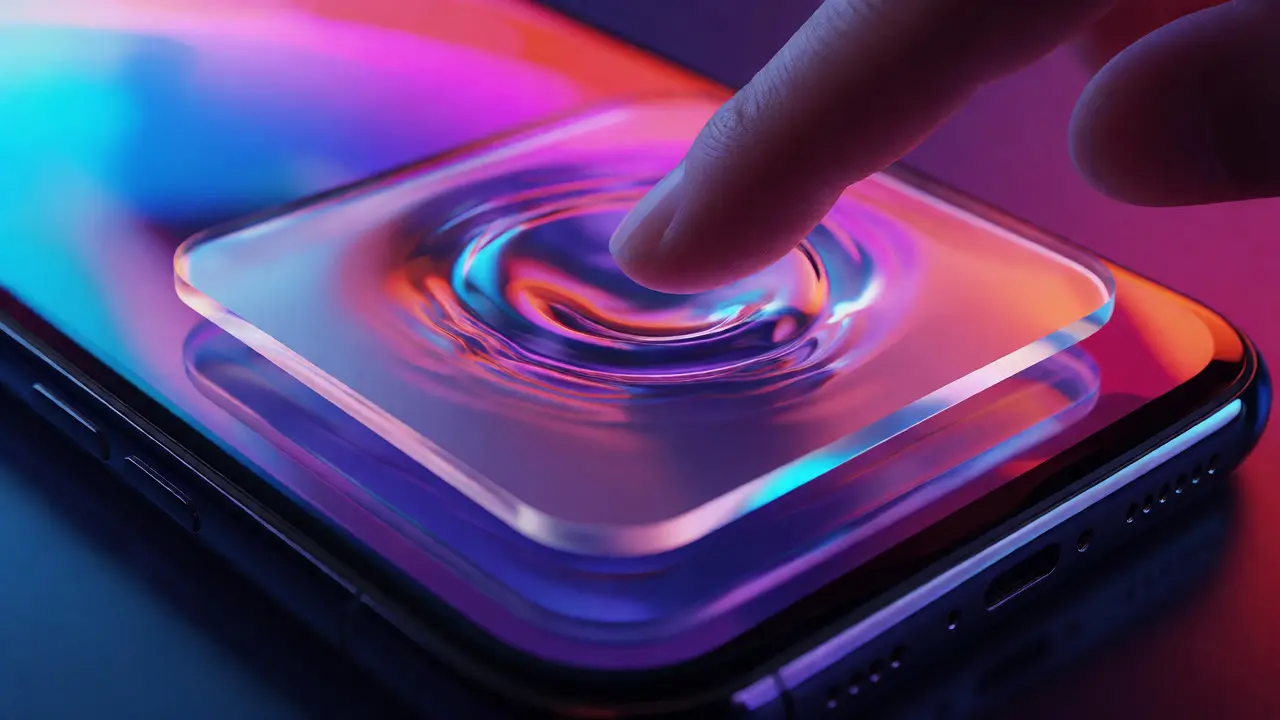
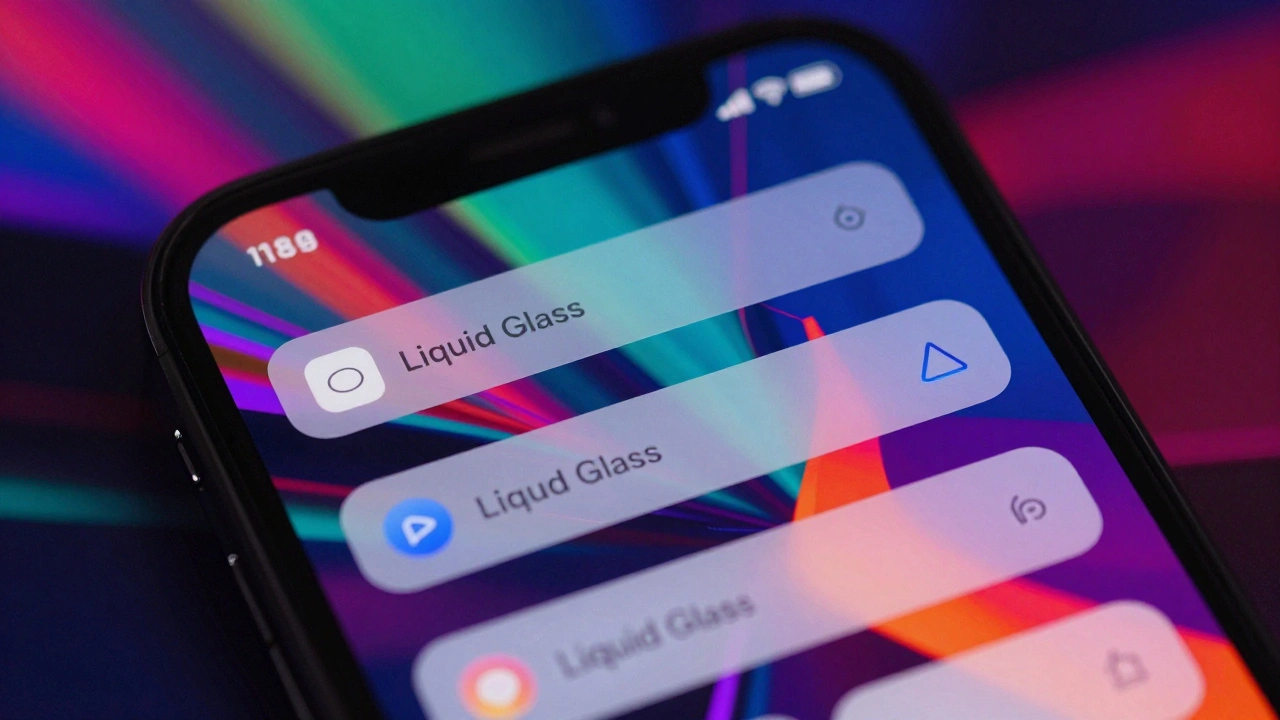
Liquid Glass is a dynamic UI material that combines real-time refraction, specular highlights, and adaptive transparency to create a sense of physical presence in digital interfaces. Unlike the static "frosted glass" effect (known as `UIBlurEffect`) that dominated the iOS 7 era, Liquid Glass reacts to the content beneath it. If you scroll a list under a translucent navigation bar, the blur isn’t uniform. It shifts. The highlights move as if light is hitting a curved surface.
This material is built on a new rendering engine within the Core Animation framework. It calculates light interaction based on the Z-axis distance between elements. When two layers overlap, the system determines which one is "closer" to the user’s eye. The closer layer distorts the background more aggressively. This creates a natural hierarchy without needing heavy drop shadows or opaque backgrounds.
Why did Apple wait until 2025/2026 to roll this out fully? Hardware. Earlier iPhones and Macs lacked the neural processing power to calculate these light distortions in real-time without draining the battery. With the M-series chips in Macs and the A18/A19 series in iPhones, the GPU handles these calculations efficiently enough to maintain 60fps (or 120fps on ProMotion displays) while keeping thermal output low.
The Technical Underpinnings: How It Works
For developers, understanding the backend helps in debugging performance issues. Liquid Glass isn’t a single asset; it’s a shader program applied to view layers. Here’s the breakdown of its components:
- Refraction Index: Determines how much the background image bends. Higher indices make the element look thicker, like a thick pane of glass.
- Specular Highlights: These are the bright spots that appear when light hits the surface. They change position based on device orientation (using the gyroscope) or cursor movement on Macs.
- Adaptive Tint: The material automatically adjusts its color tint based on the dominant colors of the underlying content. A red button over a blue background might get a slight purple hue to blend seamlessly.
- Depth Occlusion: Elements further back lose saturation and contrast faster than those in the foreground, mimicking atmospheric perspective.
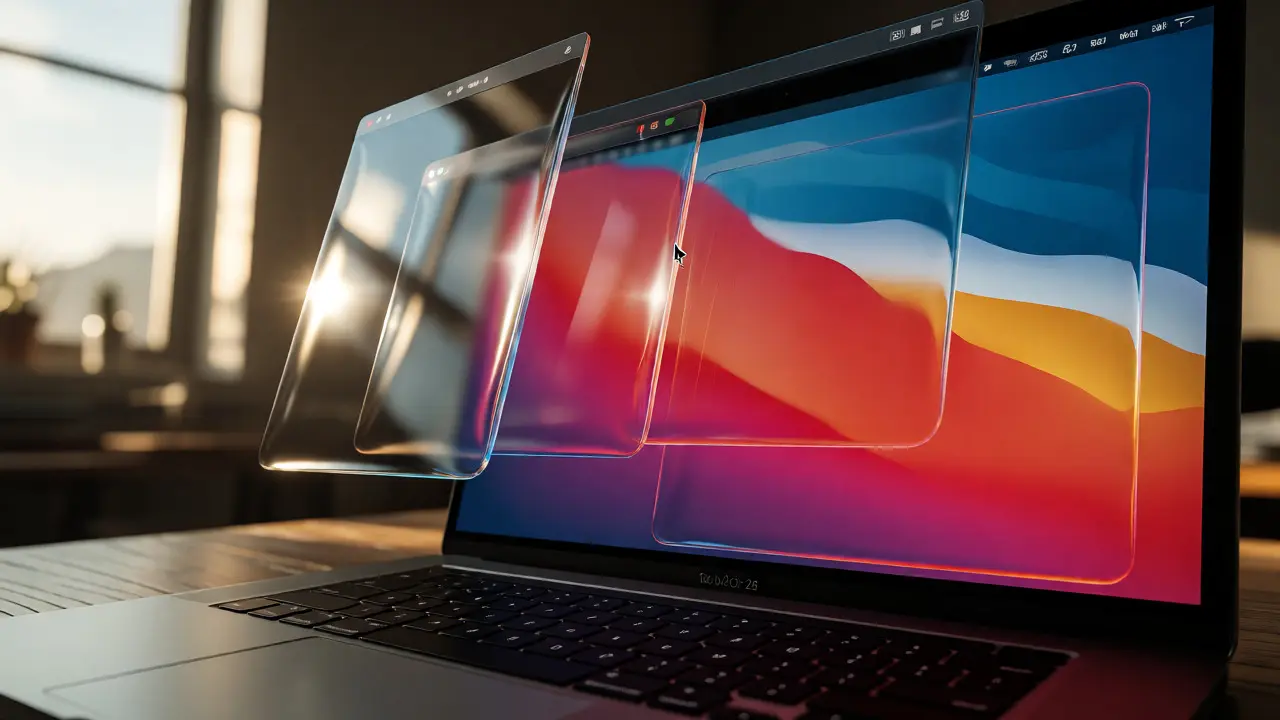
On macOS Tahoe 26, this extends to the desktop environment. Your wallpaper isn’t just a backdrop; it interacts with your windows. If you drag a Safari window over a colorful section of your wallpaper, the traffic light buttons and toolbar adjust their contrast to remain readable. This is handled by the WindowServer daemon, which samples the pixel data behind the active window frame in real-time.
Cross-Platform Consistency: iOS 26, iPadOS 26, and macOS Tahoe 26
One of the biggest wins for developers is the unification of this material. Previously, you had different APIs for blur effects on iOS versus the vibrancy materials on macOS. Now, `NSVisualEffectView` (macOS) and `UIVisualEffectView` (iOS/iPadOS) share the same underlying logic for Liquid Glass properties.
| Feature | iOS 26 / iPadOS 26 | macOS Tahoe 26 |
|---|---|---|
| Interaction Trigger | Touch gestures, Device Tilt | Mouse Cursor Proximity, Window Dragging |
| Performance Cost | Low (GPU accelerated) | Very Low (M-series optimization) |
| Default Usage | Navigation Bars, Context Menus | Window Toolbars, Spotlight Search, Dock |
| Accessibility Fallback | Reduces refraction, increases opacity | Disables dynamic lighting, uses solid gray |
On iPadOS 26, Liquid Glass plays a crucial role in multitasking. When you use Stage Manager, the floating windows have a distinct "glassy" edge that separates them from the main workspace. This visual cue helps users understand which window is currently active without relying solely on borders. On macOS, the menu bar itself has transitioned to a Liquid Glass strip, allowing the desktop wallpaper to bleed through slightly, creating a cohesive visual flow from top to bottom.
Designing with Liquid Glass: Best Practices
Just because you can use Liquid Glass everywhere doesn’t mean you should. Overuse leads to visual noise. Here’s how to apply it effectively:
1. Reserve it for Hierarchy, Not Decoration
Use Liquid Glass for elements that float above content-navigation bars, sheets, popovers, and tooltips. Avoid using it for standard text containers or buttons unless they need to stand out against a complex background. If your app has a simple white background, a Liquid Glass button might look muddy. In those cases, stick to solid colors.
2. Mind the Contrast
The biggest risk with transparent materials is readability. Apple’s guidelines suggest maintaining a minimum contrast ratio of 4.5:1 for normal text. Since Liquid Glass changes appearance based on the background, you must test your UI against various wallpapers and images. Use the `ColorPicker` tool in Xcode to simulate different underlying hues. If text becomes unreadable, increase the material’s opacity or add a subtle shadow.
3. Respect Accessibility Settings
Users with vision impairments often disable transparency. In iOS 26 and macOS Tahoe 26, when "Reduce Transparency" is enabled in Accessibility settings, Liquid Glass degrades gracefully. It loses its refraction and specular highlights, turning into a semi-opaque gray layer. Ensure your layout doesn’t break when this happens. Don’t rely on the glass effect to separate sections visually; use spacing or subtle dividers as well.
4. Performance Check
While optimized, stacking too many Liquid Glass views can hit the GPU limit. Avoid nesting three or more translucent layers directly on top of each other. For example, don’t put a Liquid Glass sheet inside a Liquid Glass popover inside a Liquid Glass navigation bar. Flatten the hierarchy where possible.
Common Pitfalls and How to Avoid Them
I’ve seen several apps update to iOS 26 and immediately suffer from "visual clutter." Here are the most common mistakes:
- The "Dirty Glass" Effect: This happens when you place dark text over a busy, high-contrast background without sufficient dimming. The refraction makes the text shimmer, causing eye strain. Fix: Add a subtle dark overlay behind the text within the glass container.
- Inconsistent Edge Radius: Liquid Glass looks best with specific corner radii defined by Apple’s grid. Using arbitrary rounded corners can break the illusion of physical thickness. Stick to the system-defined radius values provided in the SwiftUI modifiers.
- Ignoring Dark Mode: Liquid Glass behaves differently in Dark Mode. The refraction index is lower, and the tint is darker to prevent glare. Test both modes thoroughly. A design that pops in Light Mode might look flat and invisible in Dark Mode if you haven’t adjusted the highlight intensity.
Future Implications for Designers and Developers
Liquid Glass is more than a trend; it’s a step toward spatial computing. As Apple integrates Vision Pro principles into mainstream OS updates, the line between screen-based UI and spatial UI blurs. Liquid Glass provides the foundational visual language for this transition. It teaches users to interpret depth cues in a 2D interface, preparing them for 3D interactions in mixed reality environments.
For developers, mastering this material now means future-proofing your apps. As Apple continues to refine the rendering engine, apps that adopt native Liquid Glass components will benefit from automatic performance improvements and visual refinements without code changes. Those who build custom, fake-glass solutions will face maintenance headaches.
Start small. Update your navigation bars and context menus first. Observe how users interact with the new feedback loops. Does the tilt effect on iPhone feel intuitive? Do Mac users appreciate the cursor-reactive highlights? Gather data, iterate, and then expand the usage. Remember, the goal isn’t to show off the technology, but to make the interface feel more tangible and responsive.
Does Liquid Glass drain my battery significantly?
No, not significantly on modern hardware. On iPhones with A17 Pro chips and newer, and Macs with M1 chips or later, the GPU handles the refraction calculations efficiently. You might see a 1-2% increase in battery usage during intensive scrolling compared to solid backgrounds, but it is negligible for average daily use. Older devices may fall back to simpler blur effects to preserve battery life.
Can I customize the color of Liquid Glass?
Yes, but with limits. You can adjust the tint color and opacity levels via API modifiers. However, you cannot completely override the refraction physics. If you want a fully custom look, you might need to disable the native material and implement a custom shader, but this requires more development effort and careful performance monitoring.
How does Liquid Glass affect accessibility for colorblind users?
Apple includes specific checks for color contrast in the Liquid Glass rendering pipeline. For colorblind users, the system may increase the opacity of the glass layer to ensure text remains legible regardless of the background hue. Additionally, the specular highlights provide luminance cues that help distinguish interactive elements even when color perception is altered.
Is Liquid Glass available on older MacBooks?
macOS Tahoe 26 supports Intel-based Macs, but the full dynamic refraction effects are optimized for Apple Silicon (M1/M2/M3/M4). On Intel Macs, the system may reduce the frequency of highlight updates or simplify the refraction calculation to maintain smooth performance, resulting in a slightly less realistic glass effect.
Do third-party apps automatically get Liquid Glass?
Not automatically. Apps need to be updated to use the new SwiftUI modifiers or UIKit components that support Liquid Glass. If an app hasn’t been updated since before iOS 26, it will continue to use the legacy blur effects. Developers must explicitly opt-in to the new material to gain the dynamic lighting features.
Categories
Popular Articles