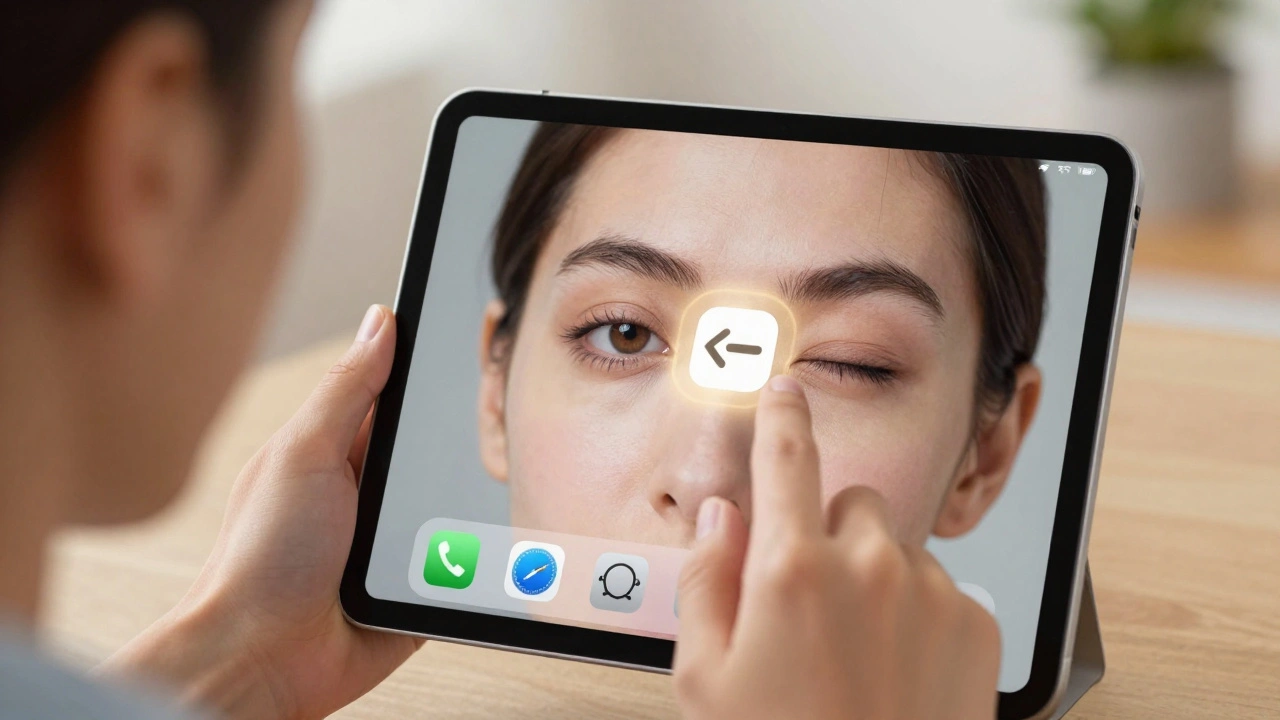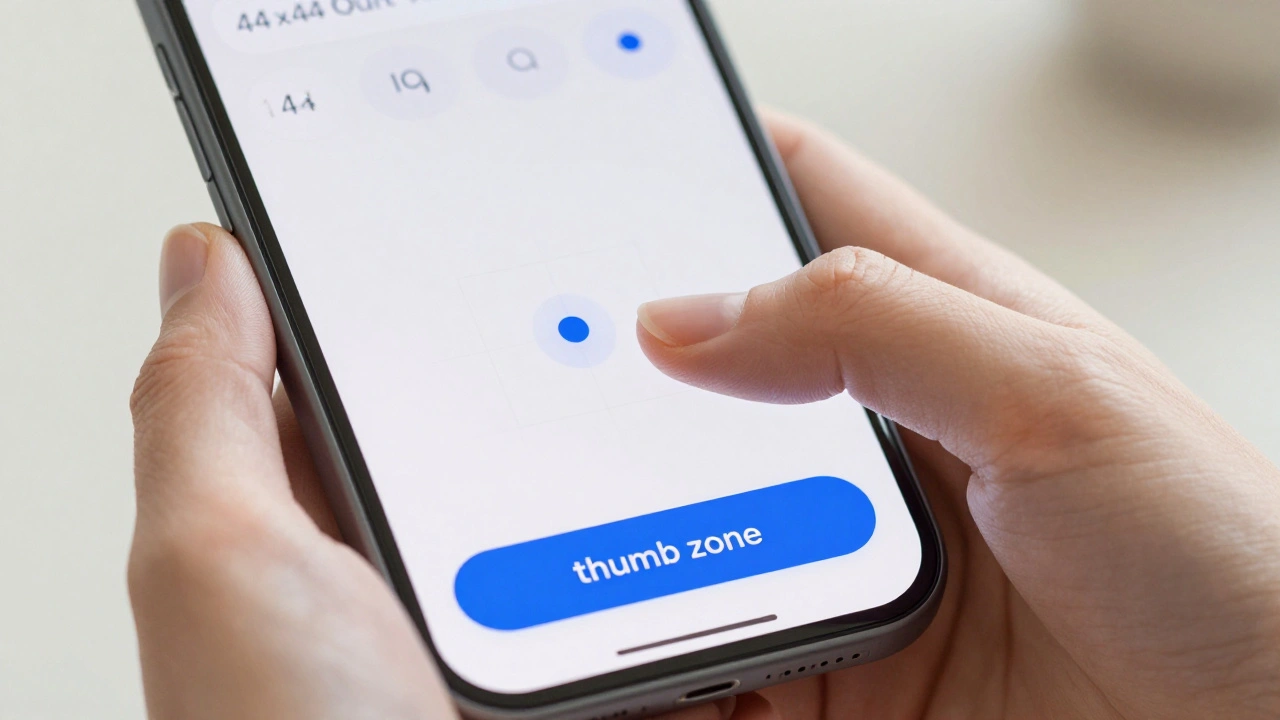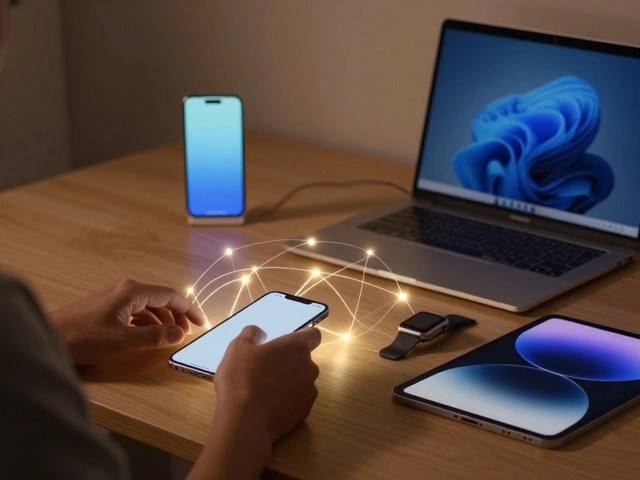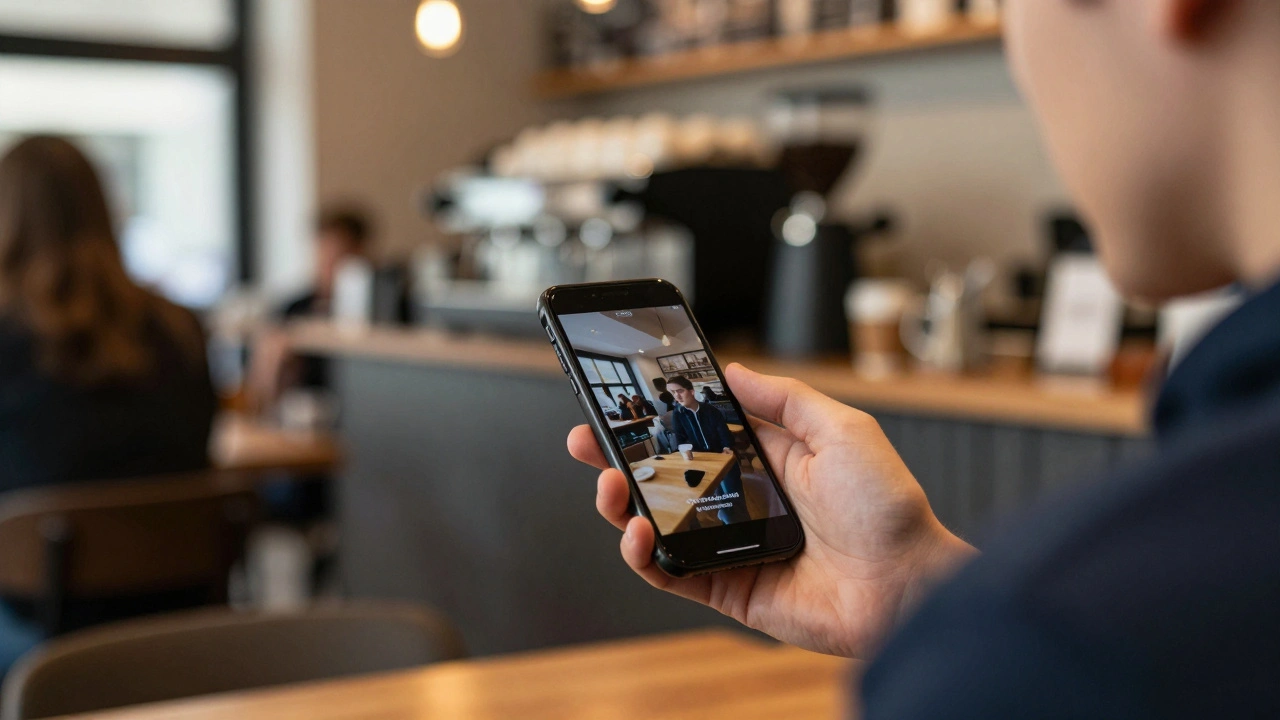

Think about the last time you turned on subtitles while watching a video in a crowded coffee shop. Or maybe you increased the text size on your phone because the sun was glaring off the screen. You didn’t do this because you have a disability. You did it because the situation demanded it. This is exactly why Apple accessibility features are not just tools for people with disabilities-they are universal upgrades that make technology easier for everyone to use.
For forty years, Apple has treated accessibility as a core design principle rather than an afterthought. The result? Features built to help users with specific needs often end up improving the daily digital lives of millions of able-bodied users too. Let’s look at how captions, contrast adjustments, and custom controls create a better experience for all of us.
The Universal Benefit of Captions
Captions were originally designed to support deaf and hard-of-hearing users. Today, they are one of the most widely used features across iOS devices. Why? Because life happens in noisy environments.
If you’ve ever tried to watch a tutorial on the subway or listen to a podcast in a busy restaurant, you know how frustrating it can be when audio gets drowned out by background noise. Captions solve this instantly. They also help non-native speakers improve their language skills by reading along with spoken content. Additionally, some people have auditory processing differences that make listening difficult even in quiet rooms. For them, visual text provides clarity that sound alone cannot.
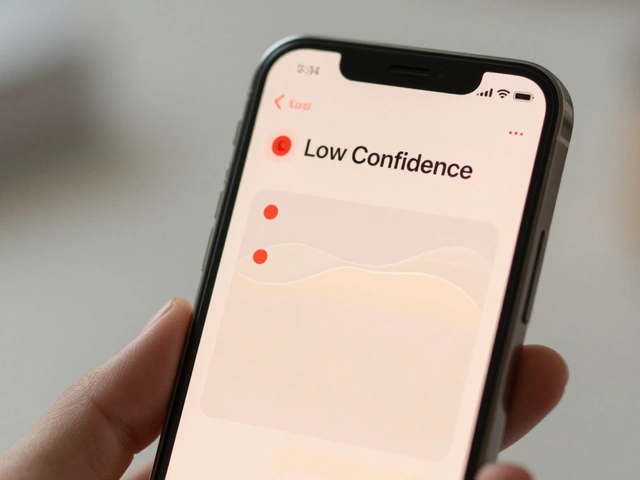
Apple’s automatic captioning system uses machine learning to recommend these settings when needed. This means you don’t have to dig through menus to find them. The feature simply appears when the context suggests it will help. It’s a small detail, but it shows how thoughtful design anticipates real-world problems before you even realize you have them.
Contrast Controls for Every Eye
Vision changes over time. Even if you had perfect sight ten years ago, aging eyes struggle more with low-contrast text. Bright sunlight washing out your screen is another common issue. Apple’s contrast adjustment tools address both scenarios seamlessly.
Features like Increase Contrast and Smart Invert allow users to customize how colors appear on their screens. These options were created to assist people with color blindness or other visual impairments. However, they benefit anyone who wants to reduce eye strain during long reading sessions. High-contrast modes make text pop against backgrounds, reducing fatigue. Dark mode reduces blue light exposure at night, helping you sleep better.
When Apple designs interfaces with adjustable contrast, they remove assumptions about what every user sees. Instead of forcing one standard look, they give you control. That flexibility makes the device feel personal and comfortable regardless of where you are or how tired your eyes might be.
Customizing Controls Through Guided Access
Have you ever handed your iPad to a child and worried they’d accidentally delete something important? Or perhaps you needed to focus entirely on a single task without distractions from notifications popping up? Enter Guided Access, a feature introduced in iOS 6.
Guided Access locks your device into a single app and disables certain touch areas. Teachers use it to keep students focused on educational apps during class. Parents use it to limit gaming time or prevent accidental purchases. But its original purpose was far more critical: helping individuals with cognitive or motor disabilities stay engaged with specific tasks without getting lost in complex navigation.
This dual-purpose functionality highlights a key truth about inclusive design. When you build solutions for edge cases-people facing unique challenges-you often create tools that solve everyday frustrations for mainstream users too. Guided Access isn’t just about restriction; it’s about creating intentional space for focus.
Assistive Access: Simplicity for Cognitive Clarity
In recent updates, Apple introduced Assistive Access, a dedicated interface mode designed specifically for users with cognitive and developmental disabilities. Unlike previous features added onto existing systems, Assistive Access offers a completely simplified home screen experience.
Users can choose large icons, minimal information displays, and emoji-only keyboards. While primarily aimed at supporting neurodiverse communities, many regular users appreciate having such a clean option available. Sometimes less really is more. A clutter-free interface helps reduce decision fatigue and anxiety associated with managing dozens of apps simultaneously.
What sets Assistive Access apart is its development process. Apple worked directly with members of disability communities throughout creation. Sarah Herrlinger, Senior Director of Global Accessibility Policy and Initiatives at Apple, emphasized that feedback shaped every step. This approach ensures features meet actual human needs instead of theoretical ones.
| Feature | Primary Audience | Secondary Benefits |
|---|---|---|
| Captions | Deaf/Hard of Hearing | Noisy environments, language learners |
| Contrast Adjustments | Visual Impairments | Aging eyes, outdoor usage, eye strain relief |
| Guided Access | Cognitive/Motor Disabilities | Parental controls, classroom management |
| Assistive Access | Cognitive Disabilities | Digital minimalism, reduced distraction |
Design Philosophy Behind Inclusive Innovation
Apple doesn’t treat accessibility as compliance checklist item. Their philosophy centers around designing products first for those who need accommodations most. Then they refine those designs until they work beautifully for everyone else too.
This mindset flips traditional tech development upside down. Most companies add accessibility features late in production cycles. By contrast, Apple integrates them early. As Herrlinger noted publicly, accessible experiences function well for everyone when built correctly from start. Removing barriers initially leads to smoother interactions later.
Consider voice commands powered by Siri. Originally intended to aid mobility-impaired users unable to physically interact with touchscreens. Now billions rely on hands-free operation while cooking, driving, or multitasking. Voice input became mainstream convenience thanks to inclusive origins.
Real-World Impact Beyond Disability Support
Let’s talk numbers briefly. According to internal research shared by Apple’s ML accessibility teams, automated recommendations increase adoption rates significantly among unaware users. Many people never discover hidden capabilities unless prompted intelligently. Personalized suggestions bridge gaps between potential utility and active engagement.
Furthermore, businesses benefit indirectly. Apps optimized for accessibility tend to perform better overall. Cleaner layouts mean faster load times. Clearer navigation reduces bounce rates. Better readability boosts conversion metrics. Investing in inclusivity pays dividends across marketing funnels.
Even casual observers notice improvements. Friends borrow phones temporarily and comment positively on ease-of-use. Children pick up devices quickly without guidance. Elderly relatives manage communications independently again. Small victories accumulate into meaningful societal shifts.
Building Toward Truly Universal Experiences
Ultimately, great design serves humanity broadly. Whether through captioning services aiding comprehension worldwide or contrast tweaks protecting retinas globally, inclusive principles transcend borders. They remind us that diversity strengthens innovation. Challenges inspire creativity. Solutions elevate standards universally.
Next time you adjust brightness levels outdoors or enable closed captions indoors, remember whose journey started there. Think about countless others benefiting silently alongside you. Celebrate progress made possible through collaborative efforts spanning decades. And consider adopting similar mindsets within your own projects moving forward.
What is Apple's Assistive Access feature?
Assistive Access is a simplified iPhone/iPad interface designed for users with cognitive or developmental disabilities. It includes larger icons, fewer distractions, and customizable input methods like emoji keyboards.
How does Guided Access help parents and teachers?
Guided Access locks devices into single applications and restricts touch inputs to designated zones. This prevents accidental exits or unwanted actions during supervised activities like studying or testing.
Why should I care about accessibility features if I don't have a disability?
Accessibility features enhance usability for everyone under various conditions-such as bright lighting, noisy surroundings, temporary injuries, or aging-related changes. They promote adaptability and comfort across diverse situations.
Does Apple prioritize accessibility during product development?
Yes. Apple embeds accessibility considerations from initial concept stages onward. Leadership emphasizes treating inclusion as fundamental rights rather than optional extras added post-launch.
Can I turn off accessibility features easily?
Absolutely. All major accessibility settings-including Assistive Access-are fully reversible. Users activate/deactivate modes freely based on current preferences or environmental factors.