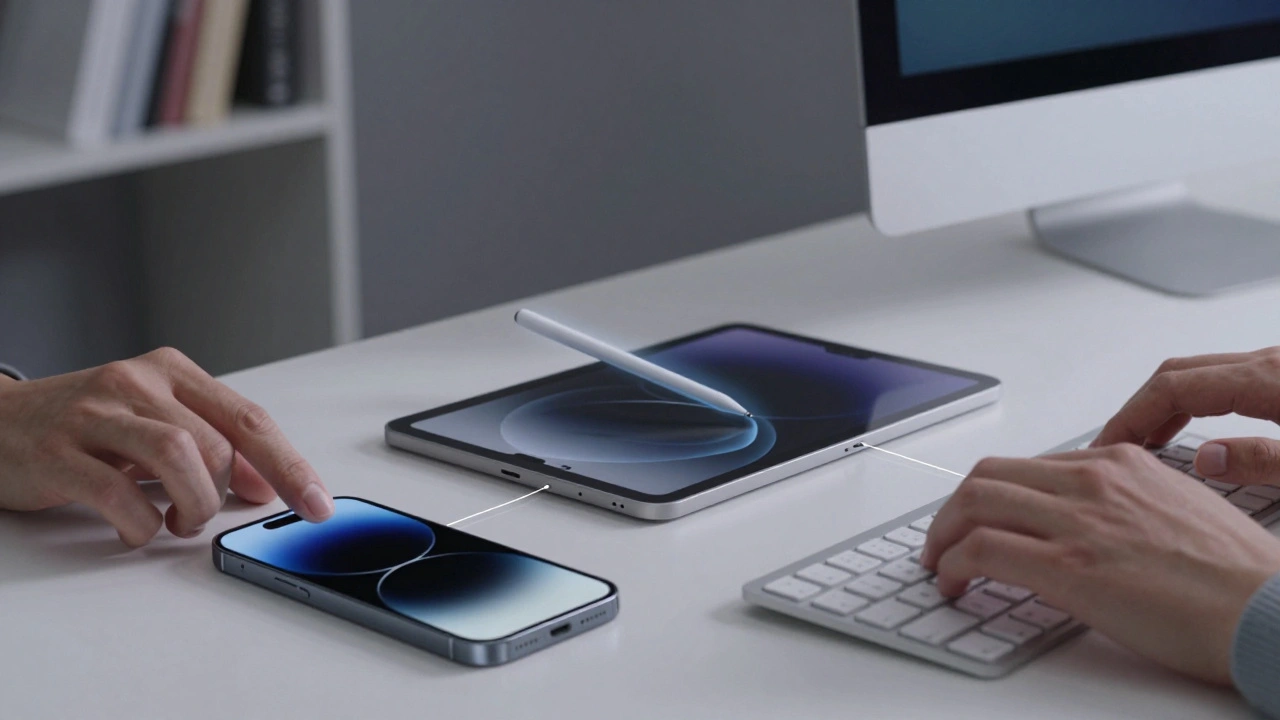

When you pick up your iPhone, tap on your iPad, type on your Mac, or speak into your AirPods, you’re not just using one tool-you’re moving through a system designed to adapt to how you work. Apple doesn’t just make devices; it builds input ecosystems. And that means your hands, voice, and stylus all have a place-just not everywhere.
Touch Is the Foundation, But It’s Not Enough
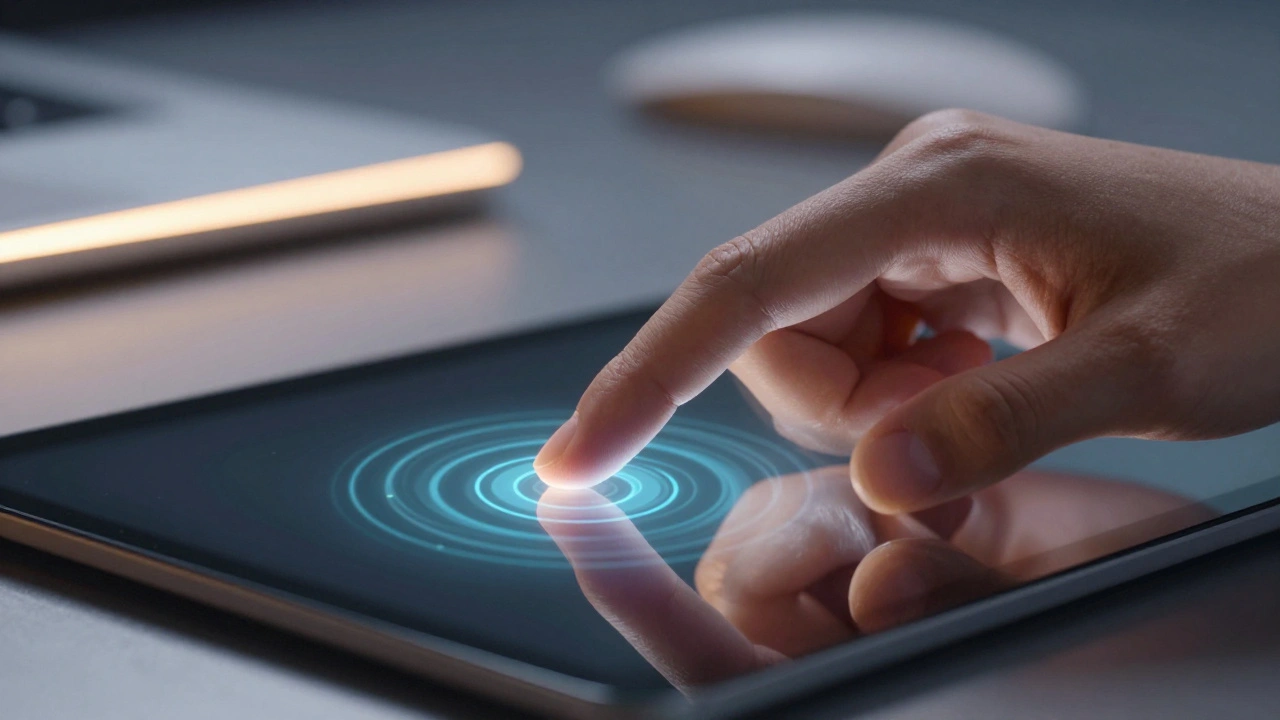
Touch is everywhere on Apple devices. It’s how you unlock your iPhone, scroll through Instagram, or swipe between apps on your iPad. It’s simple, immediate, and works without any extra gear. But relying on touch alone limits what you can do. Try writing a 10-page report on your iPhone screen. Try sketching a design idea on your iPad with just your fingertip. It’s clunky. That’s why Apple added more ways to interact.Apple’s continuity features make touch feel seamless across devices. Copy text on your iPhone, paste it on your Mac. Start an email on your iPad, finish it on your laptop. That’s not magic-it’s Universal Clipboard and Handoff working quietly in the background. But here’s the catch: these features only work if you start with touch. What if you can’t? What if your hands are full, or your screen is too small?
Apple Pencil: Powerful, But Only on iPad
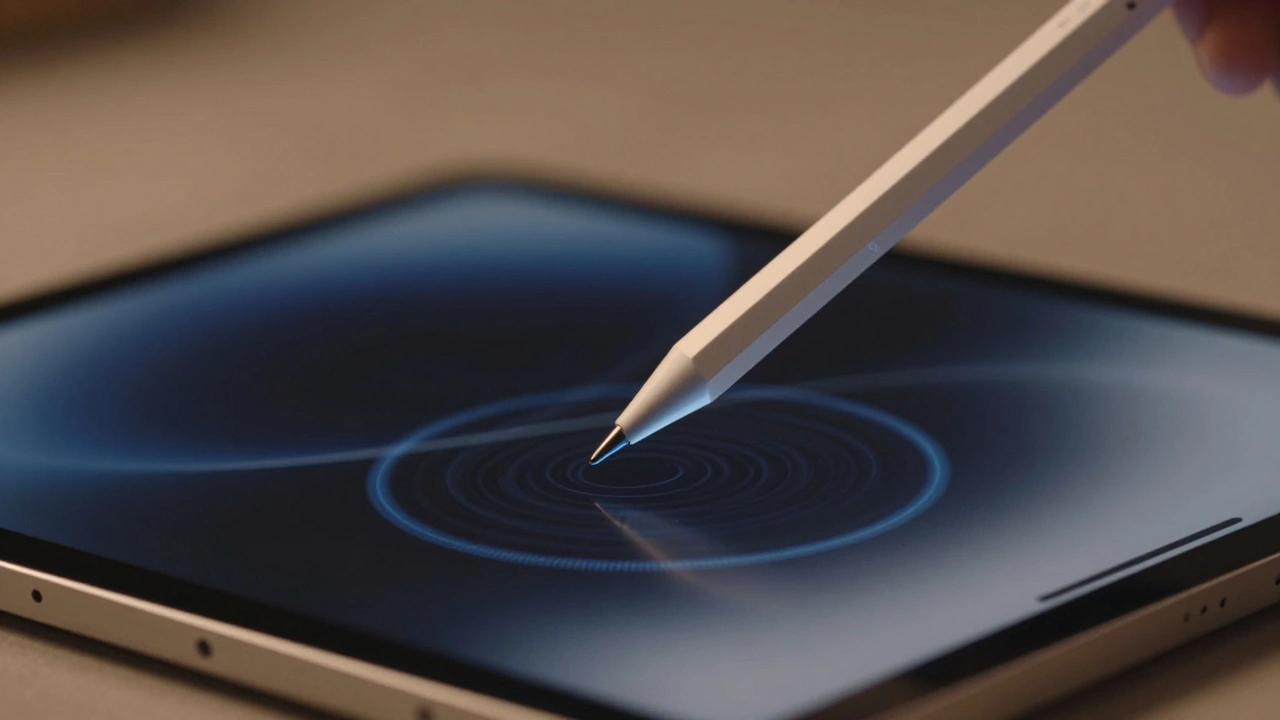
If you need precision, the Apple Pencil is still the gold standard. But here’s the reality: it doesn’t work on iPhone. Ever. Not now, not in 2026, and likely not anytime soon. While Samsung’s S Pen lets you write on Galaxy phones with pressure sensitivity and palm rejection, Apple keeps its stylus locked to iPads.On iPad, the Pencil evolves fast. The iPad Pro (M3, 2025) and iPad Air (M2, 2024) support Pencil Pro, which adds magnetic pairing, haptic feedback, and even Hover Detection-so you can preview your stroke before it touches the screen. The new iPad Studio (2025) goes further with Barrel Roll Sensing, letting you change brush size by twisting the pencil like a real pen.
But not all iPads are equal. The iPad (10th gen) and iPad mini (7th gen) only support the original Pencil with USB-C. They lack the Neural Engine 5 chip needed for real-time handwriting-to-text conversion with grammar correction. So if you scribble a note on an older iPad, it might not turn into clean text. On a newer one? It does-fast, accurate, and even fixes your typos as you write.
Keyboard: More Flexible on Mac, Restricted on iOS
On Mac, the keyboard is king. You can plug in any physical keyboard, remap keys, set custom shortcuts, and even use Bluetooth keyboards across multiple Macs with Universal Control. The experience is open, deep, and customizable.On iPhone and iPad? Not so much. Apple’s on-screen keyboard is clean, but limited. You can adjust its height or turn on haptic taps, but that’s it. Third-party keyboards like Gboard and SwiftKey work-but they’re stripped down. On Android, those same keyboards let you create custom layouts, access clipboard history, and even trigger app actions. On iOS? None of that. Apple blocks deeper system access. You can’t make a shortcut that says “send my location” just by typing three letters. You can’t auto-fill forms from other apps. It’s a trade-off: simplicity over power.
And yet, Mac users can type on their iPad using the same keyboard. That’s because of Universal Control. You can sit at your Mac, move your mouse to the edge of the screen, and suddenly your cursor lands on your iPad. You type, you scroll, you tap-no switching devices. It’s one of Apple’s quietest breakthroughs.
Voice: The Silent Game-Changer
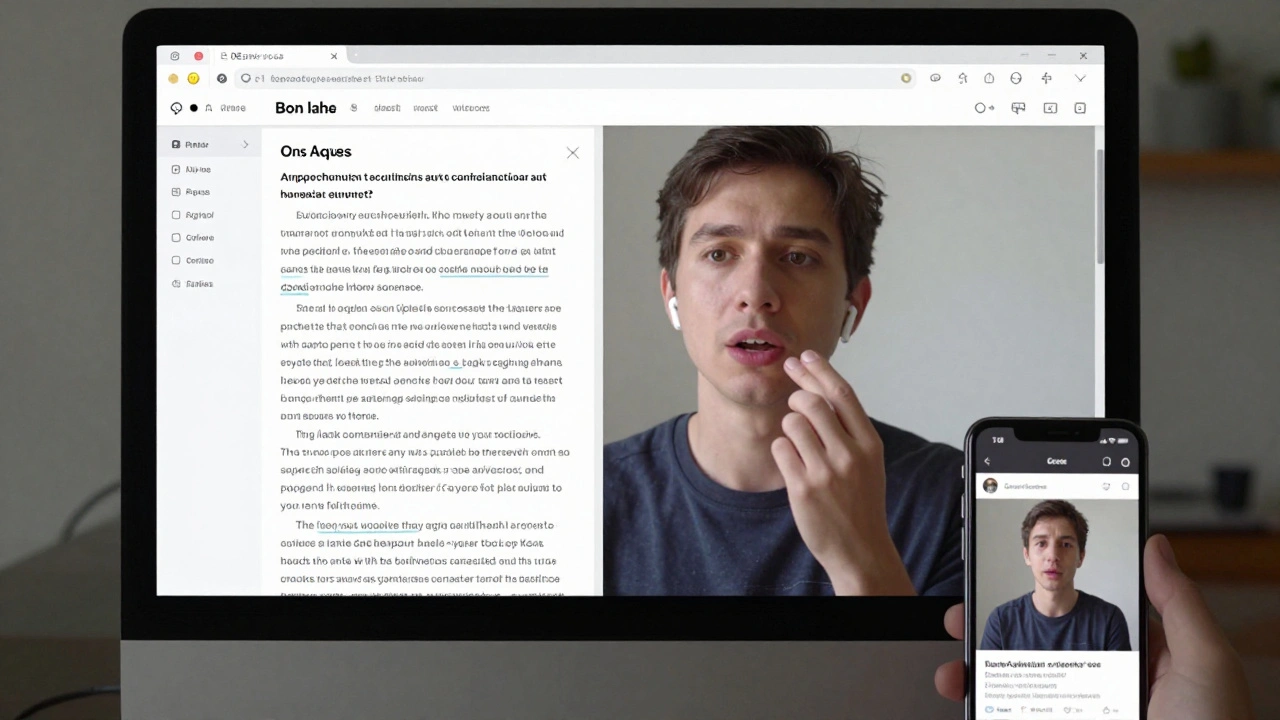
Voice input used to be a joke. “Hey Siri, send a message” would turn into “Hey Siri, send a mesage with typos and no punctuation.” But now? It’s changing.Enter Wispr Flow. Released in late 2025, it’s not built by Apple-but it works across iOS and macOS like it was. You speak. It listens. Then it cleans up your speech: removes “um,” “like,” and “you know,” adds punctuation, structures paragraphs. Say “insert meeting template,” and it drops in a full agenda. Say “email signature,” and your contact info appears. It even learns your voice patterns over time.
And here’s the kicker: Wispr Flow’s snippet library syncs across devices. So if you create a shortcut for “invoice” on your Mac, it shows up on your iPhone. When the Android version drops later in 2026, it’ll sync there too. That’s huge. It means your voice workflow isn’t tied to Apple anymore. You can start on iPhone, edit on Mac, and finish on a Windows PC-all with the same voice habits.
Continuity: Where Apple Really Wins
Apple’s real strength isn’t in one input method. It’s in how they connect.Universal Control lets one mouse and keyboard control your Mac and iPad at the same time. Imagine drafting a document on your Mac, then grabbing your iPad, using the Pencil to sketch an idea right into the file, and switching back to type a reply-all without touching another device.
iPhone Mirroring lets you control your iPhone from your Mac. Need to approve a payment on your phone? You don’t have to pick it up. Just click it on your Mac screen. Need to take a photo for your presentation? Use your iPhone’s camera, live, as a webcam.
And then there’s the phone app on macOS 26. You can make calls, send texts, and even receive FaceTime calls-all from your Mac. Your iPhone doesn’t need to be nearby. Just connected to Wi-Fi. It’s not just convenience. It’s workflow redefinition.
The Missing Piece: No Stylus on iPhone
Let’s be blunt: Apple’s biggest input gap is the iPhone. No stylus. No pressure sensitivity. No palm rejection. No way to write naturally on the phone.Compare that to Samsung’s Galaxy S24 Ultra. You can write on it, draw on it, annotate PDFs on it-all with a pen that feels like real ink. Apple could do this. The hardware is there. The Pencil works on iPad. But Apple chooses not to. Why? Probably because they want you to use the iPad for writing, not the iPhone. They want you to switch devices.
That’s not a flaw. It’s a strategy. Apple doesn’t want one device to do everything. They want you to have a system. Touch for quick stuff. Pencil for creative work. Keyboard for typing. Voice for hands-free moments. And each device has its role.
Long-Term Value: Updates That Last
Apple’s devices get updates for five years or more. An iPhone 14 from 2022 still runs iOS 19 in 2026. That means your input workflows stay supported. Your Pencil settings. Your keyboard shortcuts. Your voice snippets. They don’t break. They don’t vanish.That’s why people stick with Apple-not because one device is perfect, but because the whole system grows with you. Your iPad from 2023 still works with your Mac from 2026. Your voice shortcuts still sync. Your touch gestures still respond. You’re not just buying hardware. You’re investing in a way you work.
What’s Next?
Apple hasn’t announced major changes to input methods in 2026. No foldable iPhone with stylus. No new voice tech beyond Wispr Flow integrations. The focus is still on refinement: better handwriting recognition, smoother device switching, deeper voice AI.The real innovation isn’t in new buttons or sensors. It’s in how your input flows from one device to another. You start with your voice on iPhone. You edit with your keyboard on Mac. You sketch on iPad. You paste it all into a document on your laptop. And none of it feels like switching tools. It feels like thinking.
Can I use Apple Pencil on my iPhone?
No. Apple Pencil is only compatible with specific iPad models. iPhones do not support stylus input at all, even as of 2026. This is a deliberate design choice by Apple to separate the iPad’s creative workflow from the iPhone’s quick-access role.
Why can’t I use Gboard like I do on Android?
iOS restricts third-party keyboards from accessing deep system features like clipboard history, app data, or system-level automation. While Gboard works on iPhone, it can’t offer features like swipe typing across apps, custom gesture shortcuts, or auto-fill from other apps-unlike on Android. Apple prioritizes privacy and control over flexibility.
Does voice typing work better on Mac than iPhone?
Not inherently. Apple’s built-in dictation works similarly on both. But tools like Wispr Flow, which clean up speech and auto-format text, are more powerful on Mac because of better processing power and deeper app integration. On iPhone, voice input is great for short messages. On Mac, it’s viable for full documents.
Can I use one keyboard for both my iPad and Mac?
Yes, with Universal Control. If both devices are signed into the same Apple ID and on the same Wi-Fi network, you can use one Bluetooth keyboard to type on both. Move your cursor to the edge of one screen, and it flows to the other. No need to switch input devices.
Is the iPad Pro worth it just for the Pencil Pro?
If you draw, annotate, or take handwritten notes daily, yes. The Pencil Pro’s haptics and Hover Detection make it feel like real pen and paper. The M3 chip’s Neural Engine 5 also converts handwriting to text in real time with grammar corrections. For casual users, an iPad Air or even an iPad (10th gen) with the basic Pencil is enough.
What’s the best way to type long documents on Apple devices?
Use a Mac with a physical keyboard. If you need mobility, pair a Bluetooth keyboard with an iPad Pro or Air running iPadOS 19. For quick edits, use voice input with Wispr Flow. Avoid typing long-form on iPhone-it’s not designed for it.