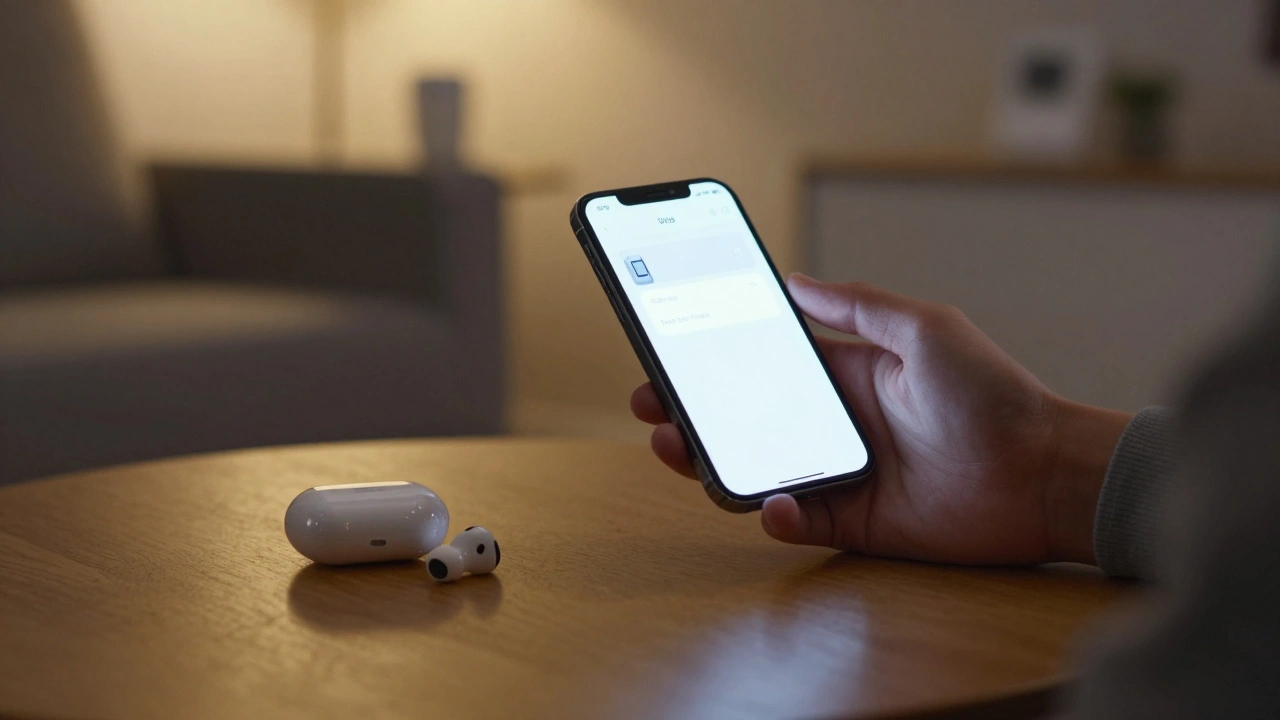

Most people don’t think about how much they rely on sound until they can’t hear it anymore. Whether it’s a doorbell ringing, a baby crying, or someone calling your name across the room - these everyday sounds keep us connected. But for millions of people with hearing loss, those cues disappear. Apple doesn’t just make devices that work for most people. It builds tools that work for everyone. And when it comes to hearing accessibility, its approach is one of the most complete in the tech world.
Visual Alerts That Speak Without Sound
If you can’t hear a notification, Apple gives you another way to know: light.
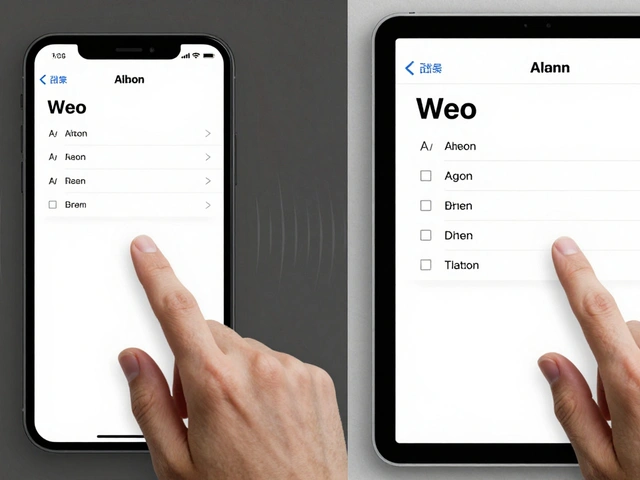
On iPhone and iPad, you can turn the screen into a flashing beacon for calls, texts, and alerts. Go to Settings > Accessibility > Hearing, then toggle on Flash Alerts. When someone calls, your whole screen flashes white. No need to check your phone. You’ll see it - even if you’re across the room or in a noisy environment. Some users also pair this with the LED flash on older iPhones for an extra visual cue.
But Apple goes further. Sound Recognition listens to your surroundings. It doesn’t just wait for you to hear something - it detects sounds you might miss. A fire alarm. A dog barking. A knocking door. When any of these happen, your device vibrates and shows a notification. You don’t need to be listening. Your phone is listening for you.
Then there’s Name Recognition. On iPhone and Mac, your device learns your name. Not just any voice - your name. When someone says it - even in a crowded room - your phone buzzes or lights up. No more straining to catch your name in a conversation. It’s like having a personal assistant who only alerts you when it matters.
Audio That Adapts to Your Ears
Not everyone hears the same way. Some miss high pitches. Others struggle with soft voices. Apple doesn’t force you to fit its sound. It lets your ears shape the sound.
Headphone Accommodations is the heart of this. Available on iPhone, iPad, and Mac, it lets you fine-tune how audio sounds through headphones. You can boost quiet sounds. You can reduce harsh frequencies. You can even import your audiogram from the Health app - the same hearing test your doctor gives you. The system uses that data to automatically adjust audio in real time. If you can’t hear 4,000 Hz, it boosts it. If your left ear is weaker, it shifts balance to the right. It’s not guesswork. It’s science built into your device.
For those with unilateral hearing loss - hearing in only one ear - Mono Audio is a game-changer. Instead of stereo left/right separation, it combines both channels into one. All the audio flows into your good ear. No more missing half the music or the dialogue in a movie.
And then there’s Audio Balance. If one ear hears better than the other, you can slide a bar to compensate. It’s simple. But powerful. You don’t need hearing aids to use this. Just your iPhone and a pair of AirPods.
AirPods Pro: More Than Just Headphones
AirPods Pro isn’t just another pair of earbuds. It’s a hearing aid. And Apple made it official.
With Hearing Aid Mode on AirPods Pro, your earbuds become a clinical-grade assistive device. The Hearing Test - built right into the Health app - takes five minutes. You listen to tones through your AirPods Pro. The app maps your hearing. Then, it applies custom amplification. Voices become clearer. Background noise fades. You don’t need a prescription. You don’t need a specialist. Just your iPhone and AirPods Pro.
And it doesn’t stop there. Conversation Boost turns your AirPods Pro into a personal amplifier for talking. In a restaurant, at a meeting, on a bus - it picks up the person speaking in front of you and brings their voice forward. It’s like having a microphone trained on their mouth.
There’s also Hearing Protection. If you’re in a loud concert or construction site, AirPods Pro automatically reduces volume to safe levels. It doesn’t just amplify - it protects. That’s rare in consumer tech.
Live Captions and Real-Time Text
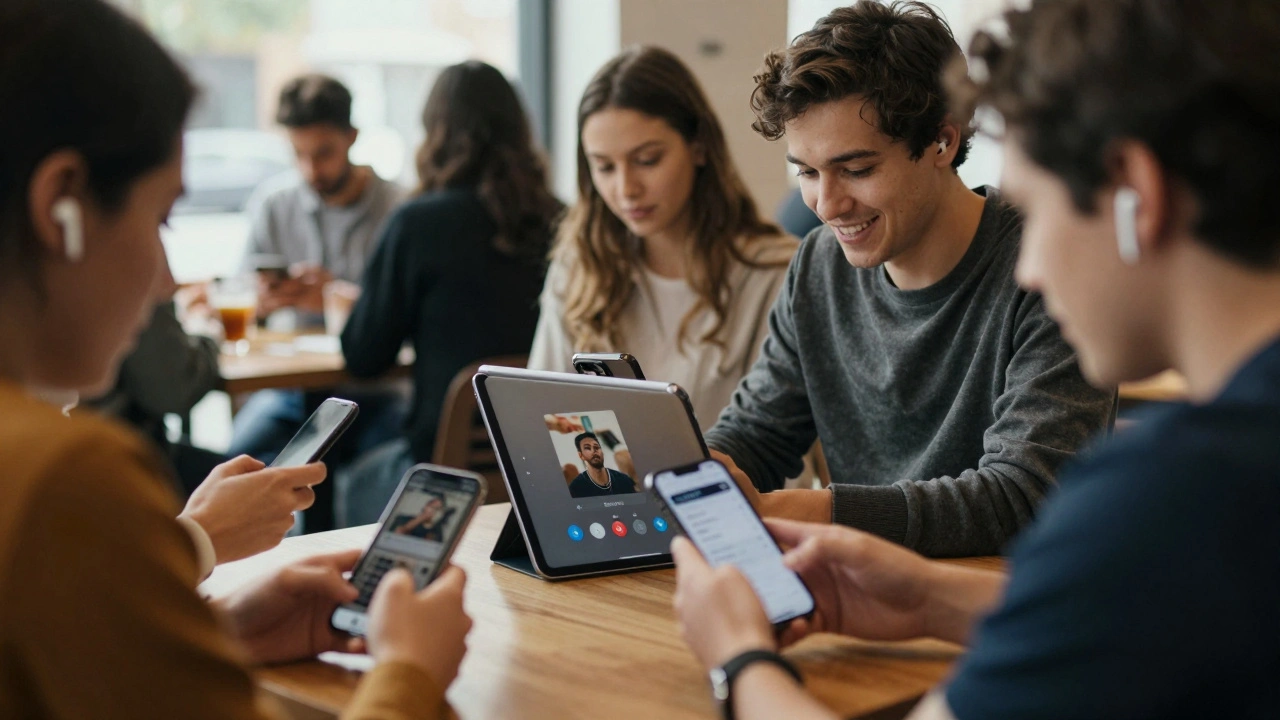
Imagine watching a YouTube video, listening to a podcast, or sitting in a meeting - and seeing every word appear on screen as it’s spoken. That’s Live Captions.
Turn it on in Settings > Accessibility > Live Captions. Your iPhone or iPad uses on-device AI to transcribe any audio - from videos to real-life conversations. No internet needed. No third-party app. It works offline, fast, and accurately. You can even adjust text size, color, and background for better readability.
And if you’re on a call? Real-Time Text (RTT) lets you type as you talk. The person on the other end sees your words appear line by line - just like a text message. No more guessing what they said. No more awkward pauses. You type. They read. You both stay in the conversation.
For those who can’t speak, Type to Siri turns voice commands into typed ones. Ask for weather, set a timer, or send a message - all without saying a word. It’s not a workaround. It’s a full feature.
Connecting Hearing Devices and Customizing Subtitles
Apple doesn’t just support hearing aids. It integrates them.
Pair a Made for iPhone (MFi) hearing aid directly with your iPhone or Mac. Once connected, you adjust volume, program settings, and even switch listening modes right from your phone. No remote. No app from the hearing aid company. Everything lives in Apple’s Accessibility menu.
And when you watch a movie on Apple TV, Netflix, or YouTube? Subtitle and Caption Customization lets you tweak how text looks. Change font size, color, background, even edge style. Want bold white letters on a black background? Done. Need larger text with a soft glow? Easy. These settings apply across all apps. One change. Every video you watch.
Quick Access: The Accessibility Shortcut
None of this matters if you can’t turn it on fast.
Apple gives you a shortcut. Go to Settings > Accessibility > Accessibility Shortcut. Pick any combination of features - Flash Alerts, Live Captions, Mono Audio, Hearing Aid Mode. Then triple-press the Side Button (or Home Button on older models). Instantly, your chosen tools activate. No digging through menus. No fumbling with settings. One press. You’re set.
You can even add these toggles to Control Center. Swipe down. Tap the Hearing icon. Adjust volume, turn on captions, or switch to mono audio - all in one swipe.
What’s Changed in 2025?
Apple doesn’t rest. iOS 18.1 in 2025 removed some older audio customization options that were deemed redundant. Some users who relied on very specific frequency sliders noticed changes. Apple says it streamlined the interface. But for some, the old settings worked better.
The takeaway? Apple’s tools are powerful - but they’re evolving. If you depend on a specific setting, check for updates. If something changed, explore the new options. They might be better. If not, use the Accessibility Shortcut to restore your workflow.
It’s Not Just About Hearing. It’s About Belonging.
Accessibility isn’t a feature. It’s a conversation. Apple’s tools don’t just make sound louder. They make people feel seen. A deaf student can follow a lecture with Live Captions. A grandparent can hear their grandchild’s laugh through AirPods Pro. A worker with hearing loss can join a team call without asking for subtitles.
These aren’t niche options. They’re core to how Apple designs its products. Every feature - from the flash alert to the voice transcription - was built with real users in mind. Not as an afterthought. Not as a checkbox. As a promise.
You don’t need to be deaf or hard of hearing to benefit. If you’ve ever been in a loud room and wished you could hear better - Apple’s tools were made for you too.
Can I use Apple’s hearing features without AirPods?
Yes. All visual alerts, Live Captions, Sound Recognition, Name Recognition, and audio customization work with any headphones, including wired ones, or even just your device’s speaker. AirPods Pro enhance the experience, but they’re not required.
Do I need a hearing test to use Hearing Aid Mode on AirPods Pro?
No. The Hearing Test is optional. You can turn on Hearing Aid Mode and adjust amplification manually. But if you take the test, Apple uses your results to create a personalized profile that automatically improves voice clarity and reduces background noise.
Can Live Captions work during phone calls?
Live Captions works with audio from apps like YouTube, Zoom, or in-person conversations near your device. For phone calls, Apple uses Real-Time Text (RTT) instead - which lets you type messages during the call. Live Captions won’t transcribe your phone call, but RTT gives you the same outcome: text-based communication.
Are these features available on Mac and iPad too?
Yes. Flash Alerts, Sound Recognition, Live Captions, Name Recognition, and Hearing Aid Mode are available on iPhone, iPad, and Mac. Settings are synced across devices if you’re signed into the same Apple ID. Your preferences follow you.
Can I use these tools if I have tinnitus?
Yes. Background Sounds lets you play calming noise like rain, ocean waves, or white noise to mask tinnitus. You can set it to play on loop, schedule it for bedtime, or trigger it with a shortcut. It’s not a cure - but it helps many users manage daily discomfort.
What if my hearing loss is very severe?
Apple’s tools are designed for mild to moderate hearing loss. For severe or profound loss, they’re best used alongside hearing aids or cochlear implants. The real value is in integration - syncing your hearing device with your phone, using visual alerts, and turning audio into text. It’s not a replacement - but it removes barriers.
Is Live Captions accurate in noisy environments?
It’s surprisingly good. On-device AI filters background noise and focuses on human speech. In loud restaurants or busy offices, it still captures most words. Accuracy drops slightly with heavy background music or overlapping voices - but it’s better than most third-party apps.
Can I use these features without an internet connection?
Yes. Flash Alerts, Sound Recognition, Live Captions, Mono Audio, and Hearing Aid Mode all work offline. Apple processes everything on your device. No cloud needed. Your privacy stays intact.
How do I update my hearing profile after getting a new audiogram?
Go to the Health app, open your hearing test results, and tap "Update Hearing Profile". If you’re using AirPods Pro with Hearing Aid Mode, it will automatically apply the new data. You can also manually adjust settings under Settings > Accessibility > Audio/Visual > Headphone Accommodations.
Do these features drain battery faster?
Some do. Live Captions, Sound Recognition, and Name Recognition use the microphone constantly, which can cut battery life by 10-15% over a full day. Flash Alerts and audio customization use almost no extra power. If battery life matters, turn off always-listening features when not needed.
Apple’s hearing accessibility tools don’t just make sound audible. They make communication possible. Whether you’re adjusting volume, flashing a screen, or transcribing a conversation - each feature is a step toward a world where no one has to miss out because they can’t hear.