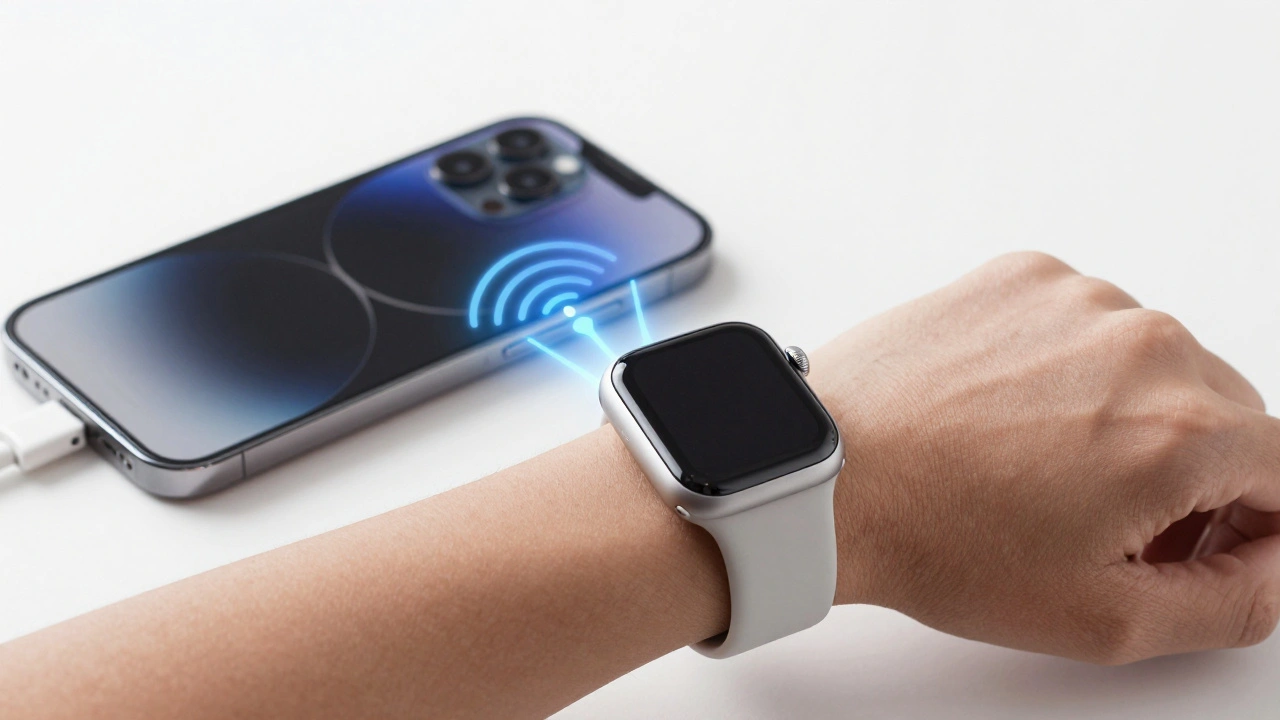

You know the feeling. You’re trying to focus on a spreadsheet, and your iPhone buzzes with an Instagram like. Then your Mac pings with an email. Your iPad lights up for a text. It’s not just annoying; it’s a fragmentation problem. For years, Apple struggled to make notifications feel consistent across devices. But as of late 2026, the company has finally cracked the code on ecosystem-wide notification management, balancing urgent alerts with strict privacy controls.
If you’ve ever wondered why some apps get through your Focus Modes while others don’t, or how your Apple Watch decides what’s worth your wrist vibration, this guide breaks down the mechanics. We’ll look at how priority algorithms work, why privacy is baked into the delivery system, and how you can tweak these settings without losing your mind.
The Shift from Device-Centric to User-Centric Alerts
Historically, each device managed its own inbox. Your iPhone had one set of rules; your Mac had another. This led to redundant pings and missed signals. The core shift in recent iOS and macOS updates is the move toward user-centric prioritization. Instead of asking "Is this important for my phone?", the system asks "Is this important for me right now?"
This change relies on On-Device Intelligence. Rather than sending all data to the cloud to decide importance, your device analyzes context locally. It looks at your calendar, your location, and even your typing speed. If you’re driving, a text message might be summarized by Siri instead of popping up. If you’re in a meeting, non-urgent Slack messages are silenced entirely.
This approach reduces cognitive load. You stop treating every buzz as a potential emergency. The system filters noise before it reaches your eyes. It’s a subtle design choice, but it changes how you interact with technology throughout the day.
How Priority Algorithms Decide What Gets Through
Not all notifications are created equal. Apple uses a tiered system to rank alerts. Understanding these tiers helps you customize your experience better than simply toggling apps on or off.
- Critical: These bypass almost everything. Think security codes, health emergencies from HealthKit, or calls from favorites. They appear even if you have Do Not Disturb enabled.
- High Priority: Direct messages from close contacts or time-sensitive work emails. These usually respect your Focus Mode but may still show a banner if you haven’t explicitly blocked the sender.
- Standard: Social media likes, news push alerts, and game invites. These are easily suppressed by default Focus profiles.
- Low Priority: Promotional offers or background app refreshes. These often live quietly in the Notification Center without triggering sounds or vibrations.
The algorithm weighs several factors. Frequency matters. If you ignore an app’s notifications three times in a row, the system demotes it automatically. Recency counts too. A message sent five minutes ago ranks higher than one sent yesterday. Finally, social proximity plays a role. Messages from people you text daily are weighted heavier than those from acquaintances.
| Tier | Examples | Bypasses DND? | Visible on Lock Screen? |
|---|---|---|---|
| Critical | Face ID failure, Heart Rate alert | Yes | Always |
| High | Text from Spouse, Calendar Reminder | No (unless allowed) | Yes |
| Standard | Instagram Like, News Alert | No | Grouped |
| Low | App Update Available | No | Hidden until pull-down |
Privacy First: How Data Stays Local
One of the biggest concerns with smart notifications is surveillance. Who sees your texts? Where does the metadata go? Apple addresses this with a strict privacy-first architecture. When you enable features like Live Activities or rich previews, the processing happens on your chip-whether that’s an M-series Mac or an A-series iPhone processor.
Third-party apps cannot track which notifications you view or dismiss. This data stays in your local database. Unlike Android, where ad networks often piggyback on notification engagement metrics, Apple keeps this information siloed. If you use a third-party keyboard or a weather app, they send the payload to your device, but they don’t get a report back saying, "User read this at 8:03 AM."
This distinction matters for businesses and users alike. For users, it means fewer targeted ads based on reading habits. For developers, it means they must rely on explicit opt-ins rather than passive tracking. It forces apps to be more relevant because they can’t spam you endlessly and measure success through vague open rates.
Mastering Focus Modes for Cross-Device Sync
The real power lies in Focus Modes. Most people treat them as simple mute buttons. That’s a mistake. Focus Modes are contextual switches that sync instantly across your entire setup.
Here’s how to set them up effectively:
- Create Specific Profiles: Don’t just use "Do Not Disturb." Create "Deep Work," "Family Time," and "Commute." Assign different apps to each.
- Link to Triggers: Set "Deep Work" to activate when you open specific apps like Final Cut Pro or VS Code. Set "Commute" to trigger via location geofencing around your office.
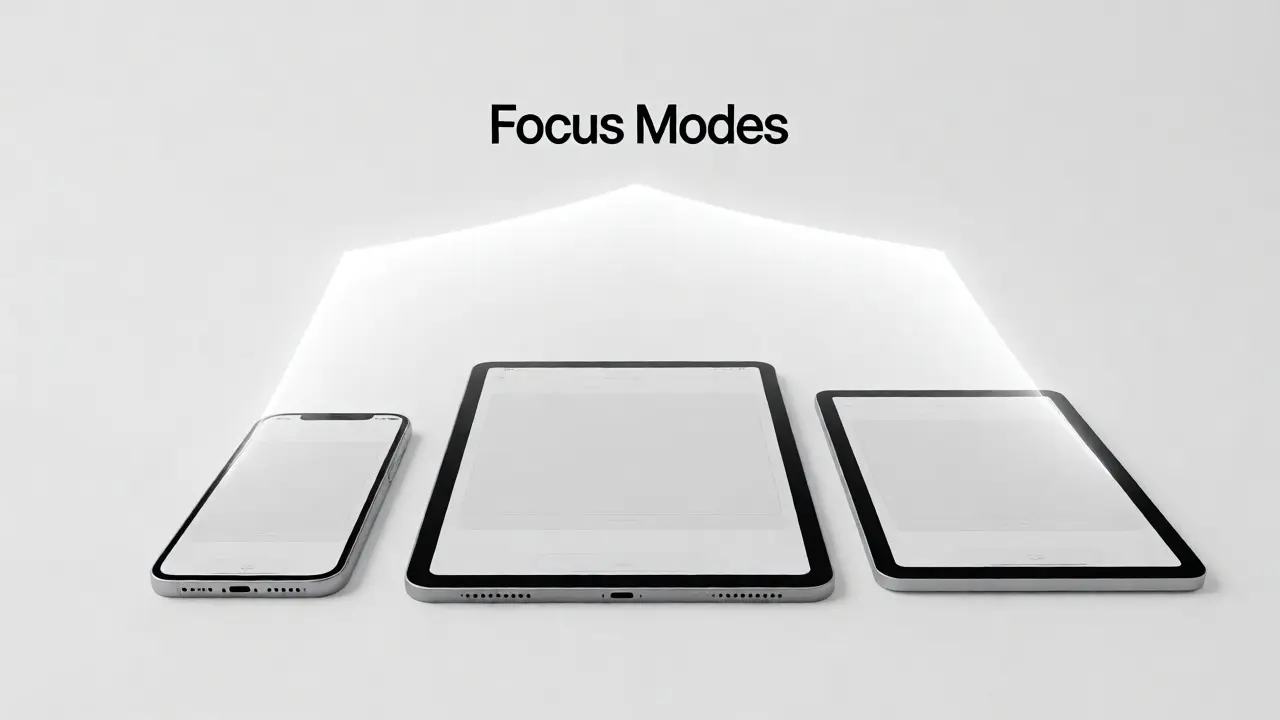
- Sync Across Devices: Ensure "Share Across Devices" is checked in Settings > Focus. Now, when you start working on your MacBook, your iPhone and Apple Watch immediately silence social media.
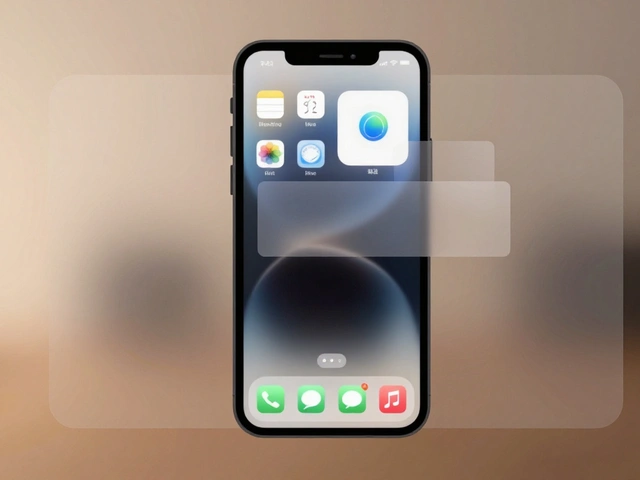
- Customize Home Screens: Allow Focus Modes to hide certain pages of your home screen. In "Work" mode, remove social media icons entirely. This visual cue reinforces the mental state.
A common pitfall is over-filtering. If you block everything during work hours, you might miss a genuine emergency. Use the "Allow Notifications From" feature sparingly. Add only critical contacts or apps like Reminders. Everything else waits until you switch modes.
Handling Notification Fatigue with Smart Grouping
Even with good priorities, volume can overwhelm you. This is where grouping comes in. By default, iOS groups notifications from the same app. If you get ten emails from Gmail, they collapse into one stack. Tap once, and you see all ten.
You can refine this further. In Settings > Notifications > [App Name], choose "Stacks" or "Threads." Threads are useful for messaging apps because they keep conversations together. Stacks are better for news apps where individual articles aren’t related. Experiment with both to see which reduces your anxiety more.
Another trick is using Summary Notifications. For low-priority apps, you can schedule a batch delivery. Instead of buzzing you every hour for Twitter updates, your phone delivers them all at 8 PM. This turns reactive checking into proactive review. You control when you consume content, rather than letting content interrupt you.
Troubleshooting Common Sync Issues
Sometimes, things break. Your Mac might not receive a text that your iPhone got. Or your Watch vibrates for an email your laptop ignores. Here’s how to fix the usual suspects.
- Check Handoff Settings: Go to Settings > General > AirPlay & Handoff. Ensure "Handoff" is on. Also, verify that Bluetooth and Wi-Fi are active on both devices.
- Verify iCloud Account: Both devices must be signed into the same Apple ID. If you recently changed passwords, sign out and back in on secondary devices to refresh tokens.
- Reset Network Settings: If sync persists in failing, reset network settings on your iPhone. This clears cached connections that might be stale.
- Update OS Versions: Apple frequently patches notification bugs in minor updates. Running iOS 19.2 on your phone and macOS 15.1 on your Mac might cause mismatches. Keep them aligned within one major version cycle.
If a specific app misbehaves, delete it and reinstall. Sometimes the permission cache gets corrupted. Reinstalling forces the app to request notification rights again, resetting its behavior profile.
Best Practices for Developers and Users
If you build apps, respect the user’s attention. Don’t send push notifications for trivial events. Use APNs (Apple Push Notification service) efficiently. Batch updates where possible. And always provide a clear path to disable notifications directly from the banner.
For users, audit your notifications quarterly. Open Settings > Notifications. Look for apps you haven’t opened in a month. Turn them off. You’ll likely never notice their absence. The goal isn’t to have zero notifications; it’s to have only the ones that matter.
Apple’s ecosystem design philosophy centers on invisibility. The best technology fades into the background. Notifications should serve you, not distract you. By leveraging priority tiers, privacy safeguards, and synced Focus Modes, you reclaim control over your digital environment. It takes a few minutes to configure, but the payoff is a calmer, more focused daily routine.
Why do I get duplicate notifications on my iPhone and Mac?
This usually happens when "Forward to Other Devices" is enabled in Messages settings but Handoff isn't syncing correctly. Check that both devices are on the same Wi-Fi network and signed into the same iCloud account. Often, toggling "Text Message Forwarding" off and on again resolves the duplication issue.
Does turning off notifications improve battery life?
Marginally, yes. Each wake-up event consumes power. Reducing unnecessary pings saves energy, especially on older devices. However, the impact is small compared to screen brightness or GPS usage. The primary benefit is reduced distraction, not significant battery extension.
Can I see notification history after dismissing it?
No, Apple does not store a permanent log of dismissed notifications. Once you swipe away a banner, it disappears from the UI unless you pull down the Notification Center. If you cleared the center, that data is gone. Some third-party apps keep their own internal logs, but the OS does not.
How do I stop apps from showing preview text on the lock screen?
Go to Settings > Notifications > Show Previews. Choose "When Unlocked" or "Never." This hides the content of messages until you authenticate with Face ID or Touch ID, enhancing privacy in public spaces.
Do Focus Modes affect phone calls?
By default, Focus Modes silence unknown callers but allow calls from your Favorites list. You can customize this in each Focus profile under "People." You can also enable "Repeated Calls," which allows a second call from the same person within three minutes to ring through, ensuring you don't miss urgent matters.