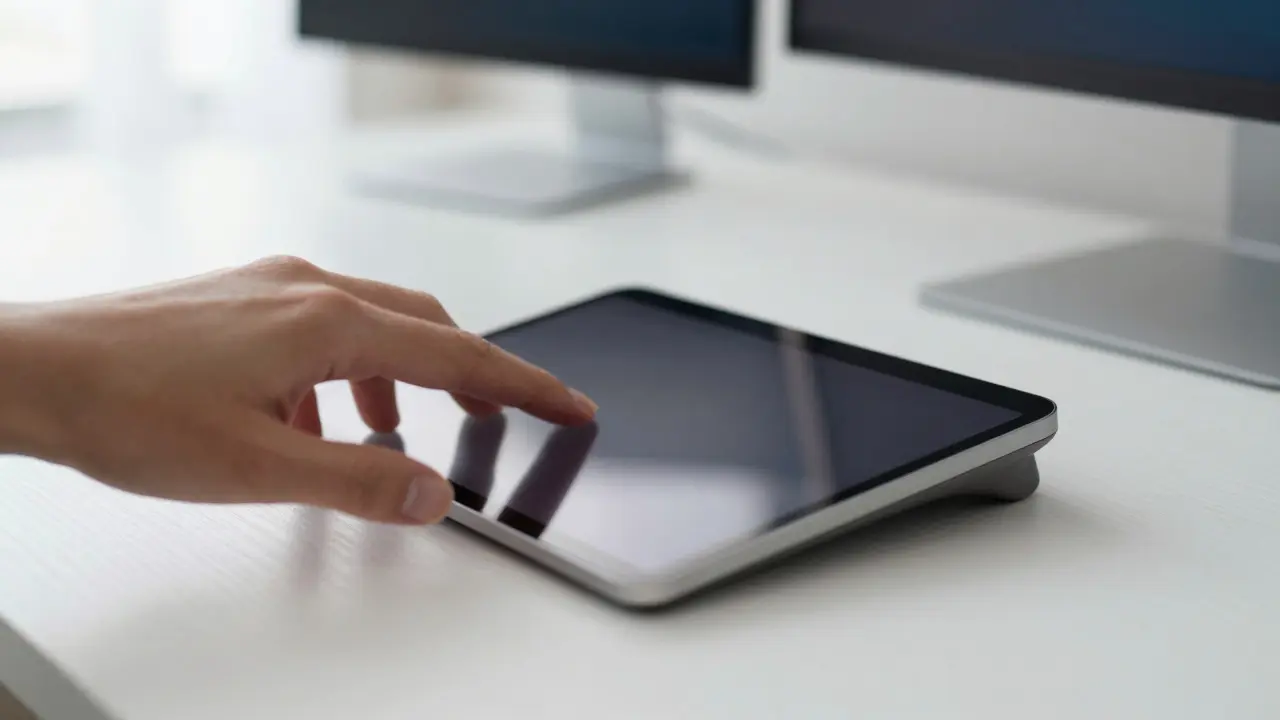

There is a specific feeling you get when your fingers glide across the glass surface of a Magic Trackpad is Apple's premium multi-touch input device that extends the tactile experience of a laptop trackpad to an external desktop setup. It’s not just about clicking; it’s about the haptic feedback, the precision, and the seamless way it syncs with your Mac. For many users, the built-in trackpad on a MacBook is good enough, but once you move to a dual-monitor desk setup or a standing desk, the limitations become apparent. You lose the space. You lose the comfort. And you definitely lose the advanced gesture controls that make macOS feel so fluid.
The Shift from Laptop to Desktop Ecosystem
When you buy a MacBook, you are essentially buying a portable workstation. But most of us don’t work in a coffee shop 40 hours a week. We dock our laptops. We connect them to external monitors. This transition changes how we interact with the computer. The built-in keyboard becomes cramped if you’re using a separate monitor at arm's length. The built-in trackpad is too small for complex workflows like video editing or graphic design where you need to zoom, pan, and rotate images with ease.
This is where the ecosystem approach comes in. Apple designed its peripherals not as standalone gadgets, but as extensions of the core hardware. The Magic Keyboard is a wireless, low-profile keyboard featuring a Touch ID sensor and a full-size layout optimized for macOS typing mechanics. When paired with the Magic Trackpad, they create a unified interface that feels exactly like the MacBook itself, just larger and more comfortable. There is no driver installation. No Bluetooth pairing struggles. You plug in the USB-C cable, and they appear in your system settings instantly.
Anatomy of the Magic Trackpad Experience
The Magic Trackpad isn't just a bigger mouse pad. It uses Force Touch technology, which means there is no physical click mechanism under the glass. Instead, sensors detect pressure. This allows for two levels of clicks: a light tap for selection and a deeper press for actions like opening files or confirming dialogs. This distinction is subtle but incredibly useful over long work sessions because it reduces finger fatigue compared to traditional mechanical clicks.
Beyond the click, the real power lies in the gestures. macOS supports a wide range of multi-touch inputs:
- Three-finger swipe up: Shows Mission Control, giving you an overview of all open windows.
- Three-finger swipe left/right: Switches between Spaces (virtual desktops).
- Two-finger scroll: Natural scrolling direction, matching the physics of moving a document under your hand.
- Pinch and spread: Zooms in and out of documents, maps, and web pages.
- Rotate: Uses two fingers to spin objects in compatible apps like Preview or Keynote.
These gestures aren't just cool tricks; they are productivity shortcuts. Imagine trying to switch between five different browser tabs and three application windows using only a mouse. With the trackpad, you can swipe through your workspace in seconds. The latency is near-zero, making the interaction feel instantaneous.
The Magic Keyboard: Comfort Meets Security
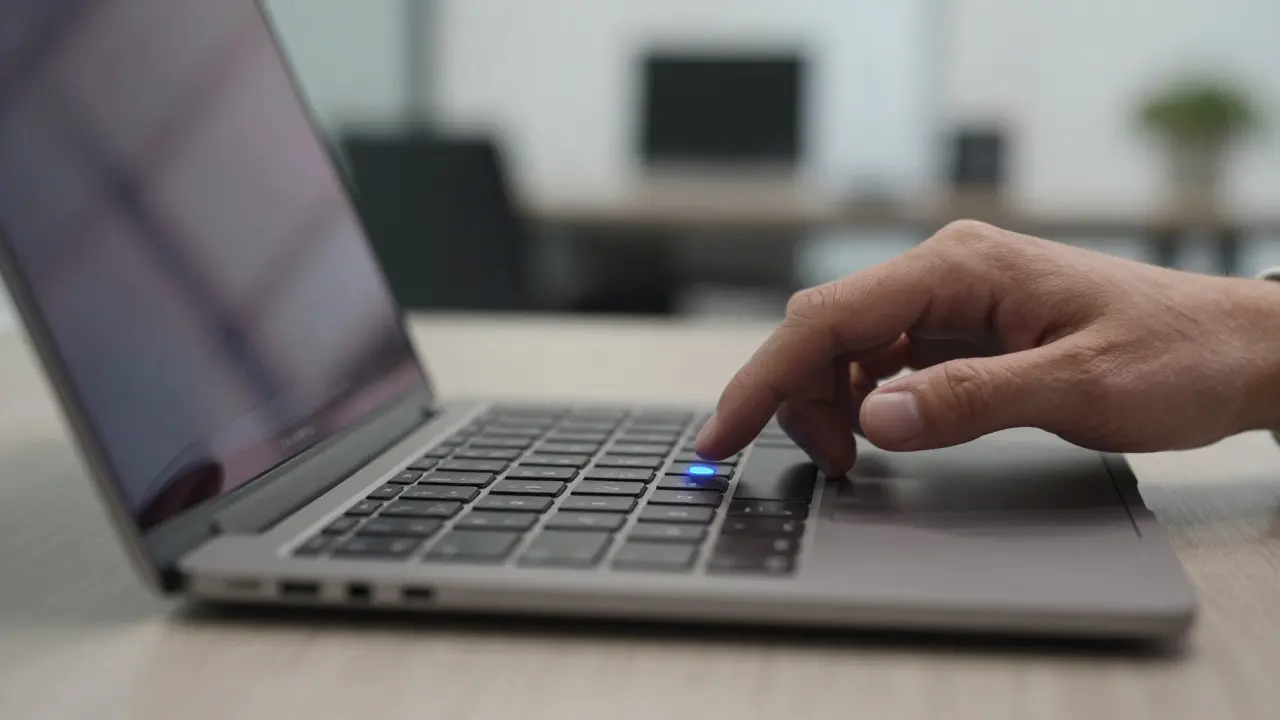
While the trackpad handles navigation, the keyboard handles input. The standard Magic Keyboard is a chiclet-style keyboard, similar to what you find on MacBooks, but with a few key differences. First, it includes a Touch ID sensor. This is a game-changer for security and convenience. Instead of typing your password every time you wake your Mac from sleep, you simply rest your finger on the sensor. It works for unlocking the screen, authorizing purchases in the App Store, and even authenticating two-factor codes in Safari.
The layout is also slightly different. It features a dedicated Escape key, which is crucial for developers and designers who use keyboard shortcuts heavily. The keys have a shallow travel distance, which some users prefer for speed, while others might find it lacking in tactile feedback compared to a mechanical keyboard. However, the consistency with the MacBook keyboard means you don’t have to retrain your muscle memory. If you type fast on your laptop, you’ll type fast on the peripheral.
One notable addition in newer models is the inclusion of a numeric keypad variant. If you work with spreadsheets, financial data, or CAD software, the standard keyboard without a number pad can be frustrating. The numeric version adds a column of keys on the right, allowing for faster data entry. It’s a small detail, but for specific professions, it makes a significant difference in daily workflow efficiency.
Connectivity and Power Management
Both devices operate via Bluetooth Low Energy (BLE), which keeps power consumption low. They charge via a Lightning port (on older models) or USB-C (on newer models). The battery life is impressive. Under normal usage, you can expect several months of battery life before needing a recharge. A quick 15-minute charge gives you about five hours of use, which is perfect for emergency situations.
However, connectivity can sometimes be tricky. Because they rely on Bluetooth, they can occasionally disconnect if your Wi-Fi router is congested or if you have too many other Bluetooth devices connected. To mitigate this, ensure your Mac is updated to the latest macOS version, as Apple frequently releases firmware updates for these peripherals that improve stability. Also, keep the charging cable within reach. Unlike mice that run on AA batteries, these devices require a wired connection for charging, so having a short cable tucked away is a smart move.
Comparing Input Methods: Mouse vs. Trackpad vs. Keyboard Shortcuts
It’s worth asking: why not just use a mouse? For many tasks, a mouse is faster. Clicking a button in a dialog box is quicker with a mouse pointer than swiping on a trackpad. But the trackpad excels in spatial awareness. When you are working with large canvases in Photoshop or Illustrator, the ability to pan around the image with a two-finger drag is far superior to holding down a modifier key and dragging with a mouse.
Here is a quick comparison of how different input methods handle common tasks:
| Task | Mouse | Magic Trackpad | Keyboard Only |
|---|---|---|---|
| Clicking UI Elements | Fastest | Medium | Slowest |
| Panning Large Images | Requires Modifier Key | Natural Two-Finger Drag | Arrow Keys (Slow) |
| Switching Apps | Dock Click | Swipe Up + Tap | Cmd+Tab |
| Zooming In/Out | Scroll Wheel/Pinch | Pinch Gesture | Cmd+/Cmd- |
| Unlocking Screen | Password Entry | Password Entry | Touch ID (If Available) |
As you can see, the trackpad shines in spatial navigation, while the mouse wins in precise point-and-click actions. Many power users actually use both simultaneously. They place the trackpad for general navigation and gestures, and a high-precision mouse for detailed drawing or selecting tiny UI elements. This hybrid approach maximizes efficiency.
Optimizing Your Setup for Maximum Productivity
Getting the most out of these peripherals requires more than just plugging them in. You need to configure macOS to match your preferences. Go to System Settings > Trackpad. Here, you can adjust the tracking speed, tap-to-click sensitivity, and enable/disable specific gestures. For example, if you find the three-finger swipe to Mission Control too sensitive, you can change it to a four-finger swipe. This reduces accidental triggers.
For the keyboard, check the language settings. If you type in multiple languages, ensure the correct input source is set. The Touch ID sensor should be enrolled in your user account. If you haven’t done this yet, go to System Settings > Touch ID & Passwords and add your fingerprint. This step alone can save you minutes every day by eliminating password entry.
Another pro tip: use the “Handoff” feature. If you start writing an email on your iPhone, you can finish it on your Mac using the Magic Keyboard. The context switches seamlessly. This integration is part of what makes the Apple ecosystem sticky. The peripherals aren't just accessories; they are nodes in a larger network of devices that talk to each other.
Frequently Asked Questions
Do I need to install drivers for the Magic Trackpad and Keyboard?
No. Both devices use Bluetooth Low Energy and are natively supported by macOS. Once charged and powered on, they will automatically pair with your Mac. Ensure your Mac is running the latest version of macOS for the best compatibility and performance.
Can I use the Magic Trackpad with Windows or Linux?
Yes, but with limited functionality. On Windows and Linux, the trackpad will work as a basic pointing device. However, most advanced multi-touch gestures like pinch-to-zoom and three-finger swipes may not work unless you install third-party drivers. The full experience is reserved for macOS.
How long does the battery last on the Magic Keyboard?
Under normal usage, the battery lasts for approximately one month. Heavy use of the backlight or frequent waking/sleeping cycles may reduce this slightly. A 15-minute charge provides about five hours of use.
Is the Magic Keyboard suitable for programmers?
It depends on your preference. The shallow key travel is fast but lacks the tactile bump found in mechanical keyboards. Many programmers appreciate the dedicated Escape key and the compact size. However, if you prefer a deep keystroke feel, you might find it too flat. Try it out before committing if you type for 8+ hours a day.
What happens if the Magic Trackpad stops responding?
First, check the battery level. If it’s dead, charge it for 15 minutes. If it still doesn’t work, restart your Mac. Sometimes, Bluetooth glitches can cause disconnections. As a last resort, unpair the device from System Settings > Bluetooth and pair it again.