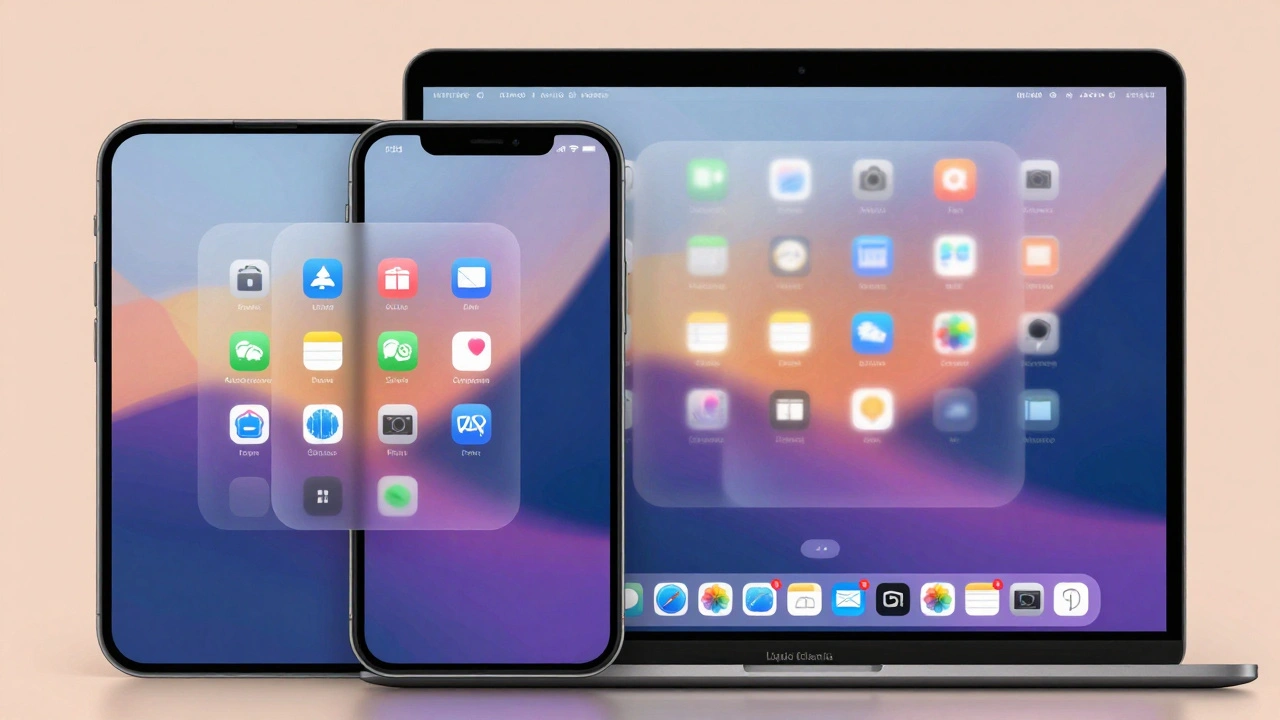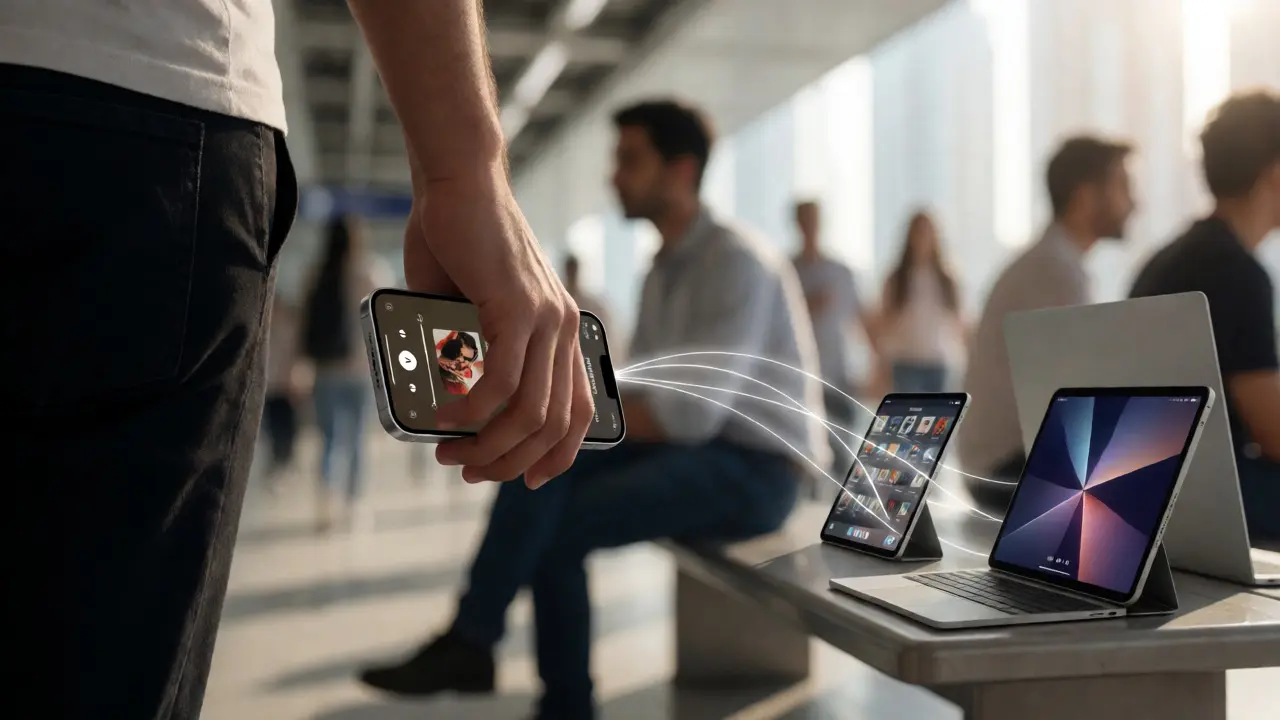

You start listening to a podcast on your iPhone while walking to the subway. You get home, drop your keys, and want to keep listening in the kitchen. If you have to unlock your phone, open the app again, find the episode, and hit play, the magic is broken. That friction kills immersion. Cross-device media controls are what make the Apple ecosystem feel like one continuous brain rather than four separate gadgets fighting for attention.
It’s not just about convenience; it’s about cognitive load. When playback state doesn’t sync instantly between an iPhone, iPad, Mac, or Apple TV, users disengage. They stop trusting the device. This guide breaks down how Apple achieves this seamless handoff, where it still fails, and how designers can build apps that respect the flow of audio and video across screens.
The Core Mechanism: How State Syncs Across Devices
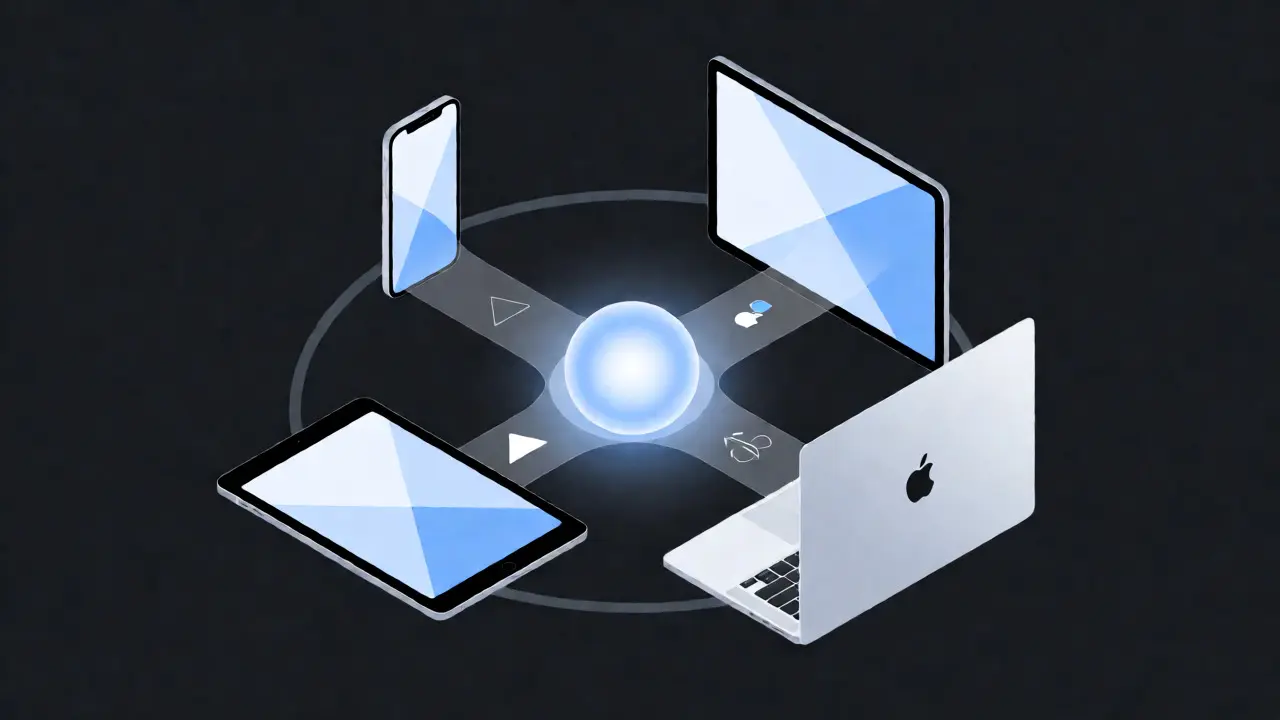
At its heart, consistent playback relies on a shared context. Continuity is the umbrella term Apple uses for features that let devices work together seamlessly. For media, this means the playback state-the current track, timestamp, volume level, and even the specific view within the app-is mirrored across devices via iCloud and local network protocols.
When you pause music on your Mac, your iPhone shouldn’t just show "Paused." It should reflect that exact moment. If you’re using a third-party app like Spotify or Overcast, this sync happens through cloud servers. But for native apps (Apple Music, Podcasts, TV), the system-level integration is tighter. The operating systems share a common data model. This allows for near-instantaneous updates, often under 200 milliseconds, which feels instantaneous to the human eye.
Think of it as a remote control with memory. The device isn't just sending a "stop" signal; it's updating a shared ledger of what you were doing. This distinction matters because if the sync is slow or incomplete, the user experiences a disconnect. They might think their headphones are broken or the app crashed. Speed and accuracy are the twin pillars of good cross-device UX.
AirPlay vs. Handoff: Understanding the Difference
People often confuse AirPlay and Handoff, but they serve different purposes. AirPlay is primarily an output routing protocol. It sends audio or video from one device to another display or speaker. You use it to cast Netflix from your iPhone to your Apple TV. The content stays on the source device; only the stream moves.
Handoff, part of the Continuity suite, transfers the activity. If you're editing a document or browsing a webpage, Handoff lets you pick up exactly where you left off on another device. For media, Handoff ensures that if you start a movie on your iPad, the icon appears on your Mac’s Dock, allowing you to click and continue watching there. The difference? AirPlay changes where you hear/see it. Handoff changes which device is running the app.
| Feature | Primary Function | Data Transferred | Best Use Case |
|---|---|---|---|
| AirPlay | Media Streaming | Audio/Video Stream | Casting to TV or HomePod |
| Handoff | Activity Transfer | App State & Context | Switching devices mid-task |
| Universal Control | Input Sharing | Mouse/Keyboard Input | Using Mac keyboard on iPad |
| Focus Modes | Notification Muting | User Preferences | Preventing interruptions during playback |
Designing for Interruption and Resumption
The biggest enemy of media UX isn't latency; it's interruption. Imagine you’re deep into a thriller novel in Apple Books on your iPad. Your Mac wakes up, and a Zoom call starts playing audio. If your iPad doesn’t automatically pause or duck the volume, you’ve lost your place. Good design anticipates these collisions.
Apple’s audio session management handles this gracefully. When a higher-priority sound (like a phone call or Siri request) occurs, lower-priority media ducks or pauses. But here’s the catch: when the interruption ends, does the media resume? On iOS, yes. On macOS, sometimes no. Designers must ensure that their apps explicitly handle the `AVAudioSessionInterruptionType` notifications. If you don’t code the resume logic, the user has to manually restart the track. That tiny extra tap breaks the illusion of seamlessness.
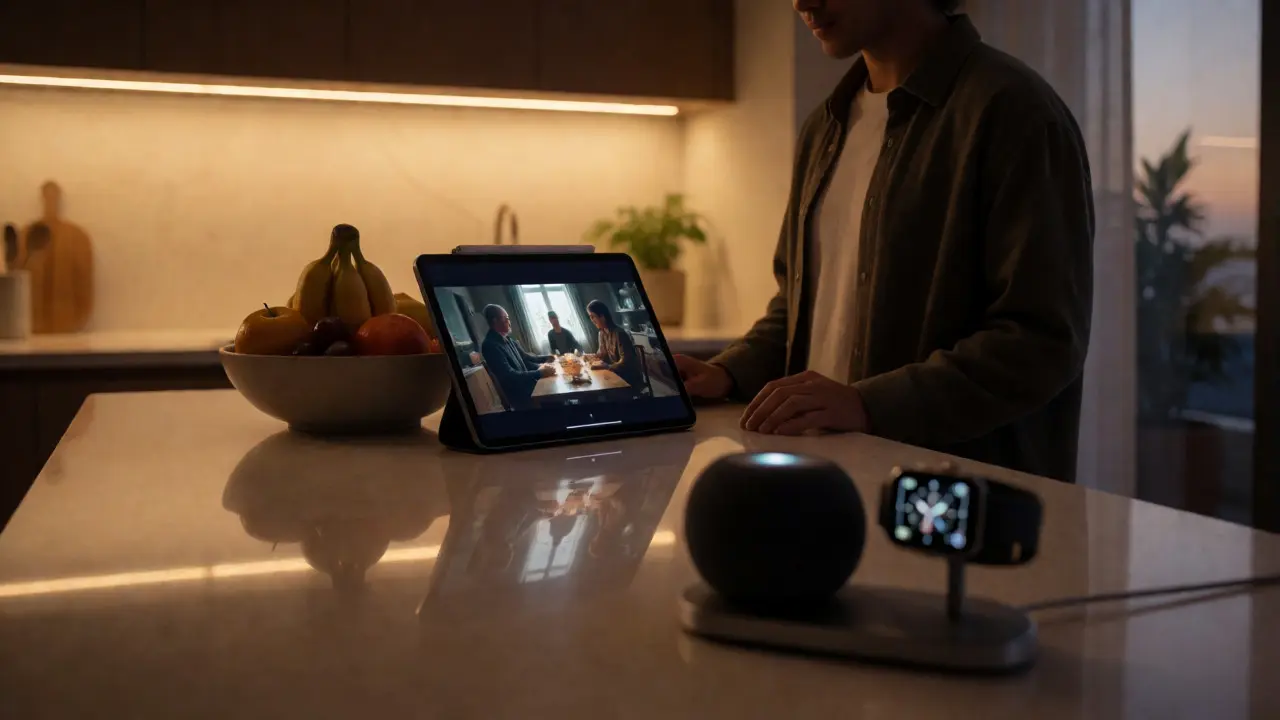
Consider the "Now Playing" interface. It lives in the Dynamic Island on newer iPhones and in the Control Center on all devices. It shows album art, title, and scrubber bars. Crucially, it allows you to switch outputs without leaving the current app. You can be writing an email and change your music source from AirPods to HomePods with two taps. This reduces context switching. You aren’t opening the Music app; you’re interacting with a persistent media layer.
The Role of Spatial Audio and Head Tracking
As we move into 2026, spatial audio has become a standard expectation for premium content. But consistency here is tricky. If you watch a Dolby Atmos film on your MacBook Pro, the speakers simulate surround sound. Put on AirPods Pro, and head tracking kicks in, anchoring the soundstage to your screen. Switch back to wired headphones, and that spatial effect disappears.
Users need clarity on what they’re getting. A vague "Spatial Audio" label isn’t enough. The UI should indicate whether the effect is due to software simulation (Mac speakers) or hardware processing (Apple Silicon + AirPods). Inconsistent labeling leads to confusion. Why does the movie sound "flat" now? Because you unplugged the headphones. The system needs to communicate this state change clearly, perhaps via a subtle toast notification or an icon update in the player controls.
This extends to gaming. Apple Arcade titles increasingly support spatial audio. If a game supports it on iPhone but disables it on iPad due to performance constraints, the experience feels disjointed. Developers should expose these settings in a unified way, letting users toggle spatial audio globally or per-app, with clear indicators of active status.
Pitfalls in Third-Party App Integration
Native apps get the royal treatment. Third-party apps often struggle. Why? Because they rely on public APIs that may lag behind system updates. Take video players. Many custom video players built on AVPlayerKit fail to properly report playback state to the Control Center. Result? You see a generic "Video Playing" text instead of the actual title. Or worse, the scrubber bar doesn’t update in real-time.
Another common issue is background mode misconfiguration. If an app doesn’t declare the correct background modes in its Info.plist, iOS might kill the audio session when the screen locks. Then, when you unlock your phone, the music stops abruptly. To fix this, developers must implement robust audio session categories and delegate methods. They also need to test extensively across different OS versions, as Apple frequently tweaks how background audio tasks are prioritized.
Finally, consider the lock screen widgets. Since iOS 16, these have become powerful entry points. If your app’s widget doesn’t mirror the main player’s controls accurately, users lose trust. Ensure that the widget reflects the same state as the full-screen player. If you’re paused in the app, the widget must show pause. Synchronization errors here are glaringly obvious.
Future-Proofing Your Media Experience
Looking ahead, the trend is toward ambient computing. Media won’t just be on screens; it’ll be everywhere. Vision Pro and future AR glasses will demand even stricter consistency. If you start a podcast on your wrist (Apple Watch), it should seamlessly move to your glasses when you put them on. This requires low-latency Bluetooth LE Audio standards, which are becoming more prevalent in 2026.
For designers, the takeaway is simple: treat playback state as global truth. Don’t silo it within your app. Use system-wide components like MPNowPlayingInfoCenter whenever possible. Test your app in scenarios involving multiple devices simultaneously. Ask yourself: "If I walk away from my Mac and pick up my iPhone, does the experience feel like a continuation or a reset?" If it’s a reset, you have work to do.
Consistency builds habit. Habit builds loyalty. When users know they can trust the ecosystem to handle the mundane task of moving media around, they spend less time fiddling with settings and more time enjoying the content. That’s the ultimate goal of cross-device design.
Why does my music stop when I switch devices?
This usually happens due to poor audio session handling. When a new device takes over playback, the previous device should release the audio focus. If the app doesn't correctly manage the `AVAudioSessionCategoryPlayback` or fails to respond to interruption notifications, the audio may cut out entirely instead of pausing gracefully. Check your app's background mode permissions and ensure it properly implements the audio session delegate methods.
What is the difference between AirPlay and Handoff for video?
AirPlay streams the video content from your source device to a receiver (like Apple TV), keeping the app active on the source. Handoff transfers the app's activity state, allowing you to close the app on one device and reopen it on another, picking up exactly where you left off. AirPlay is for sharing the view; Handoff is for continuing the task.
How do I fix inconsistent playback controls in Control Center?
Inconsistent controls often stem from outdated SDK usage or incorrect metadata reporting. Ensure your app uses the latest MPNowPlayingInfoCenter API to update title, artist, artwork, and duration. Also, verify that your app declares the correct background modes in Xcode. If the issue persists, try resetting the Control Center layout or restarting the device to clear cached states.
Does Universal Control affect media playback?
No, Universal Control primarily shares mouse and keyboard input between Mac and iPad/Mac devices. It does not transfer media playback state. However, it makes it easier to interact with media apps on secondary displays, effectively acting as a bridge for input rather than content. You still need Handoff or AirPlay to move the actual audio/video stream.
Why is spatial audio not working on my external monitor?
Spatial audio typically requires specific hardware capabilities, such as Apple Silicon chips and compatible headphones (like AirPods Pro or Max). External monitors connected via HDMI or DisplayPort often lack the necessary digital signal processing for spatial audio rendering unless they have built-in speakers designed for it. Check your audio output settings to ensure the correct device is selected and that spatial audio is enabled in System Settings > Sound.