
You built the app. It looks slick in Xcode is Apple's integrated development environment used to create software for macOS, iOS, watchOS, tvOS, and visionOS.. The animations are buttery smooth. But if you haven't tested it with VoiceOver is a screen reader technology built into Apple devices that enables users who are blind or have low vision to use iOS, iPadOS, macOS, tvOS, and watchOS by listening to what’s on the screen., you’re guessing. And guessing is expensive.
Most developers assume their apps are accessible because they added some labels. They run a quick automated check, see zero errors, and ship it. Then a user with visual impairments tries to navigate your checkout flow and gets stuck in a loop of unlabeled buttons. That gap between "technically compliant" and "actually usable" is where real-world validation happens. You need to test like a human, not just like a linter.
The Automated Baseline vs. Human Reality
Automated tools are great for catching low-hanging fruit. They scan your code for missing accessibilityLabels or contrast issues. But they can’t tell you if the order of elements makes sense when heard aloud. They don’t know that your "Submit" button appears after three irrelevant decorative images in the tab order.
Here’s the hard truth: automation covers maybe 30% of accessibility issues. The rest requires manual testing. If you rely solely on CI/CD pipelines for a11y checks, you’re leaving 70% of potential blockers on the table. You need to validate how assistive technologies interpret your UI hierarchy.
| Method | Catches | Misses | Time Cost |
|---|---|---|---|
| Accessibility Inspector | Missing labels, poor contrast, dynamic type issues | Logical focus order, confusing announcements | Low (Minutes) |
| VoiceOver Manual Test | Navigation flow, label clarity, gesture conflicts | Subtle cognitive load issues | Medium (Hours) |
| User Testing | Real-world confusion, workarounds, frustration points | Everything else | High (Days) |
Mastering the Built-in Toolkit
Apple gives you powerful tools for free. Stop looking for third-party plugins until you’ve exhausted these. First up is Accessibility Inspector. It lives inside Xcode. When you run your app in the simulator, click the inspector icon. It overlays a green border around every element that has an accessibility trait.
Click any element. Look at the "Traits" field. Does it say "Button," "Image," or "Static Text"? If a button says "Static Text," VoiceOver won’t let the user activate it properly. This single check fixes half the navigation bugs I see in production apps. Also, check the "Value" and "Hint" fields. A hint should describe what happens next, not repeat the label. "Double-tap to open settings" is good. "Settings" is redundant.
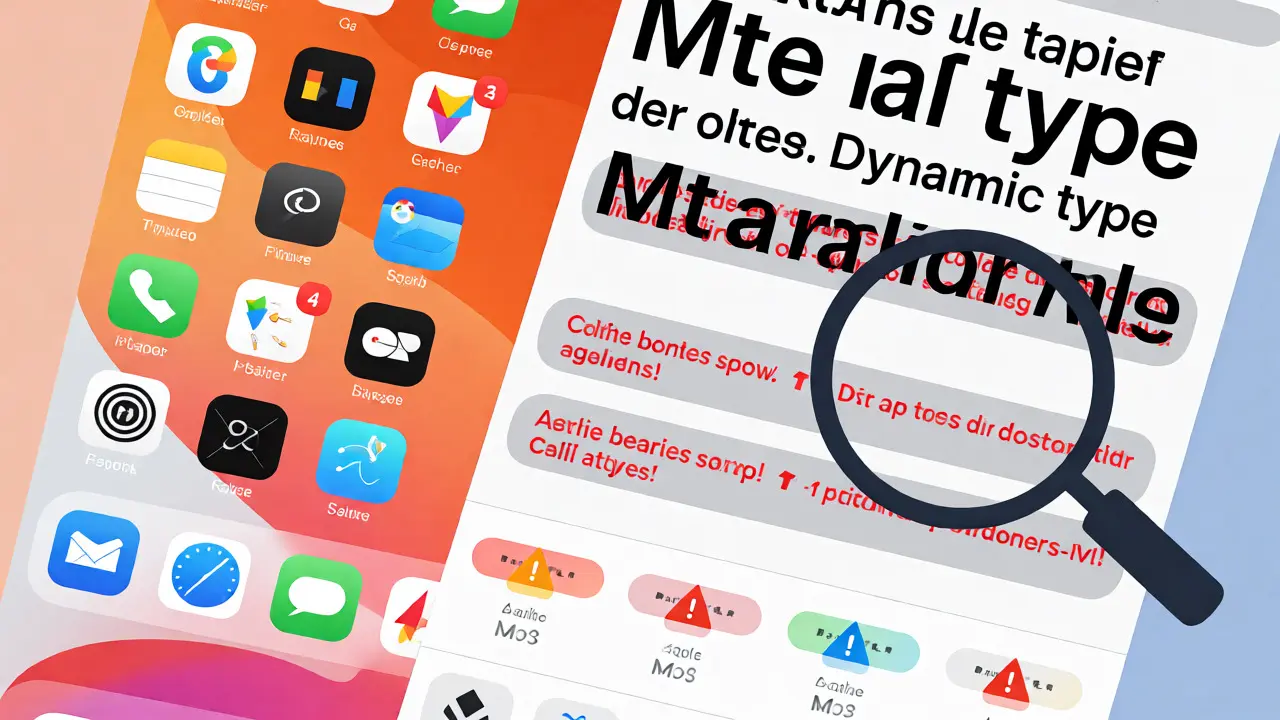
Next, turn on Dynamic Type is a system feature that allows users to adjust text size across the entire operating system, ensuring content remains readable and layout-friendly.. Go to Settings > Display & Brightness > Text Size. Drag the slider to the maximum. Now look at your app. Does text clip? Do buttons overlap? Many designers test at default sizes only. Users with low vision often max out this setting. If your layout breaks at the largest size, it’s not accessible.
Simulating Vision Impairments
You don’t need to be blind to test for blindness. Use Color Filters is an accessibility feature in iOS and macOS that adjusts colors to help users with color blindness perceive differences more easily. to simulate different types of color blindness. Go to Settings > Accessibility > Display & Text Size > Color Filters. Try "Deuteranomaly" (red-green deficiency). This is the most common form. Your red error messages might now look identical to your gray disabled buttons. Fix this by adding icons or text changes, not just color shifts.
For low vision, try Zoom is a magnification tool that lets users enlarge parts of the screen, useful for people with low vision.. Enable it via triple-clicking the side button (or Home button on older devices). Navigate your app using the zoom window. Can you still tap small targets? Apple recommends touch targets be at least 44x44 points. If you’re zoomed in and trying to hit a tiny close icon, you’ll feel the frustration instantly.
The VoiceOver Walkthrough
This is the gold standard. Turn on VoiceOver (Settings > Accessibility > VoiceOver). Now, put your phone down. Literally. Don’t look at the screen. Listen. Swipe right to move forward through elements. What do you hear?
- Does the first thing you hear make sense? Or is it "Group, Group, Group" before the actual title?
- When you double-tap a button, does it perform the action? Or does it just read the label again?
- Are there "ghost" elements? Elements that are visible but not accessible, or accessible but invisible?
A common pitfall is custom controls. If you built a custom slider, VoiceOver needs to know it’s adjustable. You must implement UIAccessibilityCustomAction or set the correct traits. If VoiceOver reads "Button" instead of "Slider," users won’t know they can swipe left/right to change values. Always test gestures. Two-finger swipes scroll pages. Three-finger swipes navigate tabs. Make sure your custom views don’t block these essential system gestures.
Motion and Cognitive Load
Accessibility isn’t just about vision. Consider users with vestibular disorders. Parallax effects and auto-playing videos can trigger nausea. Test with Reduce Motion is an accessibility setting that minimizes animation effects to help users who experience motion sickness or dizziness. enabled. Go to Settings > Accessibility > Motion. Turn it on. Your app should respect this flag. Animations should fade rather than slide. Background videos should pause or show a static poster frame.
Then there’s cognitive accessibility. Keep language simple. Avoid jargon. Ensure forms have clear error messages. If a user forgets their password, don’t just say "Invalid." Say "Password must contain one number." Context matters. Screen readers read linearly. If your layout jumps around visually, ensure the logical reading order matches the visual flow. Use accessibilityElements in SwiftUI or UIKit to reorder elements explicitly if needed.
Real-User Validation Strategies
Tools give you data. Humans give you context. You need both. Start with beta testers who use assistive tech daily. Ask them specific questions: "Where did you get stuck?" Not "Did you like it?"
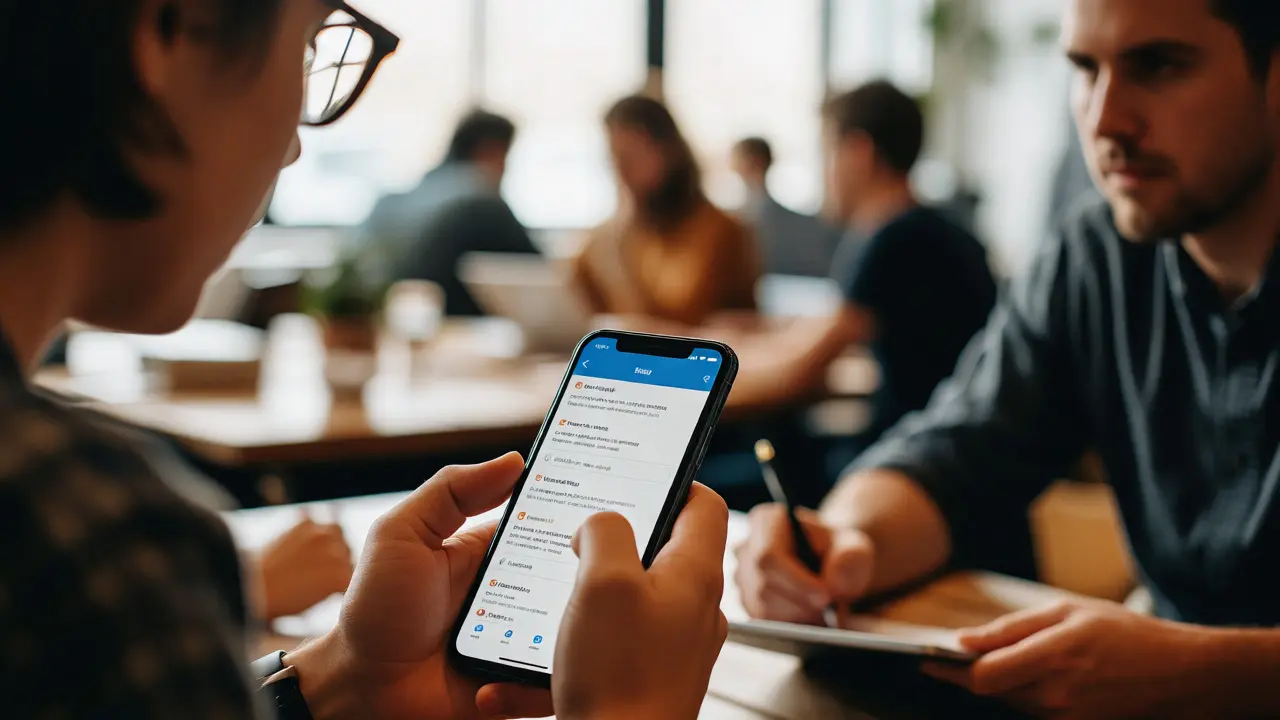
Record their sessions (with permission). Watch where they hesitate. Do they swipe back repeatedly? That means they missed something. Do they quit halfway? That’s a critical failure. In Portland, I’ve seen local startups fix entire navigation flows after watching one user struggle with a hidden hamburger menu for ten minutes. That ten-minute observation saved weeks of support tickets.
If you can’t find external testers, recruit internally. Find someone in your office who wears glasses or uses dark mode heavily. Give them a task: "Book a flight from PDX to SFO." Hand them the device. Don’t help. Just watch. Their instinctive actions will reveal gaps in your mental model versus theirs.
Checklist Before Shipping
Before you push to the App Store, run through this list:
- All interactive elements have unique, descriptive labels.
- Focus order follows logical visual flow.
- Contrast ratios meet WCAG AA standards (4.5:1 for normal text).
- App functions fully with Dynamic Type at max size.
- VoiceOver announces all state changes (e.g., "Added to cart").
- No information is conveyed by color alone.
- Animations respect Reduce Motion.
- Touch targets are at least 44x44 points.
Accessibility isn’t a checkbox. It’s a mindset shift. It forces you to think about edge cases early. And honestly, it makes your app better for everyone. Captions help people watching videos on silent mode. High contrast helps in bright sunlight. Clear labels help distracted parents. When you design for the margins, you improve the center.
Do I need to test on physical devices or is the Simulator enough?
The Simulator is excellent for initial checks and debugging VoiceOver commands. However, always test on a physical iPhone or iPad before release. Physical devices handle haptics, battery usage, and real-world lighting conditions differently. Some accessibility features, like certain switch control setups, behave differently on hardware.
How do I test for Switch Control users?
Go to Settings > Accessibility > Switch Control. Create a recipe that scans items. Then navigate your app using a Bluetooth keyboard or the screen itself as a switch. Ensure all interactive elements are reachable and selectable without complex multi-step gestures. Focus indicators must be highly visible.
What is the most common accessibility mistake in iOS apps?
Unlabeled custom buttons. Developers often replace standard UIButton with a custom UIView containing an image. Without setting the `accessibilityLabel` and `.button` trait, VoiceOver reads nothing or just "Image," making the button unusable for screen reader users.
Can automated tools catch all contrast issues?
No. Automated tools calculate contrast based on static hex codes. They miss issues caused by semi-transparent overlays, background images behind text, or dynamic themes that change colors at runtime. Manual inspection with tools like Stark or the native Accessibility Inspector is required for accuracy.
How often should I re-test accessibility?
Every major UI update. Small bug fixes rarely break accessibility unless they involve layout changes. However, adding new screens or changing navigation structures always requires a fresh pass with VoiceOver and Dynamic Type testing.