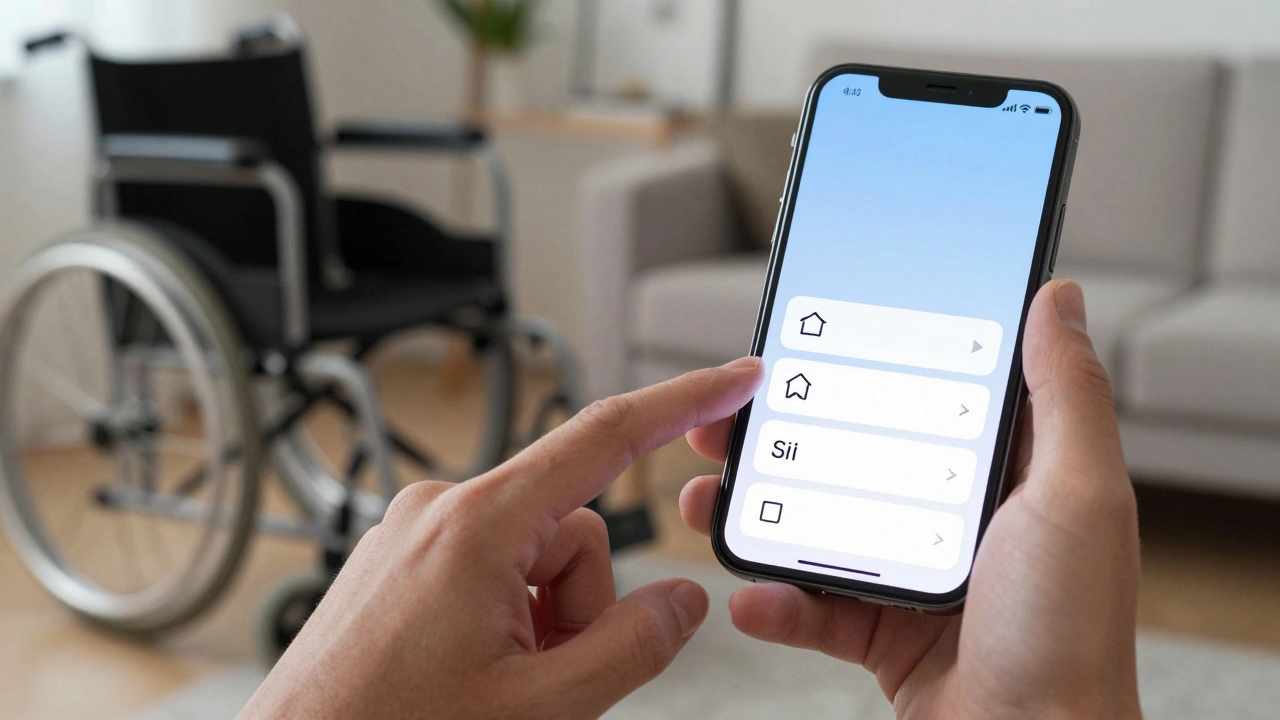

Imagine you’re trying to order a coffee on your iPhone. You swipe right with one finger until VoiceOver reads "Starbucks," then double-tap to select. Now, imagine doing that same task on your Mac. Do you have to relearn the gestures? Do you need to memorize new keyboard shortcuts? If you’re using Apple’s ecosystem, the answer is no. That seamless transfer of muscle memory is the core promise of Apple Accessibility is a suite of features designed to make devices usable for people with disabilities across all Apple platforms.
This isn’t just about compliance or checking boxes. It’s about cognitive load. When every device speaks the same language, users don’t waste mental energy figuring out how to interact. They just interact. For designers and developers, this consistency is a goldmine. But it doesn’t happen by accident. It requires a deep understanding of how Apple structures its interaction models from iOS to macOS.
The Power of Shared Interaction Models
Most operating systems treat accessibility as an add-on. Apple treats it as a foundational layer. Take VoiceOver is the screen reader built into Apple devices that allows blind and low-vision users to navigate interfaces via audio feedback. On an iPhone, you learn to swipe left to move forward and right to move backward. Double-tap activates. Three-finger scroll moves the page. Guess what? Those exact same gestures work on iPadOS. And while macOS uses keyboard shortcuts more heavily, the logical structure remains identical. The concept of "focus" works the same way whether you’re on a phone or a laptop.
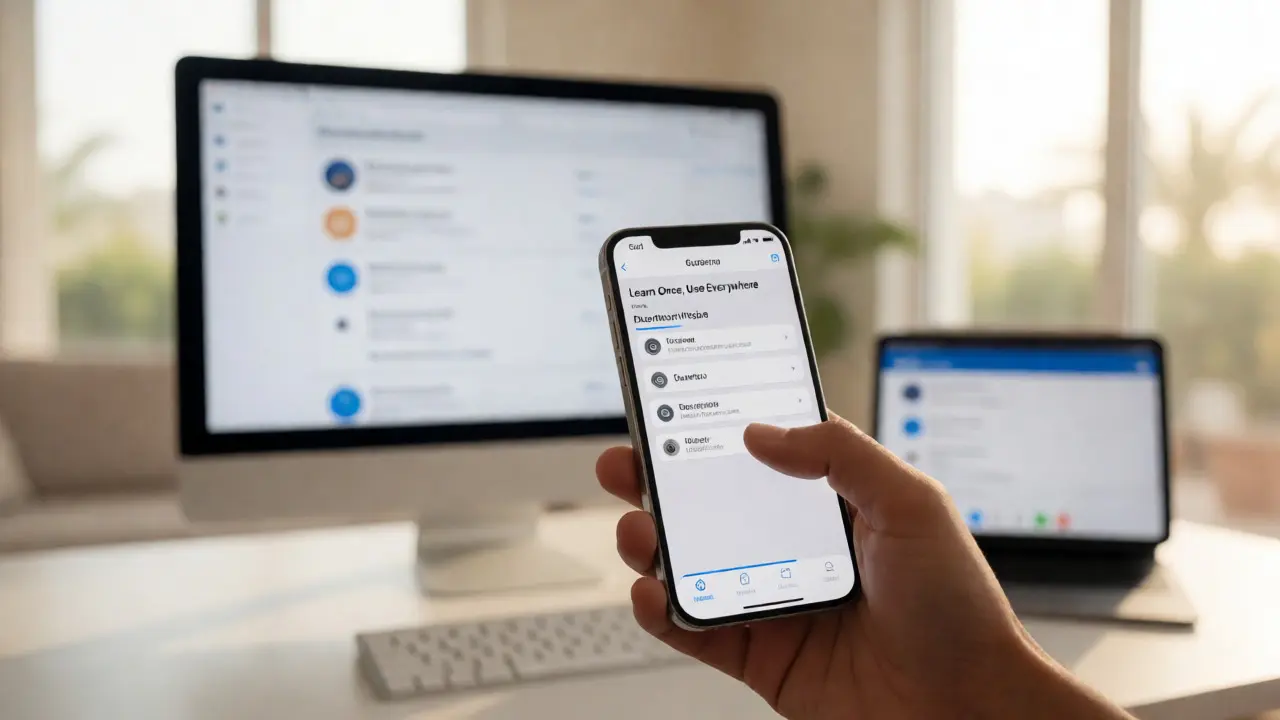
This consistency reduces the learning curve dramatically. A user who masters VoiceOver on their watch can transition to their phone without starting from scratch. This is what we mean by "Learn Once, Use Everywhere." It’s not just marketing fluff; it’s a deliberate architectural choice. By standardizing input methods, Apple ensures that assistive technology feels native, not bolted on.
VoiceOver: The Backbone of Audio Navigation
If you only learn one accessibility feature, make it VoiceOver. It’s the most powerful tool in the kit. But here’s where many designers get it wrong: they assume adding alt text is enough. It’s not. VoiceOver relies on semantic structure. It needs to know what is a button, what is a heading, and what is a list. If you use a generic view instead of a proper button element, VoiceOver might read it as "Group" instead of "Button, double-tap to activate." That tiny difference breaks the flow.
On the Mac, VoiceOver integrates deeply with Safari and Mail. It announces links clearly and lets you jump between headings with simple keystrokes. The key takeaway? Structure matters more than style. If your HTML or SwiftUI code reflects the visual hierarchy, VoiceOver will reflect it too. If you hack together a layout that looks good but lacks semantic meaning, you’re making life harder for everyone relying on audio navigation.
AssistiveTouch and Motor Control Flexibility
Not everyone interacts with touchscreens the same way. Some users have limited mobility or fine motor control issues. Enter AssistiveTouch is an accessibility feature that provides alternative ways to interact with the touchscreen interface. Originally created for users who couldn’t press physical buttons, it has evolved into a powerful customization hub. You can create custom gestures-like a three-finger tap that triggers a complex sequence of actions.
Here’s the cool part: these custom gestures sync across devices if you’re logged into the same iCloud account. Create a shortcut on your iPhone, and it appears on your iPad. This cross-device continuity saves time. Instead of configuring settings on each device individually, you configure once and deploy everywhere. For designers, this means testing your apps with non-standard inputs. Does your app respond correctly when triggered by a custom gesture rather than a direct tap? If not, you’ve got a bug.
Universal Control and Cross-Device Continuity
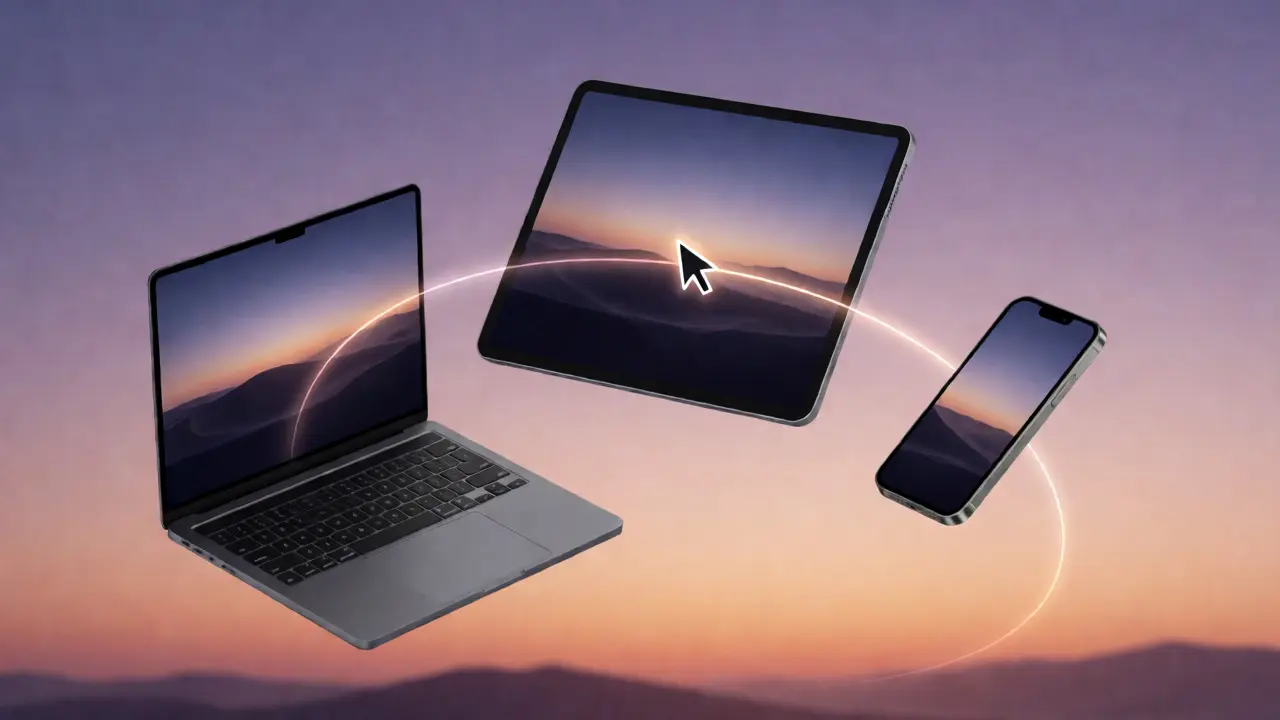
In recent years, Apple introduced Universal Control is a feature that allows a single mouse and keyboard to control multiple Apple devices seamlessly. While primarily marketed as a productivity boost, it has massive implications for accessibility. Users with motor impairments can use one high-quality ergonomic mouse to control their Mac, iPad, and even iPhone (via Sidecar). They don’t need separate peripherals for each device.
This reduces clutter and cost. More importantly, it simplifies the environment. Managing multiple input devices can be overwhelming for someone with cognitive disabilities. One cursor, one keyboard, multiple screens-it’s cleaner. Designers need to ensure their apps handle focus transitions smoothly when moving between devices. If your app loses state or context when dragged from Mac to iPad, you break the illusion of unity.
Dynamic Type and Visual Accessibility
Visual impairment covers a wide spectrum. Some users need larger text; others need higher contrast. Apple handles this through Dynamic Type is a system-wide font scaling feature that adjusts text size across all applications. Unlike Android, where scaling can sometimes break layouts, Apple enforces strict guidelines. Text scales proportionally. Line heights adjust. Padding increases automatically.
But there’s a catch. If you hardcode font sizes in pixels instead of using relative points, Dynamic Type won’t work. Your text stays small while everything else grows, creating a jarring experience. Always use system fonts or scalable units. Test your app at the largest accessibility setting. If text overlaps or gets cut off, fix it now. Don’t wait for user complaints.
Comparison of Core Accessibility Features
| Feature | iOS/iPadOS | macOS | Consistency Level |
|---|---|---|---|
| VoiceOver | Gesture-based navigation | Keyboard + Gesture hybrid | High (Same logic, different inputs) |
| AssistiveTouch | Custom gestures, menu overlay | Pointer controls, custom cursors | Medium (Different UI, similar function) |
| Dynamic Type | System-wide text scaling | App-specific scaling support | High (Standardized API) |
| Switch Control | External switch support | Full external switch integration | Very High (Identical configuration) |
Developer Pitfalls to Avoid
Many developers think accessibility is a last-minute checklist item. It’s not. It’s a development constraint. Here are common mistakes I see in Portland startups:
- Ignoring Focus States: Keyboard users rely on visible focus rings. If you remove them for aesthetics, you hide where the user is.
- Color-Only Indicators: Never use color alone to convey status. Add icons or text labels. Colorblind users miss red/green distinctions.
- Hardcoded Layouts: Fixed widths break when text scales. Use Auto Layout or SwiftUI stacks.
- Missing Labels: Every interactive element needs a label. An icon button without a label is invisible to VoiceOver.
Fixing these early is cheap. Fixing them after release requires updates, reviews, and user trust erosion.
Why Consistency Matters for Cognitive Load
We often talk about physical disabilities, but cognitive accessibility is huge. Complex interfaces confuse users with attention deficits or intellectual disabilities. Apple’s consistent patterns help here. If a back button always works the same way, users don’t hesitate. If menus open from the bottom on iOS and top on macOS, it’s predictable. Predictability reduces anxiety.
When designing for the Apple ecosystem, ask yourself: "If a user learned this action on my iPhone app, would they expect it to work identically on my Mac app?" If the answer is yes, keep it. If no, change it. Consistency builds confidence. Confidence leads to independence. Independence is the ultimate goal of accessibility.
Practical Steps for Implementation
Ready to improve your app? Start here:
- Audit Your Semantics: Run Xcode’s Accessibility Inspector. Check every screen. Are elements labeled correctly?
- Test with VoiceOver: Turn it on. Try to complete a core task. Can you do it without looking at the screen?
- Enable Dynamic Type: Set your simulator to the largest text size. Does your UI hold up?
- Check Contrast Ratios: Ensure text meets WCAG AA standards (4.5:1 for normal text).
- Review Switch Control: If your app supports external switches, test the scanning process. Is it efficient?
These steps take time, but they pay off. Users notice when things work smoothly. They recommend apps that respect their needs.
Does VoiceOver work the same on iPhone and Mac?
The underlying logic is identical, but the input methods differ. On iPhone, you use multi-touch gestures. On Mac, you primarily use keyboard shortcuts, though trackpad gestures are supported. The concepts of 'focus,' 'activation,' and 'navigation' remain consistent, allowing users to transfer their knowledge easily.
What is Dynamic Type and why should I care?
Dynamic Type is Apple's system for scaling text sizes globally. As a developer, you must support it because millions of users rely on larger text for readability. Ignoring it results in broken layouts and poor user experiences for those with low vision.
How does Universal Control help accessibility?
Universal Control allows users to use one set of peripherals (mouse/keyboard) across multiple Apple devices. This benefits users with motor impairments by reducing the need to manage multiple input devices, simplifying their workspace and reducing cognitive load.
Is AssistiveTouch only for people with physical disabilities?
While originally designed for users with limited mobility, AssistiveTouch is useful for anyone who prefers custom gestures or finds standard touches difficult. It also helps users with temporary injuries or those who prefer specific interaction patterns.
How do I test accessibility in my iOS app?
Use Xcode's Accessibility Inspector to audit your UI. Enable VoiceOver on the simulator or device to perform manual testing. Check for correct labels, traits, and hints. Ensure all interactive elements are accessible via keyboard or gestures.