
Imagine trying to navigate a complex interface while your hands are full, or struggling to hear a notification in a noisy subway station. For millions of users, these aren't hypotheticals-they're daily hurdles. Apple has spent decades building Accessibility into the DNA of its devices, but the recent infusion of generative AI capabilities changes the game entirely. It’s no longer just about making things visible or audible; it’s about making them intuitive. This shift moves us from static tools that require setup to dynamic systems that learn your preferences. You don’t just configure your iPhone; you train it to understand how you live.
The Shift from Static Tools to Adaptive Intelligence
For years, accessibility meant turning on a feature like VoiceOver or Zoom and hoping it fit your specific needs. If you had low vision, you set a font size. If you had motor impairments, you adjusted touch timing. These were binary switches-on or off, big or small. The introduction of on-device machine learning transforms this experience. Now, features like Live Speech don’t just read text aloud; they adapt to context. When you type a message, the AI predicts what you’re likely to say next based on who you’re talking to and the time of day. This isn’t magic; it’s pattern recognition running locally on the A-series chips.
This change matters because it respects user autonomy. Instead of forcing every user into a one-size-fits-all mold, the system offers suggestions. You can accept, modify, or ignore them. This reduces cognitive load. Think about someone with speech difficulties using Personal Voice. Previously, recording a voice model took hours and required perfect pronunciation. Now, the AI fills in gaps, smoothing out irregularities while keeping the unique timbre of the speaker’s voice. It’s less about correcting the user and more about amplifying their intent.
Vision Features That See for You
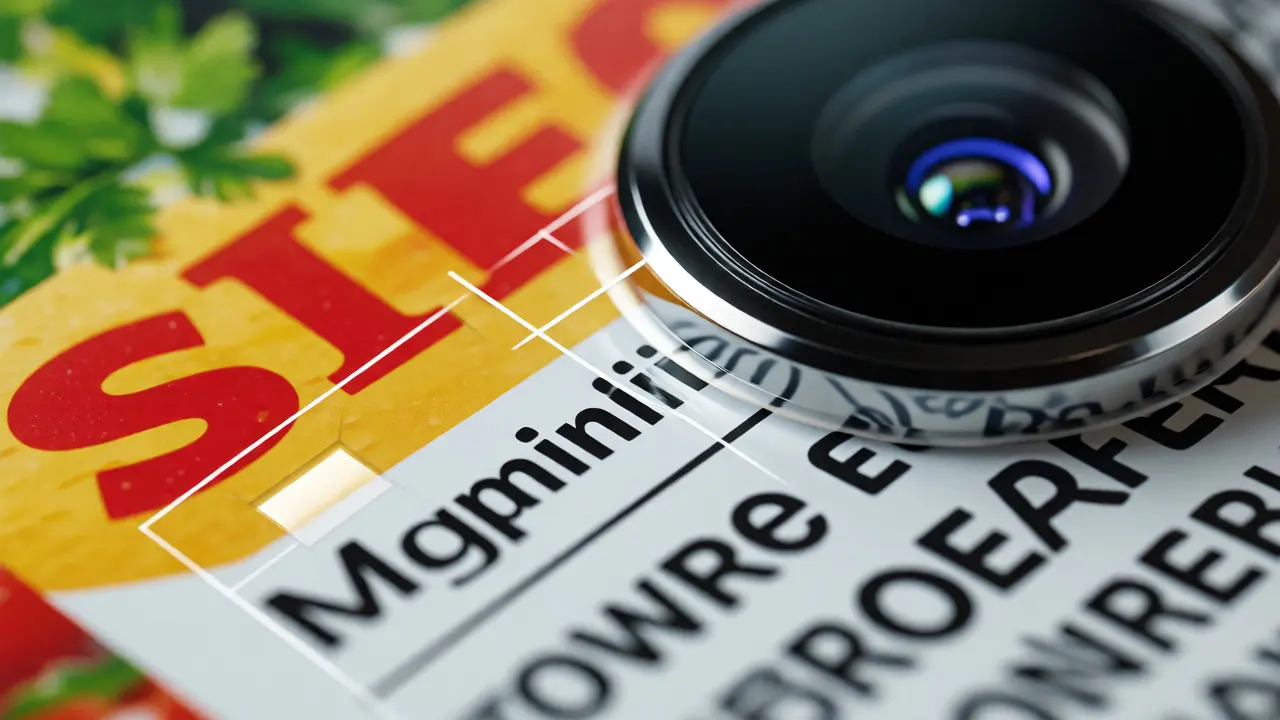
Visual impairment often forces users to rely on others to describe their surroundings. Apple’s camera-based AI tools aim to break that dependency. Magnifier is the most obvious example, but it’s evolved beyond a simple digital loupe. Using computer vision, it identifies objects, text, and even people. Point your iPhone at a menu, and it doesn’t just zoom in; it reads the items aloud. Point it at a door, and it tells you if it’s open or closed.
What makes this respectful of preference is the level of control. Users can choose exactly what the AI detects. Do you want to know about currency denominations? Turn that on. Are you only interested in reading labels? Disable object detection. This granular control ensures the technology serves the user’s current goal, not the other way around. In a real-world scenario, a user shopping for groceries can toggle between "Detect Products" and "Read Text" depending on whether they’re looking for a specific brand or checking an expiration date.
Hearing Assistance and Sound Recognition
Hearing loss affects communication in subtle ways. It’s not just about volume; it’s about clarity and context. Apple’s Live Captions uses on-device transcription to turn spoken words into text in real-time. Unlike older versions that relied on cloud processing, this happens instantly on your device, ensuring privacy and speed. But the real breakthrough is how it handles noise. The AI filters background chatter, focusing on the primary speaker.
Then there’s Sound Recognition. Your phone listens for specific sounds-a baby crying, a dog barking, a fire alarm-and notifies you via haptic feedback or visual alerts. The beauty here lies in customization. You can create custom sound profiles. Maybe you work from home and need to be alerted when the doorbell rings, but you don’t care about traffic noise. The AI learns which sounds matter to you. It doesn’t spam you with every noise in the environment; it curates the auditory landscape based on your personal risk profile and lifestyle.
Motor Control and Predictive Touch
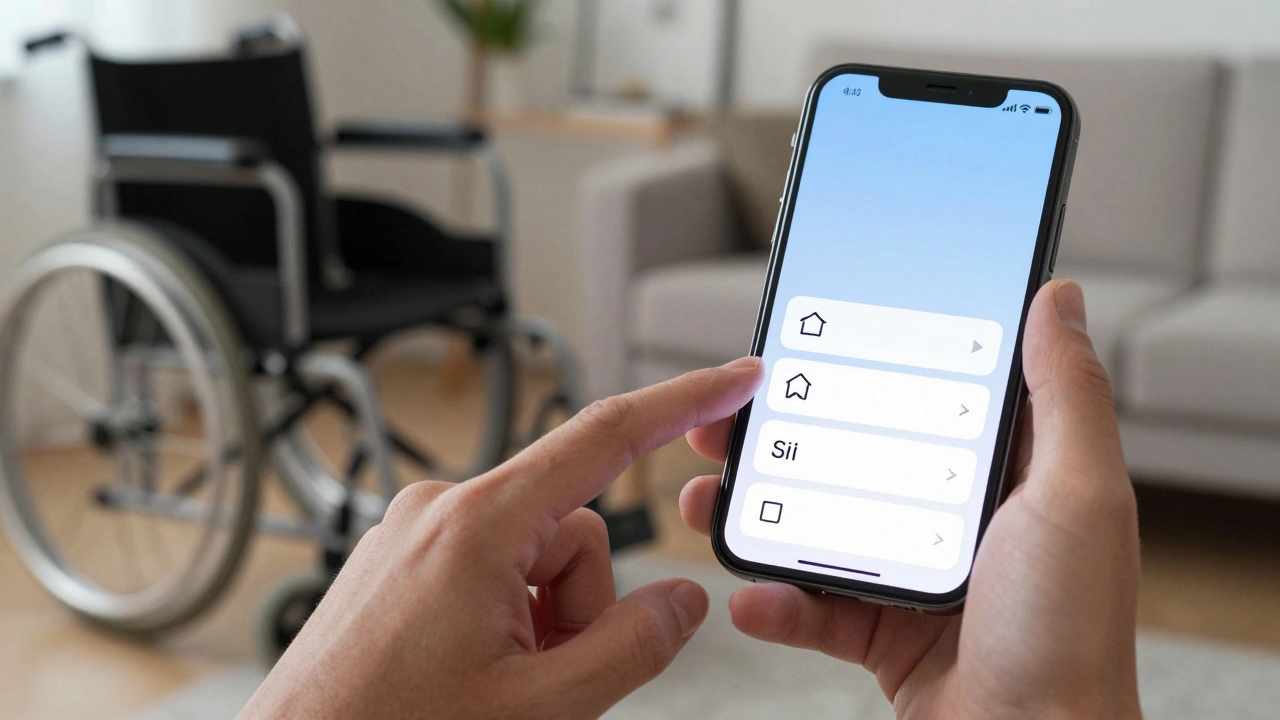
For users with limited mobility, interacting with a touchscreen can be physically exhausting. Traditional assistive technologies required precise taps. Apple’s AI-driven AssistiveTouch and predictive typing algorithms reduce the physical effort required. The keyboard learns your typing patterns. If you consistently misspell "Portland" as "Pordland," the AI adjusts its prediction model for you specifically. It doesn’t force standard dictionary rules; it adapts to your idiosyncrasies.
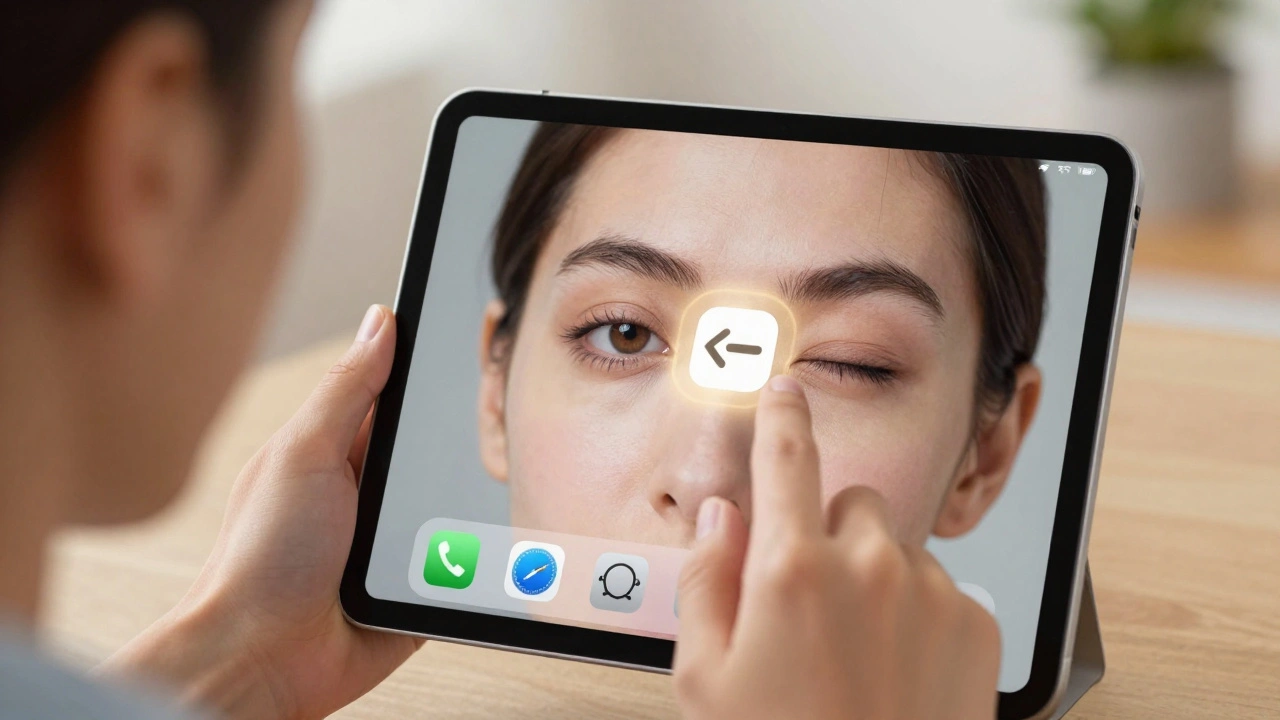
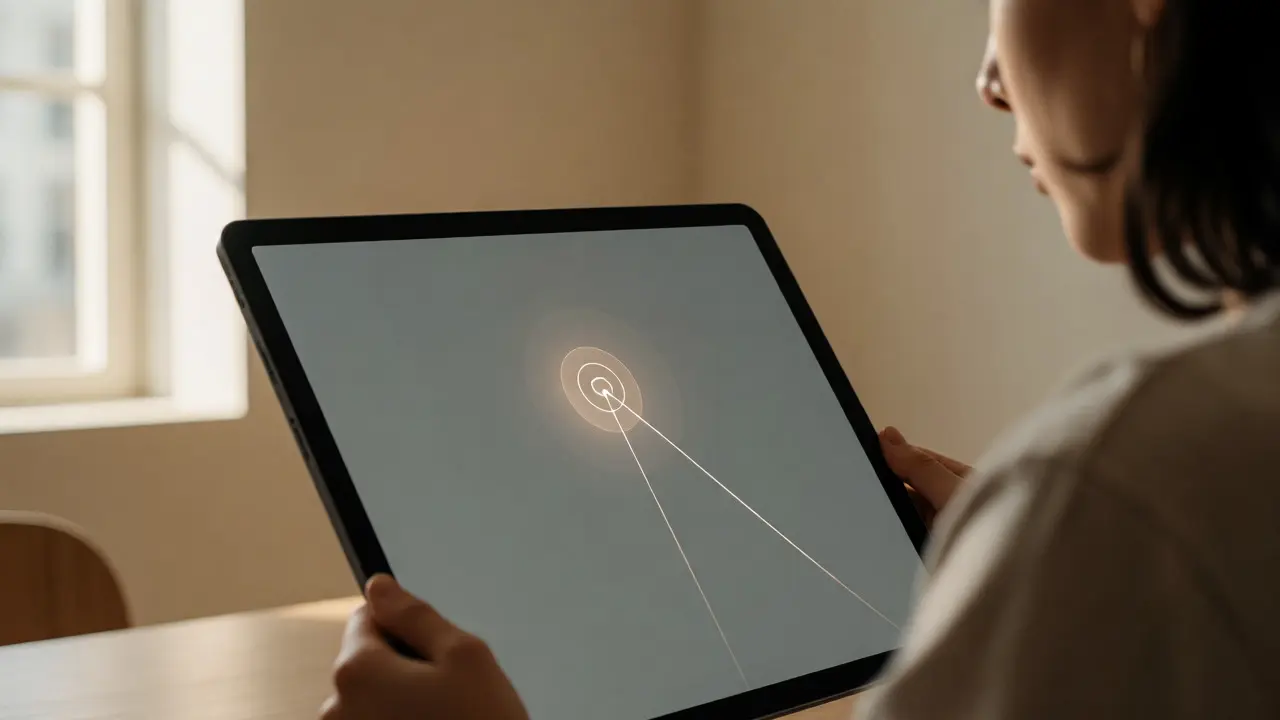
Eye tracking is another frontier where AI shines. On newer iPads, the front-facing camera tracks eye movement. The challenge isn’t just tracking; it’s distinguishing intentional gaze from casual glances. The AI analyzes dwell time and pupil dilation to determine focus. If you look at an icon for two seconds, it registers as a selection. If you glance away quickly, it ignores the input. This prevents accidental clicks, a common frustration for users with motor tremors. The system becomes more forgiving, understanding that human movement is rarely perfectly steady.
Privacy First: On-Device Processing
A major concern with AI is data privacy. Who hears your conversations? Who sees your photos? Apple’s approach to AI Integration prioritizes on-device processing. Most of the heavy lifting for accessibility features happens directly on the Neural Engine within your device. Your voice samples for Personal Voice stay on your iPhone. Your image analysis for Magnifier stays local. This means your sensitive health-related data-like speech patterns indicating Parkinson’s or vision habits-isn’t sent to a server farm in California.
This architecture respects user preferences by giving you control over what leaves your device. You decide if you want to share anonymized analytics to help improve Siri’s understanding of diverse accents. You decide if iCloud syncs your accessibility settings across devices. This transparency builds trust. Users are more likely to adopt advanced features if they know their data remains private. It shifts the narrative from "surveillance capitalism" to "personal utility."
How to Set Up Personalized AI Assistance
Getting started requires moving beyond the default settings. Here’s a practical checklist to optimize your experience:
- Voice Training: Spend ten minutes recording your voice for Personal Voice. Speak naturally, not robotically. The AI works best with authentic cadence.
- Sound Profiles: Create custom alerts for sounds relevant to your daily routine. Don’t just enable all categories; pick three critical ones to avoid alert fatigue.
- Magnifier Modes: Set up shortcuts for different detection modes (Text, Objects, People). Assign them to the back tap gesture for quick switching.
- Keyboard Learning: Use the same device for a week before expecting perfect predictions. The AI needs baseline data to understand your typing rhythm.
- Control Center Access: Add Accessibility Shortcuts to your Control Center. This allows you to toggle features like VoiceOver or Zoom without navigating deep menus.
Comparison of Key AI Accessibility Features
| Feature | Primary Function | AI Role | User Preference Control |
|---|---|---|---|
| Live Captions | Real-time transcription | Noise filtering & language detection | Select speakers, adjust font size |
| Personal Voice | Speech synthesis | Voice modeling & gap filling | Record duration, speaking rate |
| Magnifier | Object/text identification | Computer vision classification | Detection modes, contrast levels |
| Sound Recognition | Environmental alerts | Audio pattern matching | Custom sounds, alert method |
| Eye Tracking | Hands-free navigation | Gaze intention analysis | Dwell time, cursor speed |
Troubleshooting Common Issues
Sometimes, the AI gets too smart for its own good. If Live Captions transcribes silence as gibberish, check your microphone permissions. Ensure the app has access to audio input. If Personal Voice sounds robotic, try re-recording in a quieter room. Background noise confuses the voice model. For Magnifier, if it fails to detect text, ensure adequate lighting. Computer vision relies heavily on contrast. Adjusting the brightness on your screen can sometimes help the camera sensor capture clearer images.
Does Apple's AI accessibility send my data to the cloud?
Generally, no. Most accessibility AI features, such as Personal Voice and Live Captions, process data directly on your device using the Neural Engine. This ensures privacy and faster response times. Only certain non-critical analytics may be shared if you opt-in.
Can I use Personal Voice if I have a stutter?
Yes. The AI is designed to handle natural speech variations. While clear recordings yield the best results, the model can smooth out disfluencies while preserving the unique characteristics of your voice. Many users with speech impediments report more natural-sounding output compared to traditional text-to-speech engines.
How accurate is Sound Recognition?
Accuracy depends on the distinctiveness of the sound and environmental noise. Standard alerts like fire alarms are highly reliable. Custom sounds may require multiple training samples to achieve high accuracy. Reducing background noise improves performance significantly.
Do these features drain battery life?
Continuous features like Eye Tracking or active Magnifier usage do consume more power than standard operations. However, occasional use of Live Captions or Sound Recognition has a minimal impact. Battery optimization varies by device generation, with newer models handling AI tasks more efficiently.
Can I customize the AI's voice tone?
With Personal Voice, you can adjust the speaking rate and pitch slightly. However, the core tonal quality is derived from your recorded samples. The AI aims to replicate your natural voice rather than offering synthetic presets like 'cheerful' or 'serious' found in older TTS systems.