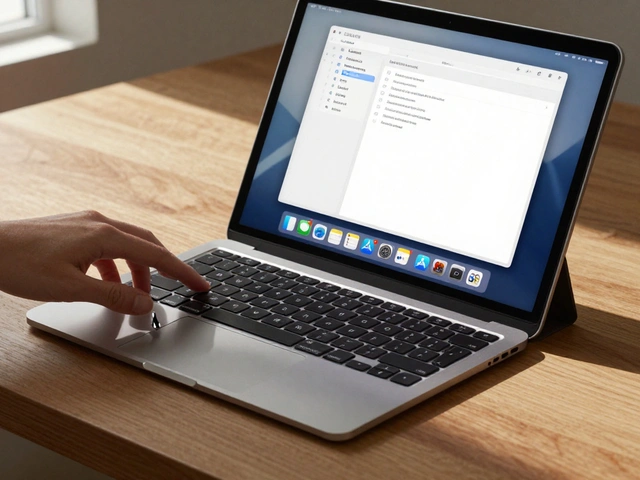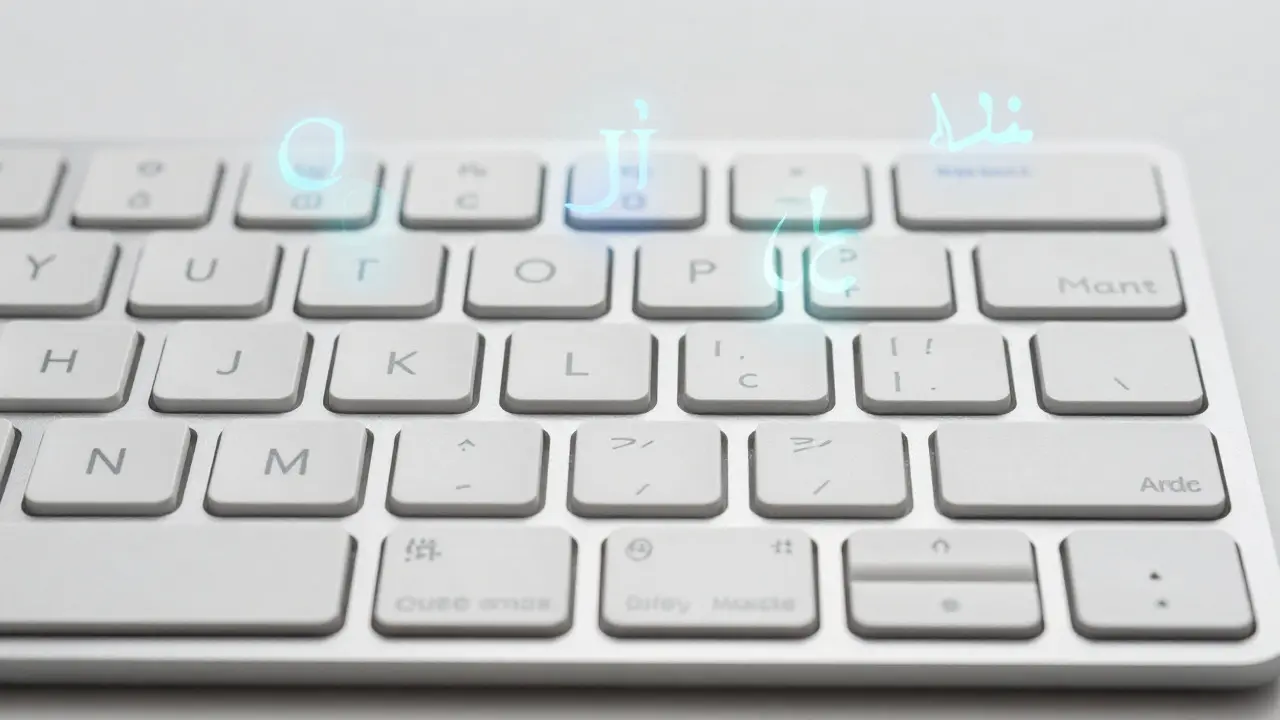

Ever tried to type a German umlaut or a Japanese kana on a standard US QWERTY keyboard? It’s a hassle. But on a MacBook, it’s often just one key press away. This isn’t an accident; it’s the result of decades of deliberate engineering by Apple. The MacBook keyboard is a physical interface designed to support multiple writing systems through software-defined mapping and hardware flexibility. Unlike many competitors who treat localization as an afterthought, Apple bakes internationalization into the core user experience.
The Physical vs. Logical Separation
To understand why MacBooks handle global languages so well, you have to look at how they separate the physical keys from their logical function. On most Windows laptops, the printed character on the keycap is hard-coded into the firmware or relies heavily on OS-level drivers that can be finicky. On a Mac, the ANSI layout serves as the baseline physical structure. The actual characters typed are determined by the operating system’s current input source.
This separation allows a single physical device to serve as a French AZERTY, a German QWERTZ, or a Spanish QWERTY without changing the hardware. The macOS operating system maps the scancodes sent by the keyboard to specific Unicode characters based on your selected language settings. This means if you buy a MacBook in Japan with a JIS layout, you can still switch to English (US) in System Settings and type perfectly, because the software knows exactly where every key is located relative to the US standard.
Why Apple Chose the ANSI Standard as the Base
Most MacBooks sold globally use the ANSI (American National Standards Institute) layout as their physical foundation, even in countries that traditionally use ISO layouts. Why? Because ANSI keyboards have a rectangular Enter key and a dedicated right-hand Shift key that is larger than its left counterpart. This geometry provides more room for complex modifier combinations required for non-Latin scripts.
Consider the implications for users in Europe. While Germany uses QWERTZ, the physical shape of the keys on a German MacBook is identical to a US MacBook. The difference is purely in the printing of the legends and the internal mapping. This strategy reduces manufacturing complexity. Apple doesn’t need to produce five different molds for the keyboard chassis; they need one robust chassis and then apply different laser-etched legends or stickers. This uniformity also makes spare parts universal. If you break a key on your MacBook Pro in Paris, the replacement keycap fits the same mechanism as one in New York.
Handling Non-Latin Scripts: CJK and Beyond
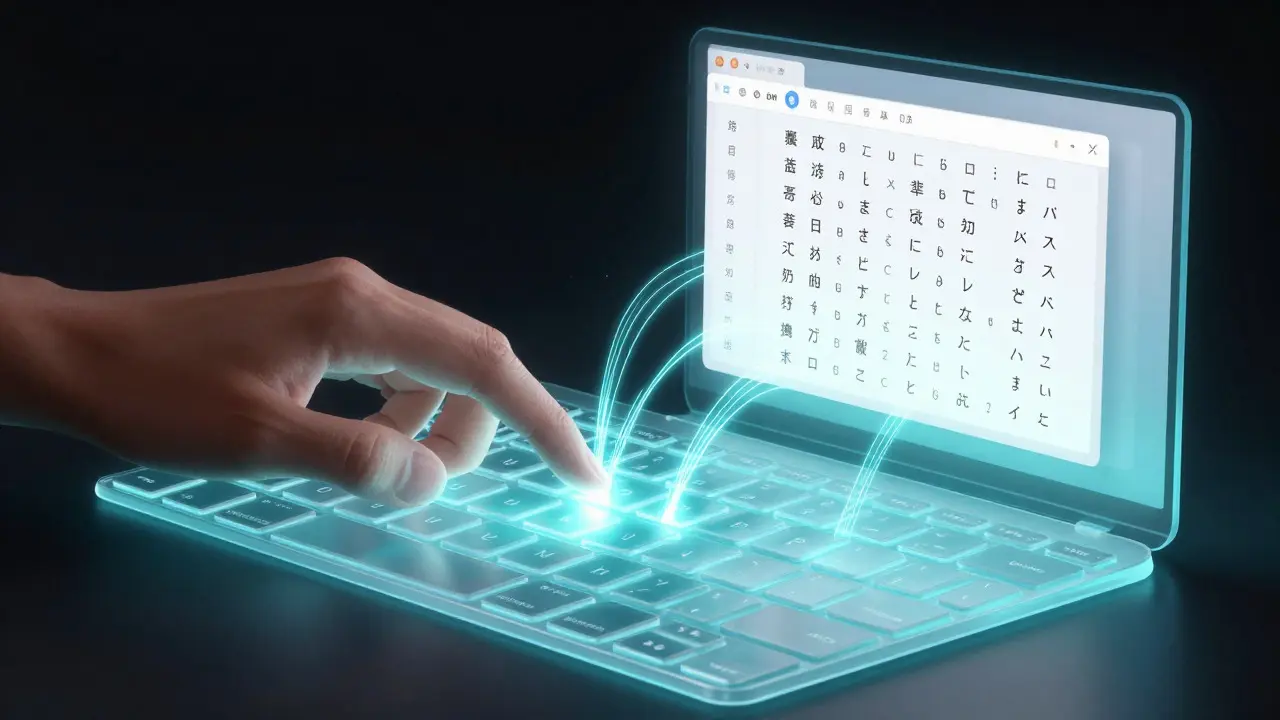
Internationalization gets tricky when you move beyond the Latin alphabet. For users in China, Japan, and Korea (CJK), typing involves Input Method Editors (IMEs). The Input Method Editor acts as a bridge between your physical keystrokes and the final characters displayed. When you switch to Pinyin on a Chinese MacBook, you aren’t typing Chinese characters directly; you are typing Romanized phonetic approximations, and the IME converts them into Hanzi.
Apple’s approach here is seamless integration. The Candidate window appears near your cursor, allowing you to select the correct character from a list of options. This process happens entirely within the macOS environment, meaning the latency is minimal compared to third-party plugins on other platforms. For Japanese users, the Himeji or Kotoeri input methods allow for direct Kanji entry using the keyboard’s alphanumeric keys, which is crucial for speed. The fact that these systems work reliably across all MacBook models-from the Air to the Pro-shows the depth of Apple’s commitment to this feature set.
The Role of the Touch Bar and Its Legacy
For several years, the MacBook Pro featured the Touch Bar, a dynamic OLED strip that replaced the physical function keys. While initially controversial, the Touch Bar had a hidden benefit for internationalization. It could display context-sensitive shortcuts for different input methods. For example, when typing in Arabic, the Touch Bar could show common diacritical marks that are difficult to reach on a standard QWERTY layout. Although Apple has since returned to a physical function row on newer models, the concept proved that dynamic interfaces can enhance accessibility for diverse linguistic needs.
Comparison: MacBook vs. Windows Laptops in Localization
How does this compare to the competition? Windows laptops often struggle with consistency. A Dell XPS might come with a US layout, but if you want to type in Polish, you might find that the semicolon and colon are swapped, requiring you to mentally remap your muscle memory. On a MacBook, the switching is instant and consistent. Here is a quick comparison of how the two ecosystems handle multi-language typing:
| Feature | MacBook (macOS) | Windows Laptop (Typical) |
|---|---|---|
| Layout Switching | Instant via Control + Space | Varies; often requires Alt+Shift or menu navigation |
| Physical Consistency | Uniform ANSI base globally | Varies by region (ISO vs ANSI) |
| IME Integration | Native, low-latency system-wide | Dependent on third-party or MS Store apps |
| Key Replacement | Universal parts across regions | Region-specific parts often required |
Practical Tips for Multilingual Typists
If you frequently switch between languages, mastering the shortcuts is essential. By default, macOS uses Control + Space to cycle through your enabled input sources. You can customize this in System Settings under Keyboard. Another powerful feature is the ability to create custom shortcuts for specific symbols. For instance, if you often need to type the Euro symbol (€), you can assign it to Option+2. These small adjustments reduce cognitive load and keep your typing flow uninterrupted.
Also, consider the font rendering. macOS uses Core Text, which handles complex script shaping automatically. This means that if you are typing in Thai or Devanagari, the vowels and consonants will combine correctly without manual intervention. This level of typographic sophistication is rare in consumer hardware and speaks to the holistic design philosophy behind the MacBook.
Frequently Asked Questions
Can I change the keyboard layout on my MacBook without changing the language?
Yes. In System Settings, go to Keyboard > Input Sources. You can add a different layout (like ABC - Hebrew or Dvorak) without changing your system language. This changes only how keys map to characters, not the interface language.
Why do some MacBooks have different key shapes in Europe?
While the underlying chassis is often the same, regulatory requirements and user preference sometimes lead to ISO-compliant layouts with staggered rows in certain markets. However, recent models have trended toward a unified ANSI design for manufacturing efficiency, with software handling the rest.
Does the MacBook support dead keys for accented characters?
Yes. Most European layouts on macOS support dead keys. For example, pressing the accent key and then 'e' produces 'é'. This is handled natively by the macOS text engine, ensuring compatibility with almost all applications.
Is the Touch Bar necessary for typing foreign languages?
No. The Touch Bar was a convenience feature that provided visual aids for input methods. All functionality is available via the standard keyboard and mouse/trackpad interactions. The return to physical function keys has not diminished the ability to type in any supported language.
How does macOS handle bidirectional text like Arabic or Hebrew?
macOS uses the Unicode Bidirectional Algorithm (UBA) to manage text direction. When you switch to an RTL (Right-to-Left) input source, the cursor moves to the right, and punctuation mirrors accordingly. This works seamlessly in browsers, word processors, and code editors.