
Have you ever started typing an email on your Mac, then walked to the kitchen, grabbed your iPhone, and picked up right where you left off-no copying, no pasting, no fuss? That’s not magic. It’s State Restoration on Apple, and it’s working harder than you think.
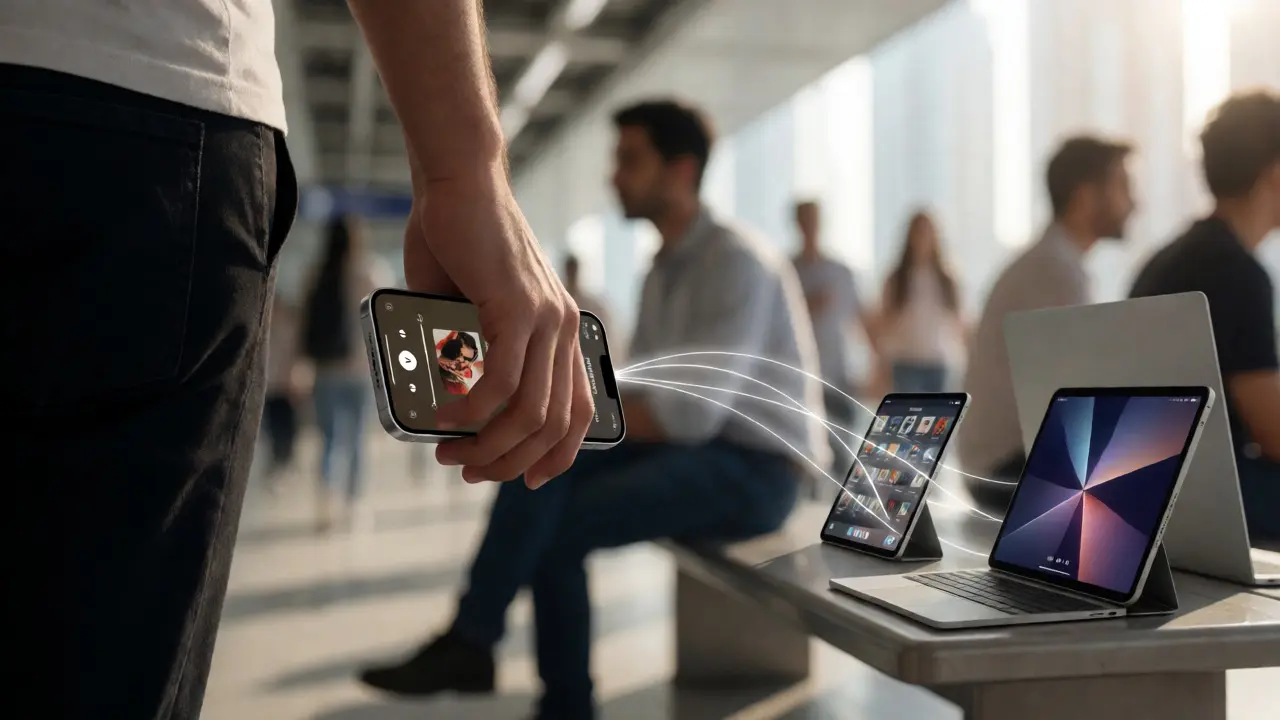
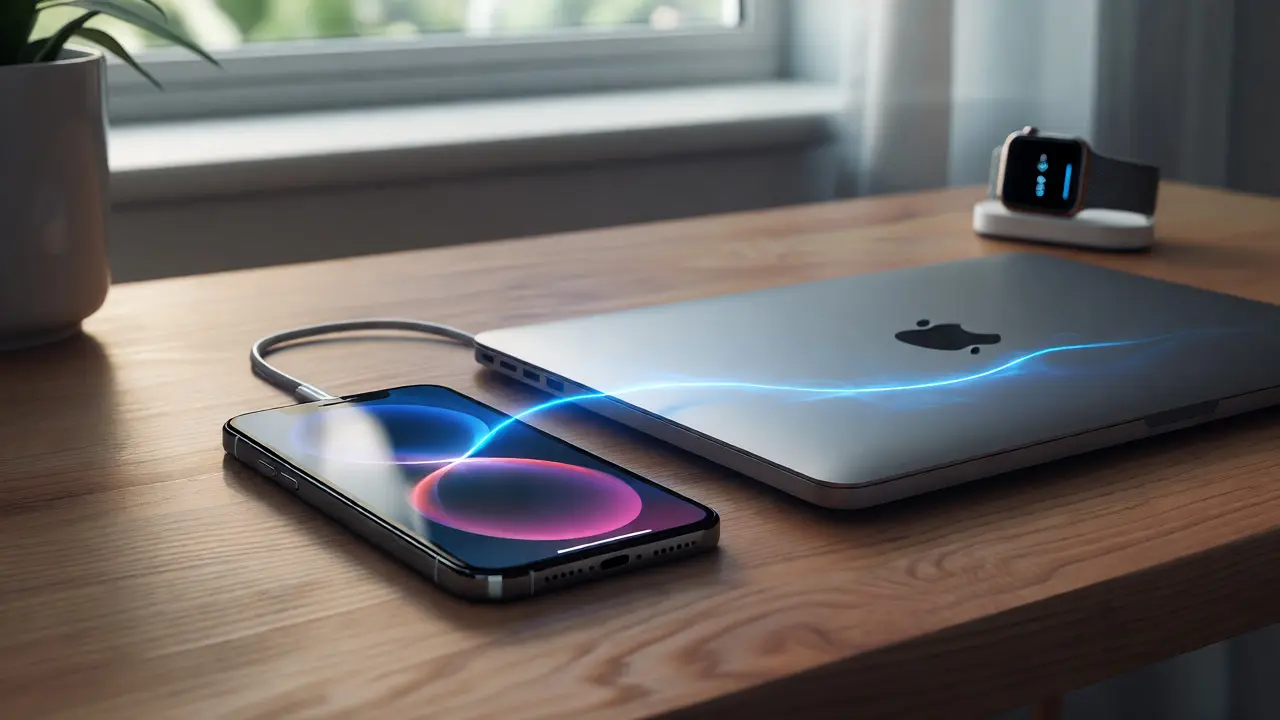
Apple doesn’t just make devices. It makes them work together like parts of one machine. Your iPhone, iPad, Mac, Apple Watch, and even Apple Vision Pro aren’t separate tools. They’re extensions of each other. And the glue holding them together? State restoration. It’s not about syncing files. It’s about syncing what you were doing.
How Handoff Keeps Your Work Alive
Handoff is the quiet hero of Apple’s ecosystem. It doesn’t shout. It doesn’t ask for permission. It just knows.
Open Safari on your Mac, click a link, then walk over to your iPhone. There it is-right at the bottom of the App Switcher: a small preview of the webpage you were reading. Tap it, and you’re back in the exact same spot. No bookmarks. No history hunting. No copy-pasting URLs.
It works the same way with Messages. Drafting a long text? Finish it on your iPad. Starting a Mail thread on your iPhone? Complete it on your Mac. Even third-party apps like Notion, Slack, and Adobe apps support Handoff if they’re built for it.
Here’s the catch: Handoff doesn’t work if your devices aren’t on the same Wi-Fi, signed into the same Apple ID, and have Bluetooth turned on. It’s simple, but it’s non-negotiable. And it’s bidirectional. If you start something on your iPhone, you’ll see its icon in the Dock on your Mac. If you’re on your iPad, your Mac shows up on the iPad’s multitasking bar. It’s not just continuity-it’s conversation.
Universal Clipboard: Copy One Place, Paste Anywhere
Remember when you had to email yourself a password or send a photo via iMessage just to get it from your phone to your laptop? That’s gone.
Universal Clipboard lets you copy text, images, videos, even files from any Apple device and paste them on another-no waiting, no AirDrop, no file transfer apps. Copy a phone number on your iPhone? Paste it into a Word doc on your Mac. Take a screenshot on your iPad? Paste it into a PowerPoint on your Mac. It’s instant. It’s silent. And it works as long as your devices are nearby and connected.
It’s not just convenient-it’s a time-saver in workflows that used to involve three steps. Need to write a note from a receipt? Snap a photo on your iPhone, copy it, paste it into Notes on your Mac. Done. No extra app. No cloud upload. Just copy and paste.
Continuity Camera: Turn Your iPhone Into a Pro Webcam
Video calls on your Mac? Your iPhone can be the camera.
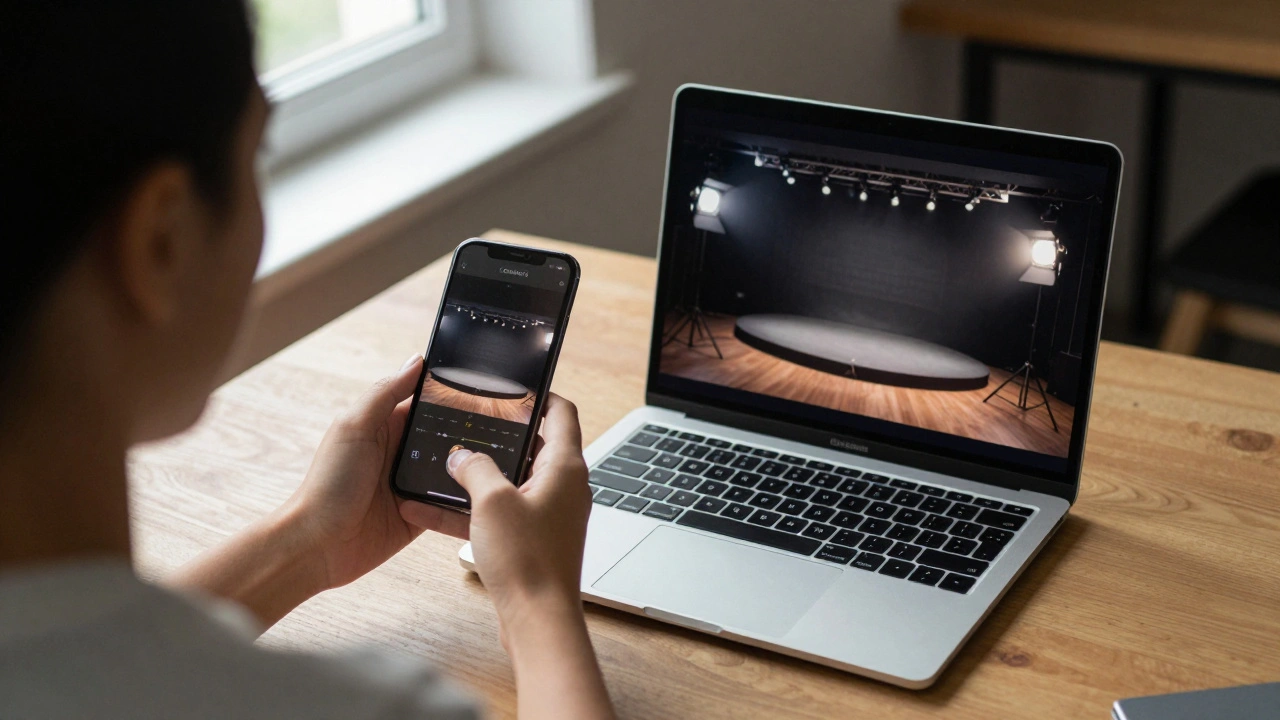
With Continuity Camera, you don’t need a separate webcam. Just bring your iPhone close to your Mac. Open FaceTime, Zoom, or Teams. Your iPhone automatically shows up as a camera option. You can even use advanced features like Center Stage-it keeps you centered as you move. Desk View lets you show both your face and your workspace at once. Studio Light adjusts lighting so you look good even in dim rooms. Reactions? Wave your hand, and a heart or thumbs-up appears on screen.
Requirements? Your iPhone needs iOS 16 or later. Your Mac needs macOS Ventura 13 or later. Want background replacement? You’ll need macOS Sonoma 14.1. The feature keeps getting smarter. And it’s built right into the operating system. No drivers. No software installs. Just plug in your iPhone and go.
iPhone Mirroring: Control Your Phone From Your Mac
What if you could use your iPhone without touching it?
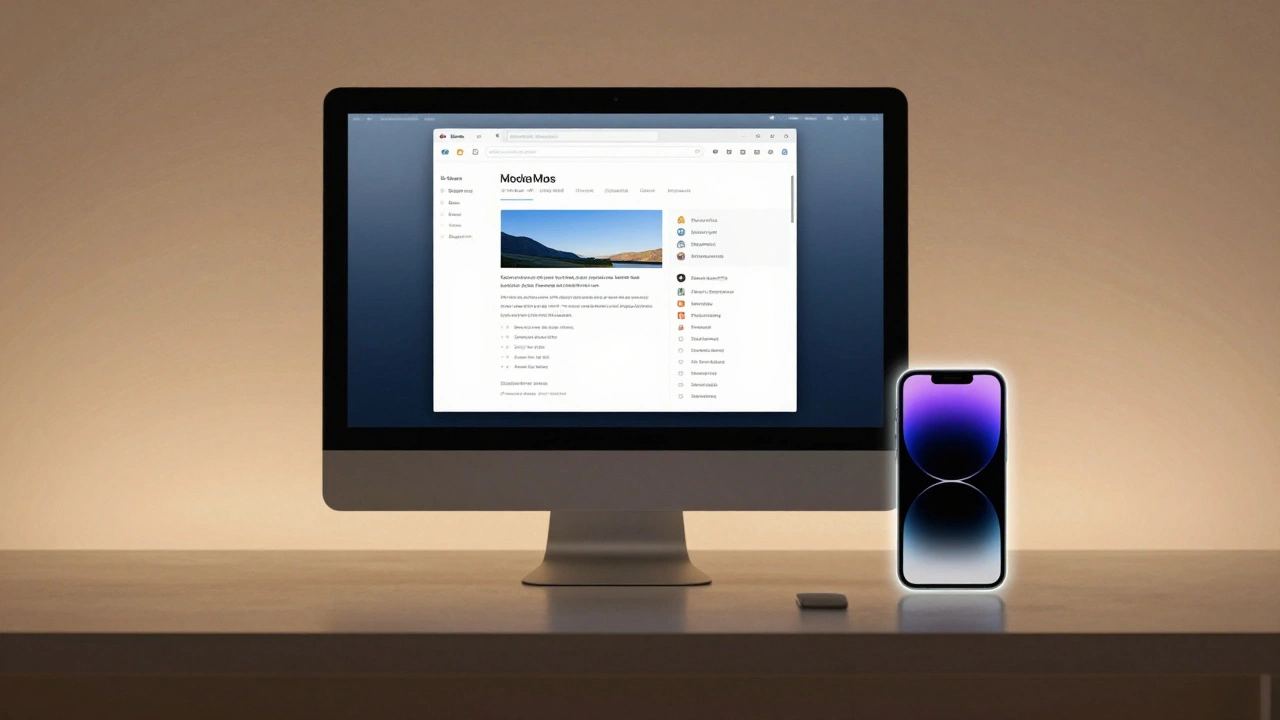
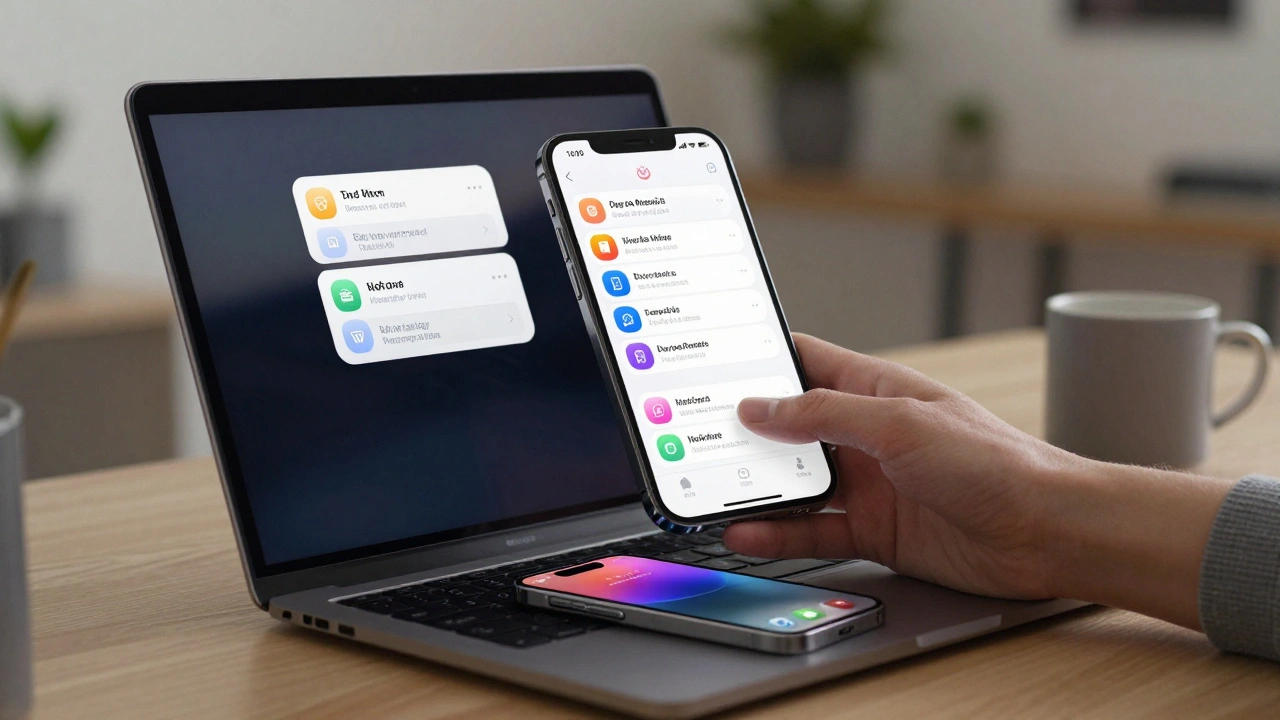
iPhone Mirroring, introduced with macOS Sequoia 15 and iOS 18, lets you see and control your iPhone directly on your Mac screen. Notifications appear live. Apps run in real time. You can tap, scroll, type, and swipe-all from your Mac’s trackpad or mouse.
And here’s the smart part: your iPhone stays locked. No one can pick it up. But you can still respond to messages, check your calendar, or open an app on your phone without ever reaching for it. It’s perfect if you’re at your desk and your phone is in your pocket. Or if you’re multitasking and need quick access to a mobile app.
Live Activities-like ride-tracking, food delivery updates, or sports scores-also appear on your Mac. You don’t need to unlock your phone to see them. Just glance at your Mac screen. It’s state restoration applied to notifications.
Import from iPhone: Scan, Shoot, and Save Without Moving Files
Need a photo for a document? Instead of opening the Photos app, emailing it to yourself, then downloading it on your Mac-just use Import from iPhone.
In Preview, go to File > Import from iPhone > Take Photo. Your iPhone’s camera opens. You snap the shot. The image appears instantly on your Mac, ready to edit or insert into a PDF. No AirDrop. No waiting. No cluttered downloads folder.
It’s not just for photos. You can scan documents, receipts, or whiteboards. The Mac treats the image like it was captured natively. This isn’t file sharing. It’s state extension. Your Mac doesn’t just receive a file-it receives the action of capturing it.
The Hidden Rules: What Must Be True for This to Work
Apple’s Continuity features don’t work by accident. They work because of three non-negotiable conditions:
- All devices must be signed into the same Apple ID.
- All devices must be on the same Wi-Fi network.
- Bluetooth must be turned on.
That’s it. No extra apps. No settings toggles. No manual pairing. Just sign in once, keep your devices updated, and they’ll stay in sync.
And yes-each feature has its own OS version requirements. Handoff? Works on macOS 10.10 and iOS 8. iPhone Mirroring? Needs macOS Sequoia 15 and iOS 18. Continuity Camera? Requires macOS Ventura 13. You can’t mix old and new blindly. But Apple updates its ecosystem steadily. If you’re on recent versions, everything just works.
More Than Just Features: A New Way to Work
This isn’t about convenience. It’s about removing friction from how you think.
Before Continuity, you had to think in terms of devices: “I’ll do this on my phone,” “I’ll finish that on my laptop.” Now, you think in terms of tasks. Wherever you are, whatever device you pick up, the work follows you.
Phone calls? They ring on your Mac. Answer them with your keyboard. Apple Pay on your Mac? Approve it with your Apple Watch. Your Apple Watch can even unlock your Mac without a password.
And that’s just the start. There are more Continuity features-like automatic hotspot switching when Wi-Fi drops, or text message forwarding to all your devices. Apple doesn’t advertise them all. They just work.
Why This Matters More Than You Think
Other companies try to sync devices. Apple makes them disappear.
Google and Microsoft offer similar features, but they’re patchy. Your phone might mirror to your PC, but only if you install an app. Your clipboard might sync, but only if you’re on the same network and signed in with the right account-and even then, it’s unreliable.
Apple’s approach is different. It’s built into the OS. It’s encrypted end-to-end. It doesn’t rely on cloud uploads. It uses local Bluetooth and Wi-Fi signals to create a private, low-latency mesh between your devices. The result? Near-instant state transfer with zero delay.
And it’s not going away. Apple keeps adding to it. With macOS Tahoe 26 and iOS 19 on the horizon, Live Activities and deeper app integrations are coming. State restoration isn’t a feature. It’s the foundation of Apple’s future.
If you own more than one Apple device, you’re already using Continuity. You just don’t realize how much.
Why doesn’t Handoff show up on my Mac?
Handoff only appears if your iPhone and Mac are signed into the same Apple ID, on the same Wi-Fi network, and have Bluetooth turned on. Also, make sure Handoff is enabled: go to System Settings > General > AirPlay & Handoff on your Mac, and Settings > General > Handoff on your iPhone. If you’re on an older OS version, some apps may not support it.
Can I use iPhone Mirroring with an Intel Mac?
No. iPhone Mirroring requires a Mac with Apple silicon (M1, M2, M3 chips) or a Mac with the Apple T2 Security Chip. Intel-based Macs do not support this feature, even if they run macOS Sequoia 15. Apple only enabled it on devices with the necessary hardware for secure, low-latency wireless display.
Does Universal Clipboard work with non-Apple devices?
No. Universal Clipboard only works between Apple devices signed into the same Apple ID. It does not work with Android phones, Windows PCs, or Chromebooks. Apple uses a proprietary protocol over Bluetooth and Wi-Fi that’s not open to third-party platforms.
What happens if I turn off Bluetooth on one device?
Turning off Bluetooth breaks the local mesh network that Continuity relies on. Handoff, Universal Clipboard, and iPhone Mirroring will stop working until Bluetooth is turned back on. Wi-Fi alone isn’t enough. Bluetooth is used to detect nearby devices and trigger state transfers instantly.
Can I use Continuity Camera with Zoom on Windows?
No. Continuity Camera only works with macOS apps like FaceTime, Zoom, Microsoft Teams, and Webex when running on a Mac. It does not function on Windows PCs, even if you connect your iPhone via USB. The feature is tightly integrated with Apple’s video frameworks and is not available outside the Apple ecosystem.
If you’re using multiple Apple devices, you’re already living in a world where state restoration is the norm. The trick isn’t learning how to use it-it’s noticing how often it’s already helping you.