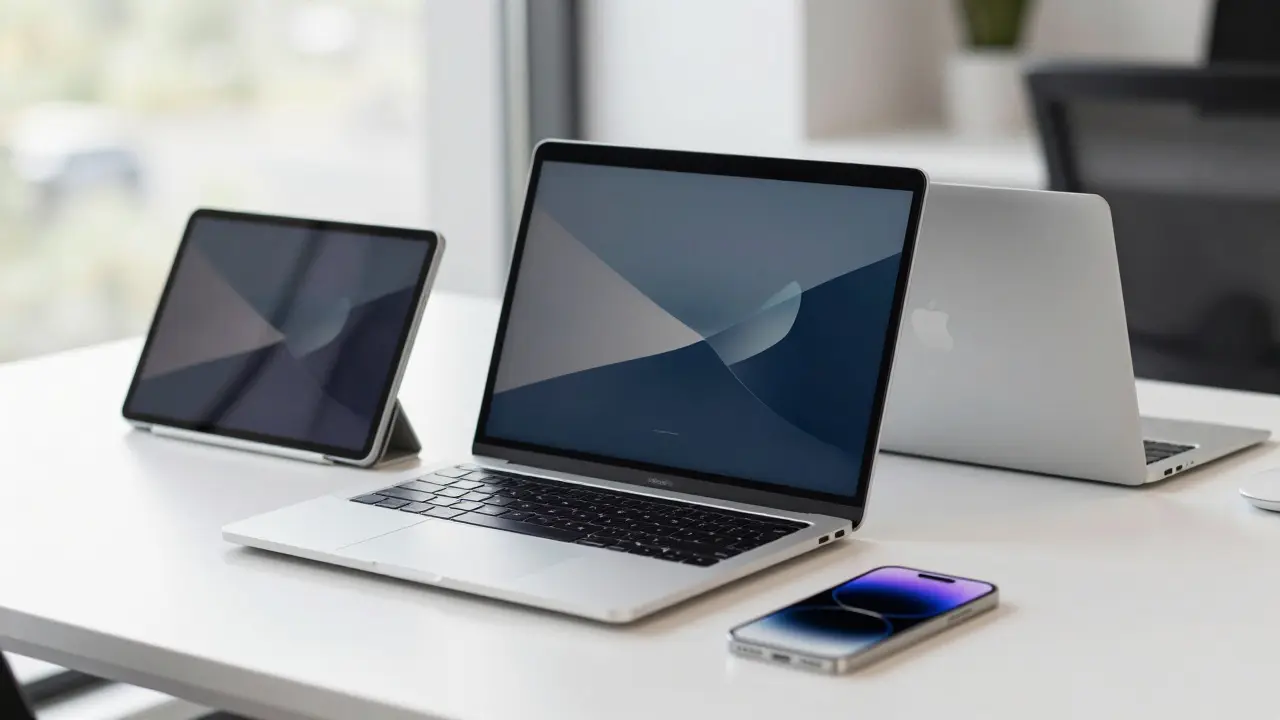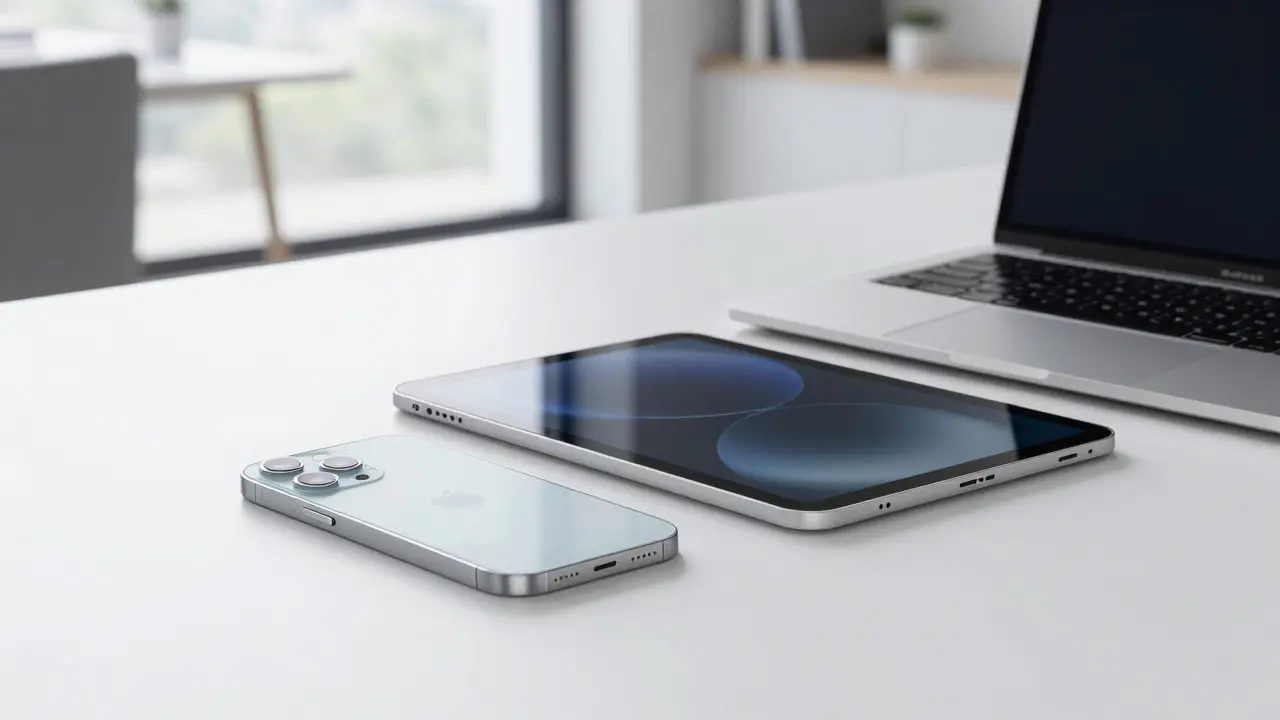

There is a specific feeling you get when you tap an icon on your iPhone and the app opens instantly. It’s not just speed; it’s consistency. In 2026, the Apple ecosystem is defined less by raw horsepower and more by how seamlessly data moves between devices. When you copy text on an iPad, paste it on a Mac, and watch a video continue on Apple TV without buffering, that is the standard. But what actually drives this responsiveness? It isn’t magic. It’s a tightly controlled stack of hardware, software, and network protocols designed to minimize friction.
Many users assume that newer chips automatically mean better performance across all Apple products. While true for heavy tasks like video editing, everyday responsiveness depends on something else: input latency and state synchronization. If your MacBook Pro feels sluggish while your iPhone feels snappy, the issue likely isn’t the processor-it’s how the operating system handles background processes and user interface rendering. Understanding these mechanics helps you troubleshoot issues before they become frustrating.
The Core of Responsiveness: Hardware-Software Integration
Silicon architecture plays a foundational role here. Since the shift to custom Apple Silicon, the gap between CPU and GPU performance has narrowed significantly. This means that UI animations, which rely heavily on graphical processing, no longer bottleneck the central processing unit. For example, the M4 chip found in recent iPads and MacBooks handles complex vector graphics with such efficiency that scrolling through long documents remains at a consistent 120Hz refresh rate, even with multiple apps running in the background.
However, hardware alone doesn’t guarantee smoothness. The real work happens in the display pipeline. Apple uses a technology called ProMotion on its high-end displays, which adapts the refresh rate from 1Hz up to 120Hz depending on content. On static screens, the display drops to 1Hz to save battery, but the moment you touch the screen, it ramps up to 120Hz within milliseconds. This transition must be imperceptible. If there is any lag during this ramp-up, the interface feels "janky." Apple engineers tune the driver firmware specifically to ensure this handoff takes less than 8 milliseconds, a threshold below which human perception registers motion as fluid rather than stuttering.
Input Latency: The Invisible Metric
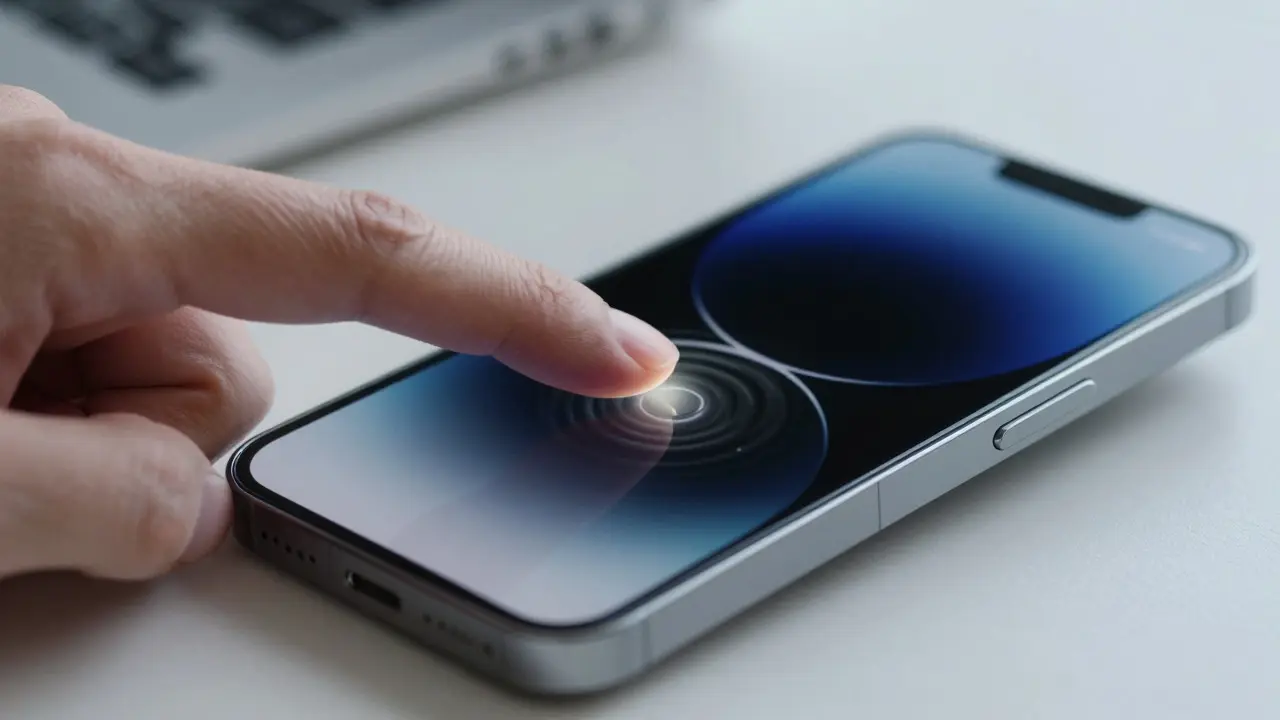
When we talk about responsiveness, most people think of load times. But for daily use, input latency is far more critical. Input latency is the time between your finger touching the glass and the pixel changing color on the screen. On a standard Android phone, this can range from 30ms to 50ms. On modern iPhones and iPads, Apple targets a sub-20ms experience for core interactions like scrolling and tapping.
This low latency is achieved through a direct path between the digitizer sensor and the display controller, bypassing some traditional software layers. Here is why this matters in practice:
- Typing: Low latency makes typing feel immediate. If there is a delay, your brain anticipates the character appearing, and the slight pause breaks the flow.
- Gaming: For competitive players, every millisecond counts. A 15ms difference in touch response can determine whether you dodge an attack or miss it.
- Navigation: Swiping through maps or social feeds requires constant micro-adjustments. High latency makes these gestures feel "floaty" or unresponsive.
Interestingly, this standard applies differently across the ecosystem. An external keyboard connected to an iPad via Bluetooth may introduce additional latency compared to the built-in trackpad or touchscreen. This is because wireless communication adds transmission delays. Apple mitigates this by prioritizing keyboard input signals in the OS scheduler, ensuring that keystrokes are processed with higher priority than background notifications.
Seamless Handoffs: Continuity and State Sync
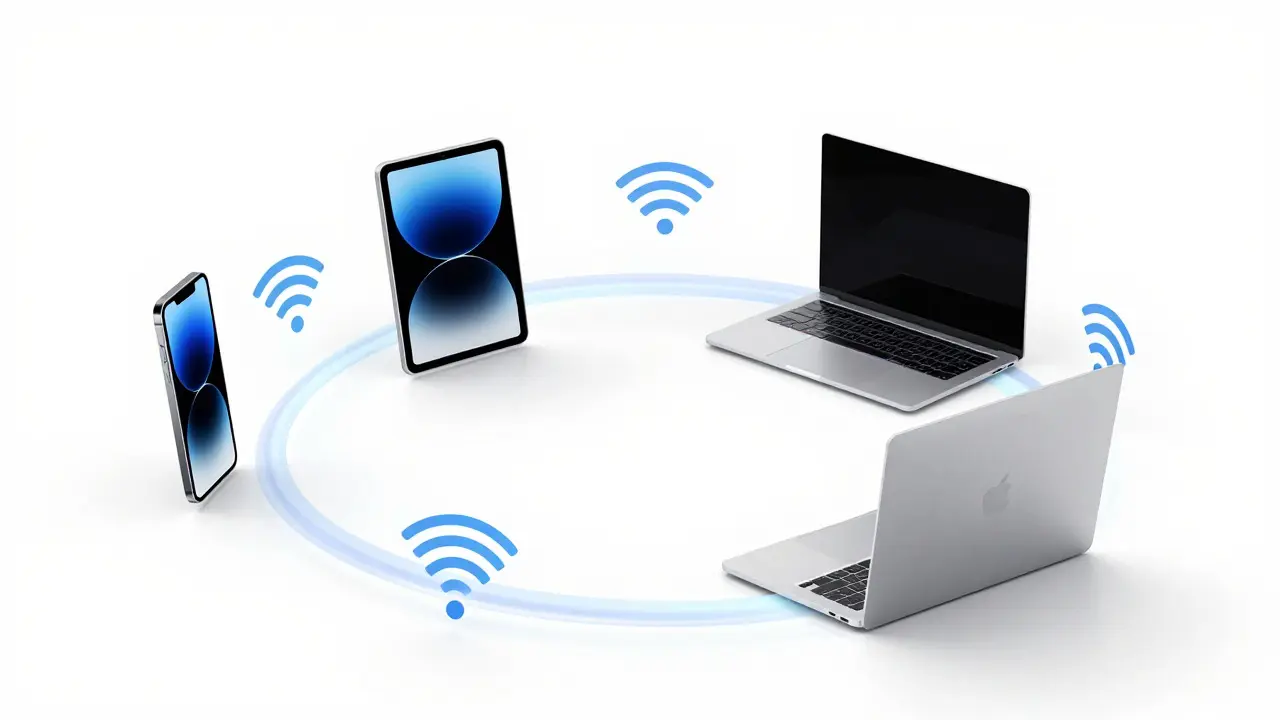
One of the unique selling points of the Apple ecosystem is Continuity. Features like Universal Clipboard, Handoff, and AirDrop rely on fast local networking. Unlike cloud-based sync, which depends on internet speed, Continuity uses Wi-Fi Direct and Bluetooth Low Energy (BLE) to transfer data locally between devices. This keeps latency under 50ms for small files like text snippets or images.
Consider a workflow where you are drafting an email on your iPhone. You switch to your Mac to attach a file from your desktop. With Handoff, the email draft appears in the Mail app on your Mac almost instantly. Behind the scenes, the devices negotiate a secure connection, verify identity via iCloud keys, and transfer the session state. If this process takes more than two seconds, the illusion of a single device breaks. Users perceive it as a glitch. To maintain the standard, Apple optimizes these handshake protocols to occur in the background whenever devices are in proximity, pre-establishing connections before you even need them.
| Device Type | Avg. Touch Latency | Refresh Rate Support | Handoff Initiation Time | Primary Use Case |
|---|---|---|---|---|
| iPhone 17 Pro | < 18ms | 120Hz (ProMotion) | ~1.2s | Mobile productivity, media consumption |
| iPad Pro M4 | < 15ms | 120Hz (ProMotion) | ~0.9s | Creative work, multitasking |
| MacBook Pro M4 Max | N/A (Trackpad ~20ms) | 120Hz (Liquid Retina XDR) | ~1.5s | Professional development, editing |
| Apple Watch Ultra 2 | < 25ms (Haptic) | Fixed 60Hz | N/A | Notifications, health tracking |
Note that the Apple Watch operates on different standards. Its smaller screen and haptic feedback system prioritize energy efficiency over absolute speed. A 25ms haptic response feels crisp because the tactile sensation is distinct from visual motion. However, if you try to perform complex gestures on a watch face, the lower refresh rate and higher latency become noticeable. This is intentional design: the watch is for quick glances, not sustained interaction.
Network Dependencies and Cloud Sync
While local operations are fast, many modern workflows depend on the cloud. iCloud syncs photos, notes, and settings across devices. The responsiveness of these services depends entirely on your internet connection. However, Apple has implemented aggressive caching strategies to reduce perceived wait times.
For instance, when you open Photos on your iPhone, you see thumbnails immediately because they are stored locally. Full-resolution images download in the background. If you swipe quickly, the next thumbnail loads from cache, not the server. This creates an illusion of infinite speed. The key metric here is time to first byte (TTFB) for metadata requests. Apple’s servers are optimized to return lightweight JSON data in under 100ms globally, allowing the UI to populate instantly while heavy assets stream in later.
If you experience slow syncing, it’s rarely an Apple hardware issue. It’s usually one of three things:
- Wi-Fi Congestion: Too many devices on the 2.4GHz band. Switching to 5GHz or 6GHz (Wi-Fi 6E) reduces interference.
- Background Updates: Large iOS or macOS updates downloading simultaneously with your activity. Pause updates during critical work sessions.
- Storage Saturation: When your SSD is nearly full, write speeds drop. Keeping 10% of storage free maintains optimal performance.
Troubleshooting Sluggishness: Practical Steps
Even the best ecosystem can suffer from bloat. Over time, apps accumulate cache, and background processes can conflict. If your devices feel slower than they did out of the box, follow this diagnostic sequence:
Step 1: Check Thermal Throttling. If your device is warm, the CPU reduces clock speed to prevent overheating. This causes temporary slowdowns. Let the device cool down for 10 minutes and test again.
Step 2: Reset Network Settings. Corrupted DNS caches or saved Wi-Fi profiles can cause sync delays. Go to Settings > General > Transfer or Reset > Reset Network Settings. Note that this erases saved passwords, so have them ready.
Step 3: Monitor Battery Health. On iPhones and MacBooks, degraded batteries can limit peak power delivery. If battery health is below 80%, consider a replacement. This restores full performance headroom.
Step 4: Update All Devices Simultaneously. Version mismatches between iOS and macOS can break Continuity features. Ensure all devices are on the latest stable release to maintain protocol compatibility.
Frequently Asked Questions
Why does my iPad feel faster than my iPhone?
It’s often due to the larger screen area and higher refresh rate implementation. iPads typically run at 120Hz consistently during active use, while iPhones may throttle to 60Hz in certain modes to save battery. Additionally, the iPad’s larger thermal mass allows it to sustain higher performance levels without throttling as quickly as a compact iPhone.
Does using an external monitor affect MacBook responsiveness?
Yes, potentially. Driving two high-resolution displays increases GPU load. If your external monitor runs at 4K or higher, the integrated GPU works harder, which can slightly increase input latency. Using a Thunderbolt dock with direct connection minimizes this impact compared to HDMI adapters.
What is the ideal Wi-Fi standard for fast Apple ecosystem sync?
Wi-Fi 6E or Wi-Fi 7 is recommended. These standards offer lower latency and higher throughput on the 6GHz band, which is less congested. For large photo library syncs, Wi-Fi 6E can complete transfers 30% faster than Wi-Fi 5 due to wider channel bandwidths.
Can third-party keyboards match the responsiveness of Apple Magic Keyboards?
Generally, yes, but with caveats. Most quality Bluetooth keyboards have similar latency (~20-30ms). However, Apple Magic Keyboards benefit from tighter integration with the OS, offering features like backlit brightness adjustment and seamless pairing. For pure typing speed, the difference is negligible, but for system-level shortcuts, native support is smoother.
How do I check if my device is thermally throttling?
You can use third-party apps like iStat Menus for Mac or Gadget Bridge for iOS to monitor CPU temperature and clock speeds. If the temperature exceeds 85°C and clock speeds drop significantly, you are experiencing thermal throttling. Moving to a cooler environment or removing cases can help mitigate this.