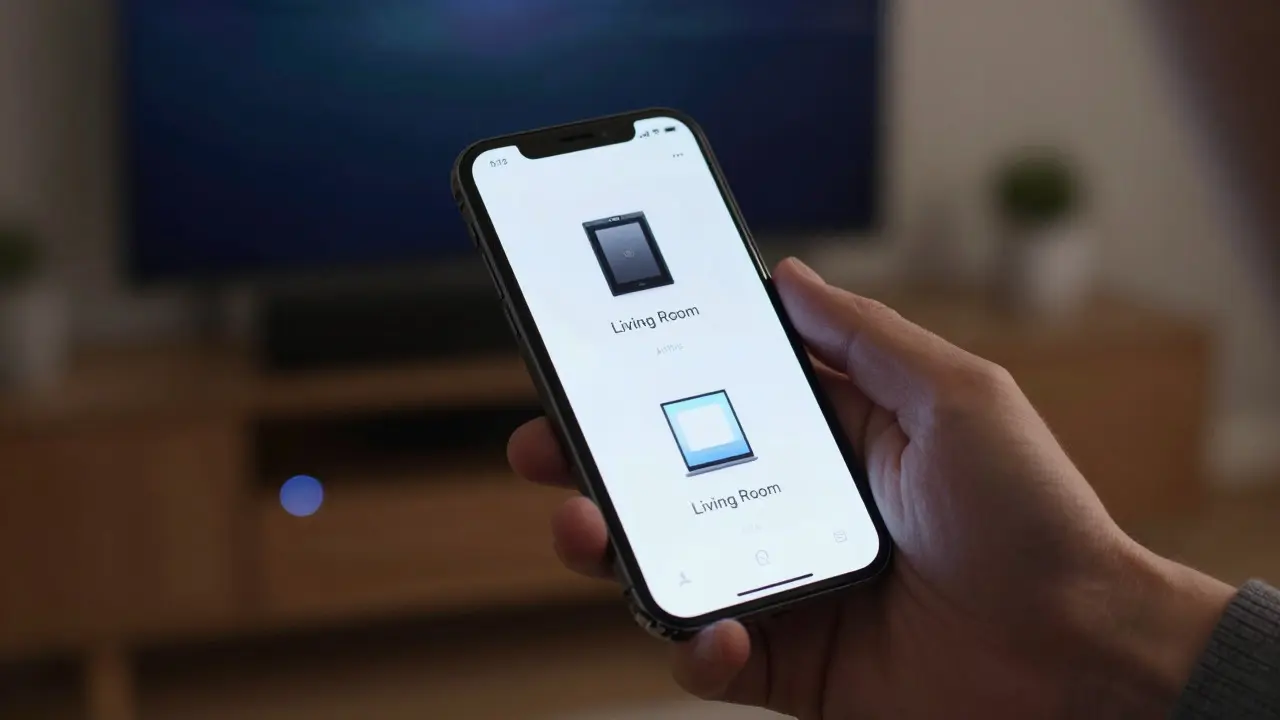

You know the feeling. You’re standing in your living room, phone in hand, trying to push a song to your TV. You tap the AirPlay icon, wait for the spinner, and then... nothing. Or worse, you see three devices with names like "Living Room," "Living Room (2)," and "Living Room - Old." Which one is the new smart TV? Which one is the soundbar? And why did the volume slider just disappear from your lock screen?
This isn’t just an annoyance; it’s a breakdown in Human-Computer Interaction within the Apple ecosystem. For years, Apple has prioritized seamless connectivity under the hood, but the user interface often fails to communicate what is actually happening. The gap between technical capability and user understanding is where frustration lives. If you are a designer, developer, or just someone who hates guessing which speaker is active, this article breaks down why current AirPlay and casting experiences feel broken and how we can fix them.
The Invisible Handshake Problem
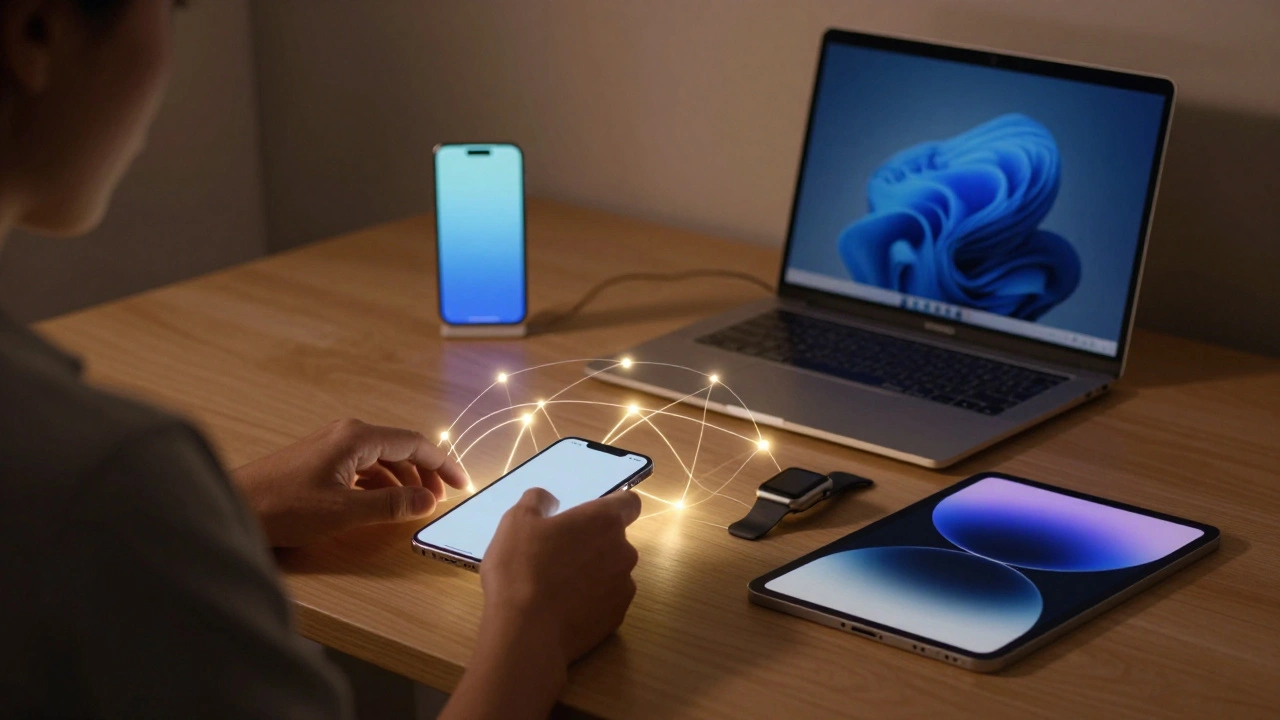
At its core, AirPlay is a proprietary protocol developed by Apple that allows media playback over Wi-Fi. Unlike Bluetooth, which pairs explicitly, AirPlay uses Bonjour service discovery to find devices automatically. This magic is great until it isn’t. When the handshake fails, the UI offers little explanation. Did the Wi-Fi drop? Is the firmware outdated? Is the device asleep?
Current interfaces treat discovery as a binary state: found or not found. They don’t show the *process*. In a well-designed system, if a device takes five seconds to appear, the UI should acknowledge the search effort. Instead, users often assume their phone is broken because there is no feedback loop. We need interfaces that visualize the connection attempt, perhaps showing a subtle pulse animation that transitions into a solid link indicator only after successful negotiation.
Why Names Matter More Than Icons
Device naming is the biggest culprit in poor discovery UX. Out of the box, Apple devices default to generic names like "iPhone" or "iPad." When multiple users in a household have iPhones, the AirPlay menu becomes a list of identical icons. Users resort to renaming devices manually, but most people never change these defaults. Designers must advocate for contextual naming strategies during setup. Instead of "Bedroom Speaker," suggest "Alex's Bedroom" or use location-based auto-naming if HomeKit data is available.
| Mechanism | User Perception | Error Recovery | Cognitive Load |
|---|---|---|---|
| Static List (Current iOS) | "Is it working?" | Low (User guesses) | High |
| Animated Search Pulse | "It is looking..." | Medium (Visual cue) | Low |
| Status Text Overlay | "Connecting to Living Room" | High (Explicit info) | Very Low |

Control Clarity: Where Is My Volume?
Once connected, the next hurdle is control clarity. Apple’s philosophy leans toward minimalism, hiding controls behind gestures or secondary menus. But when you cast audio to a third-party device, the primary volume control often shifts context. Does the phone control the stream volume, or does it send commands to the receiver’s hardware volume? These are different things, yet the UI rarely distinguishes them.
This ambiguity leads to accidental muting. A user lowers the phone volume to zero, thinking they are turning off the music, but the TV volume remains at max. They panic, unplug the device, and restart the process. Effective design requires explicit mapping. If the remote control functionality is limited, the UI should gray out unavailable options rather than showing interactive elements that do nothing. Visual affordances must match functional reality.
The Multi-Room Confusion
AirPlay 2 introduced multi-room audio, allowing simultaneous playback across several speakers. While technically impressive, the UX implementation struggles with group management. Creating a group requires navigating deep into settings, and breaking up a group is equally cumbersome. There is no simple "leave group" button visible on the main player screen.
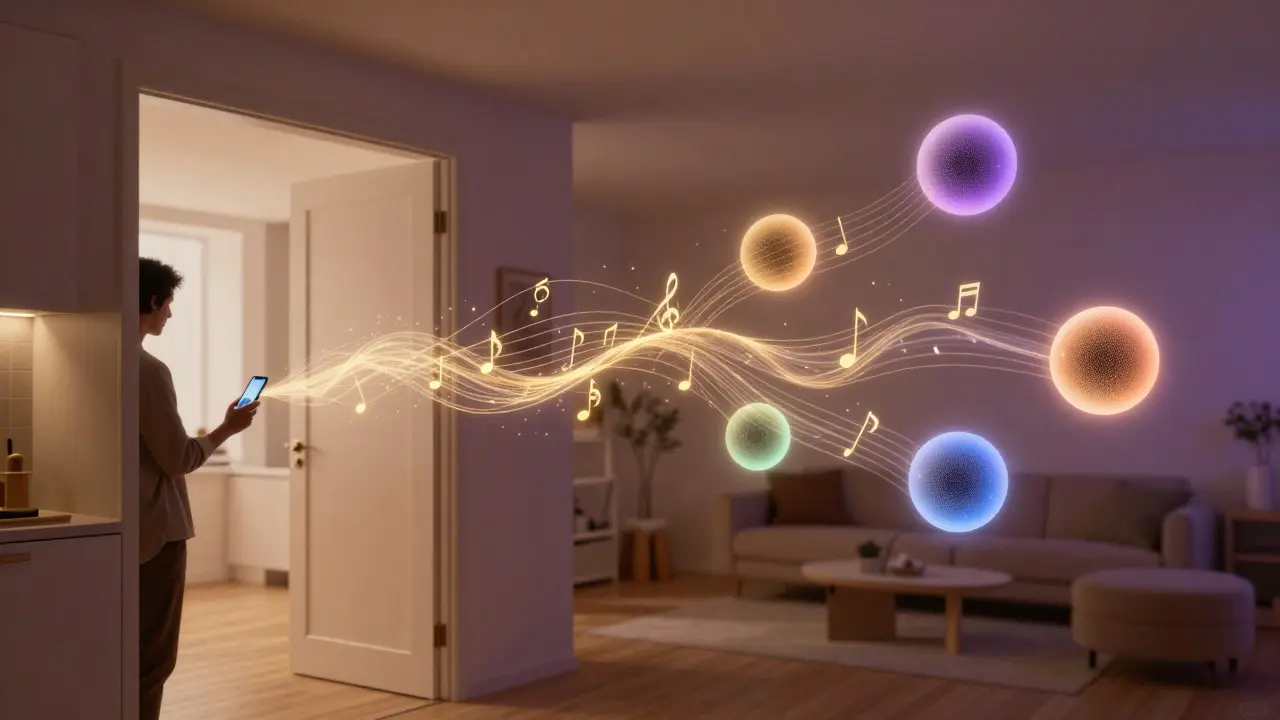
Imagine you are hosting a party. You start music in the kitchen. Later, you want to move the focus to the living room without stopping the kitchen music. Currently, you might have to stop everything, re-select devices, and restart. A better approach would be drag-and-drop functionality between rooms directly on the Now Playing screen, mirroring how we manage apps on a desktop.
Bridging the Gap with Better Feedback
How do we solve this? First, embrace transparency. Don’t hide errors; explain them. If a device is offline, say "Offline - Check Power" instead of just graying it out. Second, prioritize consistency across platforms. The AirPlay experience on macOS differs slightly from iOS and tvOS. Standardizing the interaction model reduces the learning curve for users switching devices.
Third, leverage haptic feedback. A distinct vibration pattern could signal successful connection versus failed attempts. Since visual attention is divided while moving around a house, tactile cues provide immediate confirmation without requiring the user to look at the screen. This small addition significantly improves perceived reliability.
Context-Aware Defaults
Smart defaults reduce decision fatigue. If you always listen to podcasts in the morning while brushing your teeth, the system should suggest the bathroom speaker first. Using machine learning to track usage patterns allows the OS to reorder the device list dynamically. This moves the interface from reactive to proactive, anticipating needs rather than waiting for input.
Why doesn't my AirPlay device show up immediately?
Discovery relies on Bonjour protocols over local Wi-Fi. Interference, router isolation settings, or mixed frequency bands (2.4GHz vs 5GHz) can delay packet transmission. Ensure all devices are on the same subnet and rebooting the router often resolves stale cache issues.
Can I control volume separately for each AirPlay device?
Yes, in multi-room setups via the Home app or specific third-party controllers. However, the native iOS Music app typically applies a master volume level. For granular control, use the HomeKit interface where individual accessory volumes are adjustable independently.
What is the difference between AirPlay and Chromecast UX?
Chromecast often uses a dedicated app for casting, offering more explicit device selection screens. AirPlay integrates directly into system-level players, prioritizing speed over configuration visibility. This makes AirPlay faster for quick actions but harder to troubleshoot when connections fail.
How does latency affect video casting?
AirPlay video generally maintains sync between audio and video due to buffered streaming. Audio-only streams may exhibit slight delays compared to Bluetooth, but less than older Wi-Fi methods. Latency increases if the network is congested, so using a dedicated 5GHz band helps maintain smooth playback.
Should I rename my devices before setting up AirPlay?
Absolutely. Clear, descriptive names prevent confusion in multi-device households. Avoid special characters that might break display rendering on some receivers. Consistent naming conventions make long-term maintenance much easier.