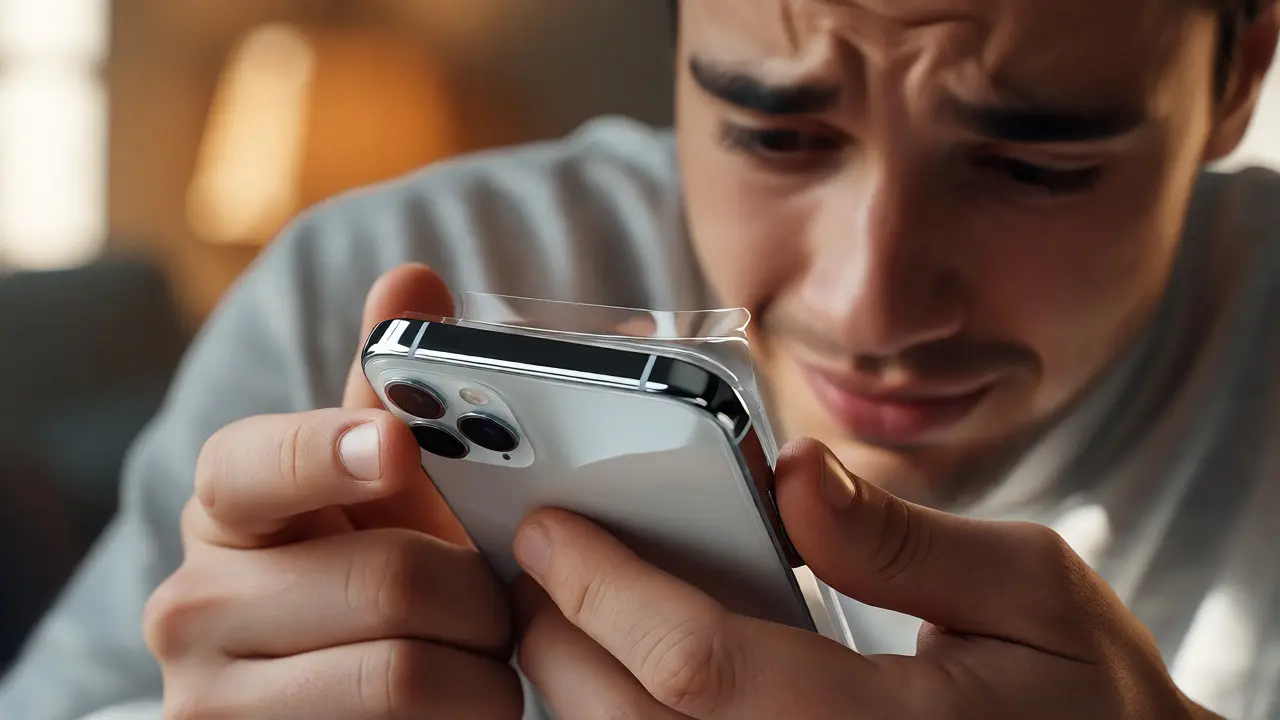

You just bought a new iPhone. You rip open the box, peel off the plastic, and hold that cold slab of glass and aluminum. For most people, this moment isn't pure joy-it's low-grade panic. Will you lose your photos? Is your bank app going to break? Do you need to call IT support for a $200 phone?
Apple knows this. They know that the friction between "unboxing" and "using" is where users drop off or get frustrated. That’s why their onboarding flow isn’t just a series of screens; it’s a psychological safety net. It’s designed to make you feel like you’ve had this phone forever, even if you’re holding it for the first time. Let’s look at how they pull off this magic trick.
The Psychology of First Impressions
Think about the last time you set up a Windows PC or an Android device from a lesser brand. It usually involves creating accounts, agreeing to terms, choosing region settings, and wondering if you should enable location services. Each step adds cognitive load. In UX research, we call this "decision fatigue." By the time you reach the home screen, you’re already tired.
iOS onboarding flips this script. The core philosophy here is "progressive disclosure." You don’t see all options at once. You only see what you need right now. This reduces user anxiety because the brain perceives fewer choices as less risk. If you aren’t asked to configure five different privacy toggles in the first minute, you don’t stress about getting them wrong.
It’s subtle, but effective. When you power on an iPhone, the very first screen asks for language and region. Simple. Binary-ish choices. No complex forms. This immediate success-clicking "Next" without hesitation-builds momentum. Psychologists call this the "foot-in-the-door" technique. Small commitments lead to larger ones later.
Quick Start: The Magic Wand
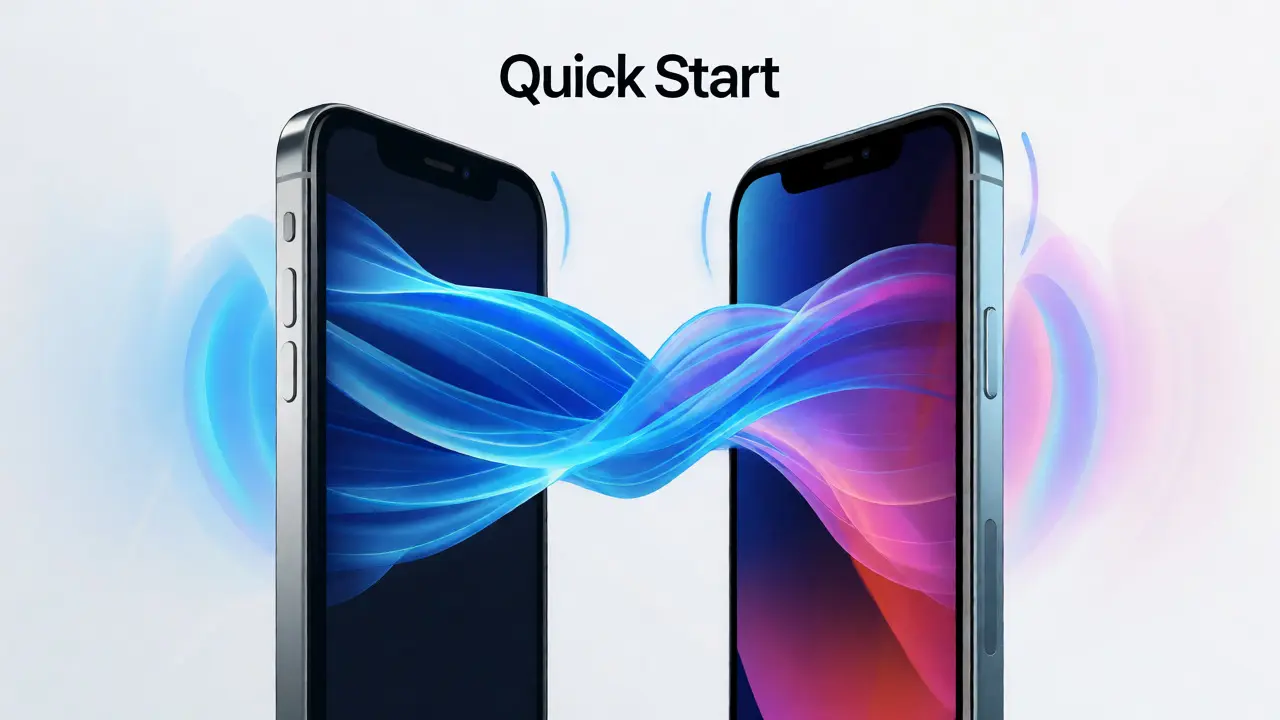
If you’re upgrading from an older iPhone, the experience changes entirely. This is where Quick Start shines. Instead of typing passwords or manually downloading apps, you bring your old device near the new one. A blue swirling pattern appears on the new screen. You scan it with your old camera. Done.
This feature does three critical things:
- Eliminates Data Fear: Users worry most about losing chat histories and photos. Quick Start migrates data peer-to-peer over Wi-Fi and Bluetooth, bypassing the cloud bottleneck often associated with slow restores.
- Preserves Identity: Your wallpaper, app layout, and even your alarm clock times transfer. The phone feels familiar instantly.
- Reduces Time-to-Value: Traditional setup could take 30-60 minutes depending on data size. Quick Start can cut this to under 15 minutes for average users.
Notice the lack of technical jargon. You aren’t told you’re establishing a secure tunnel between devices using end-to-end encryption (though you are). You’re just told to "hold your devices close." The interface hides the complexity, letting you focus on the outcome: your stuff is here.
Privacy Without the Lecture
Most tech companies treat privacy settings like a legal disclaimer-long, boring, and easy to skip. Apple treats it like a product feature. During setup, you’ll encounter prompts for Face ID, Siri, and Location Services. But the copywriting matters.
Instead of saying "Enable Location Services," the prompt might say "Find my friends easily." It ties the setting to a benefit. It answers the implicit question: "What do I get out of this?" This reframing shifts the mental model from "surveillance" to "convenience."
| Setup Step | Traditional Android Flow | iPhone iOS Flow |
|---|---|---|
| Initial Boot | Logo animation + loading bar | Immediate interactive UI |
| Data Migration | Cloud restore (often slow) | Peer-to-Peer Quick Start |
| Account Creation | Multiple Google/Microsoft steps | Single Apple ID integration |
| App Installation | Manual selection required | Automatic restoration of layout |
Another clever touch is the default state. Many features are pre-enabled but easily reversible. For example, Analytics sharing is on by default, but the toggle is prominent. You don’t have to hunt through menus to find it during setup. This transparency builds trust. You feel in control, not trapped.
Visual Continuity and Haptic Feedback
Have you noticed how smooth the transitions are when you tap "Continue"? That’s not just polish; it’s guidance. The animations guide your eye from the button to the next element. You never wonder where to look. This visual continuity reduces the cognitive effort needed to navigate the flow.
Then there’s haptics. When you complete a step, the Taptic Engine gives a subtle click. It’s a physical confirmation that the system registered your input. In a digital world, these tiny physical cues ground us. They signal "success" without needing text. If the vibration is wrong or missing, you immediately know something is off. When it’s right, you feel confident.
This sensory feedback loop creates a sense of competence. You’re not guessing if your tap worked. You felt it work. That confidence carries over into using the phone itself.
The Role of Predictive Defaults
Apple bets heavily on defaults. They assume most people want similar things. Most people want Wi-Fi on. Most people want automatic updates. Most people want dark mode if their system prefers it. By making these the default path, they remove decision points.
Consider iCloud Backup. The prompt doesn’t ask "Do you want to back up?" It assumes yes, then lets you choose storage tiers. Since iCloud offers 5GB free, many users accept the default without thinking. Why? Because the alternative-losing data-is scarier than paying $0.99/month later. The flow leverages loss aversion effectively.
This approach works because it respects the user’s time. You can always change these settings later in Settings > General > Transfer or Reset. But during the high-stress moment of setup, fewer choices mean faster completion and higher satisfaction scores.
When Things Go Wrong
No flow is perfect. What happens if Quick Start fails? Or if you’re switching from Android? Apple provides fallback paths that remain simple. Switching from Android involves moving a cable and scanning a QR code. It’s clunkier than iPhone-to-iPhone, but still streamlined compared to manual transfers.
If errors occur, the error messages are human. Not "Error Code 403," but "We couldn’t connect to Wi-Fi. Try moving closer to your router." This actionable advice reduces frustration. It tells you exactly what to do next, rather than leaving you to guess.
Moreover, the ability to restart the setup process without wiping the device (if stuck early on) saves sanity. You aren’t locked into a bad configuration. The system remains forgiving, which is crucial for reducing anxiety.
Key Takeaways
- Reduce Cognitive Load: Show only necessary information at each step to prevent decision fatigue.
- Leverage Familiarity: Use Quick Start to preserve user context and reduce fear of data loss.
- Frame Privacy as Benefit: Explain why a setting helps the user, not just what it does.
- Use Sensory Cues: Combine visual animations with haptic feedback to confirm actions intuitively.
- Smart Defaults: Pre-select options that benefit the majority to speed up the process.
Ultimately, effortless setup isn’t about removing technology. It’s about hiding the machinery so you can enjoy the result. Apple understands that the best design is invisible. When you finish setting up your iPhone, you shouldn’t remember the screens. You should just remember that your phone was ready when you wanted it to be.
Does Quick Start work if my old iPhone is broken?
If your old iPhone cannot turn on or its camera is broken, Quick Start won’t work directly. In this case, you must use an iCloud backup or a computer backup via Finder or iTunes. Connect your new iPhone to Wi-Fi, sign in with your Apple ID, and select "Restore from iCloud Backup." This method takes longer but ensures all data is recovered.
Can I skip the Apple ID creation during setup?
Yes, you can skip creating an Apple ID initially. However, doing so limits functionality. You won’t be able to download apps from the App Store, use iMessage, FaceTime, or sync data across devices. Most users find it easier to create or sign in with an existing ID during setup to avoid re-entering credentials later.
How long does iPhone setup typically take?
For a new user, basic setup takes 5-10 minutes. For upgrades using Quick Start, it depends on data size. A small backup (under 10GB) might take 15-20 minutes. Large backups (100GB+) can take over an hour. Using a stable Wi-Fi connection significantly speeds up the process.
What happens if I decline location services during setup?
Declining location services means apps like Maps, Weather, and Camera won’t access your GPS coordinates automatically. You can enable them later in Settings > Privacy & Security > Location Services. Some features, like "Find My," may not function correctly until location access is granted.
Is the setup process different for iPad vs. iPhone?
The core flow is nearly identical due to shared iOS/iPadOS architecture. However, iPads include additional prompts for Apple Pencil pairing and keyboard attachments. These extra steps add minor complexity but follow the same principle of progressive disclosure to keep anxiety low.