
For years, designing for the iPad meant thinking in fixed boxes. You had a screen, you filled it, and you were done. That era ended with the release of iPadOS 26 in 2026. The new operating system didn't just add features; it fundamentally rewrote the rules of how users interact with tablet applications. If you are building an app today, you can no longer assume your interface owns the entire screen. In fact, assuming that will likely break your user experience.
The shift to a flexible, multi-window environment forces developers to rethink everything from navigation hierarchies to button sizing. It is not just about making things smaller. It is about creating interfaces that remain functional and intuitive whether they are taking up 100% of a 12.9-inch display or squeezed into a narrow floating window on the side. Let’s look at exactly how these changes dictate your design choices.
The Three Modes of iPadOS 26
To design effectively, you first need to understand the landscape. iPadOS 26 introduces three distinct operational modes that change how your app behaves. Ignoring any one of them creates friction for your users.
- Full Screen Apps: This is the traditional mode. However, it has changed. Users no longer have access to Split View or Slide Over while in this specific state. If your app is optimized only for full-screen, you must ensure it doesn’t rely on gestures that might trigger system-level multitasking if the user switches modes later.
- Windowed Apps: This is the big game-changer. Users can now open multiple app windows simultaneously-up to eight at once. Your app must handle being resized, moved, and layered over other content without losing its state or crashing.
- Split View and Slide Over: These legacy features remain but behave differently. They require your interface to be responsive across dramatically different width allocations, often handling less than half the screen real estate.
The critical takeaway here is variability. Your app might launch in Full Screen, get dragged into a Window, then snapped into a Split View, all within a single session. Your interface needs to flow through these transitions seamlessly.
Responsive Design Is No Longer Optional
In the past, "responsive" meant adjusting for iPhone versus iPad. Now, it means adjusting for every possible pixel dimension between the smallest iPad mini and the largest iPad Pro, plus every arbitrary size a user drags their mouse to create.
You cannot rely on fixed breakpoints anymore. A user might resize your window to 400 pixels wide, then 850, then 300. Your layout engine must adapt continuously. Fixed-position elements are out. Constraint-based systems are in.
| Window State | Recommended Layout | Navigation Approach |
|---|---|---|
| Full Screen / Large Window | Multi-column (2-3 columns) | Persistent sidebar or tab bar |
| Split View (approx. 50%) | Single or dual column | Hamburger menu or bottom sheet |
| Narrow Slide Over (< 375px) | Single column, stacked | Modal overlays or drill-down |
If your app previously used a three-column master-detail view, it must gracefully collapse to two columns in Split View and one column in a narrow Slide Over window. Navigation patterns must remain intuitive across these configurations. Users should never lose access to core features just because the window got smaller.
Handling the New Window Controls
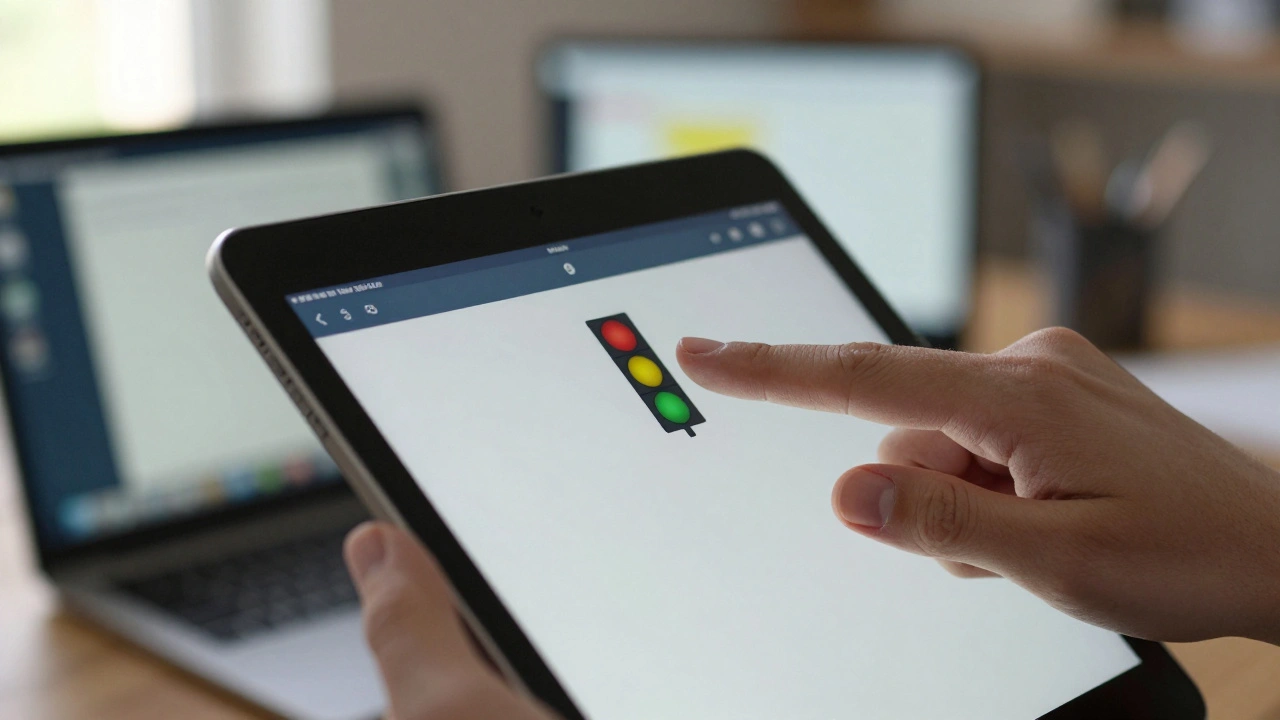
Apple replaced the top-window multitasking menu from previous versions with standard traffic light buttons: red (close), yellow (minimize), and green (maximize/expand). This sounds simple, but it impacts your UI code significantly.
You no longer need to build custom window management UIs. Instead, you must ensure your app responds correctly to these system actions. When a user clicks yellow, does your app save its current state? When they click green, does your layout expand smoothly without jarring jumps? State preservation is key. If a user minimizes your app and brings it back five minutes later, they should see exactly where they left off, regardless of the new window dimensions.

Slide Over: The Floating Challenge
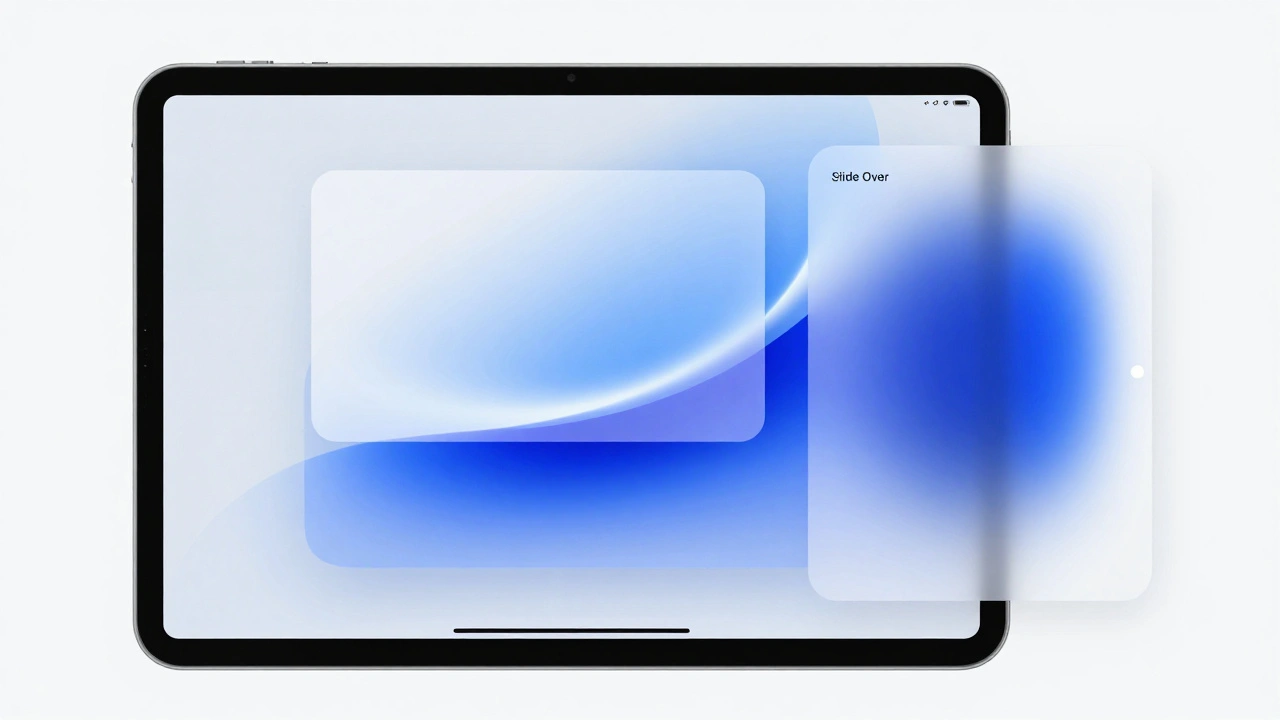
Slide Over functionality has evolved. In earlier versions, you needed another app open to use it. In iPadOS 26, users can open Slide Over apps independently. This means your app might launch as a floating overlay rather than a primary window.
This requires a "minimal viable interface" mindset. What is the absolute least amount of UI needed to perform the core task? If your app is a note-taking tool, the floating window should probably just show the text editor and a save button. Hide the settings, the folder tree, and the advanced formatting tools until the user expands the window. Don’t clutter the small space with features that require more room to operate.
Gestures and Conflict Avoidance
Multitasking relies heavily on gestures. Users can swipe from corners, drag icons from the Dock, or press-and-hold to split screens. Apple allows users to customize which side triggers what function in Settings > Multitasking & Gestures.
This customization is a nightmare for rigid gesture designs. If your app uses a corner-swipe to delete an item, but the user has set that same corner to open Split View, your app breaks. You must avoid designing interactions that conflict with system gestures. Test your app with various gesture configurations enabled. Provide clear feedback if a gesture is intercepted by the OS, so users understand why their action didn’t work.
Shortcuts and Workflow Integration
iPadOS 26 integrates deeply with Shortcuts, allowing users to launch two apps in Split View via a single action. This means your app might be launched not by a user tapping your icon, but by a workflow that places it next to another specific app.
Consider how your app behaves when launched in this context. Does it automatically pull relevant data? If a user sets up a shortcut to open their email app next to their calendar, your calendar app should ideally highlight today’s events immediately. Anticipate the user’s intent. Multitasking is often about context switching, so your interface should reduce the cognitive load required to bridge those contexts.
Standardization Across Devices
One major benefit of iPadOS 26 is standardization. All iPad models now have access to the same multitasking features. You no longer need complex fallback logic for older devices that lacked certain capabilities. You can treat multitasking as a baseline expectation.
However, this also means you cannot hide behind "unsupported device" excuses. Every user, from the budget iPad to the pro model, expects your app to handle window resizing and splitting. Test extensively across the full range of screen sizes. Remember that users can resize windows to arbitrary dimensions. Fluid responsiveness is not a luxury; it is a requirement.
Communicating Capabilities to Users
Since users can disable Windowed Apps mode entirely, you may encounter users who prefer the old full-screen-only experience. Ensure your app works well in both states. If your app is optimized for windowed multitasking, consider adding in-app tours or tooltips that explain how to use the new features. Guide users on how to resize, split, and float your app to get the best experience. Education reduces frustration.
What is the maximum number of apps I can open in iPadOS 26?
Users can open up to 8 apps simultaneously in the multitasking view. Your app must be able to handle being backgrounded and foregrounded rapidly without losing state or performance.
Do I still need to support Split View if Windowed Apps are available?
Yes. While Windowed Apps offer more flexibility, Split View remains a core feature. Many users prefer the structured side-by-side layout. Your app must function correctly in both environments.
How do I handle the new traffic light window controls?
You don't need to build custom controls. Instead, focus on state preservation. Ensure your app saves its scroll position, form inputs, and selection state when minimized (yellow button) and restores it perfectly when reopened.
Can users customize multitasking gestures?
Yes. Users can enable, disable, or customize corner-swipe gestures in Settings. Avoid designing app-specific gestures that conflict with these system-level interactions to prevent usability issues.
What is the best layout strategy for narrow Slide Over windows?
Use a single-column, stacked layout. Focus on the primary task. Hide secondary navigation and features behind modals or drill-down menus to keep the interface clean and usable in constrained spaces.