
For years, people thought of the iPad as a tablet for browsing, watching videos, or sketching. But if you’ve used one with a Magic Keyboard and trackpad lately, you know it’s not just a tablet anymore. It’s a full-blown productivity machine. Apple didn’t just add a keyboard and trackpad to the iPad - they rebuilt how it works, from the inside out. And the result? A device that feels more like a laptop than ever before.
How the Magic Keyboard Changed Everything
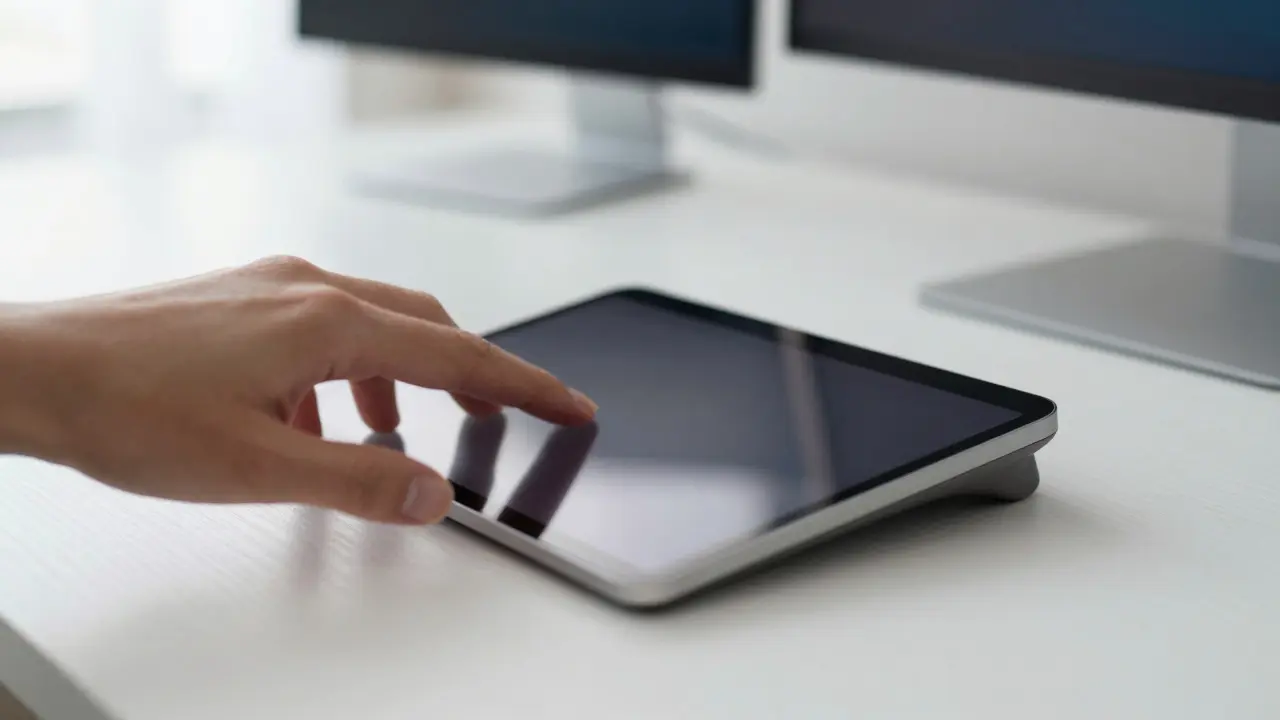
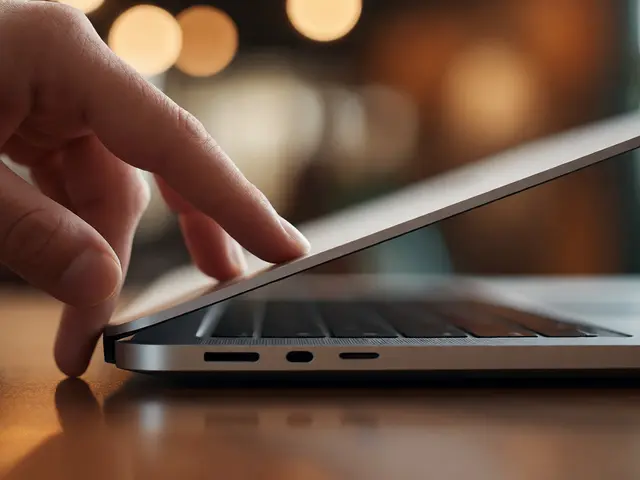
The Magic Keyboard isn’t just a cover with keys. It’s a system. Apple designed it to connect to the iPad with magnets, so it snaps into place and holds the screen at any angle you need. The keyboard itself uses a scissor mechanism with 1mm of key travel - the same as a MacBook. That means each key presses down with a solid, quiet click. No mushy feeling. No floating keys. Just reliable feedback, whether you’re typing an email at a coffee shop or drafting a report at home. Then there’s the trackpad. It’s not a small, cramped touch surface. It’s large, smooth, and made of glass. You can move your cursor anywhere on the screen with one finger, click with a tap, or use two fingers to scroll. And it doesn’t matter if your palm rests on it while you type. The iPad detects your hand and ignores it. No accidental clicks. No jittery cursor. It just works. Apple’s Magic Keyboard for iPad Air and iPad Pro take it further. They add haptic feedback - tiny vibrations that mimic the feeling of a physical click. It’s subtle, but it tells your brain, “Yes, that button was pressed.” The function row on top gives you direct access to brightness, volume, media controls, and even screenshot and dictation buttons. No digging into menus. Everything you need is one press away.Trackpad Gestures That Feel Like macOS
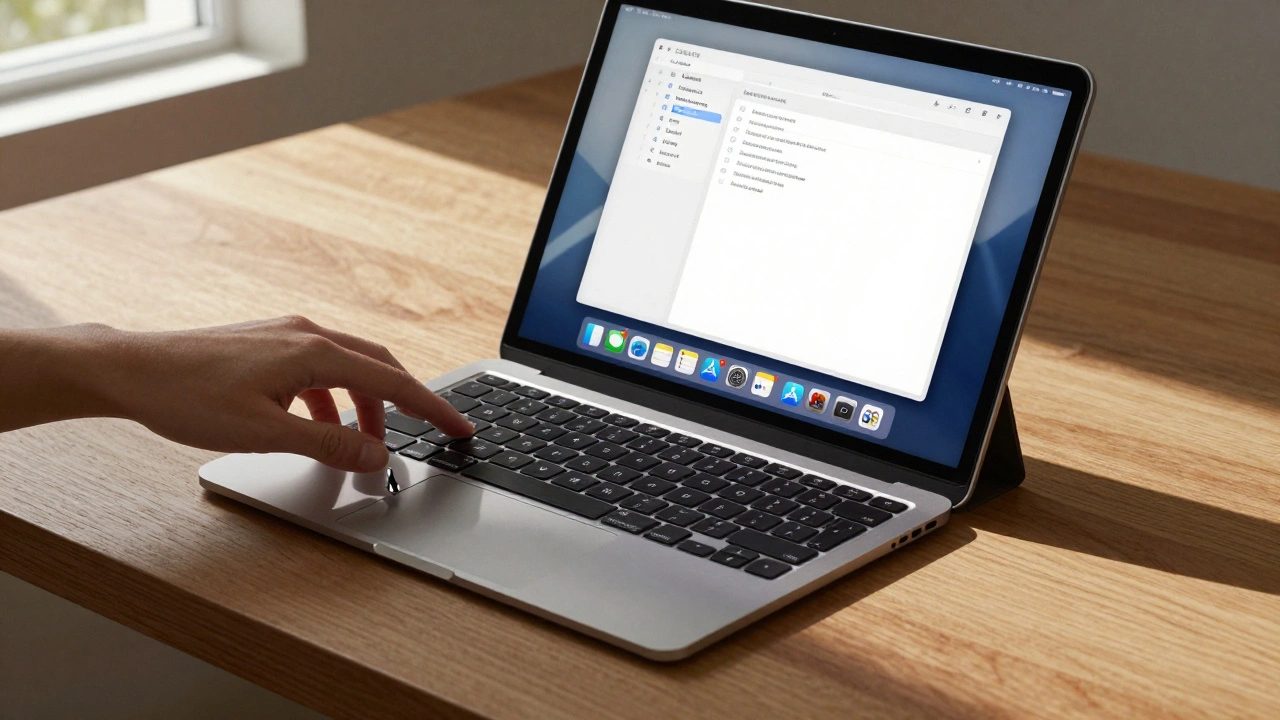
The real magic happens in how you interact with apps. With iPadOS 26, Apple replaced the old floating cursor with a true, macOS-style pointer. It doesn’t just appear - it behaves like it belongs on the screen. Hover over a link? It highlights. Hover over an app icon? It enlarges. Double-tap the trackpad to open an app. Three fingers swipe left or right to switch between apps. Pinch with three fingers to see all your open windows at once - like Mission Control on a Mac. These gestures aren’t gimmicks. They’re tools for real work. Need to select text? Hold one finger on the trackpad and drag. Want to move a file between folders? Tap and hold, then drag with two fingers. It’s all intuitive, fast, and precise. You don’t need to think about it. Your hand just does it. And it’s not just Apple’s keyboards that do this. Third-party options like ESR have matched the size, sensitivity, and gesture support of Apple’s trackpads. They even added their own shortcuts - like a dedicated button to turn off the trackpad when you’re not using it. But Apple still leads because everything is synced. The keyboard, the trackpad, and the software all update together. When iPadOS 26 improves cursor behavior, your Magic Keyboard gets the upgrade automatically. No firmware updates. No pairing issues. Just seamless.Why the Software Matters More Than the Hardware
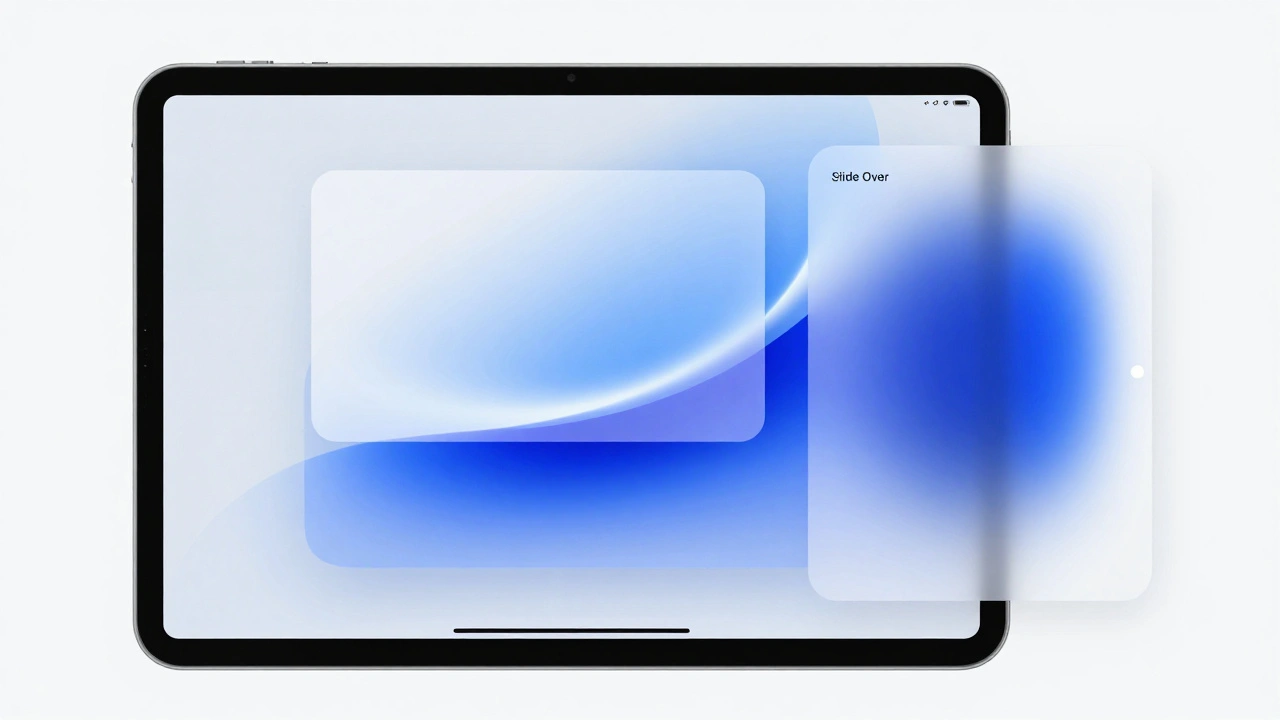
A great keyboard and trackpad mean nothing without software that knows how to use them. That’s where iPadOS 26 makes the leap. Before, the iPad was stuck in a middle ground - touch-first, but not fully desktop-ready. Now, apps can run in resizable windows. You can have three apps open at once, each in its own space. Drag a document from one app to another. Resize a spreadsheet while keeping notes visible. It’s all possible now because the system treats the iPad like a computer, not a giant phone. Apple didn’t just copy macOS. They adapted it. The dock stays at the bottom, but now it’s interactive. Hover over an app in the dock, and it shows recent files. Click and hold, and you can pin it to the side. This isn’t just convenience - it’s workflow. It’s how professionals work. And it’s built into the OS, not bolted on as an afterthought.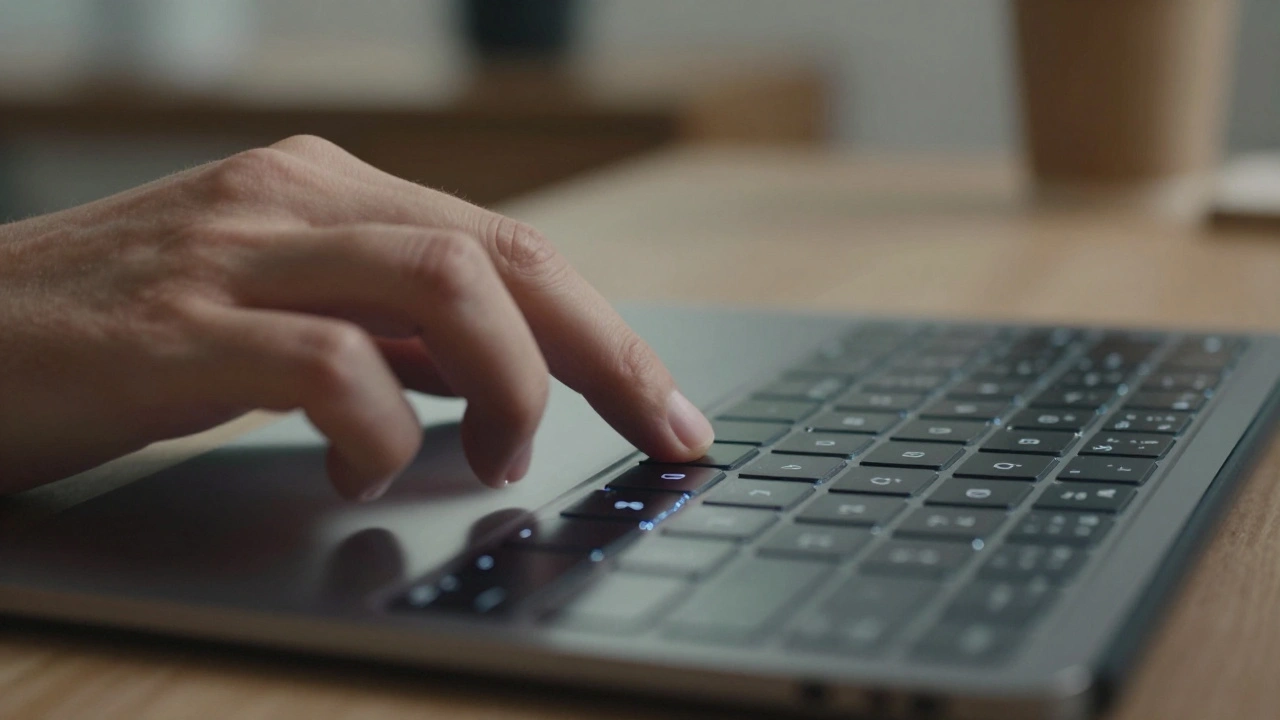
What You Get for the Price
The Magic Keyboard Folio starts at $249. The one for iPad Air is $269. The iPad Pro version? $299. That’s expensive - no doubt. But when you compare it to buying a laptop, it’s not so bad. You’re not replacing your iPad. You’re upgrading it. The keyboard adds typing and precision control. The trackpad adds efficiency. And together, they turn a device you used for casual tasks into one you can rely on for work, school, or creative projects. Third-party keyboards offer cheaper alternatives, often under $100. But they usually lack the same level of integration. Their trackpads might not have haptic feedback. Their function keys might not work with system controls. Their Bluetooth connection might drop. And they don’t get software updates from Apple. You’re trading reliability for savings. For most people, that’s not worth it.Who This Is Really For
If you’re someone who writes a lot - essays, reports, articles - this setup is a game-changer. Typing on a tablet with a real keyboard is faster than on-screen keyboards. Using a trackpad to select text, scroll through spreadsheets, or navigate files is smoother than tapping. It’s not about replacing a laptop. It’s about having a device that does more than a tablet, without the bulk of a laptop. Students, remote workers, journalists, and creatives are the ones who benefit most. You get the portability of a tablet with the power of a desktop. Need to take notes in class? Type them. Need to edit a PDF on the train? Use the trackpad to zoom and annotate. Need to sketch an idea? Flip the keyboard away and use Apple Pencil. One device. Three modes. All in one.
What’s Missing?
It’s not perfect. The Magic Keyboard doesn’t have a built-in battery. It draws power from the iPad, which can drain it faster. If you’re using it all day, you’ll still need to plug in. And while third-party options are cheaper, they don’t always match the quality. Some trackpads feel laggy. Others don’t support all gestures. And not all keyboards have the function row - which means you’re stuck using on-screen controls. Also, not every iPad supports it. The Magic Keyboard Folio needs an iPad with the A16 chip or better. That means older models like the iPad Air 3 or iPad 9 won’t work. You need a recent device to get the full experience.The Bigger Picture
Apple didn’t invent the idea of a keyboard for the iPad. But they made it matter. They didn’t just add hardware. They redesigned the entire experience - from the way keys feel, to how the cursor moves, to how apps behave. And they did it with software updates that keep improving over time. This isn’t about making the iPad look like a Mac. It’s about making it work like one. And for millions of people who need more than a touch screen but don’t want to carry a laptop, it’s the perfect middle ground.Can I use any Bluetooth keyboard with my iPad and get trackpad support?
No. Only Apple’s Magic Keyboards and a few select third-party models (like ESR) offer full trackpad functionality with gesture support. Most Bluetooth keyboards only provide typing input. The trackpad and its gestures rely on deep integration with iPadOS 26, which only works with hardware designed specifically for it.
Do I need iPadOS 26 to use a Magic Keyboard?
For full trackpad and cursor functionality, yes. You can type on the keyboard with older versions of iPadOS, but gestures like three-finger swipe, app exposé, and contextual cursor changes only work with iPadOS 26. Apple made this a software requirement to ensure the experience is consistent and reliable.
Is the Magic Keyboard worth the price?
If you use your iPad for serious work - writing, editing, organizing files - then yes. The build quality, typing experience, and trackpad precision are unmatched. For casual users who just want to type emails, a cheaper keyboard might be enough. But if you’re serious about productivity, the Magic Keyboard is the only option that truly turns your iPad into a desktop replacement.
Can I use the Magic Keyboard with an older iPad model?
Only if it’s compatible. The Magic Keyboard Folio works with iPad models that have the A16 chip or later - like the iPad (10th generation) and newer. The Magic Keyboard for iPad Air and iPad Pro only work with their respective device lines. Older iPads won’t support the full trackpad experience, even if they connect via Bluetooth.
Does the trackpad work with all apps?
Most do - especially productivity apps like Pages, Numbers, Notes, and Adobe apps. But some apps, especially older ones or games, still treat the iPad like a touch device. They don’t respond to cursor movement or trackpad gestures. Apple encourages developers to update their apps, but not all have yet. The more apps you use that support it, the more powerful the experience becomes.