
You open your iPhone. You want to send a specific invoice from last Tuesday to your accountant. You tap the Files app. It’s empty of the document you need because it lives in an email attachment you never saved properly. So you go to Mail. Then you realize the photo of the receipt is in Photos. Now you’re juggling three apps for one task. This friction isn’t just annoying; it’s a design failure.
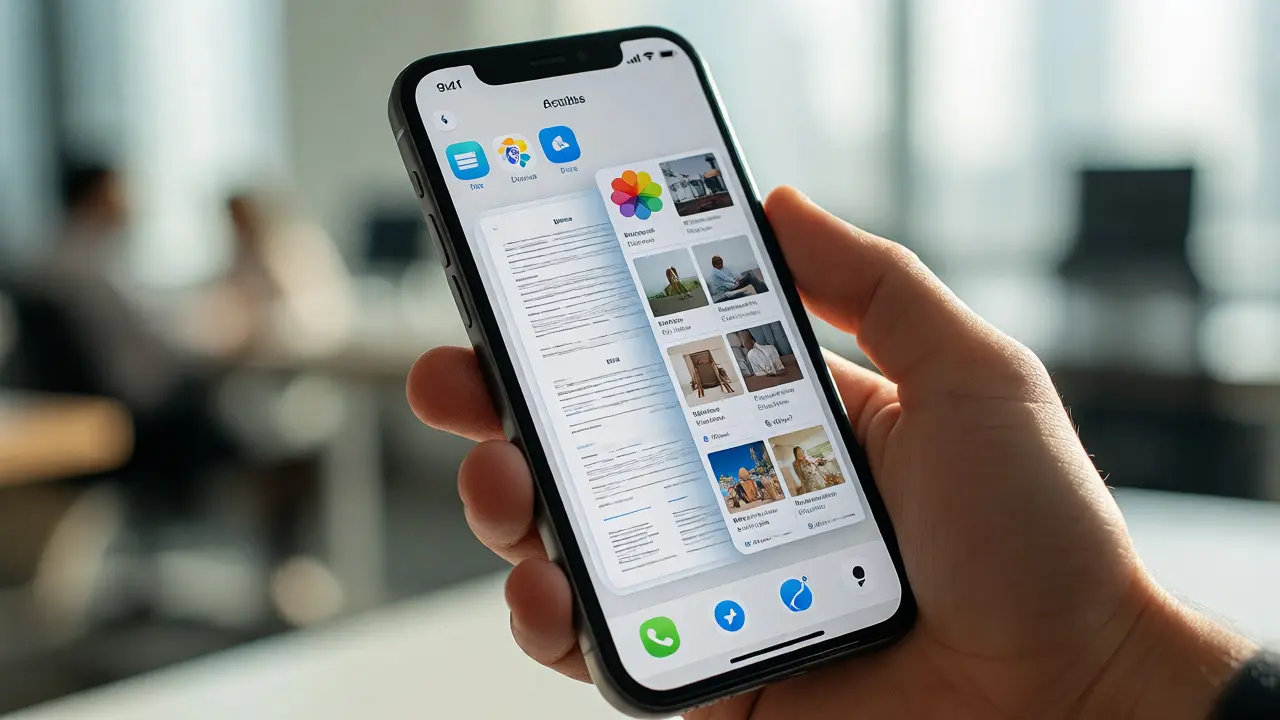
For years, Apple treated files and photos as separate universes. Files were cold data stored in folders. Photos were warm memories organized by time and place. But users don’t think in silos. We think in tasks. "Prepare taxes," "Plan vacation," or "Fix the sink." The modern Apple ecosystem is quietly shifting toward a unified pattern where browsing, searching, and editing happen seamlessly across these boundaries. If you’re still treating these apps as distinct islands, you’re missing out on speed.
The End of App Silos
Think about how you used to find things. You had a mental map of which app held what. Documents lived in Files. Images lived in Photos. Videos might be in Photos, or maybe in the Camera Roll, or perhaps buried in a messaging app’s media gallery. This fragmentation forced you to act like a database administrator every time you needed a resource.
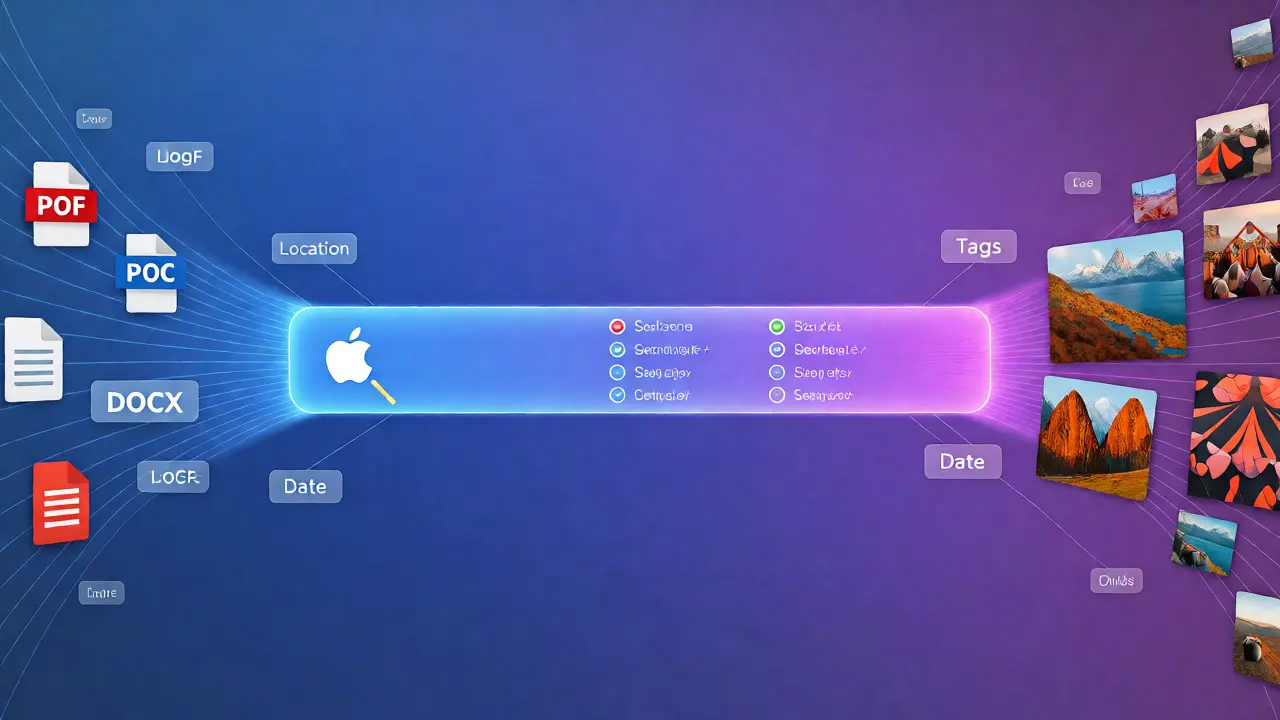
Apple’s recent updates have blurred these lines intentionally. The goal? Contextual continuity. When you edit a photo in Photos, you aren’t just changing pixels; you’re modifying metadata that the system understands globally. When you tag a PDF in Files, that tag becomes searchable everywhere. This shift relies on a deeper integration of the operating system’s indexing engine, known as Spotlight, but expanded beyond simple text matching into visual and semantic understanding.
This isn’t magic. It’s structured data working behind the scenes. Every file has attributes-creation date, location, type, author. Every photo has EXIF data, face recognition tags, and scene detection labels. By unifying how these attributes are queried, Apple allows you to ask complex questions like "Show me documents related to 'Project X' created after I took photos at the office meeting." The system doesn’t care if the answer is a JPG or a DOCX. It cares about relevance.
Unified Search: How It Actually Works
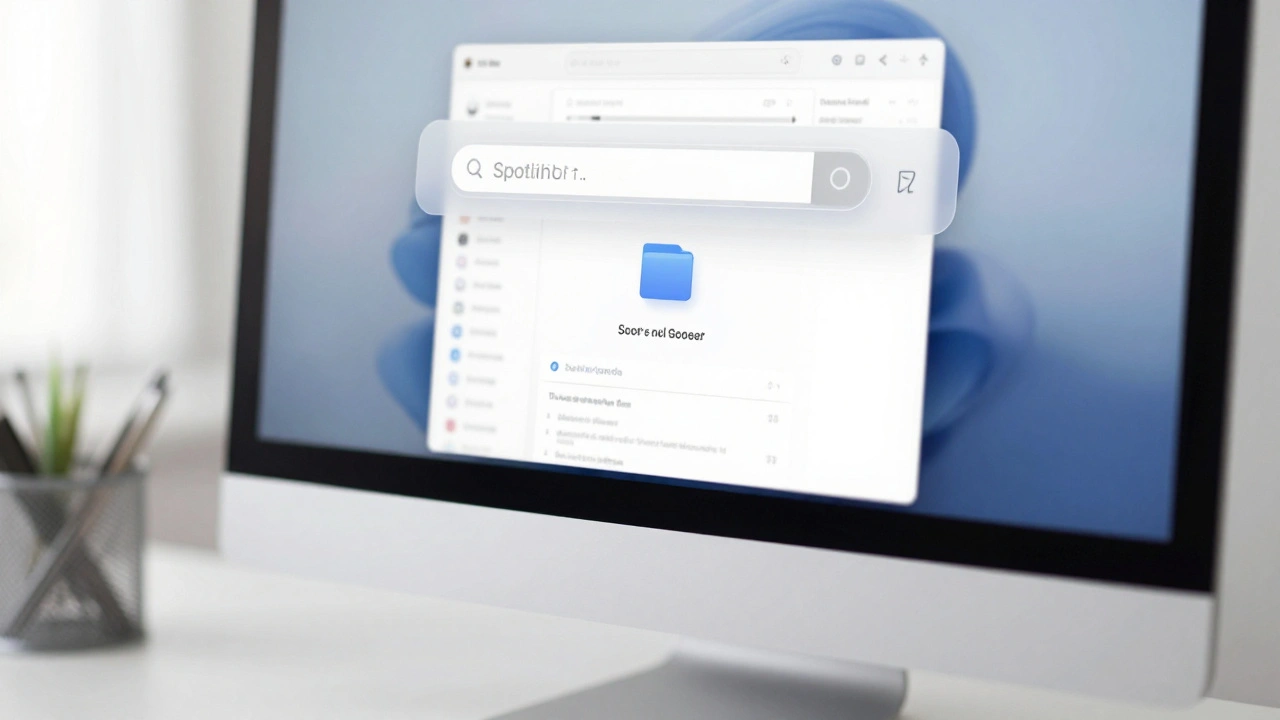
Most people use search lazily. They type a keyword and hope for the best. But the new patterns reward precision. The key here is leveraging the Spotlight index, which now aggregates results from both Files and Photos simultaneously. When you swipe down on your home screen and type, you get a mixed feed.
Here’s the trick most users miss: natural language queries. Instead of typing "invoice," try "invoices from October." Or better yet, use filters. In the Files app, you can filter by "Recent," "Shared," or "Tags." In Photos, you can filter by "People," "Places," or "Favorites." But the real power comes when you combine them. Suppose you’re looking for a contract signed during a trip. You can search for the location tag in Photos, find the image, and then look at the "Related" section in the share sheet, which often surfaces files attached to messages sent around that same timestamp.
Consider this scenario: You’re planning a renovation. You have sketches (PDFs), inspiration shots (JPEGs), and contractor quotes (Excel sheets). In the old world, you’d create three separate folders or albums. In the unified model, you use Tags. Tag everything with "Renovation 2026." Now, when you click that tag in either app, you see all relevant assets. The interface adapts. In Files, they appear as list items. In Photos, they appear as thumbnails. But the underlying query is identical. This reduces cognitive load significantly. You stop remembering *where* something is and start remembering *what* it is.
| Feature | Traditional Siloed Approach | Unified Ecosystem Pattern |
|---|---|---|
| Search Scope | App-specific only | Cross-app via Spotlight Index |
| Organization Method | Manual Folders / Albums | Dynamic Tags & Smart Collections |
| Metadata Access | Limited to file properties | Rich context (Location, People, Time) |
| Editing Workflow | Export -> Edit -> Import | In-place editing with version history |
| User Effort | High (requires manual sorting) | Low (automated categorization) |
Browsing Patterns That Save Time
Browsing is no longer about scrolling through endless lists. It’s about navigation shortcuts. Both Files and Photos have adopted similar UI patterns to make switching between them feel natural. For instance, the "Recents" view in Files mirrors the "Moments" view in Photos. Both prioritize time-based grouping. This consistency means you don’t have to relearn the interface when switching contexts.
A powerful feature hidden in plain sight is the "Browse" tab in Files. Most people ignore it, sticking to "On My iPhone" or iCloud Drive. But Browse lets you connect to external services like Dropbox, Box, or Google Drive directly. Once connected, these services appear as local folders. Why does this matter? Because it brings third-party data into the native search index. Your Dropbox files become searchable alongside your local PDFs. You’re not leaving the ecosystem; you’re expanding its reach without breaking the flow.
In Photos, the equivalent is the "Library" tab, which now includes a dedicated "Utility" section. Here, you’ll find "Recently Deleted," "Hidden," and "Favorites." But notice how "Favorites" syncs with other apps. If you favorite a photo, it might show up in a shared album automatically suggested by the system. This predictive behavior is part of the broader design philosophy: anticipate the next step. If you frequently access certain files, pin them. If you frequently view certain photos, let the system surface them.
Editing Without Leaving the Flow
Editing used to be the biggest bottleneck. To edit a photo, you opened Photos. To edit a PDF annotation, you opened Files. To convert a format, you opened Preview or a third-party tool. Each switch risked losing your train of thought. The new patterns aim for "non-destructive, in-context editing."
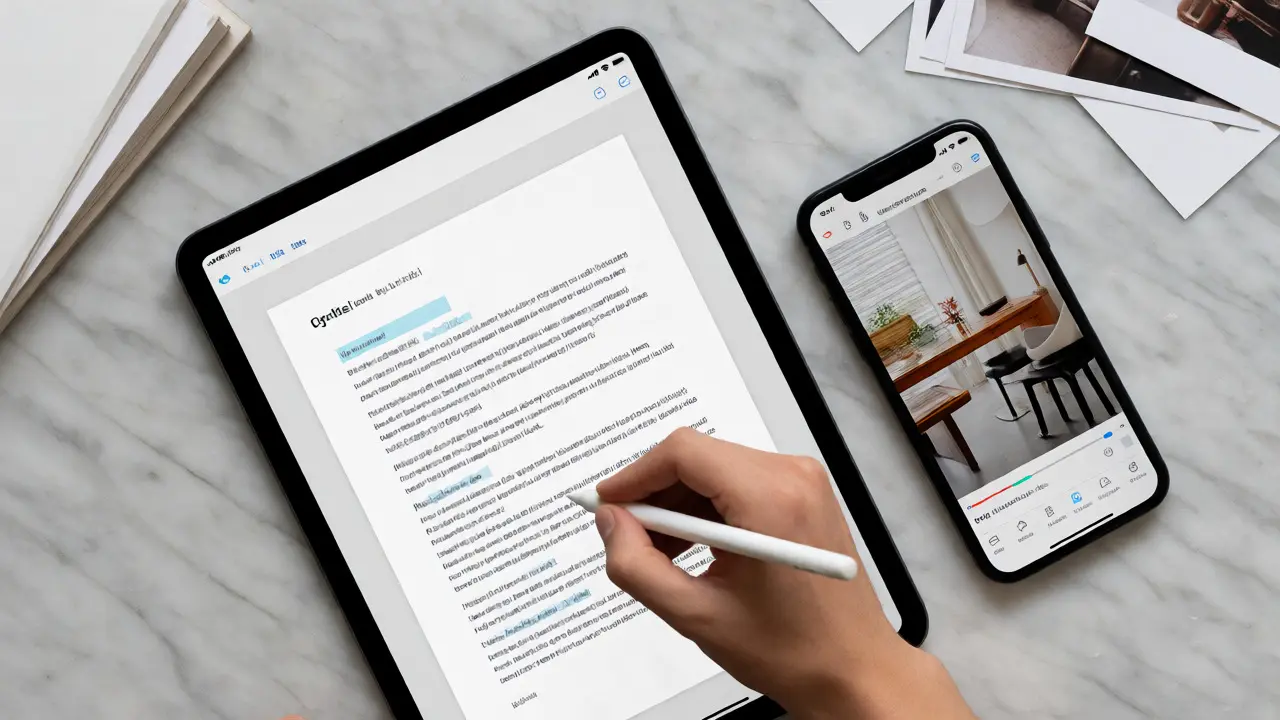
Take markup tools. Apple introduced a universal markup layer available in almost every app. Whether you’re annotating a screenshot in Messages, marking up a PDF in Files, or drawing on a photo in Photos, the toolbar looks and behaves identically. Pen thickness, color selection, and shape tools are standardized. This muscle memory transfer is huge. You don’t need to learn a new toolset for each file type.
Moreover, edits are now often reversible and synced. If you crop a photo in Photos, that crop is preserved as metadata, not baked into the original pixel data. Similarly, annotations on PDFs in Files are stored separately from the content. This allows you to revert changes easily. More importantly, it enables collaborative workflows. If you share a link to a marked-up document, the recipient sees your notes without needing to download the whole file first. This separation of content and annotation is a subtle but critical design choice that supports remote work.
What about converting formats? Say you take a photo of a whiteboard sketch. You want to turn it into a PDF for easy sharing. In the past, you’d save the image, open it in a converter, export as PDF, then move it to Files. Now, in Photos, you can select the image, tap Share, choose "Print," and then pinch out on the preview to generate a PDF instantly. Or, in Files, you can long-press a JPEG and choose "Quick Actions" > "Create PDF." These micro-interactions reduce steps from five to two.
Practical Strategies for Implementation
How do you actually implement these patterns in your daily workflow? Start small. Don’t try to organize ten years of data overnight. Focus on active projects.
- Use Tags Aggressively: Create a standard set of tags for recurring themes (e.g., "Work," "Personal," "Legal," "Creative"). Apply them immediately upon saving or capturing. Consistency is key.
- Leverage Smart Albums: In Photos, create Smart Albums based on criteria like "Tagged 'Work' AND Created After Jan 1, 2026." This automates organization.
- Purposeful Folder Structures: In Files, avoid deep nesting. Keep top-level folders broad (e.g., "Projects," "Admin," "Archive") and use tags for specificity.
- Review Recents Weekly: Spend five minutes each week clearing out unnecessary files from the "Recents" view in Files and deleting duplicate screenshots in Photos.
One common pitfall is over-tagging. If every file has twenty tags, the value diminishes. Stick to high-level categories. Let the AI handle the granular details like faces and objects. Trust the system’s ability to recognize a "beach" scene even if you didn’t tag it. Your job is to provide intent-based context (why you saved it), not descriptive metadata (what it contains).
Another tip: Use Shortcuts. Apple’s Shortcuts app can bridge gaps between Files and Photos. Create a shortcut that takes a selected photo, converts it to PDF, saves it to a specific folder in Files, and adds a timestamp tag. Automate the tedious parts so you can focus on the creative ones.
The Future of Digital Clutter
We are moving away from file systems as we knew them. The hierarchical folder structure is becoming a legacy concept, useful mainly for archival purposes. The future is associative. Data will be linked by context, time, and relationships rather than rigid directories. Apple is betting big on this. Their investment in machine learning models that run locally on-device ensures privacy while delivering smart organization.
As these patterns mature, expect more cross-pollination. Imagine opening a photo in Photos and seeing a sidebar suggesting related documents from Files based on OCR text found in the image. Or viewing a PDF in Files and seeing embedded media extracted automatically into a temporary gallery. The boundary between "file" and "photo" will continue to dissolve until it disappears entirely.
Embrace the change. Stop fighting the system. Work with the unified patterns. Your brain will thank you for the reduced decision fatigue. And your productivity will rise because you spend less time hunting and more time doing.
Can I search for photos using text inside them?
Yes, thanks to Live Text and OCR capabilities integrated into the Spotlight index. If you photograph a sign or document, the text within the image is indexed. Searching for words visible in the photo will bring it up in both Photos and global search results.
Do tags in Files sync with tags in Photos?
Not directly as a shared pool, but they function similarly within their respective apps. However, since both apps contribute to the global Spotlight index, searching for a tag name will return results from both applications, effectively creating a unified view for retrieval purposes.
Is it better to store images in Photos or Files?
Use Photos for personal memories, social sharing, and editing convenience. Use Files for professional assets, documents containing images, or raw data exports. If an image is part of a larger project with documents, keeping it in Files alongside those docs often makes more sense for context preservation.
How do I fix duplicates between Photos and Files?
iOS has built-in duplicate detection in Photos under Utilities. For Files, there is no native automatic dedupe tool, so you may need third-party apps or manual review. Be cautious when deleting; ensure the file isn't referenced by a shortcut or automation before removing it.
Does iCloud Photo Library affect file storage limits?
Yes, iCloud storage is shared between Photos and Files. Large video files in Photos can quickly consume space that could otherwise be used for document backups. Monitor your usage regularly and consider optimizing photos (using HEIC format) to preserve space for important files.