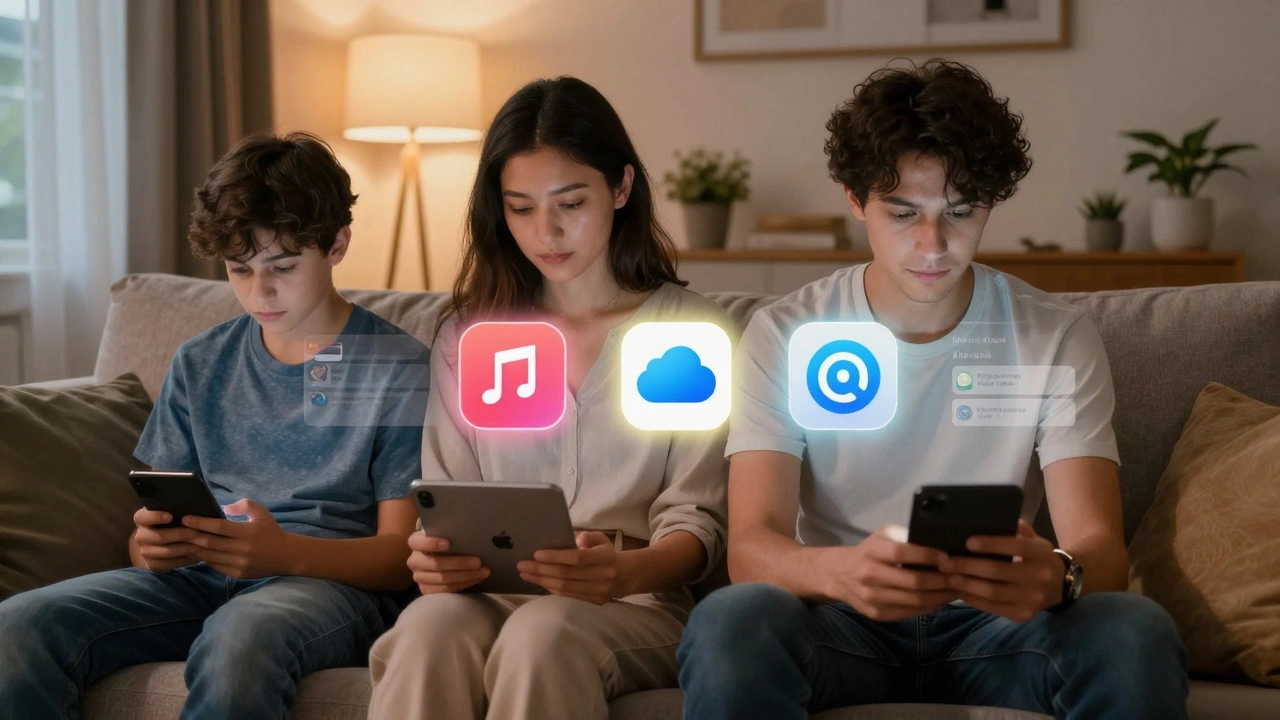

Apple’s Family Sharing isn’t just a feature-it’s a carefully built system that balances togetherness with personal space. You don’t have to give up your Apple ID, your photos, or your search history to let your kids download apps or your partner stream Apple Music. But how does it actually work under the hood? And why do some families feel like it’s too controlling, while others say it’s the glue holding their digital life together?
Who’s in Charge? The Family Organizer Role
Every Family Sharing group starts with one person: the organizer. This isn’t just a title-it’s a role with real power. The organizer sets up the group, picks which services to share, and invites up to five others. They’re the only one who can remove members over 13, create child accounts, or change payment methods. And yes, they’re the one getting billed for everything unless you set up separate payment options.Here’s the thing Apple doesn’t shout about: you can have more than one adult managing kids. If you and your partner both want to approve purchases or set screen time limits, you can both be designated as parents. That means two people can see Ask to Buy requests, adjust content restrictions, and even find each other’s lost devices. It’s not just about one parent in charge-it’s about shared responsibility.
What Gets Shared? And What Stays Private
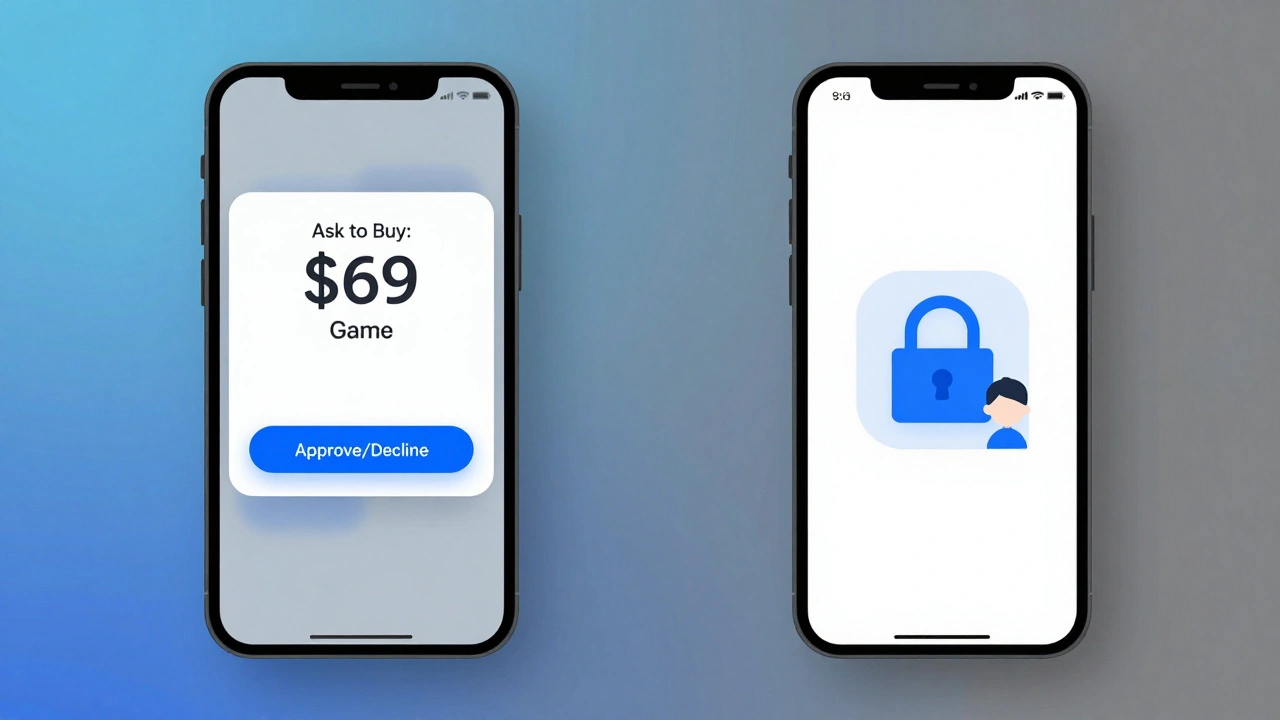
Family Sharing doesn’t mean everything is shared. Apple made sure of that. Your messages, your notes, your calendar, your Safari history-all stay locked to your own Apple ID. What you share is limited to specific services:- App Store, Apple Books, Apple TV: Any purchase made by one family member becomes available to everyone. But here’s the catch: only the organizer’s payment method is used by default. If your teen buys a $70 game, it charges your card unless you’ve set up a different payment option.
- Subscriptions: Apple Music, iCloud+, Apple TV+, Apple Arcade, and Apple News+ can be shared. But if you already had a subscription before joining Family Sharing, you have to manually turn on sharing. Apple doesn’t assume you want to share-it asks you.
- Shared Photo Library: A separate, opt-in photo album where up to six people can add, edit, and comment on photos. It’s not your entire photo library. It’s a curated space. You can leave it anytime.
- Location Sharing: Through Find My, family members can choose to share their real-time location. It’s toggleable. You can pause it for a few hours, or turn it off completely. No one’s tracking you unless you say so.
Privacy isn’t an afterthought here-it’s built into the design. Each person has their own device, their own Apple ID, and their own settings. You’re not sharing a single login. You’re sharing access to services, not identities.
How Kids and Teens Are Handled
Setting up a child under 13? Apple doesn’t let them create their own Apple ID. Instead, the organizer creates one for them. That account comes with automatic restrictions: no adult content, no unapproved purchases, no unsupervised screen time. And every time your kid tries to download an app or buy something, you get a notification. You can approve it, decline it, or even set limits on what kinds of apps they can request.Teens (13-17) are different. They can create their own Apple ID, but they still need an adult to invite them into the group. Once they’re in, they can make purchases without approval-but you’ll still get a notification. It’s not a lock. It’s a heads-up. You can turn off Ask to Buy for teens if you trust them. Or keep it on if you want to stay in the loop.
Screen Time works the same way. Parents can set daily limits, app blockers, and bedtime schedules. But teens can also request exceptions. If they ask for 30 more minutes of TikTok, you’ll get a push notification. You can say yes, say no, or even set a recurring rule: "Always allow 15 minutes after homework." It’s flexible. It’s not just a parental control-it’s a conversation tool.
Purchases and Payments: Who Pays?
This is where things get messy-and where Apple tries to make it simple. By default, all purchases made by family members are charged to the organizer’s payment method. But you can change that.If you want your teen to pay for their own apps, you can set up Apple Cash or a gift card balance on their account. They can use that first before touching the organizer’s card. Or, if you’re the one buying Apple Music for the whole family, you can turn on "Share with Family" and let everyone enjoy it without adding extra charges.
Here’s a real scenario: You buy a $100 game for your 15-year-old. They love it. But now, your credit card gets charged for every future in-app purchase they make. That’s not what you signed up for. That’s why Apple lets you go into Settings > [Your Name] > Family > Purchase Sharing and turn off sharing for specific subscriptions. You can share Apple Music but not Apple News+. You can share iCloud storage but not Apple Arcade. It’s not all-or-nothing.
Setting It Up: No Guesswork
Setting up Family Sharing is straightforward, but it’s not automatic. On iPhone, go to Settings > [Your Name] > Family > Set Up Family Sharing. You’ll be walked through adding members, choosing what to share, and setting up parental controls. On Mac, it’s under System Settings > [Your Name] > Family.If someone gets invited, they’ll see a notification on their device. On iPhone: Settings > [Your Name] > Invitations. On Mac: System Settings > Family. They accept, confirm their Apple ID, and boom-they’re in. No need to give out passwords. No need to sync devices. Just tap, accept, and go.
For kids, the setup is even simpler. When you set up a new iPad or iPhone for your child, Apple asks: "Is this for a child?" You say yes. It creates the account automatically, links it to your family group, and applies age-appropriate settings. Done. No tech skills needed.
Where It Falls Short
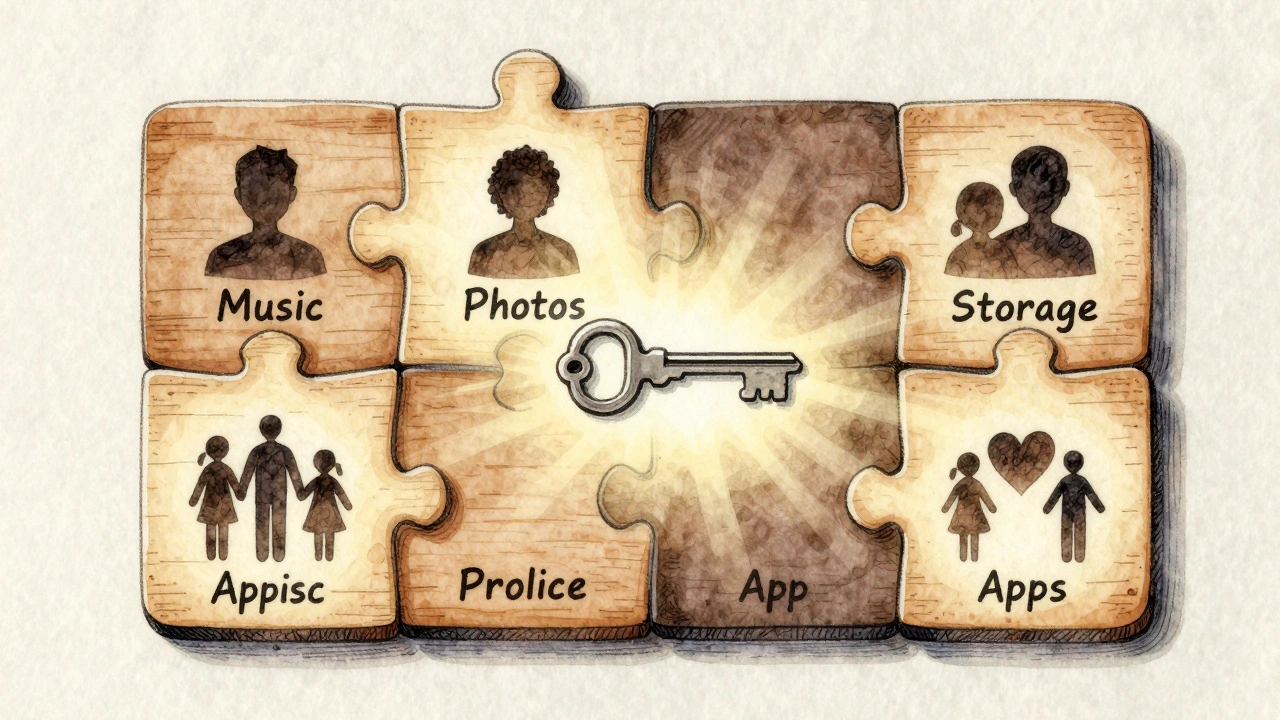
It’s not perfect. Some families struggle when a parent leaves the household and still has control over the group. Apple doesn’t let you transfer organizer status easily-you have to remove everyone and start over. If your teen switches from iPhone to Android, they lose access to shared purchases. And if you’re sharing iCloud storage, you’re still limited to 5TB total-no matter how many people are in the group.And yet, for most households, it works. It’s not flashy. It doesn’t try to be social media. It doesn’t track your habits. It just lets you share what matters-music, movies, storage, apps-without crossing personal lines.
Why This Design Works
Apple didn’t build Family Sharing to compete with Google or Amazon. They built it to keep families connected without compromising privacy. Every permission is opt-in. Every purchase is traceable. Every child’s account is locked down by default. And every adult has control-not just one person.That’s the real design win. You don’t have to choose between sharing and privacy. You can have both. And that’s why, five years after launch, over 80% of U.S. households with children under 18 use it-according to Apple’s internal data shared with developers.
It’s not magic. It’s thoughtful. And that’s why it still works today.
Can I change who the family organizer is?
No, not directly. The organizer role can’t be transferred. If you need to switch, you must remove all members, then have someone else set up a new family group and invite everyone back. It’s clunky, but Apple designed it this way to prevent accidental loss of control.
Do I need to use the same payment method for everyone?
No. The organizer’s payment method is used by default, but you can set up Apple Cash, gift cards, or even credit cards on individual family members’ accounts. Kids and teens can use those balances first before any charges go to the organizer’s card.
Can my child download apps without my approval?
If they’re under 13, no-Ask to Buy is always on. If they’re 13-17, they can buy without approval, but you’ll get a notification. You can turn off notifications for teens in Settings if you trust them.
What happens if someone leaves the family group?
They lose access to shared subscriptions and content immediately. But anything they already downloaded stays on their device. They just can’t re-download it unless they buy it themselves or join another family group.
Can I share my Apple Card with my family?
Yes, but only one person can be the primary cardholder. Other family members can get Apple Card Family Cards, which are linked to your account. Each card has its own spending limit, and you can track spending in real time. It’s not a shared wallet-it’s a shared financial structure.
Categories
Popular Articles