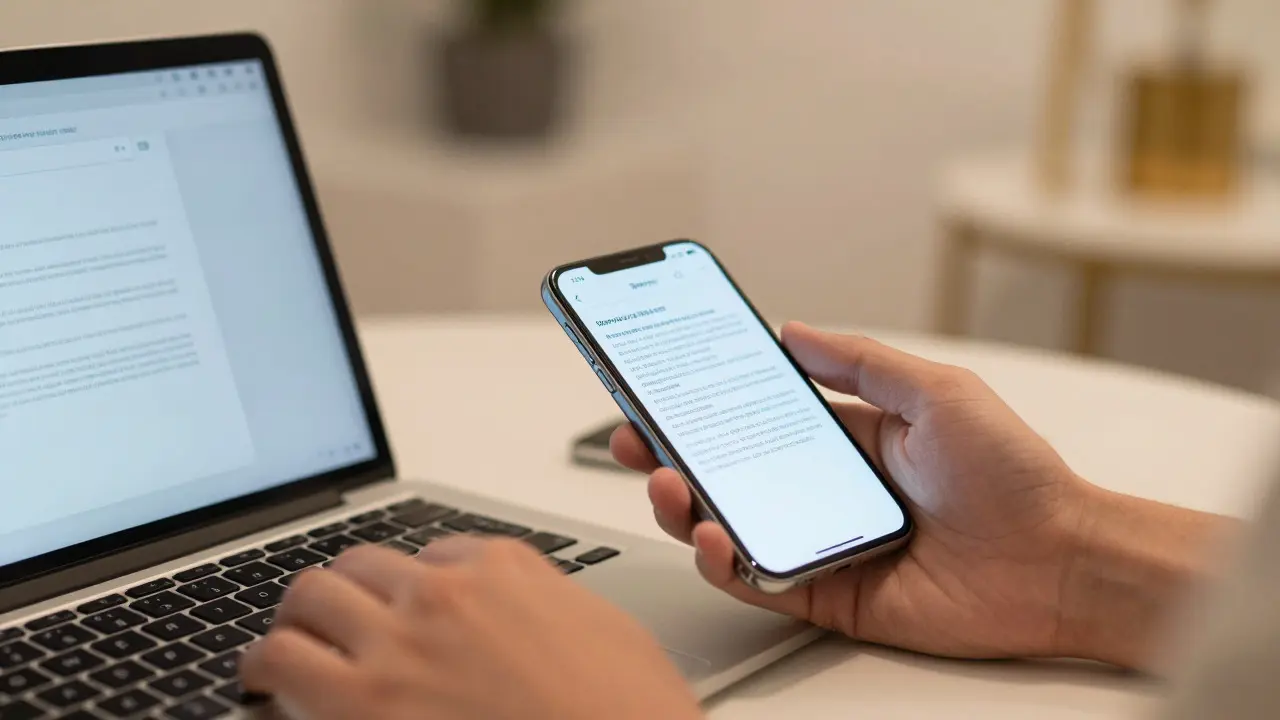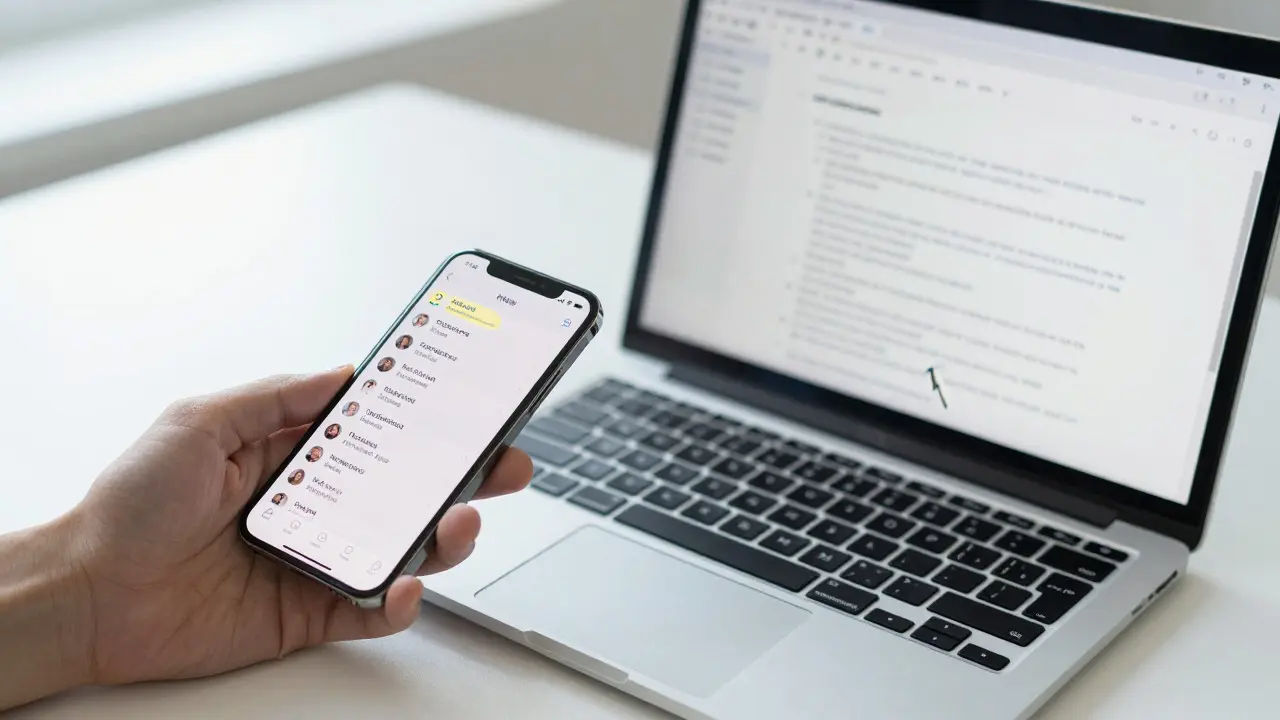

Imagine copying a phone number on your iPhone and pasting it directly into a document on your Mac without touching a keyboard or mouse. It feels like magic, but it’s actually the result of decades of engineering focused on content continuity. For millions of users, this isn't just a cool feature; it’s the glue that holds the Apple ecosystem together. If you’ve ever felt frustrated by switching between devices, you’re not alone. But understanding how these tools work-and how to get them working reliably-can transform your daily productivity.
This guide breaks down the core mechanisms behind Apple’s cross-device experience: Handoff is a feature that allows you to continue an activity started on one device on another nearby device, while Universal Clipboard is a system-wide clipboard that syncs text, images, and files across iOS, macOS, and watchOS devices. Together with features like AirDrop and iCloud, they create a unified digital workspace. We’ll explore how they work, why they sometimes fail, and how to optimize your setup for maximum efficiency in 2026.
The Core Pillars of Apple Ecosystem Design
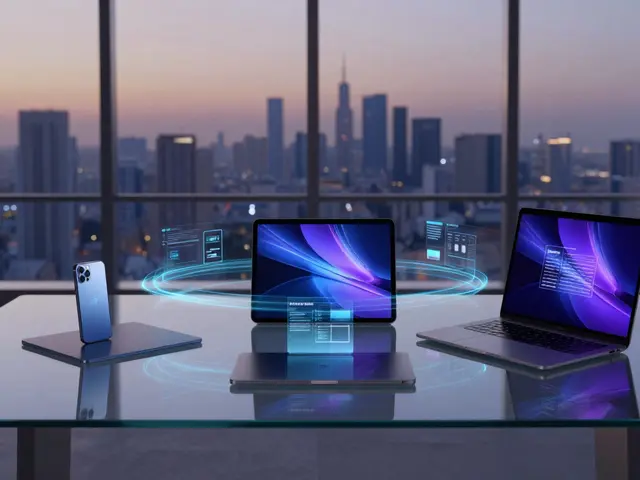
Apple’s approach to multi-device usage is distinct from competitors. Instead of treating each device as a silo, the company designs for flow. The central entity here is the user’s context, which shifts seamlessly between hardware form factors. To understand this, we need to look at the three primary technologies driving this experience.
- Handoff: This uses Bluetooth Low Energy (BLE) to detect proximity and Wi-Fi to transfer state data. When you open Safari on your iPhone, read an article, and then pick up your iPad, the tab appears in the Dock. It’s about task continuity.
- Universal Clipboard: This operates on a similar proximity detection model but focuses on data objects rather than application states. Copy something on your Mac, and it becomes available on your iPhone within seconds. It’s about data continuity.
- AirDrop: While often confused with the above, AirDrop is for direct file transfer without cloud mediation. It’s peer-to-peer, fast, and doesn’t require internet connectivity. It complements the other two by handling large files that might clog the clipboard buffer.
These systems rely heavily on iCloud being Apple's cloud storage service that synchronizes user data, settings, and media across all signed-in devices. Without a stable iCloud connection, Handoff and Universal Clipboard degrade significantly because they lack the fallback mechanism for when local network transfers fail.
How Handoff Actually Works Under the Hood
Many users think Handoff works over the internet, but that’s only part of the story. In reality, it’s a hybrid system. First, your devices must be signed into the same Apple ID. Second, they need to have both Bluetooth and Wi-Fi enabled. Third, they must be within roughly 30 feet of each other.
- Detection: Your iPhone broadcasts a low-power Bluetooth signal indicating it’s active and running a supported app (like Mail, Notes, or Safari).
- Proximity Check: Your Mac detects this signal. If the signal strength is strong enough, it assumes you are near the device.
- State Transfer: The app sends a small packet of data containing the current state (e.g., the URL you’re viewing, the cursor position in a document). This happens over Wi-Fi Direct or standard Wi-Fi if connected to the same network.
- UI Update: The receiving device updates its Dock or Mission Control to show the icon with a small indicator, signaling that a task is waiting.
This process takes less than a second. However, if any of these steps fail-say, if Bluetooth is off on your Mac-the handoff never triggers. This is where most troubleshooting begins. It’s not about the internet speed; it’s about local radio frequency interference and power management settings.
Universal Clipboard: More Than Just Text
While Handoff moves tasks, Universal Clipboard moves content. And it’s more versatile than people realize. You can copy:
- Plain text and formatted text
- Images (including screenshots)
- Files (PDFs, Word docs, etc.)
- Video clips (on newer OS versions)
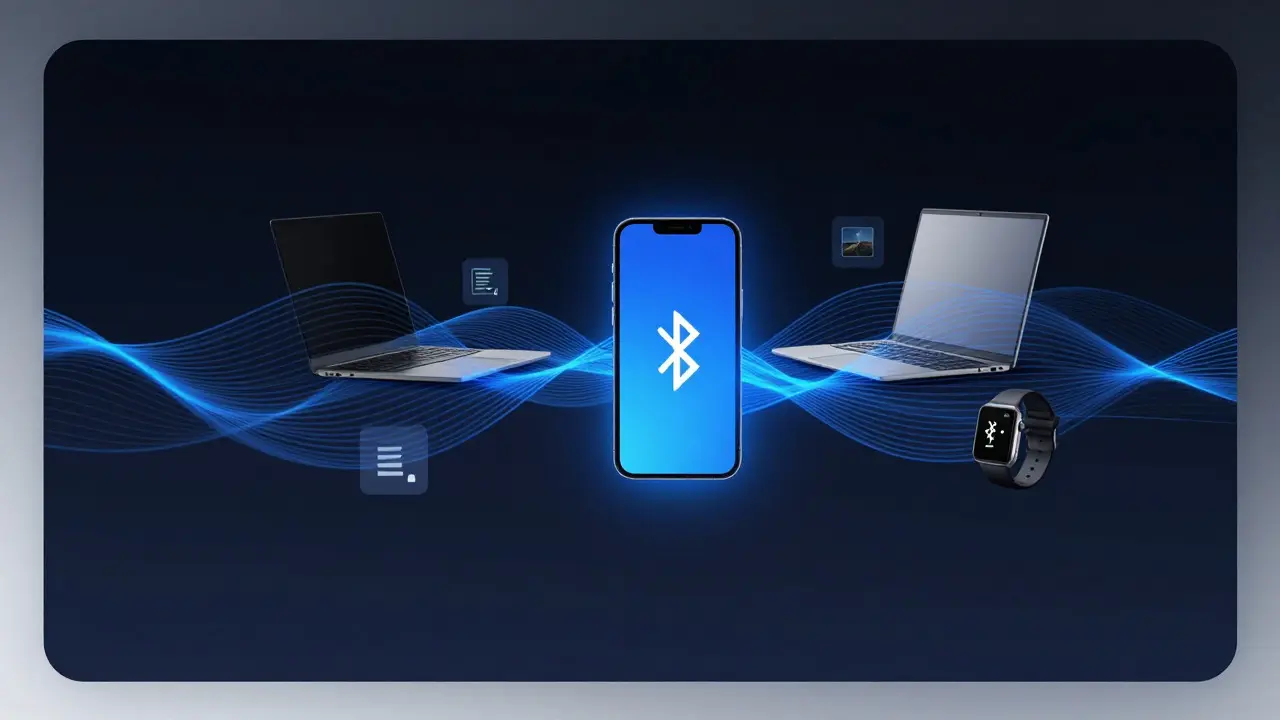
One critical attribute of Universal Clipboard is its dependency on Bluetooth Low Energy for a low-power wireless technology used for short-range communication and device discovery. If you disable BLE to save battery life, you lose Universal Clipboard functionality entirely, even if Wi-Fi is on. This is a common pitfall for power users who tweak their energy settings.
Common Failure Points and How to Fix Them
If your content continuity setup feels flaky, it’s usually due to one of three reasons: authentication, proximity, or software conflicts. Here is a diagnostic checklist based on real-world scenarios.
| Symptom | Likely Cause | Solution |
|---|---|---|
| Handoff icons don't appear | Bluetooth or Wi-Fi disabled | Enable both on all devices; ensure they're on the same Wi-Fi network if using LAN mode |
| Clipboard stops syncing after 10 mins | Device sleep or battery optimization | Disable "Optimize Battery Usage" for background refresh; keep devices awake during testing |
| Works on Wi-Fi but not cellular | Network isolation or firewall | Ensure no enterprise MDM profile is blocking local network discovery |
| Inconsistent across different apps | App-specific bug or unsupported format | Update apps to latest version; try copying plain text instead of rich media |
Another subtle issue is macOS Ventura and later versions introducing stricter privacy permissions. If you haven’t granted full disk access or local network permission to certain utilities, they might interfere with the background processes that manage continuity. Always check System Settings > Privacy & Security > Local Network to ensure your key devices are listed and permitted.
Optimizing Your Workflow for Maximum Efficiency
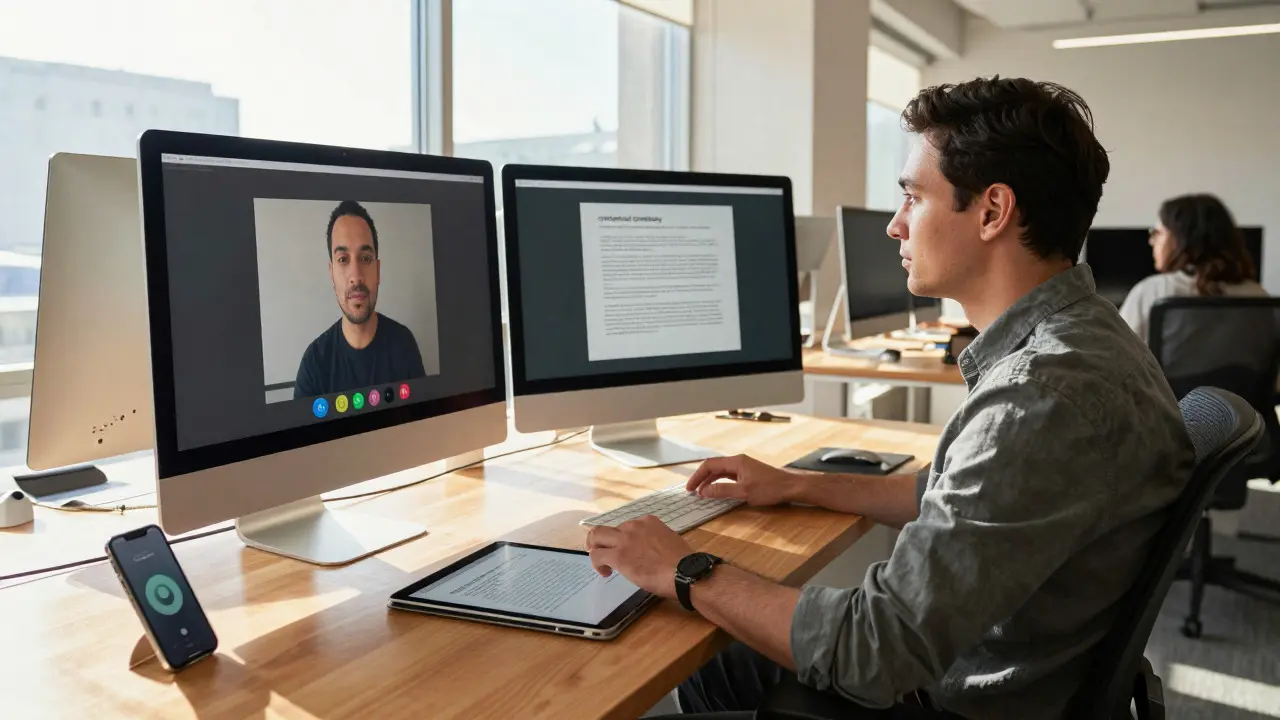
Once the basics are working, you can push further. Power users often combine these features with automation. For example, a developer might use Handoff to move from writing code on an iPhone to debugging on a MacBook Pro. A writer might draft notes on an iPad and paste them into a long-form article on a desktop iMac.
To maximize reliability, consider these pro tips:
- Keep Firmware Updated: Apple frequently patches bugs in continuity protocols via minor iOS and macOS updates. Don’t skip them.
- Use the Same Wi-Fi Channel: If you have a dual-band router, ensure both your Mac and iPhone connect to the same band (2.4GHz or 5GHz) for optimal Handoff performance. Mixing bands can cause latency spikes.
- Monitor Battery Health: Degraded batteries can cause devices to enter aggressive sleep modes, cutting off Bluetooth connections prematurely. Replacing old batteries often fixes mysterious connectivity drops.
- Leverage Shortcuts App: Create a shortcut that automatically enables Wi-Fi and Bluetooth when you arrive at home or the office. This ensures the environment is ready for continuity before you even sit down.
For businesses, IT administrators should note that Mobile Device Management profiles can sometimes restrict these features. Ensure that "Allow Handoff" and "Allow Universal Clipboard" are explicitly enabled in your MDM policy if you deploy managed devices.
The Future of Continuity: Beyond the Basics
As of 2026, Apple is expanding continuity beyond simple text and tabs. Recent updates to iOS 18 and macOS Sequoia have introduced deeper integration with third-party apps. Now, services like Slack, Zoom, and Notion support native Handoff, meaning you can start a meeting on your phone and join from your laptop without re-entering details.
Furthermore, the introduction of Matter protocol support in smart homes has created new continuity opportunities. Imagine unlocking your front door with your Apple Watch, and having your Mac automatically switch to "Work Mode" with specific notifications muted. This is the next frontier: contextual continuity, where your digital environment adapts to your physical location and actions.
Understanding these mechanics empowers you to stop fighting your devices and start leveraging them. Whether you’re a student juggling lectures on an iPad and assignments on a Mac, or a professional managing complex workflows, mastering content continuity saves hours every week. It turns separate gadgets into a single, cohesive tool.
Frequently Asked Questions
Do I need an internet connection for Handoff and Universal Clipboard?
Not always. They primarily use local Wi-Fi and Bluetooth. However, if you are on different networks or far apart, iCloud acts as a fallback, requiring an internet connection. For best performance, stay on the same local network.
Why does Universal Clipboard stop working after I restart my Mac?
This is often due to Bluetooth resetting its pairing list or a software glitch. Toggle Bluetooth off and on again on both devices. If the issue persists, reset the NVRAM on your Mac (for Intel models) or simply reboot both devices simultaneously.
Can I use Handoff with Android phones?
No. Handoff and Universal Clipboard are proprietary Apple features that require iOS, iPadOS, macOS, and watchOS. There is no official cross-platform support for Android or Windows devices.
Does Universal Clipboard work with large video files?
It can, but with limitations. Very large files may timeout or fail to sync if the connection is unstable. For files larger than 100MB, AirDrop is generally more reliable and faster.
How do I turn off Handoff to save battery?
You can disable it per-app or globally. On iPhone, go to Settings > General > AirDrop & Handoff and toggle off "Allow Handoff Between My Devices." On Mac, go to System Settings > General > AirDrop & Handoff. Note that turning off Bluetooth also disables it.