
Imagine checking the time without looking at your wrist. Or navigating a complex menu on a screen smaller than a postage stamp, guided only by voice and vibration. For millions of users with visual or motor impairments, this isn't just a convenience-it's how they interact with their world. The Apple Watch is a wearable computer that integrates deeply with iOS to provide health tracking, communication, and accessibility tools. Since its launch in 2015, it has been one of the few mainstream smartwatches designed from the ground up to be usable by blind, low-vision, and disabled users.
You don't need a specialized medical device to get these benefits. Whether you have an Apple Watch SE starting around $249 or an Ultra 2 priced near $799, the core accessibility features are built right into the operating system. They cost nothing extra. Today, we’ll break down exactly how to set up and use the three pillars of Apple Watch accessibility: VoiceOver, Taptic Time, and high-contrast visual designs.
Mastering VoiceOver: Navigation Without Sight
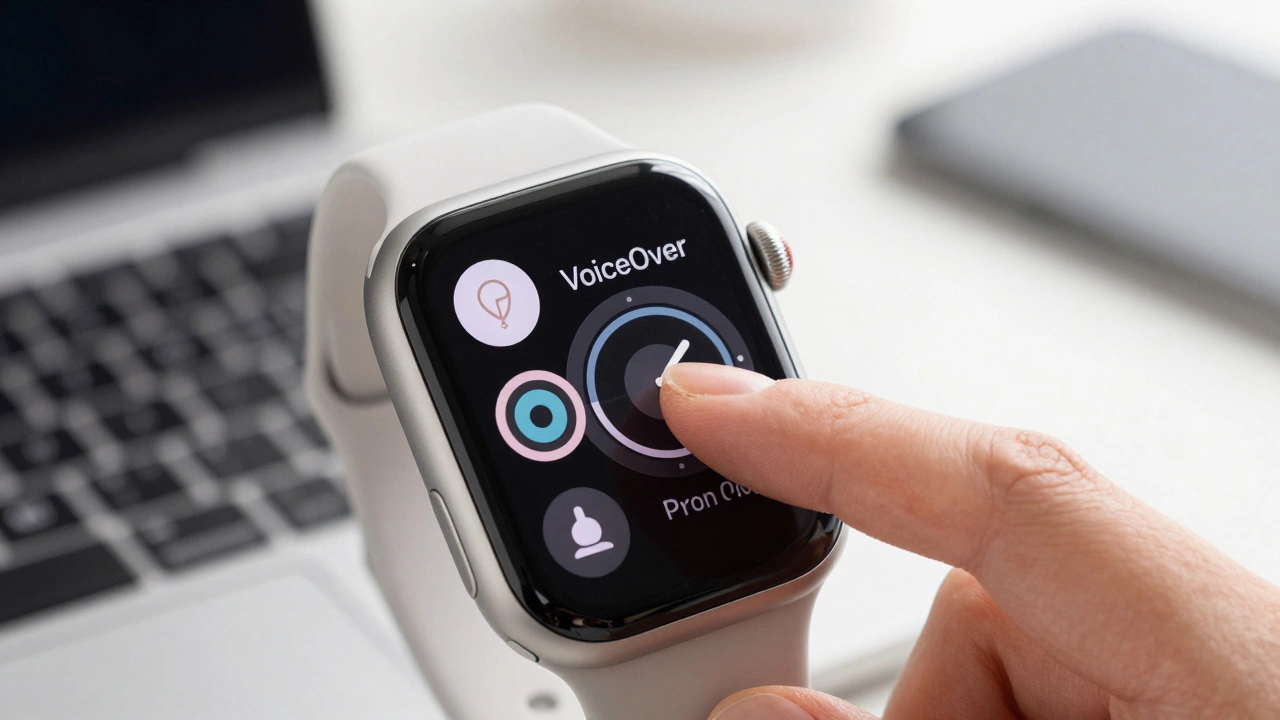
VoiceOver is a built-in screen reader technology developed by Apple that converts on-screen elements into spoken feedback for visually impaired users. It was available on day one when the first Apple Watch launched in April 2015. On a tiny OLED display ranging from 1.57 to 1.92 inches, standard touch gestures don't work the same way. Instead, VoiceOver remaps your interactions so you can navigate by ear.
To enable it during setup, triple-click the Digital Crown immediately. If you’ve already set up your watch, go to Settings > Accessibility > VoiceOver on the watch itself. Alternatively, open the Watch app on your iPhone, tap My Watch > Accessibility > VoiceOver, and toggle it on. Using the iPhone is often easier if you have residual vision, as the larger screen makes finding the setting simpler.
Once active, the interface changes completely. Here is how you interact with your watch:
- Single Tap: Focuses on an element. VoiceOver will speak what is under your finger.
- Double-Tap: Activates the focused element (like opening an app).
- Triple-Tap + Turn Crown: Cycles through watch faces.
- Two-Finger Swipe Down: Opens notifications.
- Triple-Tap with Two Fingers: Enters "Crown Navigation" mode, allowing you to turn the crown to move between UI elements precisely.
Pro tip: Bind VoiceOver to the Accessibility Shortcut. Go to Settings > Accessibility > Accessibility Shortcut and check VoiceOver. Now, triple-pressing the Digital Crown toggles it on and off instantly. This saves precious seconds compared to digging through menus.
Taptic Time: Feeling the Clock
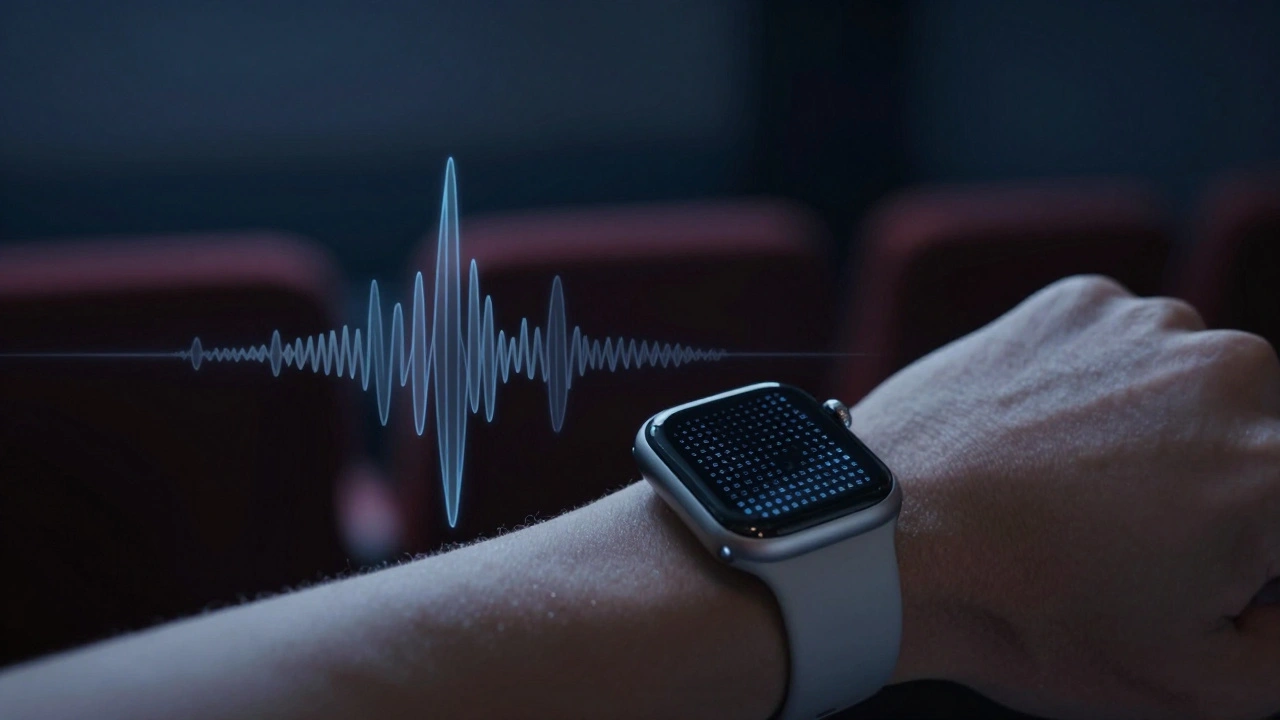
Visual cues are useless if you can’t see them. That’s where haptics come in. The Taptic Engine is a linear resonant actuator hardware component introduced in 2015 that provides precise, controlled vibrations for user feedback. Unlike cheap vibrating motors, it creates distinct, crisp taps rather than a buzz. Taptic Time uses this engine to tell you the current time through vibration patterns.
This feature is perfect for silent environments like meetings or theaters, or simply for quick checks without raising your arm to look. You can configure it in Settings > Clock > Taptic Time.
| Pattern Type | How It Works | Best For |
|---|---|---|
| Digits | Distinct taps for tens-of-hours, then minutes. E.g., 3 taps for '10', pause, 2 taps for '02' = 10:02. | Users who want precise digital time reading. |
| Terse | Shorter, faster patterns. Less distinct separation between hours and minutes. | Quick glances where exact precision matters less. |
| Morse Code | Translates numbers into Morse code dots and dashes via haptics. | Advanced users familiar with Morse code who prefer rhythmic patterns. |
You can also set hourly chimes. In Settings > Sounds & Haptics, choose Prominent Haptic if you have reduced tactile sensitivity. This adds a stronger pre-tap to every alert, ensuring you feel notifications even if you’re wearing thick gloves or have neuropathy in your wrists.
High-Contrast Design for Low Vision
If you have low vision rather than total blindness, maximizing visual clarity is key. Apple Watch offers several settings to boost contrast and readability. These are found under Settings > Accessibility > Vision on the watch, or via the Watch app on your iPhone.
Bold Text and Larger Text: Enable Bold Text to make fonts heavier and easier to distinguish. Combine this with Larger Text (Dynamic Type) to increase character size. Note that some third-party apps may not support dynamic resizing fully, but native Apple apps like Messages and Calendar will adjust automatically.
Reduce Transparency: By default, watchOS uses blurred backgrounds and translucent layers. This looks sleek but can reduce contrast. Turning on Reduce Transparency replaces these effects with solid colors, making text pop against the background. This is crucial for users with macular degeneration or cataracts.
Color Filters: If you have color blindness, use Color Filters. Go to Vision > Color Filters and enable options like Grayscale, Red/Green, or Blue/Yellow filters. You can also invert colors for maximum contrast in bright sunlight.
Zoom: For extreme magnification, enable Zoom. Double-tap the screen with two fingers to zoom in. Drag with two fingers to pan around the magnified content. This is essential for reading small complications or detailed health metrics on the 40mm-49mm screens.
Setting Up Your Accessible Workflow
Getting started takes a little practice. Here is a step-by-step workflow to optimize your experience:
- Mirror iPhone Settings: During initial pairing, choose to mirror your iPhone’s accessibility settings. This carries over VoiceOver, Bold Text, and other preferences automatically.
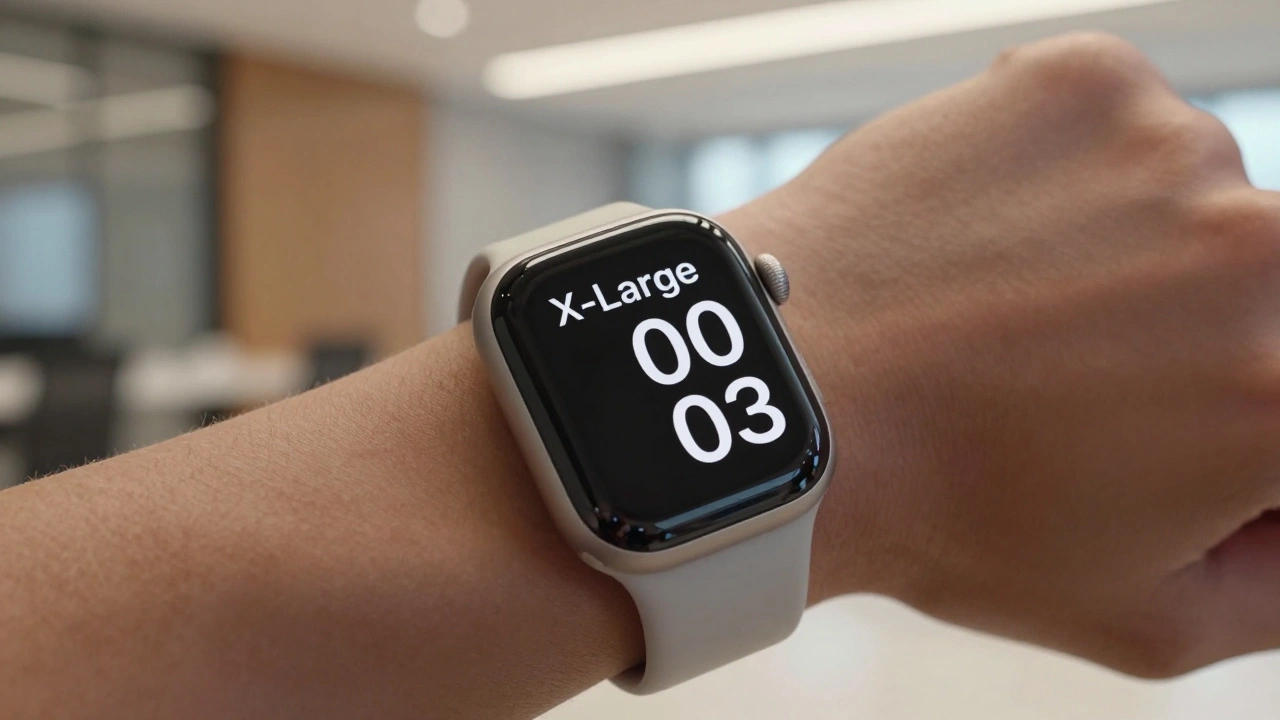
- Choose a High-Contrast Face: Select the X-Large or Modular face. These offer large numerals and clear layouts. Avoid cluttered faces with too many complications.
- Configure Complications: Place frequently used functions-like turning VoiceOver on/off or launching your heart rate monitor-in easy-to-reach corners (bottom left/right). Use the Digital Crown to navigate to them quickly.
- Test Gestures Daily: Spend 10 minutes a day practicing single-tap focus and double-tap activation. Muscle memory develops within a week for most users.
- Use the Accessibility Shortcut: As mentioned, bind VoiceOver or Zoom to the triple-click Digital Crown shortcut. This is your fastest way to switch modes.
Many blind users report that learning these gestures reduces their reliance on their iPhone for simple tasks by 20-50%. Checking the time, dismissing notifications, and controlling music become seamless wrist-based actions.
Comparing Apple Watch to Other Wearables
How does Apple Watch stack up against competitors? Dedicated talking watches from brands like RNIB or MaxiAids cost between $25 and $100. They tell time and set alarms but lack apps, health tracking, or deep ecosystem integration. Android-based Wear OS devices (like Samsung Galaxy Watches) include TalkBack, a similar screen reader. However, community reviews from groups like AppleVis consistently rate Apple Watch’s VoiceOver as more polished and consistent. Third-party apps on Wear OS often lack proper accessibility labels, leaving blind users stuck. Apple’s strict App Store guidelines require developers to label UI elements, resulting in a smoother experience across hundreds of apps.
Battery life is another factor. With VoiceOver always on, older models (Series 1-3) struggled to last 12-14 hours. Modern chips in Series 6-9 and newer handle the processing load efficiently, maintaining the standard 18-hour battery life even with heavy accessibility usage.
Troubleshooting Common Issues
Gestures feel unresponsive? Ensure your hands are dry. Sweat can interfere with capacitive touch sensors. Also, try enabling Touch Accommodations in Accessibility settings if you have tremors or limited dexterity. This slows down the response time and allows for longer press durations.
VoiceOver sounds too fast? Adjust the speaking rate in Settings > Accessibility > VoiceOver > Speaking Rate. You can also change the voice pitch and volume here.
Accidental activations? If you’re triggering Control Center instead of focusing on an element, ensure you’re using single-finger taps for focus and reserving swipes for navigation. Practice in a quiet environment until the muscle memory kicks in.
For persistent issues, Apple offers dedicated Accessibility Support. In the US, you can call 1-877-204-3930 for one-on-one help configuring these features. Their agents are trained specifically to assist users with disabilities.
Does Apple Watch VoiceOver work offline?
Yes. VoiceOver is a local system feature. It does not require an internet connection to read text or describe UI elements. Siri-dependent features like image descriptions may need connectivity, but basic navigation works entirely offline.
Can I use Apple Watch accessibility features without an iPhone?
Most features work independently once configured. However, initial setup and complex configuration (like changing watch faces or adjusting font sizes) are much easier via the paired iPhone. Cellular models can function standalone for calls and apps, but accessibility settings sync best when connected to iOS.
What is the best watch face for low vision?
The X-Large and Modular faces are recommended. They feature bold, large numerals and high-contrast colors. Avoid faces with intricate textures or low-contrast gradients. Pair these with the "Bold Text" setting enabled in Accessibility for maximum legibility.
Does Taptic Time drain the battery significantly?
No. The Taptic Engine is highly efficient. Triggering it a few times a day has negligible impact on battery life. Even with hourly chimes enabled, modern Apple Watch models maintain their standard 18-hour battery duration.
Are third-party apps accessible on Apple Watch?
Many are, thanks to Apple’s strict accessibility guidelines for the App Store. Native apps like Mail, Messages, and Activity are fully optimized. Some niche third-party apps may lack full VoiceOver support, but major categories like fitness, music, and banking generally perform well.