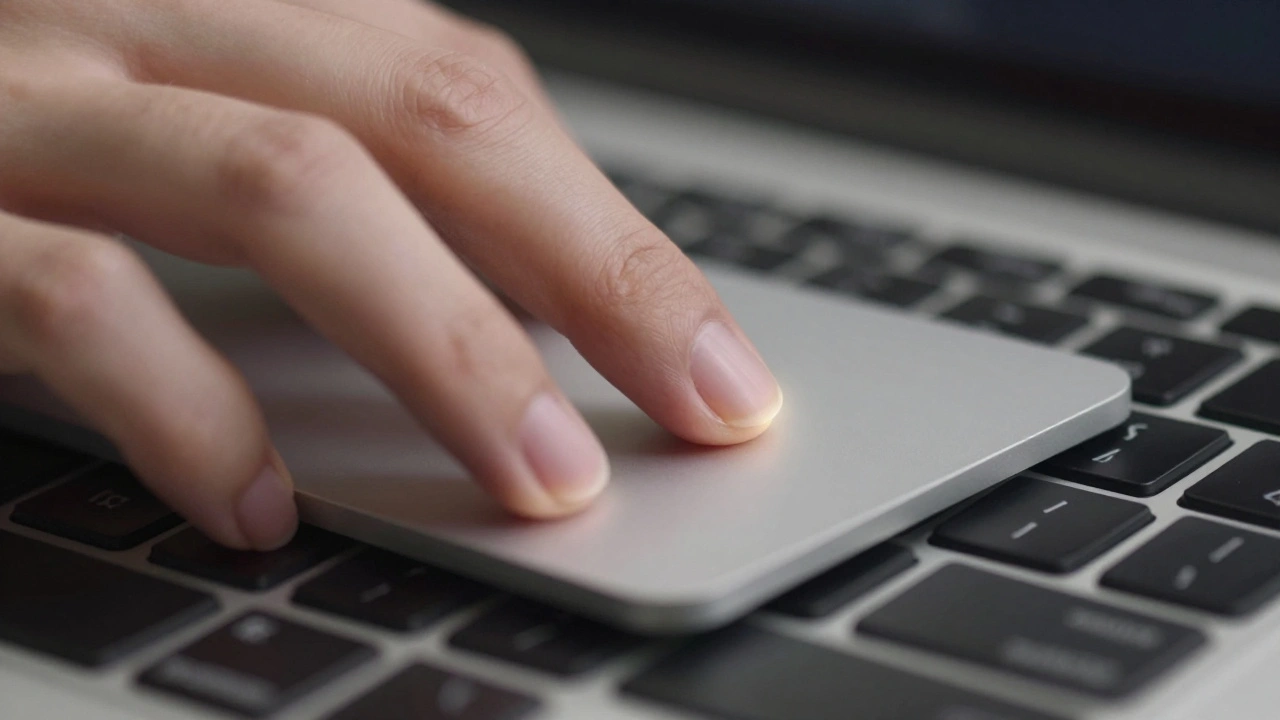

Most people think of their Mac as a machine that just runs apps. But the real magic happens between your fingers and the screen - how the trackpad and keyboard work together to make every click, swipe, and scroll feel natural. It’s not just about speed. It’s about precision. And if you’re not using macOS’s full input system, you’re leaving hours of productivity on the table every week.
How macOS Reads Your Fingers
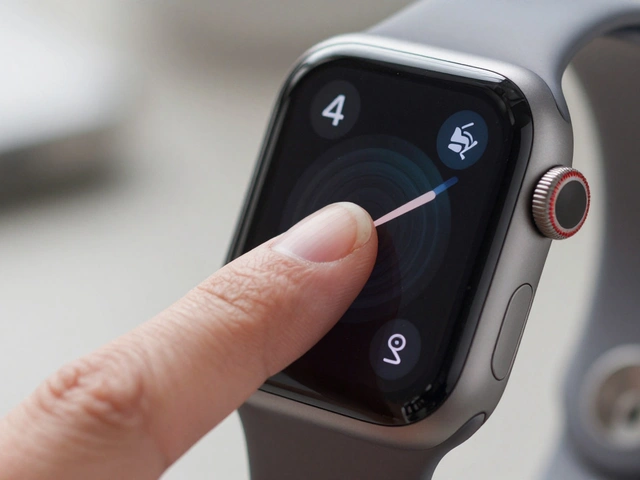
Your trackpad isn’t just a mouse replacement. It’s a multi-touch sensor that detects not just where your fingers are, but how many there are, how hard you press, and how fast you move. Apple calls this Force Touch. It’s not just pressure. It’s a whole new dimension of control. A light tap opens a link. A harder press previews a file. A three-finger swipe up shows all your open windows. These aren’t random animations - they’re carefully tuned responses built into the OS itself.
Behind the scenes, macOS separates input types. When you use a mouse or trackpad, the system marks those inputs as indirect pointer - meaning they’re not direct touches like on an iPad. This lets apps behave differently. For example, Safari shows its toolbar only when the pointer moves near the top. It hides again when you start typing. That’s not a bug. It’s intentional design. The system knows you’re not touching the screen, so it gives you space to type without accidental clicks.
The Gestures That Actually Matter
Most users stick to two-finger scrolling and pinch-to-zoom. But macOS has deeper layers. Go to System Settings > Trackpad and look beyond the basics. Here’s what most people miss:
- Three-finger swipe up = Mission Control. Shows every open window and desktop. Faster than Cmd+Tab.
- Three-finger swipe left/right = Switch between desktops. No need to open the Dock.
- Four-finger pinch = Show Desktop. Instantly clear your screen. Great for finding files fast.
- Four-finger spread = Reveal all open windows again. Reverse of the pinch.
- Pinch with thumb + three fingers = Launchpad. Opens all your apps in one grid.
These gestures aren’t just shortcuts. They’re spatial memory tools. Once your hands learn them, you stop looking at the screen. You just move. And that’s when productivity spikes.
Keyboard + Trackpad: The Silent Conflict
Here’s the hidden problem: your keyboard and trackpad are fighting each other.
When you type, your palms rest near the trackpad. But macOS doesn’t always know you’re not trying to move the cursor. That’s why you sometimes see the pointer jump while you’re typing - especially on older MacBook models. It’s not your fault. It’s a gap in the system’s palm rejection.
Third-party tools like BetterTouchTool try to fix this by adding delays - waiting 2 seconds after you stop typing before re-enabling the trackpad. But users report it doesn’t always work. Why? Because Apple’s system handles input at the OS level. Third-party apps can’t fully override it. The OS still processes trackpad motion in real time, even if you’ve told your app to ignore it.
There’s a better fix: adjust your trackpad sensitivity. Go to System Settings > Trackpad > Point & Click and lower the tracking speed. Slower movement = fewer accidental drifts. You might also turn off Tap to click if you’re a heavy typist. It’s not ideal, but it stops 80% of the noise.
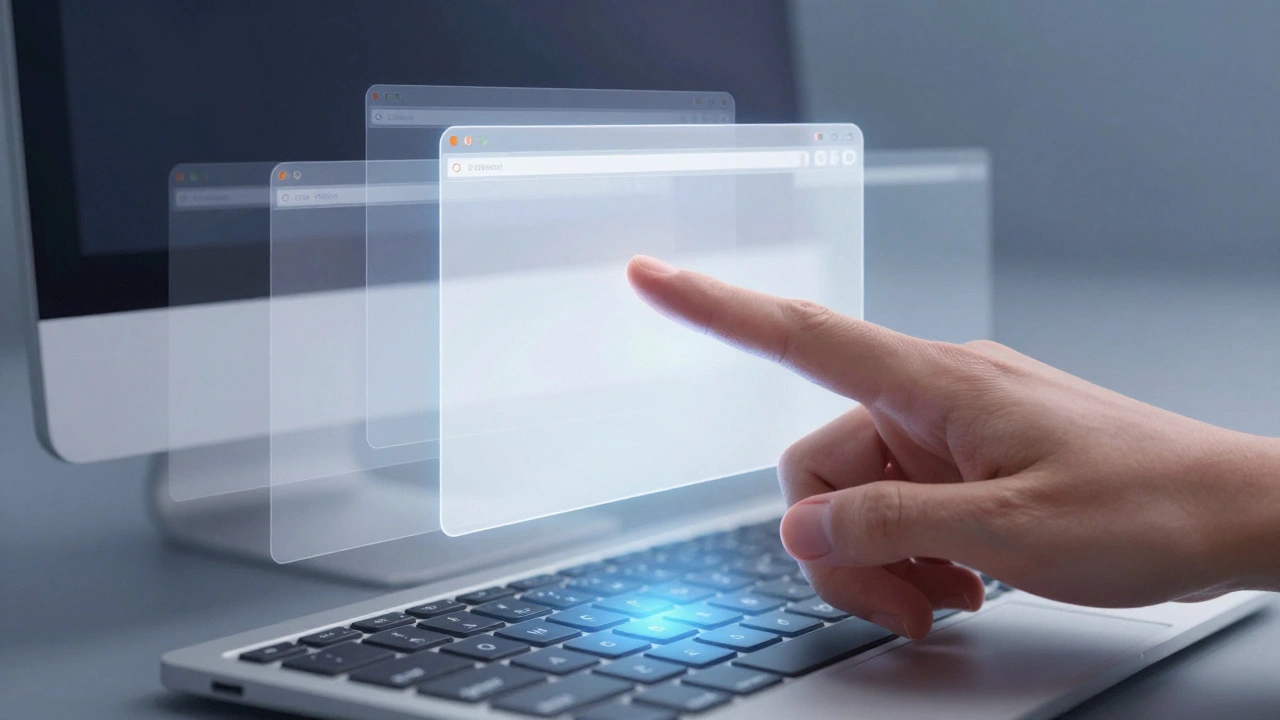
Modifiers: The Secret Weapon
What if you could change what a gesture does just by holding down a key? That’s where keyboard modifiers come in.
Hold Command while scrolling - it zooms in and out. Hold Option while swiping - it scrolls horizontally instead of vertically. Hold Shift while dragging a window - it snaps to the left or right half of the screen.
Developers can build apps that respond to these combinations. A designer might hold Command + drag to resize a layer. A coder might hold Option + click to jump to a definition. These aren’t gimmicks. They’re how pros work. The same physical motion becomes two different tools, depending on what key you press.
Scrolling: More Than Just Up and Down
Not all scrolling is created equal. Trackpads give you smooth, continuous motion. Mice give you clicks. macOS treats them differently. Apps can choose how to respond.
For example, a code editor might use continuous scrolling for the trackpad - letting you glide through files. But if you use a mouse, it switches to discrete scrolling - one line at a time. That’s because trackpad users expect fluid motion. Mouse users expect precision.
You can control this in apps that support it. In Final Cut Pro, you can set whether scrolling should be smooth or step-by-step. In Xcode, you can enable or disable momentum scrolling. These settings matter when you’re working with long documents or timelines. A single scroll can mean the difference between finding a line of code and losing your place.
What’s Coming Next
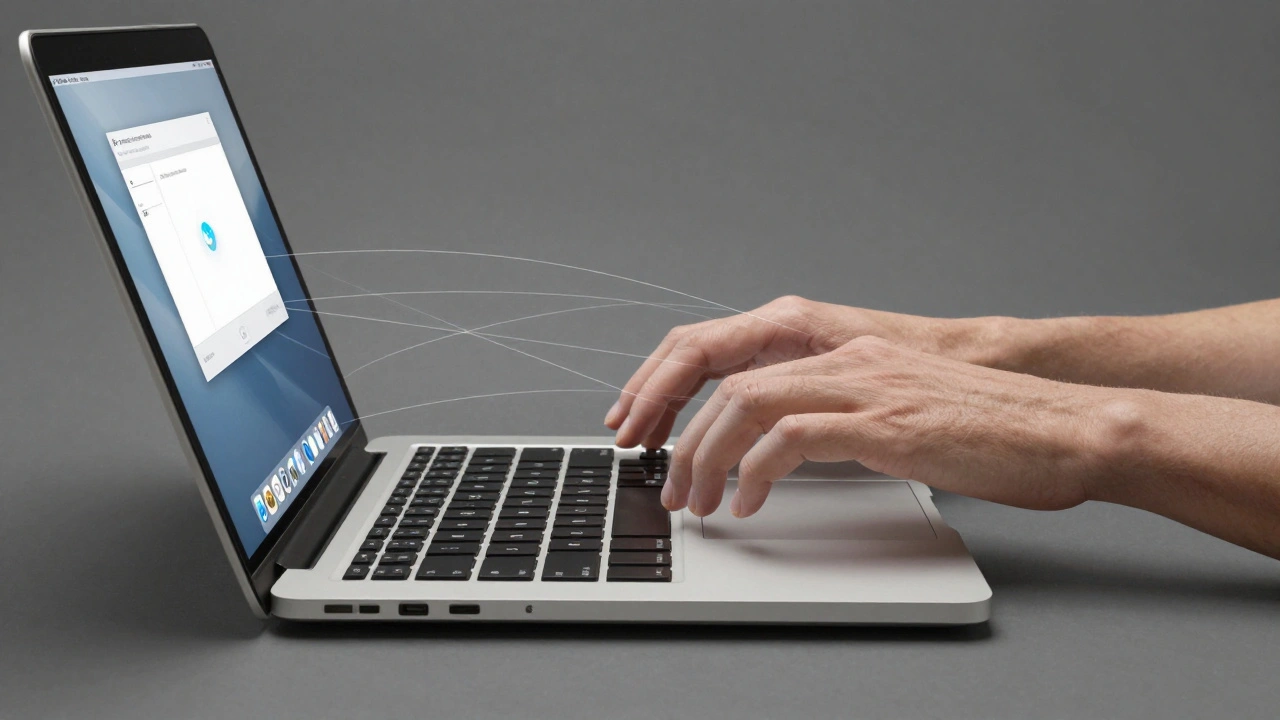
Apple has filed patents for keyboards where each keycap can sense finger movement. Imagine typing - and using your fingertips to move the cursor - all on the same surface. No trackpad needed. Just your hands, resting naturally, controlling everything.
This isn’t sci-fi. It’s the next logical step. Right now, your keyboard and trackpad are separate. That forces your hands to move back and forth. A unified input surface removes that friction. It’s not here yet. But the direction is clear: fewer devices. More precision. Less motion.
Fixing Your Setup Right Now
You don’t need new hardware. You just need to tweak what you have.
- Go to System Settings > Trackpad. Lower tracking speed to the middle or lower third.
- Turn off Tap to click if you type a lot.
- Enable Swipe between pages with three fingers - it’s smoother than two.
- Practice the three-finger swipe up and four-finger pinch. Use them once every hour. They’ll stick.
- In apps like VS Code or Photoshop, check if they support modifier gestures. You might be missing shortcuts you never knew existed.
Most Mac users never touch these settings. They think the defaults are fine. But fine isn’t fast. And fast isn’t just about speed. It’s about flow. When your hands don’t have to think, your mind doesn’t either.
Why does my cursor jump when I type?
This happens because macOS doesn’t always block trackpad input while you’re typing. Your palm may accidentally brush the trackpad. Lower your trackpad sensitivity, turn off tap-to-click, or use a palm rejection app like BetterTouchTool. But remember - Apple’s system handles input at the OS level, so third-party tools can’t always fully fix it.
Can I use keyboard shortcuts instead of gestures?
Absolutely. Many gestures have keyboard equivalents. For example, Cmd+Tab switches apps, Cmd+M minimizes windows, and Cmd+Option+Esc opens Force Quit. But gestures are faster once learned. They don’t require you to memorize key combos. Use both. Gestures for navigation, shortcuts for actions.
Why do some apps ignore trackpad gestures?
Some apps are built for older macOS versions or don’t support modern input frameworks. Developers need to explicitly opt into handling indirect pointer events and gesture modifiers. If an app doesn’t respond to three-finger swipes, it’s likely not updated for current macOS input standards. Check for updates or use the app’s built-in menu shortcuts instead.
Is natural scrolling better than traditional scrolling?
It depends on your background. Natural scrolling moves the content the way your fingers move - push up, content goes up. Traditional scrolling moves content opposite to your fingers. If you use an iPhone or iPad, natural scrolling feels intuitive. If you came from Windows, traditional might feel more familiar. Try both for a week. Most users switch to natural and never go back.
Do I need a Magic Trackpad to use these features?
No. All the gestures and precision controls work on built-in MacBook trackpads. The Magic Trackpad just adds more surface area and better pressure sensitivity. But the core functionality - three-finger swipes, four-finger pinches, modifiers - is identical. You don’t need extra hardware to unlock macOS’s full input system.