
Key Takeaways
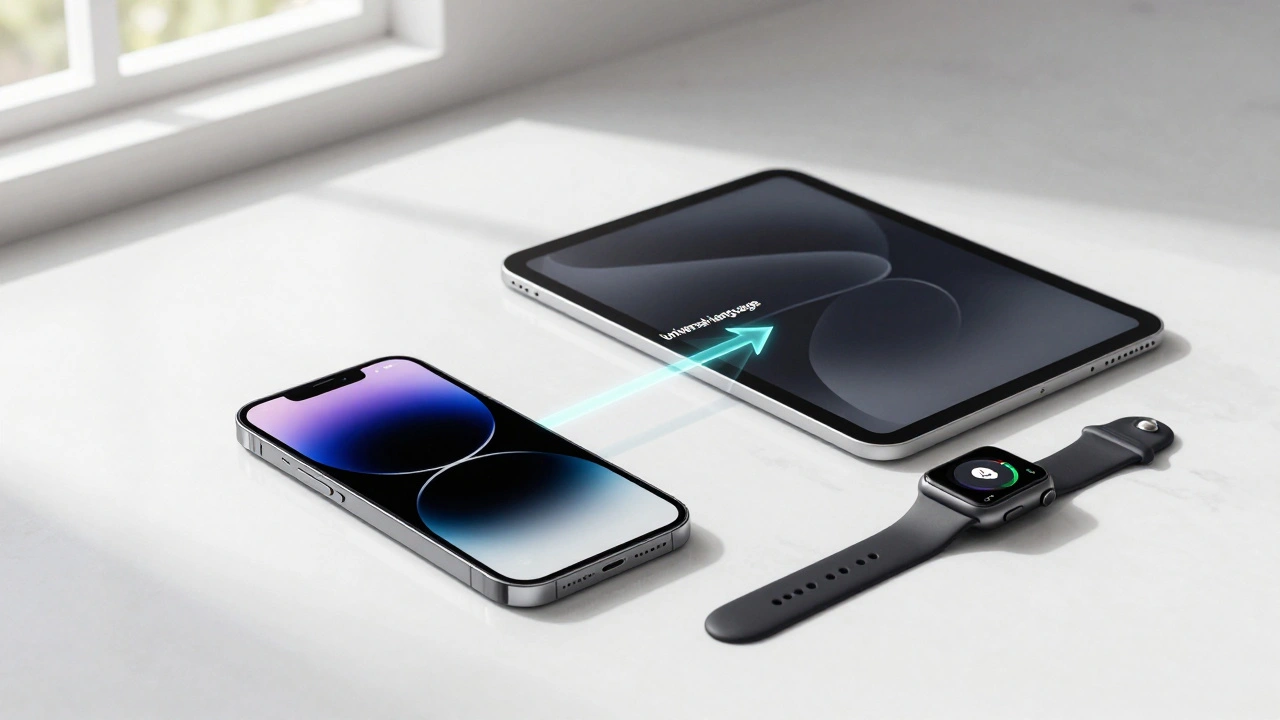
- Consistency across devices reduces the mental effort needed to switch between an iPhone and iPad.
- Three-finger gestures provide a unified way to handle common tasks like copying, pasting, and undoing.
- Accessibility tools, such as VoiceOver, use the same philosophy to ensure a seamless experience for all users.
- Custom gestures in AssistiveTouch allow users to bridge the gap between standard interactions and specific physical needs.
The Psychology of "Teaching Once, Applying Everywhere"
The goal of Apple's gesture system is to move the user from conscious planning to automatic execution. In most software, you think: "I want to undo this," then you look for a menu, and finally, you click a button. Apple's approach relies on parallel thought and execution. You don't plan the gesture; you simply perform it as a natural extension of your intent.
This is achieved by creating multi-axis gestural spaces. Instead of having a thousand different specific movements, Apple uses a few core motions that change meaning based on the context. For example, a swipe is a fundamental building block. Depending on where you are, that same swipe might take you home, flip a page in a book, or switch between open apps. Because the physical motion is identical, your brain doesn't have to "relearn" how to swipe every time you switch apps.
The Power of Three-Finger Muscle Memory
Some of the most satisfying examples of this consistency are found in the three-finger gestures. These aren't just shortcuts; they are physical metaphors. When you pinch three fingers together to copy text, the movement mimics "picking up" an object. When you spread them apart to paste, it feels like you're "dropping" that object onto the page.
This isn't just limited to one device. Because of the integration between iOS and iPadOS, these motor patterns are identical. If you've mastered the three-finger pinch on your iPhone, you can pick up an iPad for the first time and intuitively copy-paste text without hesitation. Even the undo and redo functions follow this logic: a three-finger swipe backward undoes an action, and a forward swipe redoes it. It replaces the old, clunky "shake to undo" method with a precise, invisible tool that works everywhere.
| Gesture | Action | Physical Metaphor | Devices |
|---|---|---|---|
| Three-Finger Pinch | Copy | Picking up | iPhone, iPad |
| Three-Finger Spread | Paste | Dropping down | iPhone, iPad |
| Three-Finger Swipe Left | Undo | Rewinding time | iPhone, iPad |
| Three-Finger Swipe Right | Redo | Moving forward | iPhone, iPad |
| Bottom Edge Swipe | App Switching | Flipping pages | iPhone, iPad |
Accessibility: Bridging the Gap with VoiceOver
Consistency isn't just for the average user; it's a lifeline for accessibility. VoiceOver is a screen reader that transforms the touch interface into a series of audio and tactile cues. What's brilliant is that VoiceOver gestures follow the same "learn once" rule. A two-finger gesture learned on an iPhone transfers perfectly to an iPad.
To help users get over the initial hump, Apple provides a dedicated practice interface (found in Settings > Accessibility > VoiceOver > VoiceOver Practice). This allows users to build muscle memory in a safe environment. It recognizes that while the design is consistent, the physical ability to execute a complex gesture-like a precise two-finger swipe-varies from person to person. By providing a sandbox for practice, Apple ensures that the "shared language" of their devices is inclusive.
Customizing the Experience with AssistiveTouch
Sometimes, the standard gesture library isn't enough, or a user has physical limitations that make certain movements impossible. This is where AssistiveTouch comes in. It allows users to record their own custom gestures and map them to specific system actions.
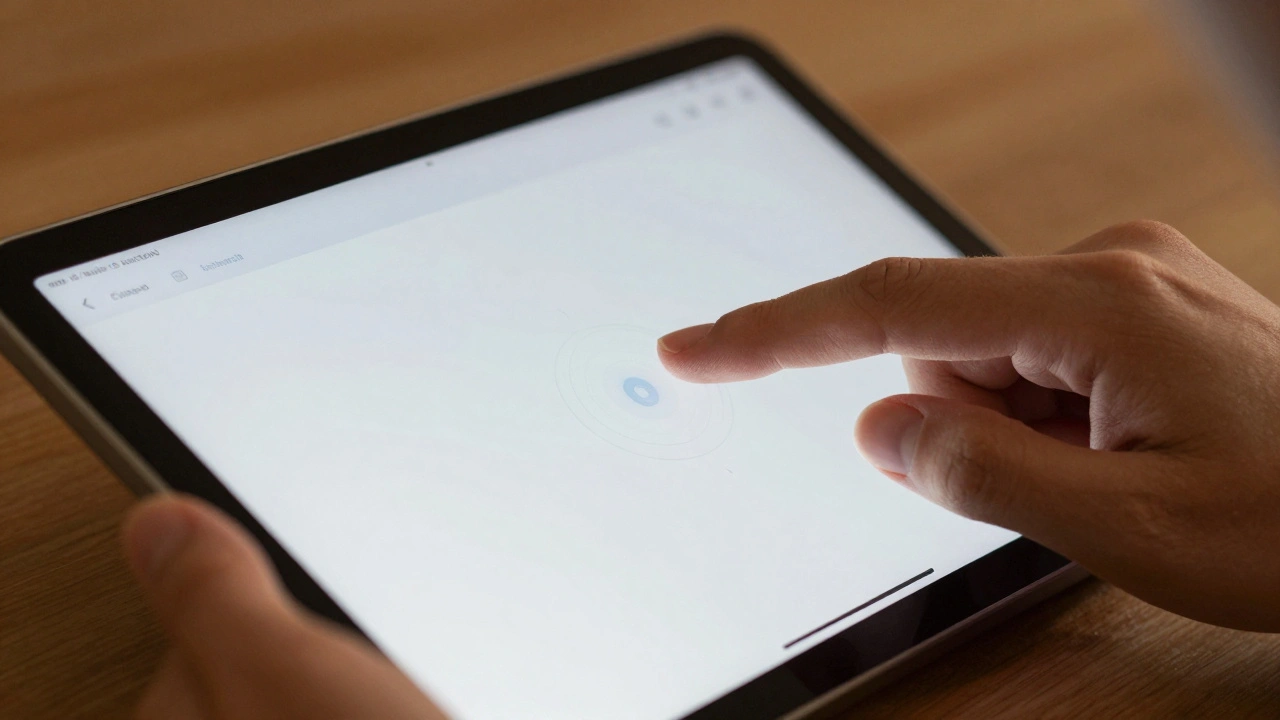
Recording these gestures requires a bit of precision. For a touch-and-hold action, you have to hold your finger still until the recording progress bar hits exactly halfway before lifting. If you move your finger too much, the system interprets it as a drag rather than a hold. For multi-finger gestures, the interface uses on-screen circles to guide you, making it clear where your fingers should be. One of the most powerful features here is the ability to record sequential taps that the system then plays back as a simultaneous multi-finger tap, effectively allowing a user with one finger to trigger a complex four-finger command.
Layering and Interrupting: The Advanced User Experience
Once these gestures become second nature, you start to do things that seem almost subconscious. This is called "layering." Because the animations and gestures are so tightly aligned, you can interrupt a gesture mid-stream. You might start a swipe to go home, but as the app begins to shrink, you swipe again to jump to the next page of your home screen.
This fluidity is why the ecosystem feels faster than its competitors. In a device-specific system, every action is a discrete step: Step A, then Step B. In Apple's integrated design, actions overlap. You can launch an app and, before it even fully opens, trigger a multitasking gesture to move it to the side. This reduces the cognitive load because you aren't thinking about the tool-you're thinking about the task.
Common Pitfalls When Learning Gestures
Despite the intuitive design, there is a learning curve. Many users struggle with the physical execution of two-finger gestures, often applying too much pressure or missing the timing. In custom gesture recording, the biggest mistake is "drift," where a slight movement of the finger turns a intended tap into a drag, causing the recording to fail.
The key to overcoming this is leveraging the built-in practice tools. Whether it's the VoiceOver practice screen or simply spending ten minutes experimenting with the three-finger copy-paste in a notes app, the goal is to move the action from the conscious mind to the cerebellum, where muscle memory lives.
Do these gestures work across different versions of iOS?
Yes, Apple maintains a very high level of consistency across versions. While new gestures are added in updates (like those seen in iOS 17), the core three-finger and two-finger interactions remain stable to avoid confusing users who have already developed muscle memory.
Can I use the same gestures on a Mac with a trackpad?
Many of the core principles transfer. For instance, the pinch-to-zoom and multi-finger swipes on a Mac trackpad are designed to mimic the logic of the iPad and iPhone, though the physical surface differs.
What is the best way to practice VoiceOver gestures?
The most effective way is using the VoiceOver Practice screen located in Settings > General > Accessibility > VoiceOver. This allows you to try gestures without accidentally changing settings or deleting data on your device.
Why does my custom gesture in AssistiveTouch keep recording as a 'drag'?
This usually happens because your finger moved slightly during the recording. To record a clean tap or hold, keep your finger perfectly still until the recording progress bar reaches the halfway mark before lifting.
Does the three-finger copy-paste work across different apps?
Yes, it is a system-level gesture. You can copy text from a web browser in Safari and paste it into a message in iMessage or a document in Pages using the same pinch-and-spread motion.
Next Steps for Mastering Your Devices
If you're just starting to explore these shortcuts, begin with the three-finger gestures. Spend a few minutes in a Notes document copying and pasting phrases. Once that feels natural, move on to the undo/redo swipes. If you find certain physical movements difficult, dive into AssistiveTouch to create a custom shortcut that fits your hand's natural movement. The more you rely on these patterns, the less you'll have to think about how to operate your device, leaving more room for the actual work you're trying to get done.