
Ever noticed how your iPhone says one thing about your battery in the top corner, but the Settings menu tells a completely different story? It seems like a small glitch, but it actually reveals a deeper tension in how Apple handles Apple battery indicators. On the surface, the ecosystem looks seamless, but when you dig into the semantics-the actual meaning behind the numbers-the experience varies wildly depending on which device you're holding and which version of software it's running.
The New Era of Battery Intelligence
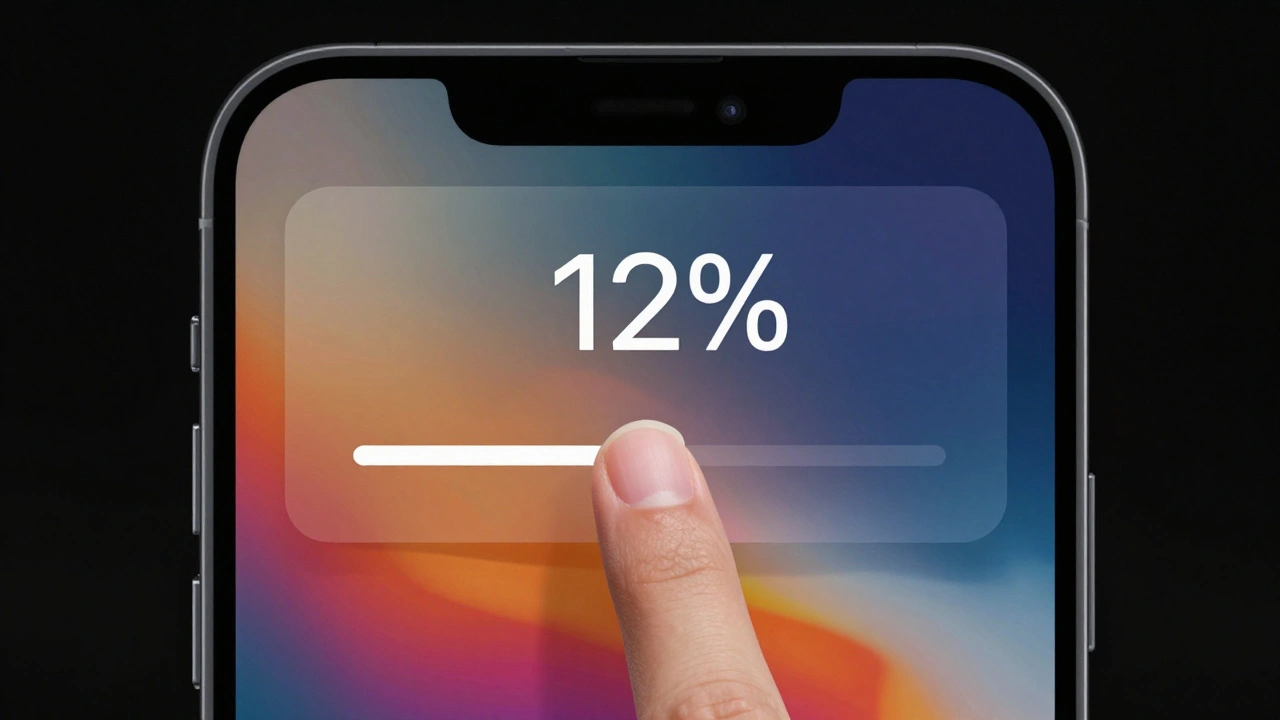
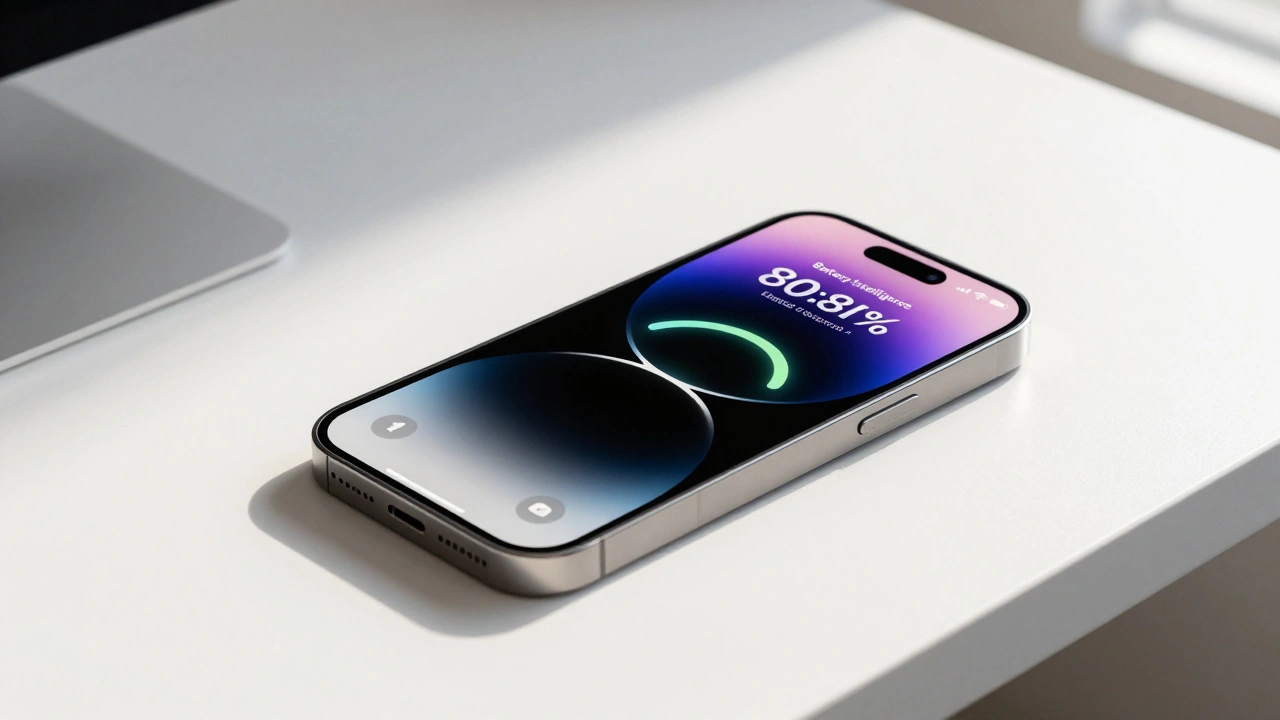
With the release of iOS 26, Apple has shifted from simply telling us how much juice is left to predicting the future. The new Battery Intelligence feature is a major leap in integrated design. Instead of a static percentage, it provides real-time charging duration estimates. If you're plugged in, you can now see exactly how long it will take to hit 100%. For those who just need enough power to get through a commute, a quick one-second press of the side button on the lock screen reveals the estimated time to reach 80% capacity.
However, this "intelligence" isn't universal. This feature is currently locked to the iPhone 15 Pro, iPhone 15 Pro Max, and newer models. If you're using a base iPhone 15 or anything older, you're left with the traditional percentage. This creates a fragmented user experience where the "language" of the battery changes based on the hardware's chip capability, breaking the promise of a consistent ecosystem.
The Hidden Logic of Battery Health
Battery indicators aren't just about the current charge; they're about the long-term health of the Lithium-ion battery. Apple's approach to this became much more transparent starting with iOS 14.5. They introduced a recalibration system specifically for the iPhone 11 series to ensure that maximum capacity and peak performance capability were reported accurately.
This process isn't instantaneous. The system uses algorithms that monitor your device during regular use over several weeks. If you've ever seen a status message in Settings > Battery > Battery Health mentioning a recalibration, you've seen this backend process in action. It's a necessary piece of engineering because battery chemistry is volatile; a simple voltage check isn't enough to tell a user if their battery is actually degrading or just having a bad day.
| Feature | Legacy iPhones (Pre-15 Pro) | Modern iPhones (15 Pro & Newer) | Impact on User |
|---|---|---|---|
| Charging Duration Estimates | Not Available | Real-time (0-100%) | Reduced charging anxiety |
| Lock Screen Quick-View | Static Percentage | Time to 80% estimate | Faster decision making |
| Health Recalibration | Standard (since iOS 14.5) | Advanced AI-driven | More accurate lifespan data |
Why the Status Bar Lies
One of the most frustrating experiences for users is the discrepancy between the status bar indicator and the Settings app. Why does the lightning bolt disappear in the status bar even though the cable is plugged in? This happens because of how Apple defines "charging."
The status bar is tied to thresholds of net charging. It only reflects a charging state when the incoming power exceeds the device's active power draw. If you're running a heavy app like a high-end game or a 4K video export, your phone might be consuming power as fast as the charger can supply it. In this scenario, the Settings app might show the device is connected to power, but the status bar indicator won't show the charging symbol because the battery level isn't actually increasing. It's a semantic gap: one tells you about the connection, the other tells you about the result.
Deep Dive into Usage Metrics
Apple's battery monitoring architecture is designed to give users a granular look at their habits. The system separates activity into "Screen On" and "Screen Off" states, which is critical for diagnosing battery drain. For instance, if your battery drops 20% overnight, the "Screen Off" metrics in the Last 10 Days view will highlight if a background process or a weak cellular signal is the culprit.
The "Battery Usage by App" section further refines this by showing the proportion of energy consumed. This allows you to see if a specific social media app is behaving badly in the background. By tapping individual time intervals in the usage graph, you can pinpoint the exact hour your battery plummeted, transforming the battery indicator from a simple gauge into a diagnostic tool.
The Developer's Perspective
For those building apps, Apple provides a programmatic way to interact with these levels through UIKit. Developers use the batteryLevel property, which returns a value between 0.0 (empty) and 1.0 (full). However, this isn't a "free" piece of data. To protect privacy and save power, developers must explicitly enable battery monitoring before they can access this value.
This programmatic layer ensures that third-party apps can adapt their behavior-such as disabling heavy animations or reducing refresh rates-when the battery is low. It creates a bridge between the hardware's physical state and the software's visual representation, though the accuracy of the batteryLevel property is still subject to the same calibration issues that affect the user-facing UI.
Calibration Glitches and System Stability
Consistency isn't always guaranteed. There have been documented cases, particularly in older versions like iOS 13 and 14, where battery percentages would remain static upon reconnecting to WiFi, only to suddenly plunge by 8-16% moments later. This usually points to a failure in the communication between the battery's fuel gauge chip and the operating system.
When the OS loses track of the actual voltage, it relies on historical data to "guess" the percentage. Once it reconnects to a stable state or performs a fresh reading, the "correction" happens all at once. While these bugs are rarer in iOS 26, they highlight how fragile the relationship is between the chemical reality of a battery and the digital representation we see on screen.
Why does my battery percentage jump suddenly?
This usually happens due to calibration errors. The device's software might be estimating the charge based on old data; when it performs a fresh reading of the actual voltage, it corrects the percentage instantly, leading to a sudden drop or increase.
What is the 'Time to 80%' feature in iOS 26?
Part of Battery Intelligence, this feature tells you how long it will take to reach 80% charge. It's designed for users who want a quick top-up before leaving, rather than waiting for a full 100% charge, which is slower due to trickle charging.
Can I get Battery Intelligence on an iPhone 14?
No. Currently, Battery Intelligence is limited to iPhone 15 Pro, iPhone 15 Pro Max, and newer models. Older hardware lacks the necessary processing or sensor integration to support these real-time estimates.
Why does the charging bolt disappear while I'm using my phone?
The status bar indicator only shows the charging bolt when the incoming power is greater than the power the phone is consuming. If you're using a high-drain app, the net charge might be zero or negative, even if plugged in.
How does the battery health recalibration work?
Apple uses algorithms that monitor charge and discharge cycles over several weeks. By measuring how the battery performs during real-world use, the system can more accurately determine the maximum capacity compared to a simple static test.
Next Steps for Optimization
If you're noticing weird behavior with your battery indicators, start by checking for software updates. Since Apple frequently tunes the recalibration algorithms in iOS updates, a version jump often fixes "jumping" percentages. If you're on a Pro model with iOS 26, start utilizing the lock screen estimates to optimize your charging habits-charging to 80% is generally better for long-term battery health than constantly pushing to 100%.