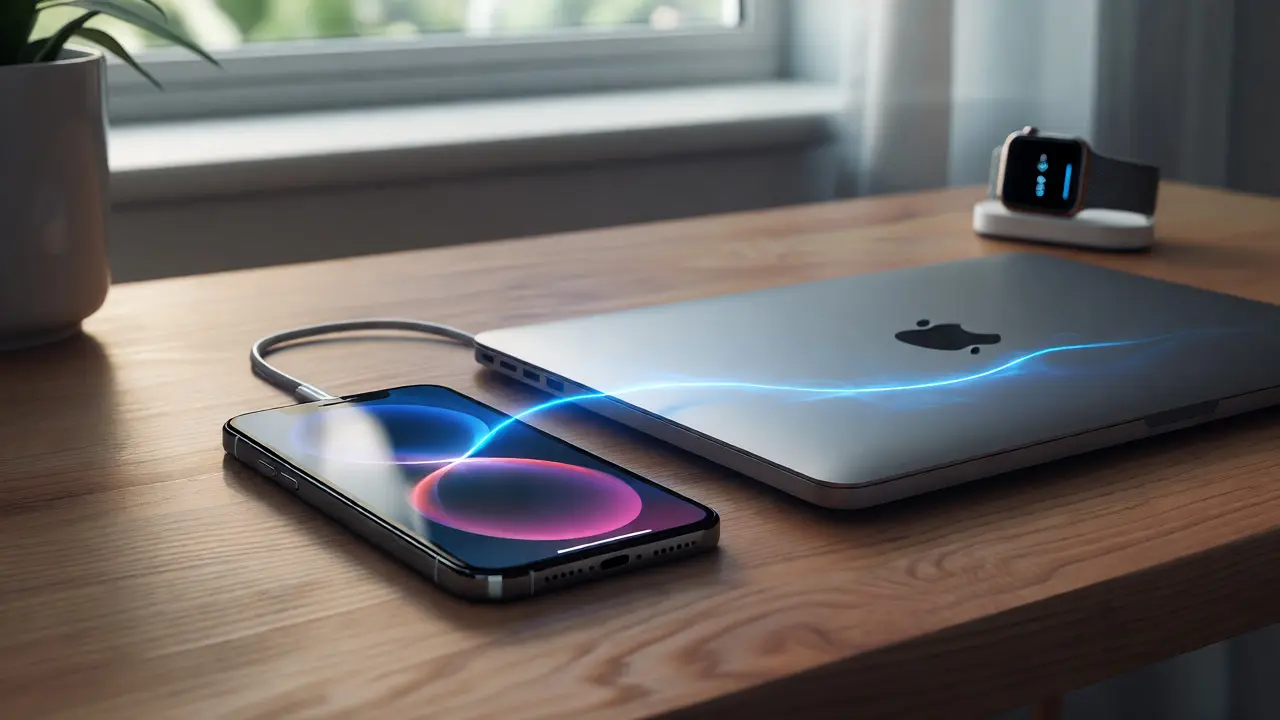

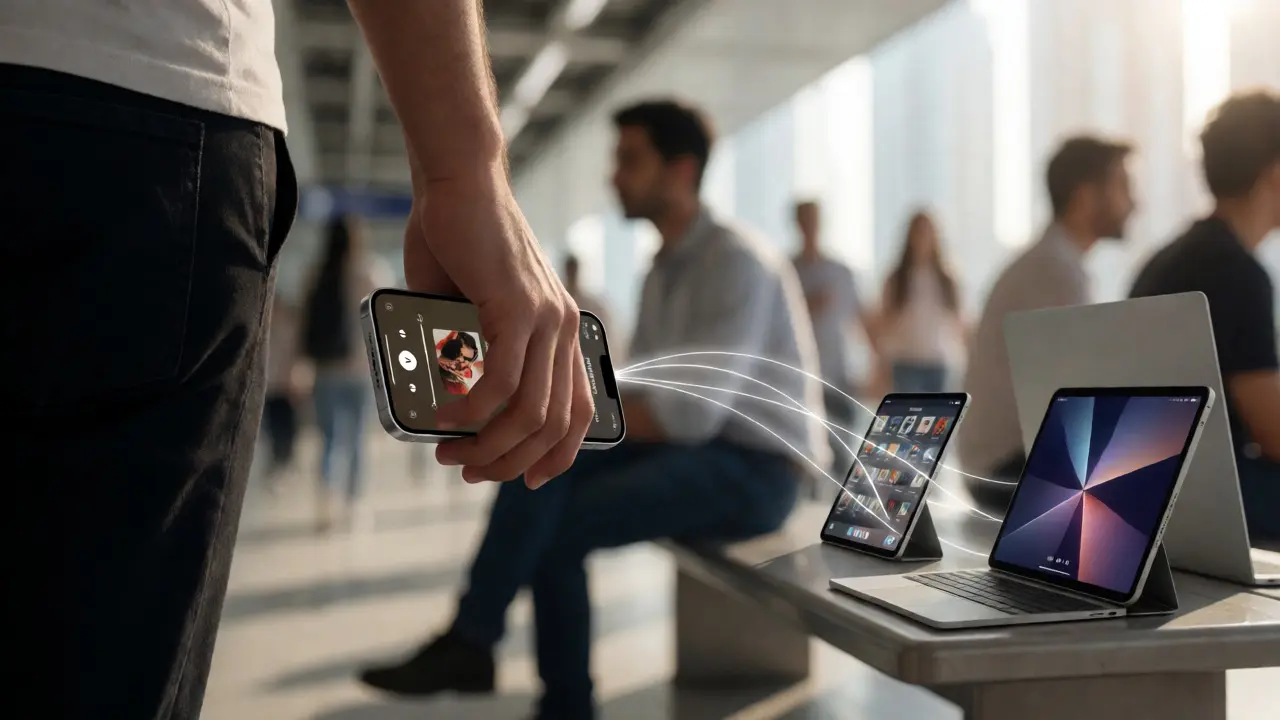
You’re sitting at your desk, deep in a spreadsheet, when your iPhone buzzes on the other side of the room. It’s a Slack message from your boss. You glance at it, but you don’t want to break your flow state by picking up the phone. So you ignore it. Ten minutes later, you pick up your MacBook Pro, and there it is again-same alert, same timestamp, waiting for you in the Notification Center. This isn’t magic; it’s the result of Apple’s relentless engineering toward coherent ecosystem notifications. But here’s the catch: most users treat these devices as separate islands. They turn off notifications on their watch because they hate the wrist buzz, or they silence their iPad because it screams every time their phone rings. The result? A fragmented experience where you either miss critical info or get drowned in redundant pings.
The goal of this guide is simple: stop letting your devices fight each other. We’re going to look at how Apple’s iOS and macOS systems actually talk to each other, why they sometimes fail, and exactly how to configure them so that alerts appear only when and where they make sense. Whether you’re a developer trying to push custom payloads or just someone who wants fewer interruptions, understanding the logic behind Continuity features is the first step to reclaiming your attention.
The Architecture of Cross-Device Alerts
To fix the noise, you need to understand the pipe. Apple doesn’t just blast notifications everywhere. It uses a system called Push Notification Service (APNs), which acts as the central post office for all Apple devices. When an app sends a notification, it goes to APNs, which then routes it to your registered devices based on specific rules. These rules are governed by two main technologies: Handoff and Universal Links.
Handoff is the invisible thread connecting your devices. It relies on Bluetooth Low Energy (BLE) and Wi-Fi proximity. If your iPhone and Mac are on the same Wi-Fi network and within about 30 feet of each other, macOS can “see” that your iPhone is active. This proximity check is crucial. If you walk away from your desk and take your iPhone with you, your Mac might still show a banner if the connection hasn’t timed out yet, leading to those annoying duplicate alerts. Conversely, if your Mac is asleep, iOS won’t bother sending a visual alert to the Mac’s lock screen unless it’s set to wake for notifications.
Another key component is Focus Modes. Introduced in iOS 15 and refined heavily since, Focus allows you to filter notifications not just by device, but by context. For example, you can create a "Work" focus that silences personal apps on your iPhone but keeps work emails visible on your Mac. This contextual awareness is what separates a chaotic ecosystem from a coherent one. Without it, every device shouts simultaneously. With it, your devices whisper the right things at the right times.
Configuring Notification Mirroring and Filtering
The biggest pain point for most users is redundancy. Why see the same text message on your Watch, iPhone, and Mac? The solution lies in the granular control settings found in both iOS and macOS. On your iPhone, go to Settings > Notifications. Here, you’ll see a list of apps. Tap on an app like Messages or Mail. You have options for Lock Screen, Notification Center, and Banners. But the real power user move is looking at the "Announce Notifications" section under Accessibility or Siri settings. This controls whether Siri reads alerts aloud, which often triggers the visual pop-up too.
On your Mac, the process is slightly different but equally powerful. Open System Settings > Notifications. You’ll notice that some apps mirror their iOS counterparts, while others are native to macOS. To reduce clutter, use the "Allow Notifications" toggle strategically. Do you really need Instagram updates popping up on your desktop while you’re coding? Probably not. Disable them on the Mac, keep them on the iPhone. This division of labor prevents cognitive overload.
A common mistake is ignoring the "Deliver Quietly" option. Instead of turning notifications off completely, choose to deliver them quietly. This means the alert appears in the Notification Center without making a sound or appearing as a banner. It’s perfect for low-priority updates like software download progress or social media likes. You retain the information access without the interruption.
Advanced Setup for Developers and Power Users
If you’re building apps or using automation tools like Shortcuts, you know that standard notifications aren’t enough. You need dynamic content. Apple supports Rich Notifications, which allow images, videos, and interactive buttons directly in the alert. However, syncing rich content across devices requires careful payload management. If you send a large image attachment via APNs, it might load instantly on your iPhone over cellular but stall on your Mac if Wi-Fi is congested. Always compress assets before pushing them through the API.
For those using Shortcuts Automation, you can create custom triggers that modify notification behavior based on location or time. Imagine setting up an automation that says: "When I arrive home, switch my Mac notifications to 'Do Not Disturb' and forward only family messages to my iPhone." This level of customization turns passive alerts into active tools. You can also use the "Run Immediately" trigger to suppress banners for certain events entirely, logging them instead to a hidden folder or email digest.
Developers should also consider the `threadIdentifier` property in notification payloads. This groups related notifications together. For instance, if you receive five emails from the same sender, grouping them under one thread identifier creates a single stackable alert rather than five separate banners. This reduces visual clutter significantly on smaller screens like the Apple Watch or iPhone lock screen.
Troubleshooting Common Sync Issues
Sometimes, despite perfect configuration, notifications fail to sync. The usual suspects are outdated software and network conflicts. Ensure all devices are running the latest versions of iOS, iPadOS, and macOS. Apple frequently patches bugs related to APNs delivery delays. If you’re on a beta version, expect occasional hiccups in cross-device continuity.
Network issues are another frequent culprit. Since Handoff relies on both Bluetooth and Wi-Fi, a weak signal on either front can cause drops. Try toggling Bluetooth off and on again on both devices. Also, check your router settings. Some routers isolate clients on the same network, preventing devices from seeing each other. Enable "Client Isolation" off if you want seamless discovery. Finally, verify that iCloud Drive is enabled on all devices. Many notification preferences sync via iCloud, and if storage is full or sync is paused, your settings won’t propagate correctly.
| Feature | iPhone | Mac | Apple Watch |
|---|---|---|---|
| Banner Visibility | High priority, always on top | Top right corner, auto-dismiss | Haptic + brief view |
| Interactive Actions | Reply, Mark Read, Dismiss | Reply, Forward, Archive | Limited (Siri Dictation) |
| Silencing Method | Mute Switch / Focus Mode | Do Not Disturb / Focus | Theater Mode / Wrist Raise |
| Sync Latency | Near Instant | 1-5 seconds (Wi-Fi dependent) | Instant (via iPhone) |
Best Practices for a Noise-Free Workflow
Consistency is key. Pick a strategy and stick to it across all devices. If you decide that Slack is a "work only" tool, disable it on your personal iPad and HomePod. Use Focus modes to enforce this boundary automatically. Set up a "Work" focus that activates when you connect to your office Wi-Fi, silencing all personal apps on your iPhone and Mac.
Regularly audit your notification sources. Every month, spend ten minutes reviewing which apps are allowed to notify you. Delete permissions for apps you haven’t opened in weeks. Uninstall unused apps entirely. The less digital noise you generate, the more meaningful the remaining alerts become. Remember, the goal isn’t to eliminate notifications-it’s to ensure that when your device chimes, it’s worth checking.
Finally, leverage Siri Suggestions. Over time, iOS learns which notifications you interact with and which you ignore. It will start prioritizing important ones in the Notification Center summary. Trust the algorithm, but verify it weekly. If you find yourself constantly dismissing a specific type of alert, manually adjust its importance level in settings rather than relying solely on AI prediction.
Why do I get duplicate notifications on my Mac and iPhone?
This usually happens because both devices are unlocked and active simultaneously. Apple tries to avoid duplicates, but if you are actively using both, it may display the alert on both to ensure you see it. To prevent this, lock your Mac when not in use, or use Focus Modes to suppress notifications on one device while working on the other.
Can I customize notification sounds per device?
Yes. While many sounds are synced via iCloud, you can change the default tone for specific apps on each device individually. Go to Settings > Sounds & Haptics on iOS or System Settings > Sounds on macOS to assign unique tones. This helps you identify the source of the alert without looking at the screen.
Does turning off Handoff affect notifications?
Not directly. Handoff is primarily for continuing tasks (like opening a webpage started on iPhone on Mac). Notifications are delivered via APNs independently. However, disabling Handoff might disrupt some continuity features that rely on proximity detection, potentially causing minor delays in context-aware filtering.
How do I stop notifications from waking my Mac?
Go to System Settings > Lock Screen and uncheck "Show notifications when locked." Alternatively, enable "Do Not Disturb" or a Focus mode that suppresses wake-for-notification behavior. This keeps your Mac dark until you explicitly interact with it.
Why are my Apple Watch notifications delayed?
The Apple Watch receives notifications via the paired iPhone. If your iPhone is on cellular data and has poor reception, or if Bluetooth connectivity is weak, delays occur. Keep your iPhone nearby and ensure Bluetooth is enabled for optimal speed. Restarting both devices often clears temporary sync bottlenecks.
Categories
Popular Articles