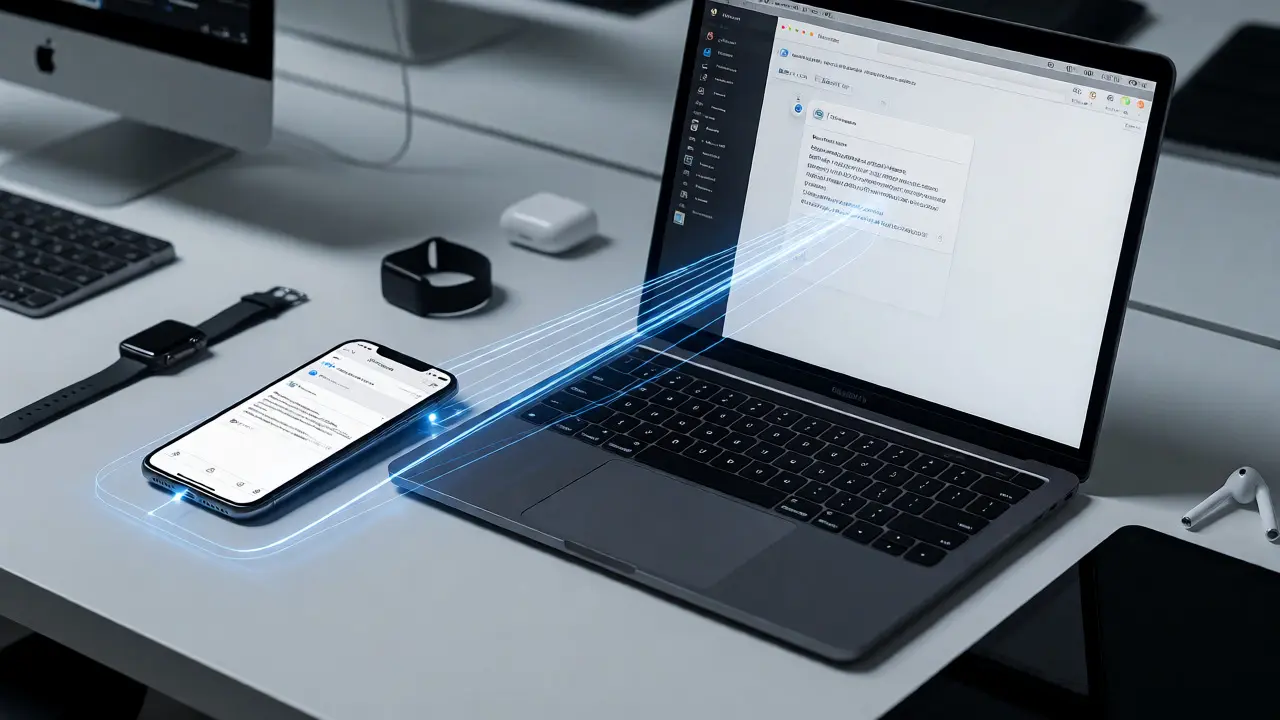

You spent months crafting a seamless Continuity feature that lets users start an email on their iPhone and finish it on their Mac. It looks perfect in the simulator. It works flawlessly on your desk setup. Then you ship it, and users report that half the time, the handoff just... fails. Why? Because most teams test components in isolation, not the messy, interconnected reality of the Apple ecosystem.
Integrated experiences are hard to break because they rely on invisible threads-Bluetooth signals, Wi-Fi handshakes, iCloud syncs, and hardware sensors. If you’re designing for iOS, macOS, watchOS, or tvOS, you can’t just check if a button works. You have to verify the entire journey across devices. This guide walks through practical lab methods to stress-test those end-to-end flows before your users find the cracks.
Why Component Testing Fails Ecosystems
Standard unit tests tell you if a function returns the right data. UI tests tell you if a screen renders correctly. Neither tells you what happens when a user walks out of Bluetooth range while transferring a file via AirDrop, or when their Apple Watch loses connection mid-workout but the iPhone keeps recording. These scenarios live in the gaps between apps and devices.
The core problem is fragmentation. An app might be optimized for a single device, but the Handoff protocol depends on system-level services like Universal Clipboard and background task scheduling. When these systems compete for resources or encounter network latency, the experience degrades. Your job as a designer or developer isn’t just to build the feature; it’s to prove it survives real-world interference.
Building a Physical Test Lab on a Budget
You don’t need a room full of every Apple product ever made. You need representative coverage of the interaction patterns you support. For most modern apps, this means one iPhone (latest model), one older iPhone (to test performance constraints), one iPad, one Mac, and one Apple Watch. That’s five devices. Add an Apple TV if your app supports media playback.
Here’s the catch: physical devices behave differently than simulators. Simulators share the host machine’s CPU and memory. They don’t simulate battery drain, thermal throttling, or radio interference. In my own workflow, I’ve seen animations run at 60fps in the simulator but stutter on an iPhone SE due to GPU limitations. Always prioritize physical hardware for final validation.
- Network Control: Use a tool like Charles Proxy or Network Link Conditioner on your Mac to throttle bandwidth. Simulate 3G speeds or high-latency environments to see how your app handles delays during data syncs.
- Power Management: Plug some devices into chargers and leave others on battery. Low Power Mode changes how background tasks run. Does your Continuity feature still work if the iPhone is in Low Power Mode?
- Physical Interference: Place devices near microwaves or other 2.4GHz sources. Bluetooth and Wi-Fi can suffer from packet loss. Test if your app gracefully retries failed connections.
Automating Cross-Device Handoffs with Xcode
Manual testing is great for discovery, but terrible for regression. Every time you update your code, you risk breaking a flow that worked last week. Enter Xcode Cloud and custom scripts using Fastlane. While standard XCTest runs on a single simulator, you can orchestrate multi-device tests by running separate instances in parallel.
A common pattern I use involves two scripts. Script A runs on the "sender" device (e.g., iPhone) and triggers an action. Script B waits on the "receiver" device (e.g., Mac) and verifies the state change. You connect them via a shared local server or a simple HTTP endpoint that logs timestamps. If the receiver doesn’t log the event within 5 seconds, the test fails.
This approach exposes timing issues. Maybe your app sends a push notification too quickly, before the receiver app has fully initialized its listeners. By measuring the delta between trigger and receipt, you quantify reliability. Aim for under 2 seconds for interactive flows and under 10 seconds for background syncs.
| Metric | Target Value | Failure Indicator | Debugging Tip |
|---|---|---|---|
| Handoff Latency | < 2 seconds | User perceives lag | Check main thread blocking during serialization |
| Sync Success Rate | > 99% over 100 attempts | Data mismatch errors | Inspect iCloud conflict resolution logs |
| Battery Impact | < 5% per hour active | Rapid drain complaints | Profile with Instruments Energy Log |
| Reconnect Time | < 5 seconds after signal loss | Stale UI states | Implement exponential backoff logic |
Simulating Real-World Chaos
Users don’t operate in clean rooms. They drop calls, switch networks, and close apps unexpectedly. To truly test integrated experiences, you need chaos engineering. This means intentionally disrupting the environment during critical flows.
Try this scenario: Start a document edit on your iPad. Halfway through, force-quit the app on the Mac. Then reopen the Mac app. Does it recover the unsaved state? Next, try turning off Wi-Fi on the iPhone while syncing photos to the Mac. Does the app queue the upload or fail silently? Finally, put the Apple Watch in Theater Mode (which disables notifications) and send a message from the iPhone. Does the delivery status update correctly on the phone?
These edge cases reveal architectural weaknesses. If your app relies on synchronous API calls for cross-device communication, it will hang when the network drops. Instead, use optimistic UI updates paired with background reconciliation. Show the user the change immediately, then sync in the background. If the sync fails, retry later without bothering them.
Leveraging System Logs for Deep Debugging
When a flow breaks, the error message often says "Unknown Error." That’s useless. You need visibility into the underlying system processes. On macOS, use the Console.app to filter logs by process name. Look for keywords like `CoreBluetooth`, `CloudKit`, or `NSUserActivity`. These frameworks handle the heavy lifting for Continuity and Handoff.
On iOS, you can enable developer logging in Settings > Developer. This dumps detailed traces to the device. Connect your iPhone to your Mac and open Xcode’s Devices window to stream these logs in real-time. You’ll see exactly when a handshake starts, when it times out, and why it failed. Often, the issue isn’t your code-it’s a permissions setting or a background refresh restriction.
For example, if your Handoff feature stops working after an OS update, check if the new version tightened privacy rules around `NSUserActivityTypeBrowsingWeb`. You might need to add explicit keys to your Info.plist. Without these logs, you’d be guessing. With them, you have a direct line to the system’s reasoning.
Designing for Graceful Degradation
No matter how robust your testing, things will break. The best integrated experiences degrade gracefully. If the Mac is asleep, the iPhone should still let you view recent content locally. If Bluetooth is off, AirDrop should prompt the user to turn it on rather than failing silently.
Create a fallback matrix for every feature. What happens if Device A is offline? What if Device B is low on storage? What if both are on different iOS versions? Design clear empty states and error messages that explain what happened and what the user can do next. Don’t just show a spinner forever. Give control back to the user.
This mindset shifts testing from "does it work?" to "how does it fail?" A feature that fails predictably and recovers easily is better than one that works perfectly until it crashes completely. Users forgive slowness; they rarely forgive lost data.
Continuous Integration for Multi-Platform Apps
Finally, bake these tests into your CI/CD pipeline. Don’t wait for release day to discover a broken flow. Run your automated cross-device checks on every pull request. Use tools like Bitrise or GitHub Actions to spin up multiple simulators and execute your orchestrated scripts.
Tag specific tests as "critical path" and block merges if they fail. This ensures that no developer accidentally breaks Continuity while refactoring a unrelated module. Over time, you’ll build a safety net that grows stronger with each iteration. The goal isn’t zero bugs-that’s impossible. The goal is catching regressions before they reach production.
Do I need all Apple devices to test integrated flows?
No, but you need representative samples. Focus on the devices your users actually pair together. For most apps, an iPhone, iPad, and Mac cover 90% of Continuity scenarios. Add an Apple Watch only if you support health or notification handoffs.
Can simulators replace physical devices for testing?
Simulators are great for early development and UI layout, but they cannot accurately replicate hardware-specific behaviors like Bluetooth range, battery optimization, or thermal throttling. Always validate critical end-to-end flows on physical hardware.
How do I debug Handoff failures?
Use the macOS Console.app to filter logs for 'NSUserActivity' and 'CoreBluetooth'. Check that both devices are signed into the same iCloud account, have Bluetooth and Wi-Fi enabled, and are on the same network. Verify your Info.plist includes the correct activity types.
What tools automate cross-device testing?
Xcode Cloud and Fastlane can orchestrate multiple simulator instances. For more complex scenarios, use Appium with WebDriverIO to control devices remotely. Combine these with a lightweight HTTP server to coordinate actions between devices.
How often should I run end-to-end tests?
Run critical path tests on every pull request to catch regressions early. Schedule a deeper suite of chaos-engineering tests nightly or weekly, as these take longer and may involve flaky network conditions.