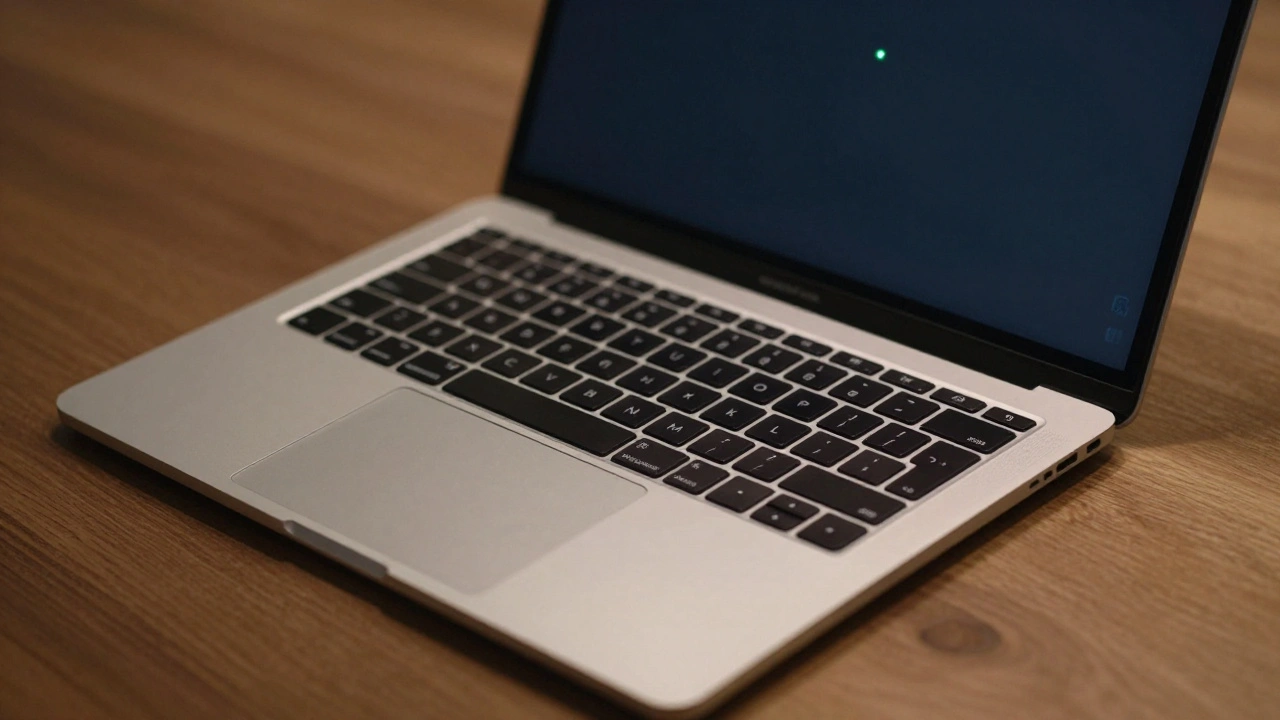

Ever notice that tiny green or orange dot in your MacBook’s menu bar and wonder what it means? It’s not a glitch. It’s Apple’s way of telling you: someone is watching or listening. And you should know exactly who.
Since macOS Sonoma 14.4, Apple made a quiet but powerful change: camera and microphone usage now shows up as a permanent visual cue right in the menu bar. No pop-ups. No hidden alerts. Just a clear, unmissable signal. If the green dot is lit, your camera is on. If it’s orange, your mic is picking up sound. And if both are active? The green camera indicator takes over. Why? Because seeing someone record you is a bigger privacy risk than hearing you talk.
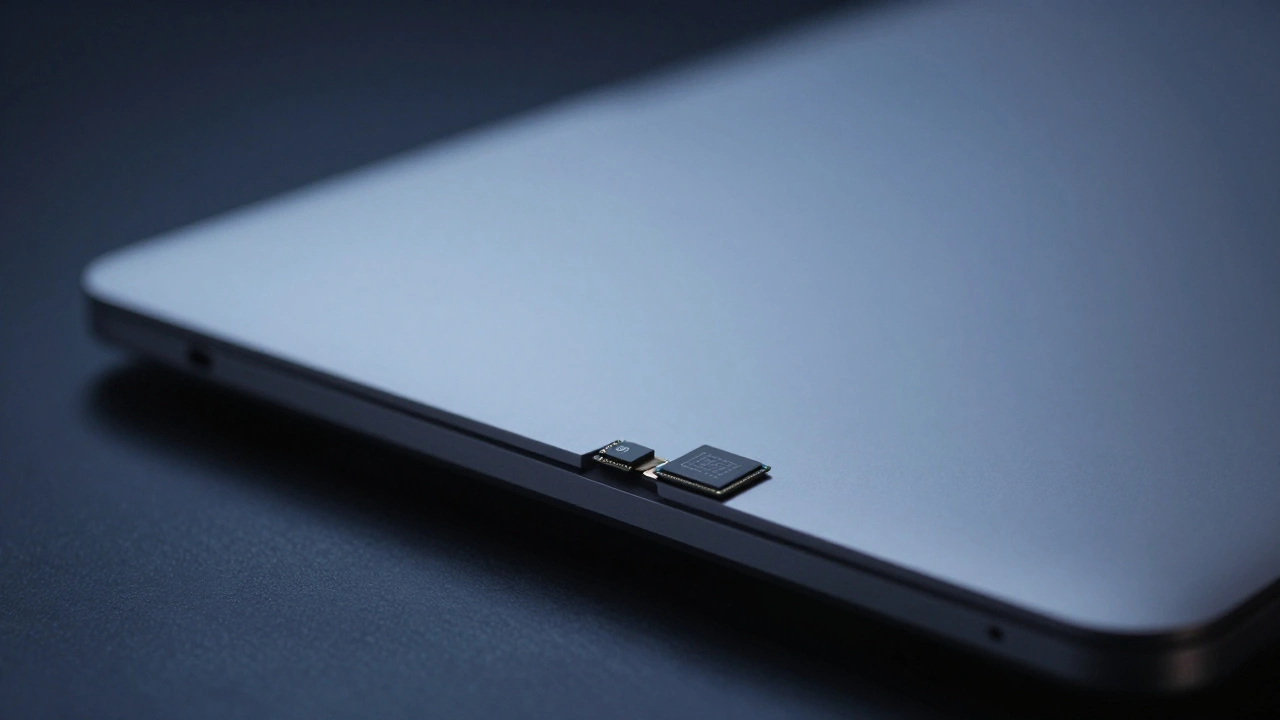
This isn’t just a software trick. It’s built into the hardware. On MacBook models with Apple silicon or the T2 chip, the microphone physically disconnects when you close the lid. Even if malware somehow got past your firewall, it can’t turn on the mic while the laptop is shut. That’s not something you can do with a software toggle-it’s a hardware kill switch. Apple didn’t just add a setting; they rewrote how privacy works at the chip level.
How to See What’s Using Your Camera or Mic
Open System Settings. Click Privacy & Security in the sidebar. Now scroll down and click Camera. You’ll see a list of every app that’s ever asked for access: Zoom, Slack, Teams, even that random photo editor you installed once. Each has a toggle next to it. If it’s off, the app can’t use your camera-not even if you try to start a video call. Same goes for Microphone. No surprises. No silent backdoors.
Here’s the thing: apps don’t just get access by default. They have to ask. And they have to explain why. When you first open Zoom, it doesn’t just say, “Can we use your camera?” It says, “Zoom needs access to your camera to let you join video calls.” That’s intentional. Apple forces developers to be clear. No vague requests. No sneaky permissions.
What If You Don’t See the App in the List?
If an app you use isn’t showing up under Camera or Microphone, it doesn’t mean it’s not using them. It means it hasn’t requested access yet. Maybe you haven’t used the feature that needs it. Or maybe your macOS or app is outdated.
Update macOS by clicking the Apple logo > About This Mac > Software Update. Then update the app itself-like Chrome or Teams. For browsers, go to the three-dot menu in Chrome and click Update Google Chrome. Sometimes, the system just needs a fresh nudge to recognize the app’s request. After updating, try opening the app again. The permission prompt should appear.
Controlling Privacy on External Displays
Do you work with a second monitor? You might’ve noticed the privacy indicator showing up there too. Annoying, right? Especially if you’re recording your screen and don’t want the dot in the footage.
Apple lets you turn it off-but only on external screens. The indicator stays on your MacBook’s built-in display, because that’s where you’re most likely to notice it. To disable it on external monitors, open Terminal. Type this:
system-override suppress-sw-camera-indication-on-external-displays=onPress Enter. If you have FileVault turned on, you’ll need to enter your password. Then restart your Mac. Go back to System Settings > Privacy & Security > Camera. You’ll see a new option: Privacy Indicators. Toggle it off. You’ll get a message: “When using your camera with an external display, the camera privacy indicator may not be displayed in the menu bar on the external screen.” That’s it. Done.
Important: Turning off indicators for Camera also turns them off for Microphone. They’re linked. You can’t disable one without the other.
Resetting Permissions Completely
What if you gave access to an app you don’t trust anymore? Or you’re cleaning up an old MacBook? You don’t have to go through each app one by one. Use Terminal to wipe all permissions at once.
Type this for the microphone:
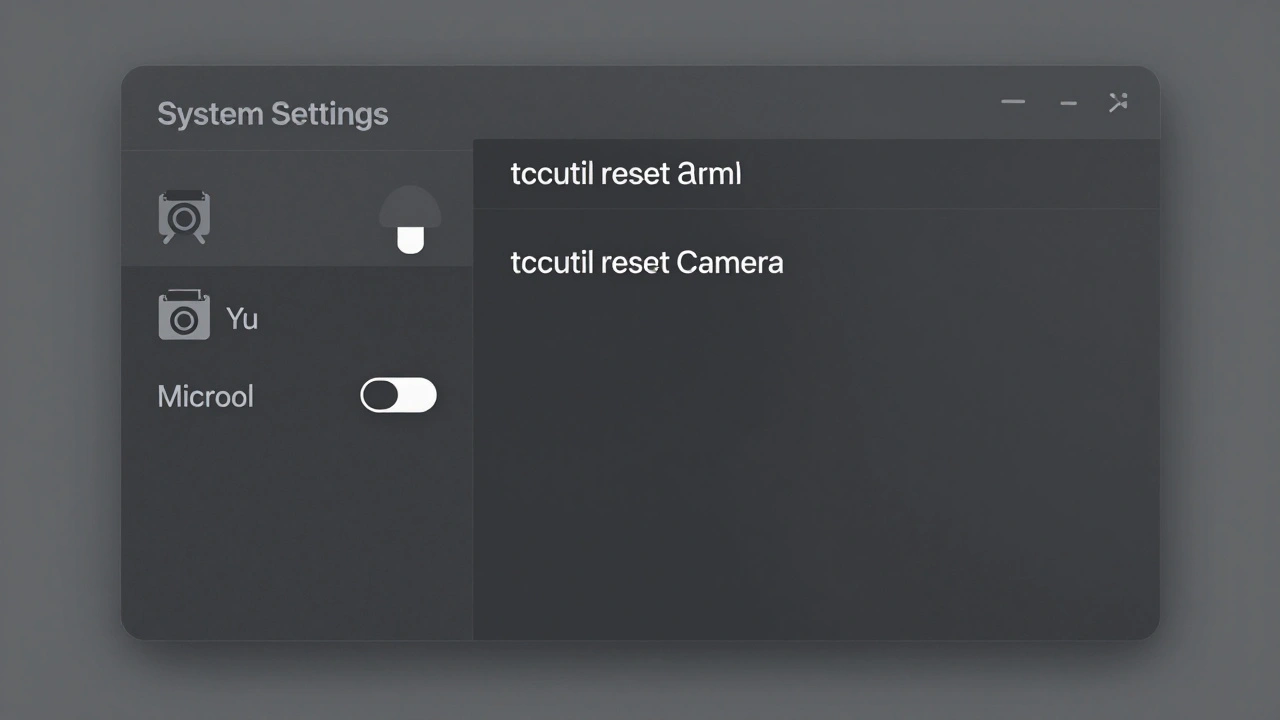
tccutil reset MicrophoneAnd this for the camera:
tccutil reset CameraAfter running either command, every app will lose access. The next time you open Zoom or FaceTime, you’ll see the permission request again-just like when you first set up the Mac. It’s a clean slate. No guessing. No lingering access.
What Happens If the Indicator Doesn’t Light Up?
It should. Always. If you’re using an app that clearly needs the camera or mic, and the dot doesn’t appear, something’s wrong. Maybe the app is outdated. Maybe macOS is corrupted. Maybe malware is trying to hide.
First, restart your Mac. Then check System Settings again. Make sure the app is listed and toggled on. If it’s not listed at all, update everything. If the dot still doesn’t show up after that, run a full system check. Apple’s privacy indicators are designed to be foolproof. If they’re missing, it’s not normal.
Why This Matters More Than You Think
There’s a reason Apple put this in every MacBook: because people get hacked. Not by hackers in hoodies. By apps you downloaded. By browser extensions. By ad trackers that sneak into video conferencing tools. In 2023, researchers found a popular screen recording app that was secretly streaming audio to a remote server-even when users thought they’d turned it off.
Apple’s system shuts that down. No exceptions. No hidden backdoors. You see the dot. You know. You can act. That’s power. That’s control. That’s what privacy looks like when it’s built into the hardware, not just layered on top of software.
When the Indicator Disappears
There’s one case where the dot hides: when you’re in full-screen mode and the menu bar is set to auto-hide. If you move your cursor to the top of the screen, the bar appears-and so does the dot. It’s not gone. It’s just tucked away. If you want it always visible, go to System Settings > Desktop & Dock > Automatically hide and show the menu bar. Turn it off. That way, the indicator never vanishes.
And if you’re using a screen reader or accessibility tool? The dot still shows. Apple made sure it’s visible even if you rely on voice or screen navigation. Privacy isn’t just for sighted users. It’s for everyone.
Final Thought: Trust, But Verify
You don’t have to be paranoid. But you should be aware. The green dot isn’t scary. It’s reassuring. It means you’re in charge. You don’t need to disable your camera or mic. You just need to know when they’re active. And now, thanks to Apple’s hardware-software integration, you always will.