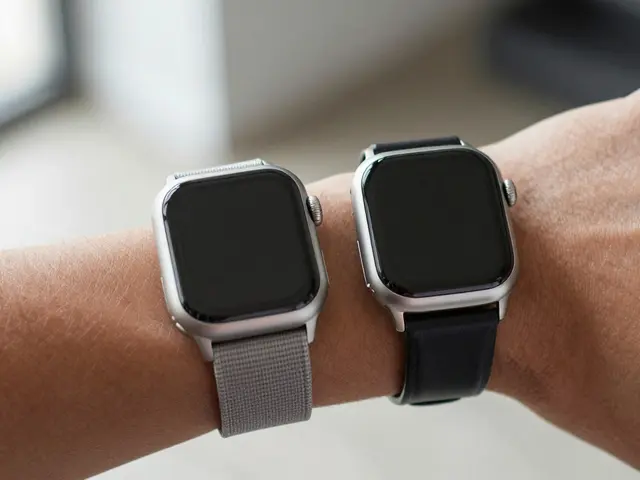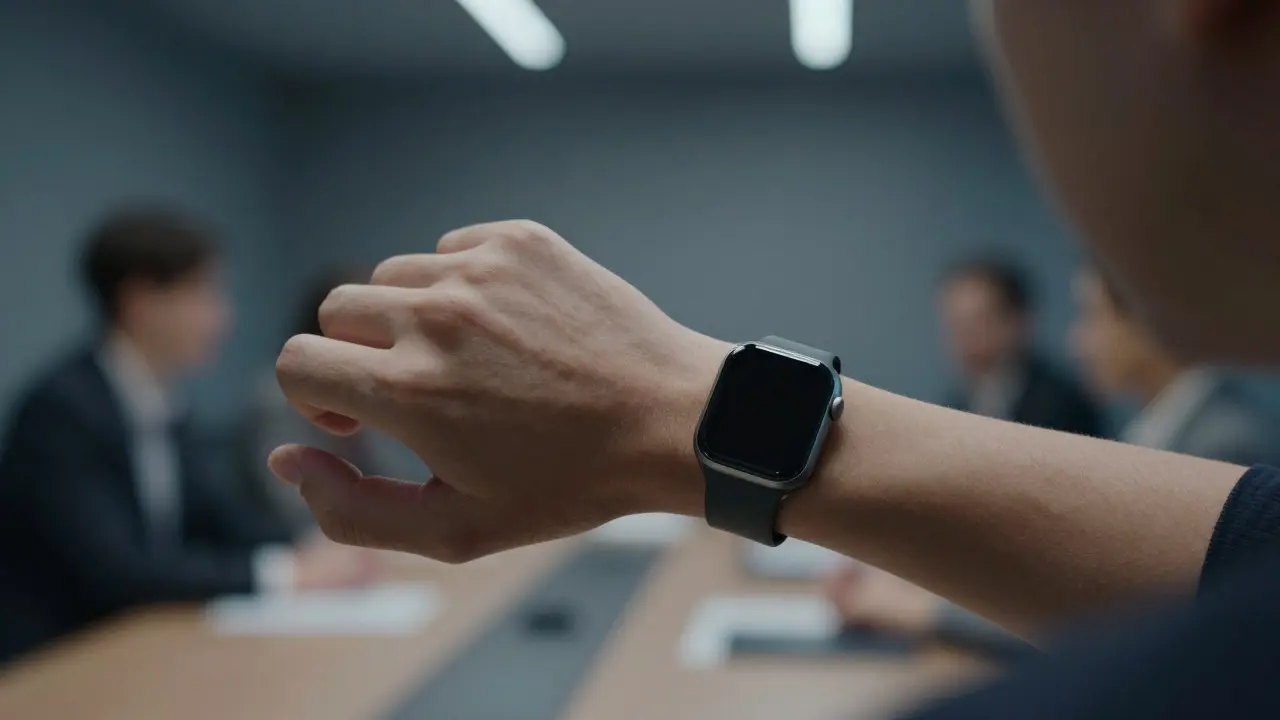

Imagine you are in a quiet meeting. Your phone buzzes in your pocket, but you don't reach for it. Instead, you glance at your wrist. The screen lights up, showing a simple text bubble. You read it, nod to yourself, and keep listening. This is the magic of Apple Watch a smartwatch that balances constant connectivity with personal privacy through deliberate interface design. It is not just about receiving messages; it is about controlling exactly what those messages reveal to the world around you.
Most people assume privacy is a software setting you toggle on or off. But on your wrist, privacy is a physical and visual problem. If your boss sees "Urgent: Call me now" pop up while you are walking past them, the context is lost. Apple solved this by treating the watch face as a private space that only opens when you intend to look. This approach relies on three core principles: passive visibility, active disclosure, and contextual filtering. These features work together to ensure that your digital life stays yours, even when it is hanging from your arm.
The Anatomy of a Private Glance
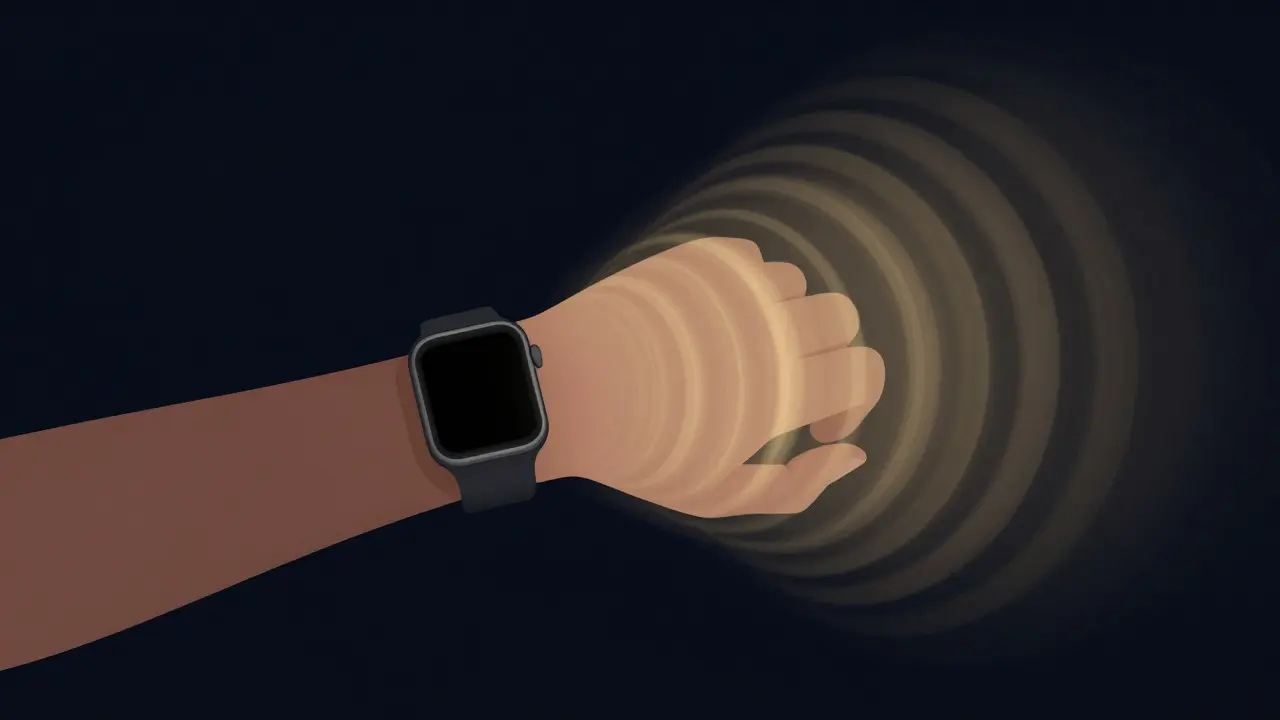
At the heart of this system is the concept of the "passive glance." When your wrist is down, the screen is black. No light leaks out. No text is visible. This is different from older devices where screens stayed dimly lit. By keeping the display completely off until you raise your hand, Apple removes the risk of accidental exposure. The sensor detects motion, specifically the angle of your wrist relative to gravity. Once it hits a certain threshold, usually around 45 degrees, the screen wakes up.
This mechanism is crucial because it separates "checking" from "displaying." You can check the time without announcing your presence to anyone nearby. The transition from black to bright happens in milliseconds. This speed ensures that if you are in a dark room or a theater, the flash is brief and contained. There is no lingering glow that gives away your attention. For users who find even this quick flash intrusive, there is a manual wake option. You can tap the side button instead of raising your wrist. This gives you total control over when the device becomes visible to others.
Notification Hierarchy and Content Control
Once the screen is on, how much information do you actually see? This is where the design gets clever. Not all notifications are created equal. Apple categorizes alerts into two main types: banners and summaries. Banners appear immediately for high-priority apps like Messages or Phone calls. They show the sender's name and the first line of the message. Summaries, however, group less urgent updates. Think of calendar reminders or email notifications. These wait until you open the app or view the summary screen later.
Here is the key insight: the content shown on the wrist is often a stripped-down version of the full message. For example, if someone sends you a long paragraph, the watch might only show the first sentence or just the sender's name. Why? Because reading long text on a small screen is difficult anyway. But more importantly, it reduces the amount of sensitive data exposed in public spaces. If you are waiting for a specific code or a password, you can configure the app to hide the content entirely until you unlock the watch. This feature, known as "Passcode Required," adds a layer of security that prevents shoulder-surfers from reading your one-time passwords or banking alerts.
Contextual Awareness and Do Not Disturb Modes
Privacy isn't just about hiding text; it is about timing. Your watch knows when you are sleeping, working, or exercising. It uses these contexts to adjust how notifications behave. During Focus modes, such as Work or Sleep, the watch suppresses most alerts. Only critical ones get through. This means that during a deep sleep session, your wrist remains dark and silent. No sudden lights will disturb your rest or alert a partner sharing the bed.
Consider the scenario of a fitness class. You are sweating, moving fast, and wearing tight clothes. A notification popping up every five minutes would be annoying and potentially revealing. In this mode, the watch vibrates lightly on the haptic engine but keeps the screen dark unless you deliberately look at it. This separation of audio/haptic cues from visual output allows you to stay aware without broadcasting your status. You know something happened, but only you know what it was, unless you choose to share it.
Hardware Features That Support Privacy
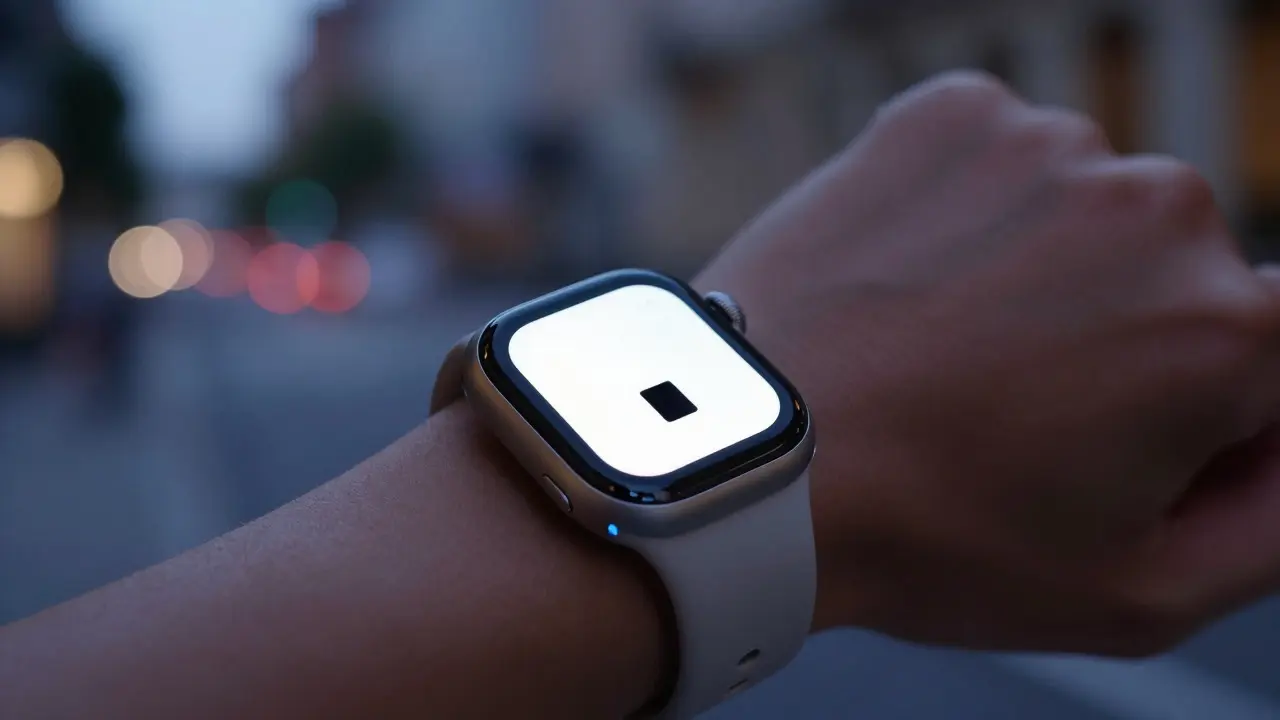
Software alone cannot solve every privacy issue. The hardware plays a vital role too. The OLED display used in modern Apple Watches has perfect blacks. Unlike LCD screens, which use backlighting that can bleed through, OLED pixels turn off completely. This means that in a dark environment, the contrast is infinite. There is no faint outline of text visible from an angle. This technical detail is often overlooked, but it is essential for true visual privacy.
Then there is the Digital Crown. This rotating dial allows you to scroll through notifications without touching the screen. Touchscreens leave fingerprints and require direct contact, which can be awkward in cold weather or when wearing gloves. The Digital Crown provides tactile feedback. You can navigate your alerts blindly. This means you can check who called without lifting your head fully or turning your wrist toward a mirror. The interaction is subtle and self-contained.
Comparing Privacy Approaches: Apple vs. Android Wearables
How does this compare to other smartwatches? Many Android-based wearables rely heavily on always-on displays. While convenient, this feature often compromises privacy. An always-on screen shows the time and sometimes notifications continuously. In a crowded subway car, this can reveal that you are texting a specific person. Apple’s choice to default to a black screen when idle is a deliberate trade-off. You lose the convenience of seeing the time at a glance, but you gain the certainty that nothing else is visible.
| Feature | Apple Watch Approach | Typical Android Wearable Approach |
|---|---|---|
| Idle State Display | Black screen (off) | Always-On Display (dimmed) |
| Wake Mechanism | Raise wrist or tap button | Tap screen or auto-wake |
| Notification Content | Configurable per app (hide/show) | Generally full preview |
| Security Lock | Passcode required for sensitive apps | Variable by manufacturer |
| Haptic Feedback | Taptic Engine (precise vibration) | Linear Resonant Actuator (standard) |
Practical Tips for Maximizing Wrist Privacy
You can take extra steps to protect your privacy beyond the defaults. First, review your notification settings app by app. Go into Settings, then Notifications. For apps like Banking or Health, consider disabling the banner preview. This way, you will only see the app icon and the word "New Message," not the actual content. Second, customize your Focus modes. Set up a "Work" focus that silences non-essential apps. This prevents unexpected interruptions during professional interactions.
Third, be mindful of your environment. If you are in a very loud or chaotic place, the haptic alert might be enough. You don't always need to look at the screen. Trust the vibration. Finally, keep your software updated. Apple regularly releases patches that refine how sensors detect wrist raises and how quickly the screen dims after you look away. These small updates accumulate over time, making the privacy experience smoother and more reliable.
The Future of On-Wrist Privacy
As technology advances, we might see even more sophisticated privacy tools. Imagine a watch that uses facial recognition to detect if someone else is looking at your wrist. Or a display that changes its brightness based on ambient light levels automatically, ensuring it is never too bright for the room. These features are already being tested in prototype stages. The goal remains the same: to make the device disappear when you don't need it and appear precisely when you do.
Ultimately, good design is invisible. You shouldn't have to think about whether your watch is leaking information. It should just work, quietly and securely. By combining thoughtful hardware, intelligent software, and user-controlled settings, Apple has set a standard for wearable privacy. It reminds us that technology doesn't have to be loud to be useful. Sometimes, the best thing a device can do is stay silent until you ask it to speak.
Does the Apple Watch screen stay on when I am not looking?
No, by default, the screen turns off when you lower your wrist. It only lights up when you raise your wrist or tap the side button. You can enable Always-On Display, but this consumes more battery and may reduce privacy in dark environments.
Can I hide specific notification contents on my wrist?
Yes. You can go to Settings > Notifications and select individual apps. For each app, you can choose to show the banner or just the icon. For highly sensitive apps, you can also require a passcode to view the content.
What is the difference between a haptic alert and a visual alert?
A haptic alert is a vibration felt on your wrist via the Taptic Engine. It does not light up the screen. A visual alert lights up the display. You can configure apps to send only haptic alerts to maintain visual privacy.
Does the Apple Watch track my location when I am not using it?
The watch uses GPS primarily for workouts and navigation. When idle, it relies on Bluetooth connection to your iPhone for location services. Background tracking is minimal and controlled by app permissions in your iPhone settings.
Is the Apple Watch secure against theft?
Yes. If someone tries to remove the watch without unlocking it, the Activation Lock engages. This ties the device to your Apple ID. Without your credentials, the watch is essentially useless to a thief, similar to an iPhone.