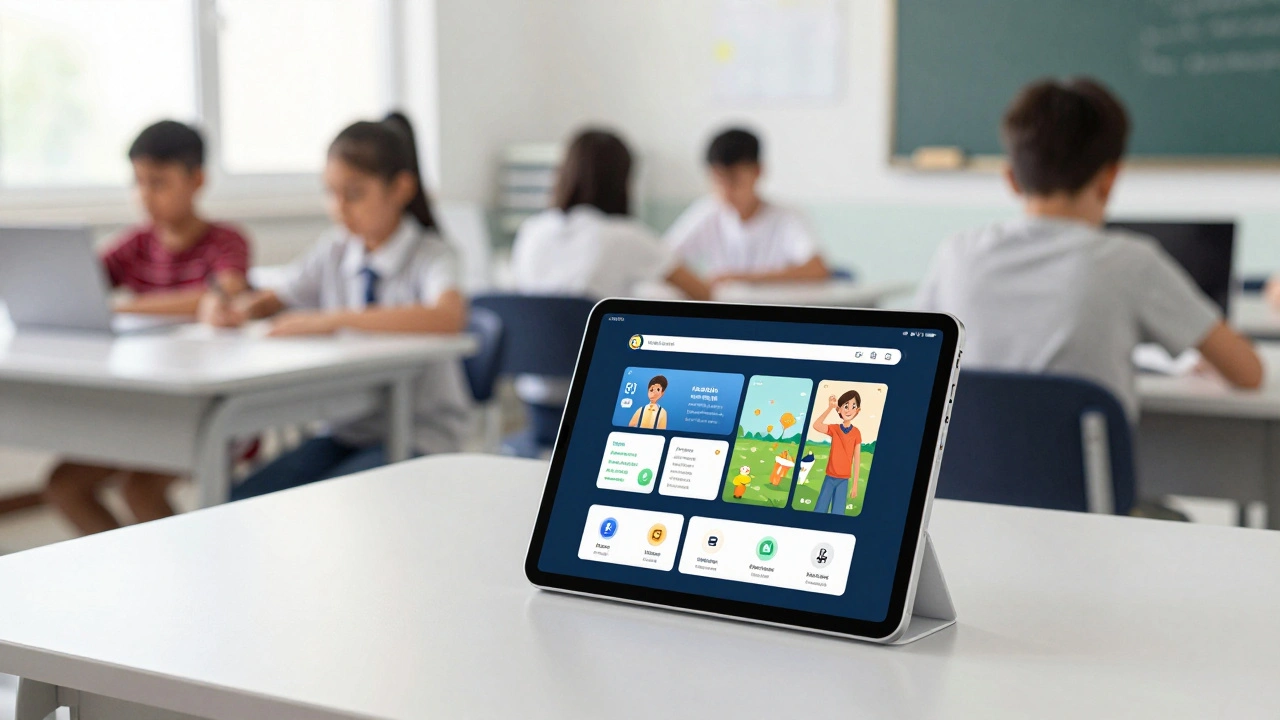

Imagine a classroom with thirty students but only ten iPads. In the past, this meant chaos. Students would log in, find someone else’s homework, or accidentally delete data. Today, thanks to Shared iPad, a feature introduced by Apple for education and business, that scenario is obsolete. With Shared iPad, a single device acts like ten different computers. When Student A logs in, they see their apps, settings, and files. When they sign out and Student B logs in, the device transforms instantly into Student B’s personal workspace. It feels magical, but it requires careful planning regarding accounts, privacy, and management tools.
How Shared iPad Works Under the Hood
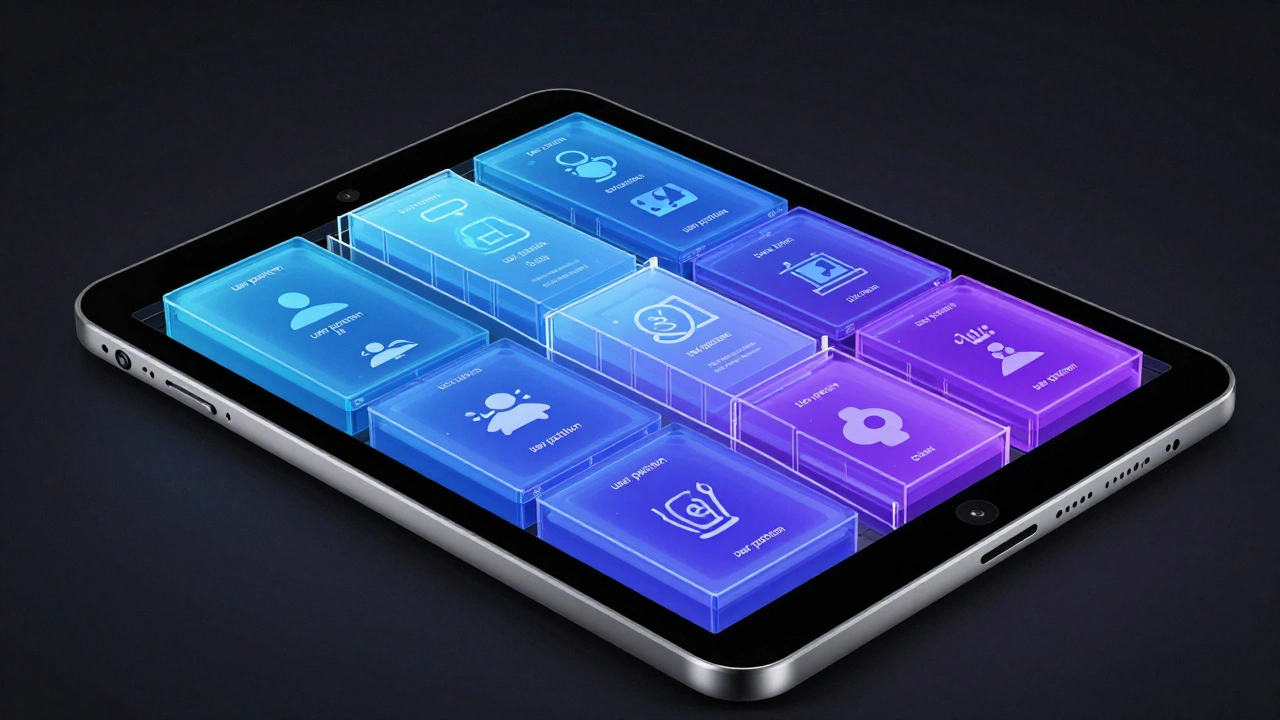
To understand how to set up Shared iPad, you first need to know what makes it tick. This isn't just a simple user switch like on a Windows PC; it relies on specific hardware and software requirements. The core of the system is the user partitiona dedicated storage space on the device allocated to a specific user. When a school deploys these devices, the operating system (iPadOS) carves out separate slices of the internal drive for each student. These partitions are isolated from one another. Student A cannot see Student B's photos, notes, or browser history.
There are hard rules here. You cannot use any old iPad. The device must be running at least iPadOS 13.3, though schools today typically run much newer versions. More importantly, the iPad must be superviseda state where an organization has full control over the device configuration. Supervision is usually achieved through Automated Device Enrollment (ADE), formerly known as DEP. Without supervision, the multi-user features simply do not activate. Also, keep in mind that Shared iPad is exclusive to iPads; it does not work on iPhones.
Storage capacity matters too. While Apple recommends at least 32 GB of storage, savvy IT admins know that more is better. If you pack too many users onto a small drive, performance suffers, and students might hit storage limits quickly. Most modern deployments aim for 64 GB or 128 GB models to ensure smooth operation across multiple user profiles.
Managing Accounts: The Role of Managed Apple IDs
You cannot use regular personal Apple IDs for Shared iPad. That would defeat the purpose of centralized control. Instead, schools and organizations use Managed Apple IDsaccounts created and owned by an organization via Apple School Manager or Business Manager. These accounts are issued by the institution, not the individual. They allow the IT department to reset passwords, enforce security policies, and wipe data if a device goes missing.
The process starts in Apple School Managera web portal for managing Apple devices and content in educational institutions. Here, administrators create or sync student accounts. Many schools federate this identity with existing systems like Microsoft Entra ID (formerly Azure AD) so students can use their usual credentials. Once the account exists, the student signs in on the iPad. Because the account is managed, the device recognizes it immediately and loads the correct user partition.
What about visitors or substitute teachers? For short-term access, Shared iPad supports temporary sessionsguest-like logins that do not save data permanently. Think of this as a "guest mode." A user signs in, uses the device, and when they sign out, all data from that session is deleted. This is perfect for testing environments or letting a guest demonstrate a lesson without leaving a trace. Admins can configure whether devices allow only temporary sessions, only managed logins, or both.
Setting Up the Infrastructure with MDM
You don't configure Shared iPad directly on the iPad itself. You do it through a Mobile Device Management (MDM) solution. Popular choices include Jamf School, Microsoft Intune, and FileWave. The MDM pushes the necessary configuration profiles to the devices before the students ever touch them.
Here is how the setup generally flows:
- Enrollment: Devices are enrolled via Automated Device Enrollment. The MDM marks them as supervised.
- Profile Creation: In your MDM console, you create an enrollment profile. You check the box for "Enable Shared iPad."
- Storage Configuration: You decide how to handle storage. You can let the system use default settings, set a maximum number of users per device, or specify a max amount of space per user. For example, if you have a 64 GB iPad and allocate 5 GB per user, the system will cap the number of local profiles accordingly.
- Session Policies: You set automatic logout timers. If a student forgets to sign out after class, the device can automatically lock and clear the session after 10 minutes of inactivity. This protects privacy and ensures the next student gets a fresh start.
In Microsoft Intune, for instance, you would go to Device Onboarding, select your enrollment program token, and enable Shared iPad under management settings. You also need to federate your Microsoft Entra ID with Apple School Manager so the identities talk to each other. In Jamf School, you organize devices into static groups and link them to classes, ensuring that when a student logs in, the right apps and restrictions are already applied.
| Feature | Requirement / Detail |
|---|---|
| Minimum OS | iPadOS 13.3 or later |
| Device State | Must be Supervised |
| Account Type | Managed Apple ID (Organization-owned) |
| Management Tool | MDM (Jamf, Intune, FileWave, etc.) |
| Guest Access | Optional Temporary Sessions |
Privacy and Security in Shared Environments
Parents and educators often worry about privacy. Can one student spy on another? The answer is no, provided the system is configured correctly. The isolation between user partitions is strict. Apps installed by one user do not appear for others unless pushed centrally by the MDM. Documents saved to iCloud are tied to the individual Managed Apple ID, meaning they travel with the student, not the device. If Student A moves to a different shared iPad, they simply log in, and their data syncs back down from the cloud.
However, privacy also involves oversight. Schools need to ensure students stay on task. This is where the balance gets tricky. Apple provides tools like Screen Timefeatures that monitor and limit device usage, which can be managed remotely. Admins can set app limits, schedule downtime, and filter content. But there is a line between protection and surveillance. Clear communication with parents about what data is collected and why is essential.
Data retention is another key point. When a student leaves the school, their Managed Apple ID can be disabled, and their partition wiped from the device. The MDM allows for remote wiping of specific user data without affecting other users on the same iPad. This ensures that sensitive information doesn't linger on shared hardware.
The Classroom App: Teacher Control
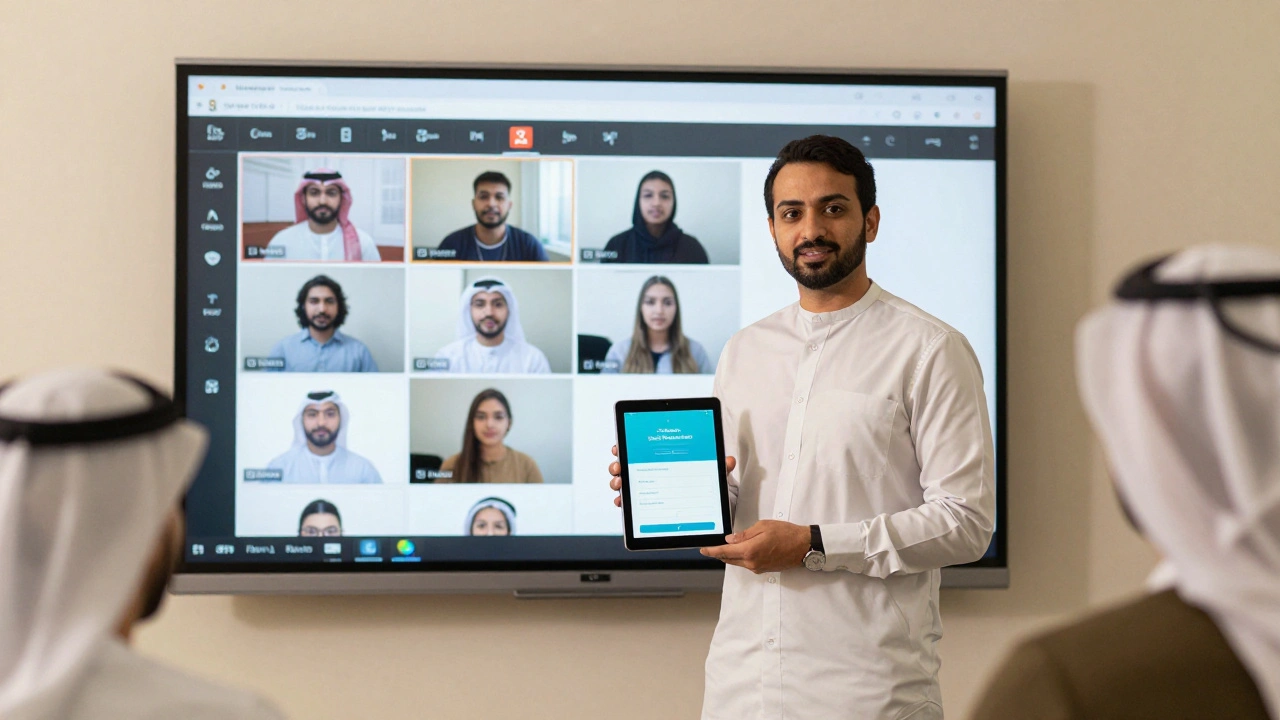
Having secure accounts is half the battle. Managing thirty students during a lesson is the other half. Enter the Classroom appApple's teacher-facing tool for managing student iPads. This app turns the teacher's iPad into a command center. It works seamlessly with Shared iPad deployments.
With Classroom, a teacher can:
- Lock Devices: Instantly freeze all student screens to get attention. No more fumbling with keyboards or closing tabs.
- Launch Apps: Push a specific app, like a math game or Safari to a designated URL, to every student simultaneously. This saves valuable instructional time.
- Observe Screens: View student screens in real-time without interacting. This allows the teacher to circulate digitally, checking for understanding or spotting off-task behavior.
- Manage Files: Collect assignments from students and distribute resources directly through the app.
For these features to work, the devices need Bluetooth Low Energy (BLE). Most modern iPads support this, but it's a technical requirement to keep in mind. The Classroom app detects nearby devices via BLE and pairs them with the logged-in Managed Apple IDs. Pre-assigning devices to students in the MDM helps streamline this process, so the teacher doesn't have to manually pair every student every day.
Real-World Scenarios and Best Practices
How does this look in practice? Consider a high school science lab. There are 15 iPads in a cart. Each period, a new class of 15 students enters. They pick up an iPad, log in with their Managed Apple ID, and open their lab notebook app. Their previous work is there. They complete the experiment, save their data to iCloud, and sign out. The next class walks in, picks up the same physical iPads, logs in, and sees their own empty notebooks. The transition is seamless.
Or consider a library setting. Students come in for research. They use temporary sessions because they don't need persistent storage. They browse the web, take notes, and when they leave, they sign out. The data vanishes. The iPad is ready for the next visitor. This maximizes privacy and minimizes maintenance.
A common pitfall is poor network connectivity. Since Shared iPad relies heavily on iCloud for syncing user data between devices, a slow Wi-Fi connection can lead to frustration. Students might wait minutes for their desktop to load. Ensure your school's network can handle the simultaneous bandwidth demands of dozens of devices syncing at once.
Another tip: train your teachers. The technology is robust, but if teachers don't know how to use the Classroom app effectively, the benefits are lost. Show them how to observe screens discreetly and how to launch apps to keep lessons flowing. Encourage them to use the "lock" feature sparingly but effectively.
Frequently Asked Questions
Can I use my personal Apple ID on a Shared iPad?
No. Shared iPad requires Managed Apple IDs issued by an organization through Apple School Manager or Apple Business Manager. Personal Apple IDs are not supported in this mode because the system needs organizational control over the device and user data.
Does Shared iPad work on older iPads?
It depends on the model. The iPad must support iPadOS 13.3 or later and must be capable of being supervised. Very old models that cannot update to recent versions of iPadOS will not support Shared iPad. Additionally, the device needs sufficient storage (at least 32 GB recommended) to hold multiple user partitions.
How do students' files stay private?
Files are stored in separate user partitions on the device and synced to the individual's iCloud account associated with their Managed Apple ID. One user cannot access another user's local data or iCloud content. The operating system enforces this isolation strictly.
What happens if a student forgets to sign out?
Admins can configure automatic logout timers in the MDM. If the device is inactive for a set period (e.g., 10 minutes), it will automatically lock and clear the session. This ensures the next student starts with a clean slate and prevents accidental data mixing.
Do I need a special MDM for Shared iPad?
You need an MDM that supports Apple's Shared iPad framework. Major providers like Jamf School, Microsoft Intune, and FileWave all support it. The MDM is required to push the supervision profile and configure the Shared iPad settings, such as storage limits and session types.