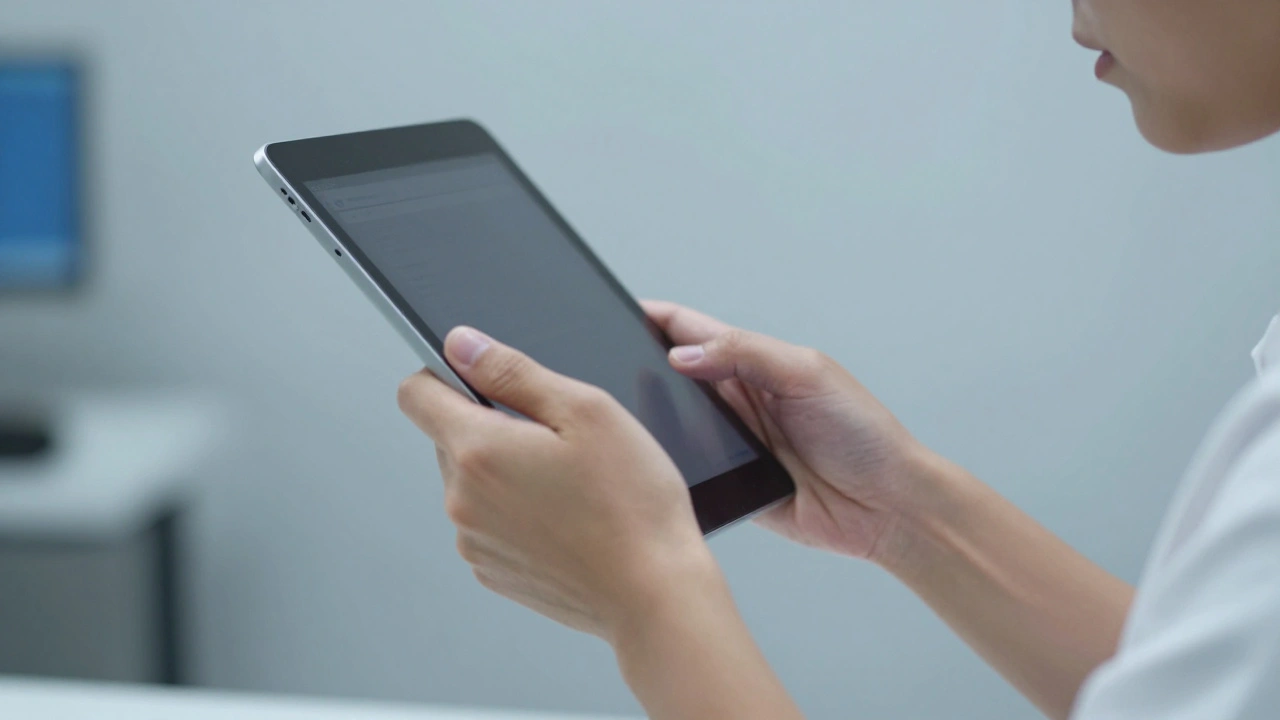

Hold an iPad is a popular tablet computer known for its portability and touch interface in your hands for just five minutes. Feel that? That subtle tension creeping into your forearms and the slight forward tilt of your neck? You are not imagining it. Despite weighing only between 1 and 1.5 pounds, the iPad presents a unique ergonomic challenge that traditional desktop computers simply do not have. Unlike a laptop sitting firmly on a desk, an iPad demands active muscular engagement to stay upright, turning a simple device into a potential source of musculoskeletal strain.
The problem isn't the device itself; it's how we interact with it. We treat tablets like lightweight extensions of our bodies, but physics remains unforgiving. When you hold a screen at arm's length or cradle it in your lap, you create a cascade of postural compromises. Your neck bends down, your shoulders hike up, and your wrists twist into unnatural angles. Over time, these micro-strains accumulate, leading to conditions often dismissed as minor annoyances but recognized by occupational therapists as serious risks for long-term injury.
The Posture Paradox: Neck vs. Hands
The core dilemma of iPad ergonomics is what experts call the "positioning paradox." You cannot optimize your neck and your hands simultaneously without external support. Research from occupational therapy groups highlights this trade-off clearly. If you prop the iPad up on a stand or binder to bring the screen closer to eye level, your neck relaxes, but your arms must reach upward or outward to touch the screen. This creates strain in the shoulder girdle and upper back.
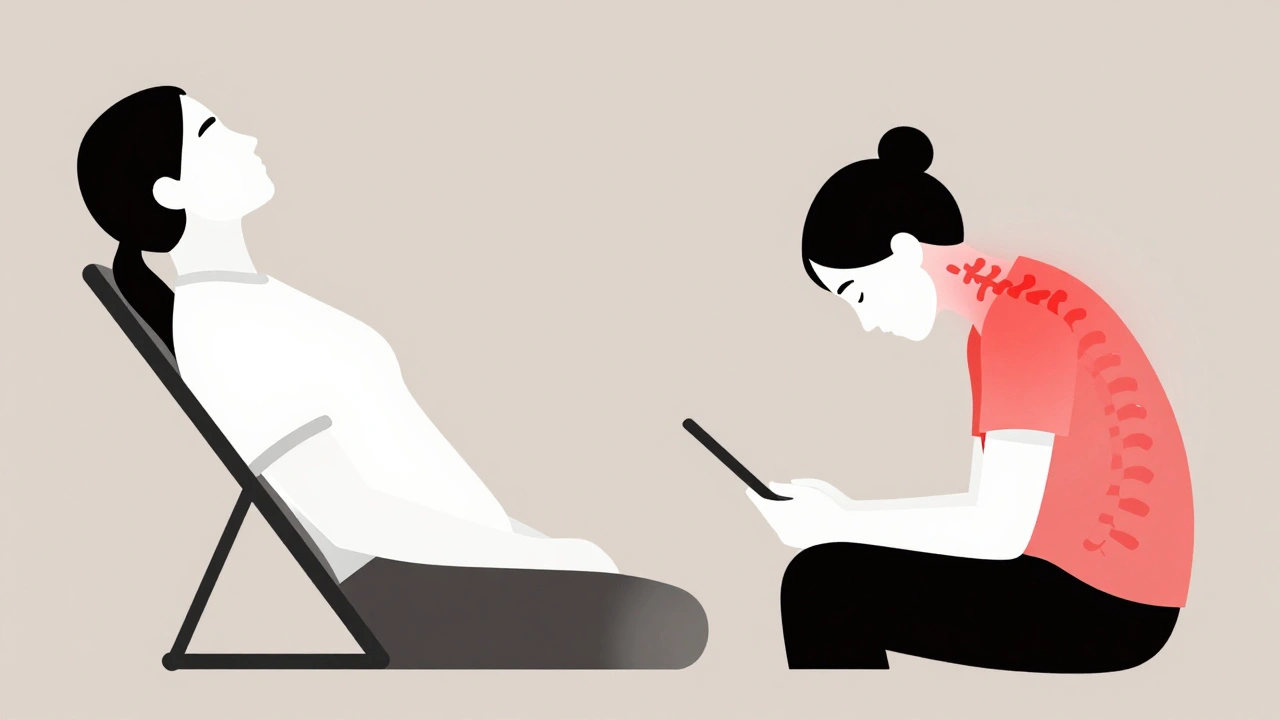
Conversely, if you hold the iPad low in your hands to keep your elbows comfortable and close to your body, your head drops. Looking down at a screen held in your lap forces your cervical spine into flexion. The average human head weighs about 10-11 pounds. When you tilt your head forward just 15 degrees, the effective weight pulling on your neck muscles doubles. Tilt it further to read text on a low-held tablet, and that force increases dramatically, leading to the "text neck" phenomenon that plagues mobile users.
This paradox means there is no single "perfect" position for handheld use. Instead, ergonomic success relies on movement and strategic positioning changes. Staying static in any one posture-whether high-neck-friendly or low-hand-friendly-is where the damage begins. The goal is to minimize the duration of any single strain-inducing pose.
Optimal Sitting Angles and Body Mechanics
Traditional office advice tells us to sit up straight with a rigid 90-degree torso angle. For iPad users, this advice is actually counterproductive. ZUGU, an ergonomic case manufacturer, identifies a reclined posture of 25 to 30 degrees as the "sweet spot" for tablet work. Leaning back slightly reduces the gravitational pull on your neck when looking down and allows your shoulders to drop away from your ears, relieving trapezius tension.
To achieve this, you need a stable base. Oxford University’s ergonomic guidelines emphasize that working from a flat surface is superior to working from your lap. A lap is unstable; every small shift requires your core and arm muscles to compensate to keep the screen steady. This constant micro-adjustment adds fatigue. Place the iPad on a table or desk, or use a sturdy lap tray if you are seated on a couch.
- Hip Angle: Keep hips at approximately 90 degrees to maintain pelvic stability.
- Foot Placement: Feet should be flat on the floor to prevent slouching.
- Torso Recline: Lean back 25-30 degrees rather than leaning forward toward the screen.
- Elbow Position: Keep elbows bent at roughly 90 degrees and close to your sides.
Avoid reaching forward. Reaching extends your arms away from your center of gravity, increasing the leverage load on your shoulders. Bring the interaction point (the screen) to your hands, not your hands to the screen. This principle is fundamental to reducing upper limb disorders.
Hand Positions and Typing Techniques
Your hands bear the brunt of iPad interaction. The repetitive motions of scrolling, pinching, and typing can lead to specific injuries. Two common conditions identified by health professionals are "swiper's thumb" (repetitive strain from scrolling) and "iPad hand" (general strain from holding and gripping). These are not just temporary soreness; they are early signs of tendinitis or nerve compression.
How you type matters immensely. Many users attempt to type using only their thumbs while holding the device with both hands. This concentrates all mechanical stress on the thumb joints and the thenar eminence (the muscle mass at the base of the thumb). Oxford University guidance strongly advises against this. Instead, use a two-handed approach involving fingers as well as thumbs. Distribute the workload across multiple digits to reduce the repetition count on any single joint.
If you must hold the iPad while interacting with it, limit this to short durations. The recommended maximum for continuous handheld use is five minutes. After that, set the device down. If you need to hold it for longer periods, switch to a one-handed grip. Hold the iPad securely in one hand, allowing the other hand to use both its thumb and fingers for input. This distributes the effort across the entire hand and forearm, rather than locking one hand in a static grip while the other performs fine motor tasks.
Mitigating Weight and Balance Issues
While 1.5 pounds sounds light, it becomes heavy when unsupported. In a static handheld position, your muscles must contract continuously to counteract gravity. This leads to rapid fatigue and reduced blood flow to the tissues, causing stiffness and pain. The solution lies in offloading this weight.
| Method | Neck Strain | Hand/Wrist Strain | Best Use Case |
|---|---|---|---|
| Handheld (No Support) | High (Head down) | Very High (Static grip) | Short bursts (< 5 mins) |
| Lap Usage | Medium-High | Medium (Unstable surface) | Casual reading, media consumption |
| Desk Stand / Adjustable Case | Low (Screen elevated) | Low (Arms supported) | Productivity, typing, extended work |
| Keyboard Folio | Low-Medium | Low (Typing support) | Document creation, email |
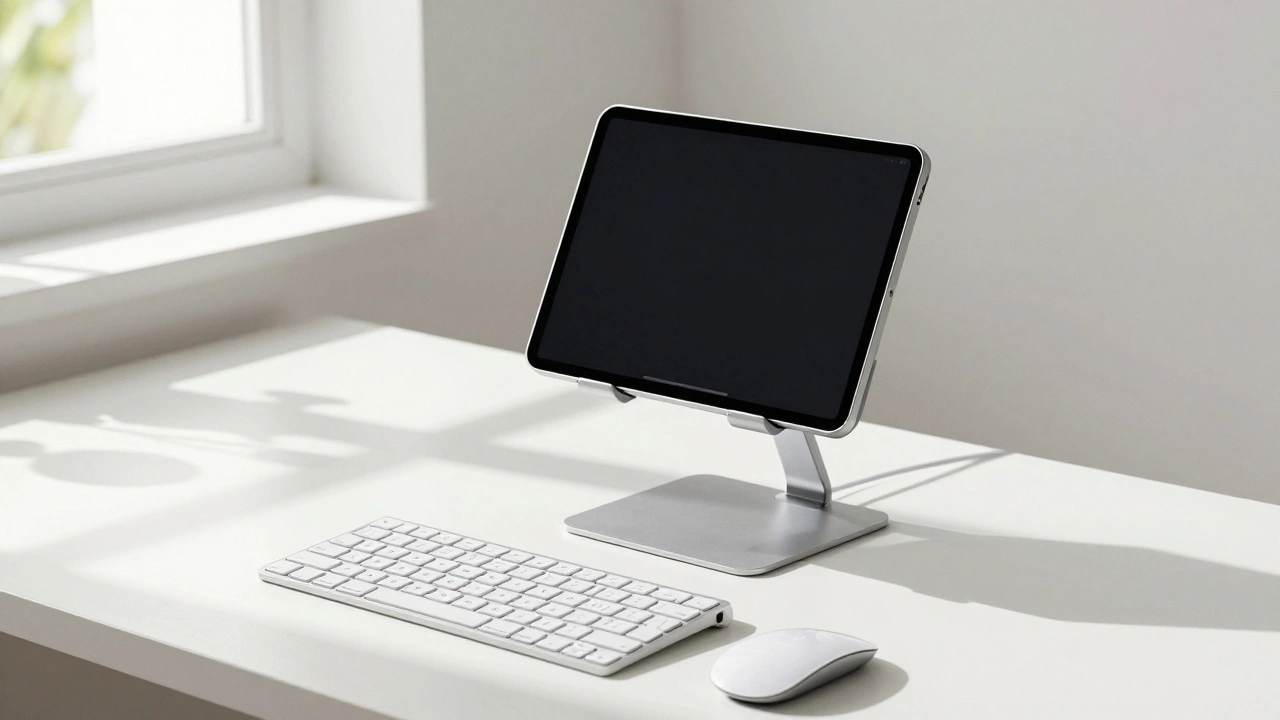
Adjustable stands and ergonomic cases solve the weight issue by transferring the load from your muscles to the furniture. An iPad stand allows you to place the device at eye level or slightly below (15-20 degrees below eye level is ideal), freeing your hands entirely. This enables you to use a Bluetooth keyboard and mouse, transforming the iPad into a traditional workstation setup. Even a simple 4-inch binder used as a riser can create enough slant to improve forearm neutrality while keeping the screen reachable.
When selecting accessories, look for features that allow angle adjustment. Fixed-angle stands often force compromises. You want the ability to tweak the screen height and tilt to match your specific arm length and seating position. This customization ensures that your elbows remain at 90 degrees and your gaze remains horizontal or slightly downward, minimizing strain on both the cervical spine and the shoulder joints.
Break Protocols and Movement Strategies
No amount of perfect positioning eliminates the risk of strain if you remain immobile for hours. Static loading causes tissue ischemia (lack of blood flow), which leads to stiffness and pain. The most effective ergonomic tool is movement. Both ZUGU and Oxford University emphasize regular breaks to reposition the head, neck, and eyes.
Implement a "five-minute rule" for handheld usage. Every five minutes, set the iPad down. Stand up, stretch your arms overhead, roll your shoulders, and look away from the screen. This brief reset restores blood flow and resets muscle memory. For desk-based users, follow the 20-20-20 rule: every 20 minutes, look at something 20 feet away for 20 seconds. This reduces eye strain and encourages natural head movement.
Incorporate hand stretches into your routine. Simple exercises like extending your fingers wide, making a fist, and gently pulling each finger back can alleviate tension in the tendons. If you feel any pain, however slight, stop immediately. Pain is a signal that tissue damage is occurring. Ignoring it leads to chronic conditions that require medical intervention. Occupational therapists note that untreated repetitive strain injuries can progress to nerve entrapments, such as carpal tunnel syndrome, which are far more difficult to resolve.
Scenario-Based Ergonomic Adjustments
Your ergonomic strategy should shift based on what you are doing. Reading a book on an iPad requires different mechanics than composing a document or editing photos.
For reading and media consumption, comfort is key. Use a reclined posture (25-30 degrees) and hold the device lightly, or better yet, use a stand. Avoid gripping tightly. Let the device rest on your legs or a stand. Since interaction is minimal, focus on neck alignment. Ensure the screen is bright enough to avoid squinting, which tenses facial and neck muscles.
For typing and productivity, stability is paramount. Never type on a floating keyboard in your lap. Use a desk. Pair the iPad with an external keyboard and mouse. This separates the viewing plane from the input plane, allowing optimal positioning for both. Your eyes should be level with the top third of the screen, while your hands rest comfortably on the desk surface. This mimics traditional PC ergonomics, leveraging decades of research on office workstation design.
For creative work like drawing or photo editing, you may need to hold the device or use a stylus. In these cases, support your non-dominant wrist on the desk or a soft pad to prevent ulnar deviation (bending the wrist sideways). Take frequent breaks to shake out your hand. Fine motor control requires precision, which degrades rapidly as muscle fatigue sets in.
What is the best angle to hold an iPad to prevent neck pain?
The best angle depends on whether you are holding it or using a stand. If holding it, aim to keep the screen within your natural field of vision, avoiding extreme downward tilts. However, holding it statically causes hand strain. Ideally, use a stand to position the screen 15-20 degrees below eye level. This allows you to maintain a neutral neck position while keeping your gaze comfortable. If you must hold it, lean your body back 25-30 degrees to reduce the angle of your neck flexion.
How long can I hold an iPad before it causes strain?
Ergonomic experts recommend limiting continuous handheld use to five minutes. After this period, the cumulative strain on your wrists, thumbs, and forearms increases significantly. Set the device down, take a break, or switch to a hands-free mode using a stand. Regular intervals of movement are crucial to preventing repetitive strain injuries.
Is it better to use one hand or two hands to hold an iPad?
For short durations, holding with two hands provides stability but can strain both wrists. For longer interactions, it is better to hold the iPad in one hand and use the thumb and fingers of the other hand for input. This distributes the physical effort and prevents the static lock-up associated with two-handed gripping. However, the best option is to not hold it at all by using a stand.
What is "swiper's thumb" and how do I avoid it?
Swiper's thumb, also known as texting thumb, is a repetitive strain injury caused by excessive scrolling and tapping with the thumb. To avoid it, use your fingers in addition to your thumb for navigation, take frequent breaks, and perform hand stretching exercises. If you experience pain, stop using the device and seek medical advice if symptoms persist.
Do ergonomic cases really help with iPad posture?
Yes, ergonomic cases with adjustable stands can significantly improve posture. They allow you to elevate the screen to a better viewing angle, reducing neck strain, and free your hands from holding the device's weight. Look for cases that offer multiple viewing angles so you can customize the position to fit your specific workspace and body mechanics.