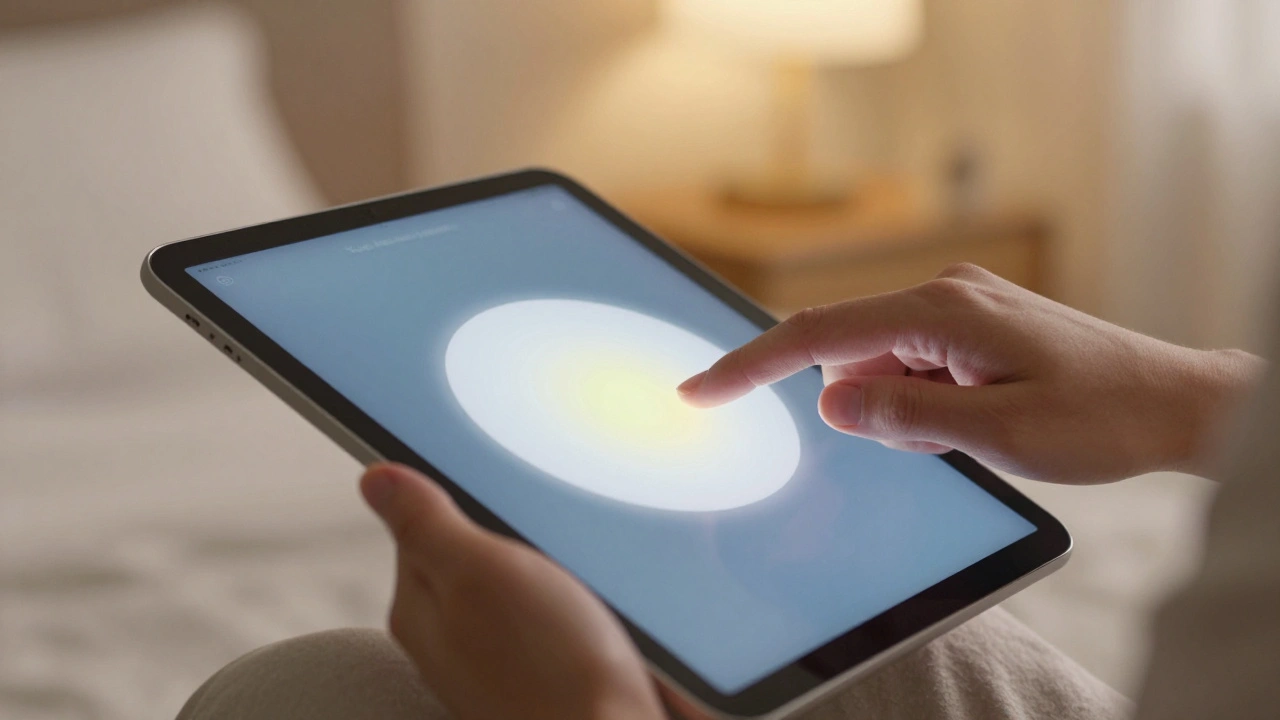

When you pick up an iPad, you might not think about how hard it is for some people to tap a tiny button or sit through a swirling animation. But Apple didn’t build the iPad for just one kind of user. It was designed from the start to work for everyone - including those who have trouble with fine motor control, get dizzy from motion, or need more space to tap accurately. That’s not an add-on. It’s built into the system. And two of the most powerful tools for this are large touch targets and reduced motion.
Why Small Targets Are a Big Problem
Most tablets and phones assume you can tap a button the size of a pencil eraser. But for someone with Parkinson’s, arthritis, or a spinal injury, that’s nearly impossible. Even a slight tremor can cause a miss. Or worse - tap the wrong thing. That’s where Touch Accommodations comes in. It doesn’t just make buttons bigger. It changes how the screen reads your touch. With Touch Accommodations, you can set a Hold Duration. Instead of tapping instantly, the iPad waits a second or two after your finger lands before registering the tap. That gives you time to steady your hand. You can also turn on Ignore Repeat, which stops the screen from registering five taps when you meant one. And then there’s Tap Assistance. If your finger drifts a little while tapping, the iPad doesn’t punish you. It figures out where you meant to tap - either where you started or where you ended - and uses that instead. It’s like having a smart assistant who corrects your mistakes before they happen.AssistiveTouch: Your Personal Remote Control
Not everyone can reach every corner of the screen. That’s where AssistiveTouch steps in. It puts a floating button on your screen - you can move it anywhere - and lets you replace hard gestures with easier ones. Need to pinch to zoom? Instead of using two fingers, you can set it to double-tap the AssistiveTouch button. Want to switch apps? A long press on the button does it. No need to swipe from the edge. But it gets even smarter. With Virtual Trackpad, you turn a small area of the screen into a trackpad. Slide your finger around it like a mouse, and the cursor moves across the whole iPad. You can make the trackpad bigger, smaller, or even change its sensitivity. It’s not just a workaround - it’s a full alternative to touch. And if you use a Bluetooth switch, joystick, or eye tracker, AssistiveTouch can connect to those too. You’re not stuck with one way of controlling your device.Reachability: Bring the Top of the Screen Down
Ever tried to tap the top corner of your iPad while holding it in one hand? It’s awkward. That’s why Reachability exists. Just double-tap the bottom of the screen - no matter where you’re holding the iPad - and the whole top half slides down. Your thumb can now reach the status bar, notifications, or the back button without stretching or repositioning the device. It’s not about making buttons bigger. It’s about moving them closer. A simple idea, but one that changes everything for people with limited reach.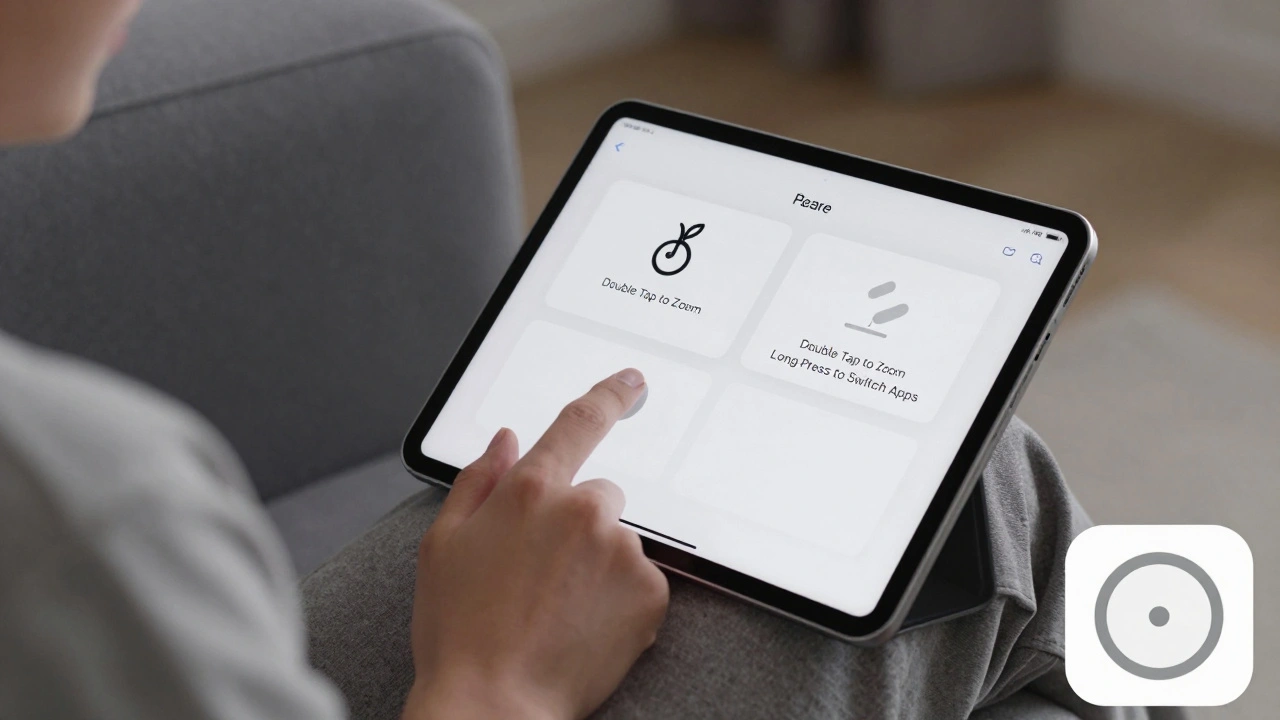
Reduce Motion: Stop the Screen From Making You Sick
Flashing transitions, zooming menus, parallax effects - they look cool. But for someone with vestibular disorders, migraines, or autism, they can cause nausea, dizziness, or panic. Apple’s Reduce Motion setting doesn’t just dim animations. It removes them. When turned on, the iPad stops all sliding, fading, and scaling effects. Menus pop in. Icons don’t bounce. Backgrounds don’t shift with device tilt. It’s not about making the interface dull. It’s about making it bearable. You might think this only helps people with medical conditions. But think again. Ever been on a bus and tried to use your iPad while it’s bouncing? The motion of the screen makes you feel worse. Reduce Motion helps there too. Or if you’re tired, stressed, or just need a quiet screen - this setting gives you peace. It’s not a niche feature. It’s a calm-down button for your eyes.More Than Just Size and Speed
Large targets and reduced motion are just two pieces of a much bigger puzzle. Apple’s accessibility tools work together. Switch Control lets you use external buttons to navigate the whole device. Voice Control lets you say “Tap Settings” or “Scroll down” without touching anything. Eye Tracking on newer iPads lets you control everything with your gaze. And if you need even more help, Assistive Access rebuilds apps like Messages or Photos with giant buttons, no clutter, and clear visuals - no zooming needed. Even your voice can help. Say “Hey Siri, turn on Reduce Motion” - or type it out with Type to Siri if speaking is hard. You can even set up a shortcut: triple-click the side button to toggle your top three accessibility settings at once. Need more contrast? Turn on Dark Mode. Need bigger text? Go to Display & Text Size. All of these live side by side, and you can turn them on or off per app. So you can have large text in Notes but keep normal size in Maps.
It’s Not a Feature. It’s a Philosophy.
Some companies treat accessibility as a checkbox. Apple treats it like a core design principle. You don’t need to download an app. You don’t need a special device. You just open Settings > Accessibility, and the tools are right there. And they’re not hidden in a submenu. They’re built into how the iPad works. That’s why the iPad works for a child with cerebral palsy, a veteran with limited hand mobility, an elderly person with tremors, or someone recovering from surgery. It’s not about fixing a problem. It’s about designing a device that adapts to you - not the other way around.What You Can Do Today
If you or someone you know struggles with tapping, motion, or reach, try these steps:- Go to Settings > Accessibility > Touch and turn on Touch Accommodations. Play with Hold Duration and Ignore Repeat.
- Turn on AssistiveTouch and set up a custom gesture for your most-used action.
- Enable Reachability and see how much easier it is to reach the top of the screen.
- Flip on Reduce Motion and notice how much calmer the screen feels.
- Set up the Accessibility Shortcut (triple-click side button) to toggle your favorite features instantly.
Can I use large touch targets without turning on other accessibility features?
Yes. Touch Accommodations works on its own. You can adjust Hold Duration, Ignore Repeat, or Tap Assistance without enabling AssistiveTouch, Voice Control, or anything else. These settings are independent, so you can pick only what you need.
Does Reduce Motion affect app performance or battery life?
No. Reduce Motion only removes visual animations - it doesn’t slow down the iPad or change how apps run. In fact, it can make the interface feel faster because there’s no waiting for transitions. Battery life stays the same. It’s purely a visual change.
Can I use AssistiveTouch with a Bluetooth mouse or keyboard?
Yes. AssistiveTouch can work alongside external devices. You can connect a Bluetooth mouse to control the cursor, while still using AssistiveTouch for gestures like home button or app switching. The two don’t conflict - they complement each other.
Is Eye Tracking available on all iPads?
No. Eye Tracking is only available on iPad Pro models with M-series chips (M1 or later) and requires the front-facing camera to be calibrated. It’s not a software update - it needs the right hardware. But if you have one, it’s one of the most powerful accessibility tools available.
Can I customize AssistiveTouch menus for different apps?
Not directly. AssistiveTouch menus are system-wide. But you can use Per-App Settings in Accessibility to change things like text size, color filters, or zoom independently for each app. So you can have a simplified interface in one app and full controls in another - even if the AssistiveTouch button stays the same.