
When you unbox a new MacBook, the colors look just right-vivid but natural, skin tones true, shadows deep without swallowing detail. You don’t need to tweak settings. You don’t need a colorimeter. You don’t even need to know what color accuracy means. That’s not luck. It’s factory calibration, and it’s one of the quietest but most important parts of the MacBook experience.
What Factory Calibration Actually Does
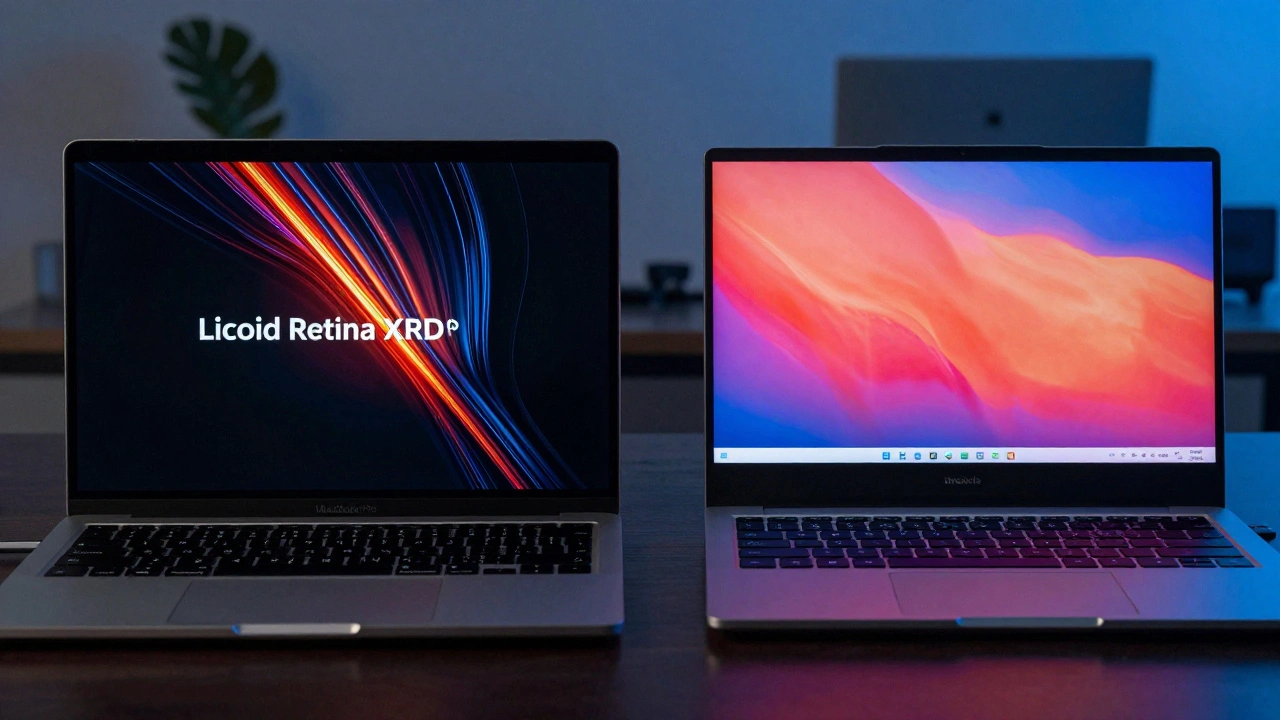
Every MacBook with a Retina or Liquid Retina XDR display goes through a precise calibration process before it leaves the factory. This isn’t a quick check. It’s a full measurement and adjustment of each individual display panel. Apple uses automated systems that test brightness, white balance, color gamut, and gamma curves-then fine-tune each screen so it matches a strict internal standard. The goal? Consistency. Whether you pick up a MacBook Air M1 or a 16-inch MacBook Pro with XDR, the colors should look the same. Not close. Not "good enough." The same. That’s why a photo you edit on your MacBook at home looks identical when you open it on a colleague’s MacBook in a coffee shop. Apple’s calibration targets the Display P3 color gamut, which covers more colors than the old sRGB standard. P3 is what you see in HDR movies, modern digital photography, and professional video editing. Most laptops ship with generic settings that lean too blue or too green. Apple doesn’t do that. Each MacBook’s display is tuned to hit P3 accurately, along with sRGB, BT.709, and even HDR standards like ST.2084. That’s why filmmakers trust MacBook Pro displays for rough cuts.Why Most Laptops Fall Short
Compare this to other brands. A typical Windows laptop might say it supports "99% sRGB"-but that’s just a spec sheet claim. The factory settings are often optimized for brightness in a store, not accuracy in a studio. Out-of-the-box, you might find:- White point too cool (7500K instead of 6500K), making everything look bluish
- Brightness cranked to 400+ nits, washing out shadows
- Reds oversaturated, greens too muted
Professional Users Still Need More
But what if you’re a colorist, photographer, or designer who needs pixel-perfect results? Factory calibration gets you 90% there. The last 10%? That’s where custom calibration comes in. Apple doesn’t stop you from going further. They provide tools. You can use the built-in Display Calibrator Assistant in macOS to adjust white point, gamma, and brightness. Or, if you’re serious, use professional software like DisplayCAL with a colorimeter like the i1DisplayPro. For example, a 2021 MacBook Pro with XDR was tested using DisplayCAL and an i1DisplayPro. After calibration:- DeltaE (color difference) dropped from 2.1 to 0.7
- White point shifted from 7100K to perfect 6500K (D65)
- Gamma settled at 2.2, the standard for photo editing
What About the XDR Display?
The Liquid Retina XDR display on the latest MacBook Pros is a different beast. It uses mini-LED backlighting with hundreds of local dimming zones. That means each zone can turn on or off independently, creating true blacks and stunning HDR contrast. But here’s the technical hurdle: most older colorimeters can’t measure it. The light patterns are too complex. Only the newest tools-like Calibrite’s Display Pro HL or Display Plus HL-are designed to handle XDR’s dynamic lighting. If you’re trying to calibrate a 2023 MacBook Pro with XDR using a 2018 colorimeter, you’ll get inaccurate results. Apple knows this. That’s why they factory-calibrate it so well. For most users, it’s better to trust the factory settings than risk a bad custom profile.Long-Term Accuracy
Calibration isn’t a one-time thing. Displays age. Brightness fades. Colors shift. But Apple’s factory calibration holds up. A 2019 Pro Display XDR, used daily for five years, was tested with CalMAN. Its average DeltaE against P3 targets was 1.3. That’s still excellent. Most monitors would be unusable by then. The newer XDR displays? Even better. Recent units hit DeltaE 0.5-nearly perfect. That’s because Apple doesn’t just calibrate at the factory. They design the panels and backlight systems to maintain stability over time. This matters. If you’re editing a project over months, you need your screen to stay consistent. You don’t want to re-grade your entire video because your display turned yellow.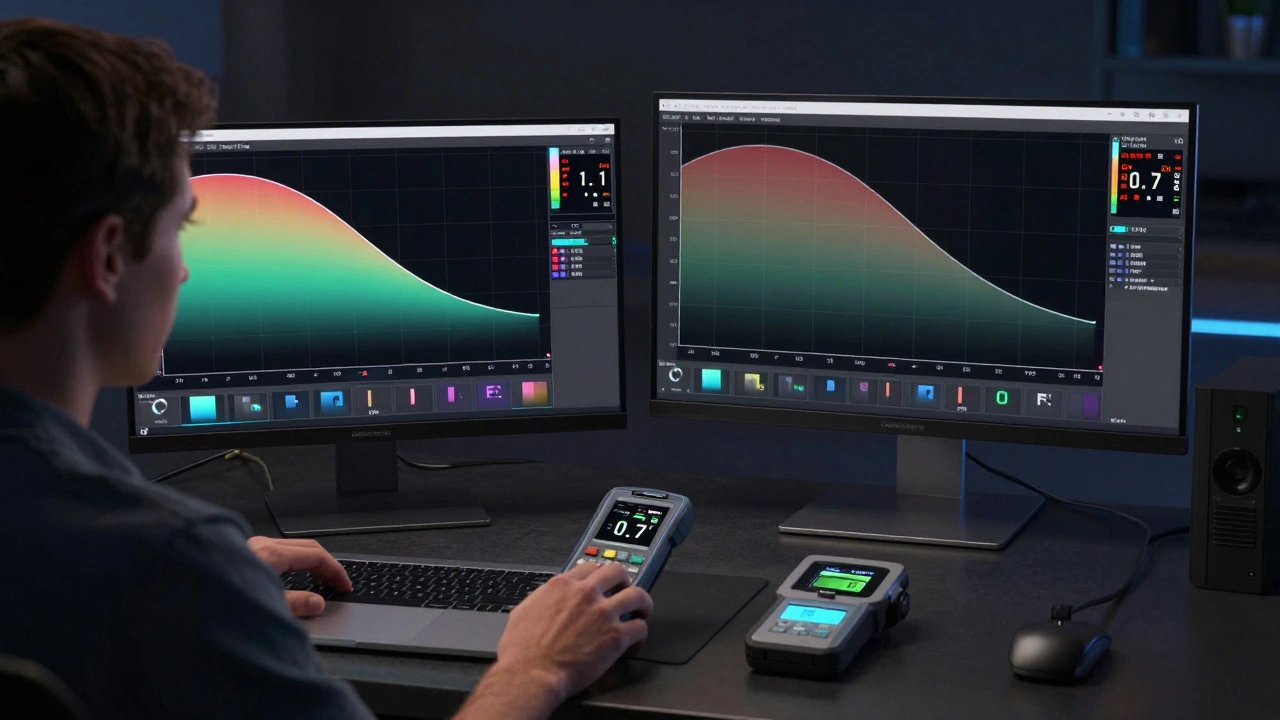
Who Benefits?
Everyone. But differently.- General users: You get natural, pleasing colors. Photos look real. Videos pop. No setup needed.
- Designers and photographers: Colors match across devices. Your edits look the same on your MacBook, iPad, and iPhone.
- Video editors: HDR grading works without guesswork. Black levels stay deep. Highlights don’t blow out.
- Professionals with custom needs: You can fine-tune further. Apple gives you the tools to go beyond factory settings.
What You Should Do
Here’s what to do based on your needs:- If you’re a regular user: Do nothing. Your MacBook is already calibrated perfectly.
- If you’re a creative professional: Use DisplayCAL or the built-in calibrator. Aim for D65 (6500K), 120 cd/m² brightness, and Gamma 2.2.
- If you have an M1 MacBook Air: Accept the factory settings. They’re good. If you need precision, create an ICC profile using ColorCAL.
- If you have an XDR MacBook Pro: Don’t bother calibrating unless you’re doing HDR film work. The factory settings are already industry-leading.
Final Thought
Color accuracy isn’t a feature. It’s a promise. Apple’s factory calibration says: "You bought this for quality. We made sure the screen matches it." You don’t need to understand the science. You just need to trust that it works. And for most people, that’s enough.Do I need to calibrate my MacBook out of the box?
No. Every MacBook with a Retina or Liquid Retina XDR display is factory-calibrated to ensure accurate color reproduction. For most users-photographers, designers, video editors, and everyday viewers-the colors are already correct. Calibration is only necessary if you’re doing highly precise professional work and want to fine-tune beyond Apple’s factory settings.
What’s the difference between sRGB and Display P3?
sRGB is the older, standard color space used for web content and most digital images. Display P3 is wider, covering more reds and greens, and is used in HDR video, modern photography, and Apple’s ecosystem. MacBook displays are calibrated for P3, which means they can show richer, more lifelike colors than screens locked to sRGB. If you’re viewing HDR content or editing photos for print, P3 gives you more detail.
Can I calibrate my M1 MacBook Air?
You can’t use macOS’s built-in Display Calibrator Assistant on the M1 MacBook Air. But you can still create a custom ICC profile using third-party software like ColorCAL and a colorimeter. This lets you adjust white point and brightness to better match professional standards. However, the display’s limited brightness (400 nits) and lack of HDR make it less ideal for advanced color work.
Why won’t my colorimeter work on my new MacBook Pro with XDR?
The Liquid Retina XDR display uses mini-LED technology with hundreds of independently controlled backlight zones. Older colorimeters can’t accurately measure this complex lighting pattern. Only the newest devices-like the Calibrite Display Pro HL or Display Plus HL-are designed to handle it. If you’re using an older meter, your calibration will be inaccurate. That’s why Apple recommends trusting the factory calibration unless you have the right hardware.
How long does MacBook color accuracy last?
MacBook displays maintain excellent color accuracy for years. Tests on 5-year-old Pro Display XDR units show color differences (DeltaE) under 1.5, which is still professional-grade. This is because Apple uses stable LED and panel technology, and calibrates each unit tightly at the factory. Most non-Apple displays degrade much faster, often requiring recalibration after 1-2 years.
Categories
Popular Articles